Resource and capacity planning depends on a clear, current picture of who is allocated to what, and how that compares with the time they have. The allocation grid on the Resource Dashboards gives you that picture month by month, and lets you switch between headcount, percentage of capacity, hours and the variance between forecast and booked time.
Use it to answer questions such as: what is the team's capacity now and in the coming months? Who is over- or under-allocated? How do the hours people booked compare with what was forecast, and what does that mean for cost?
Open a Resource Dashboard
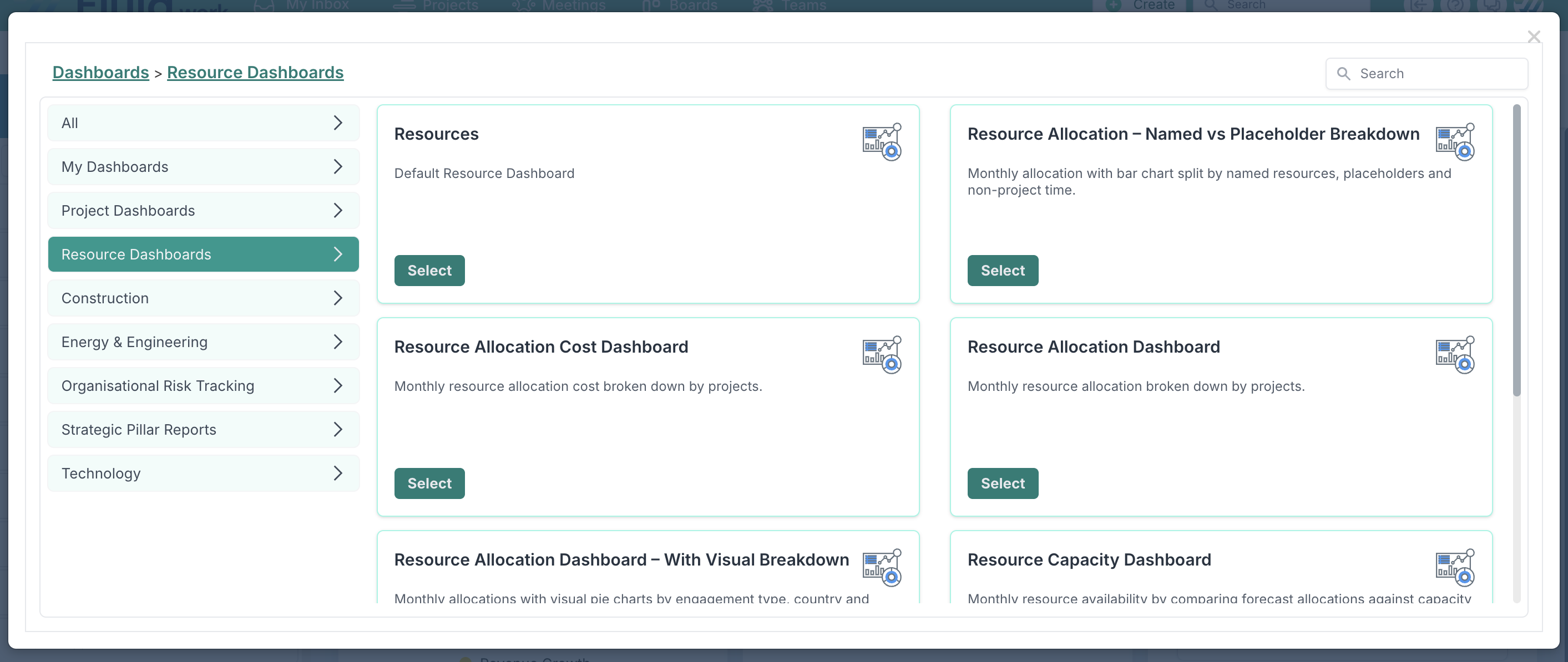
The Resource Dashboards are available to users with the Resourcing Access role. To open one, go to a dashboard page, such as the project dashboard, and click Custom Dashboards at the top right.

In the dialog, choose Resource Dashboards on the left, then click Select on the dashboard you want, for example the Resource Allocation Dashboard or the Resource Capacity Dashboard. For what each dashboard shows, see Resource Dashboards: overview.
Reading the allocation grid
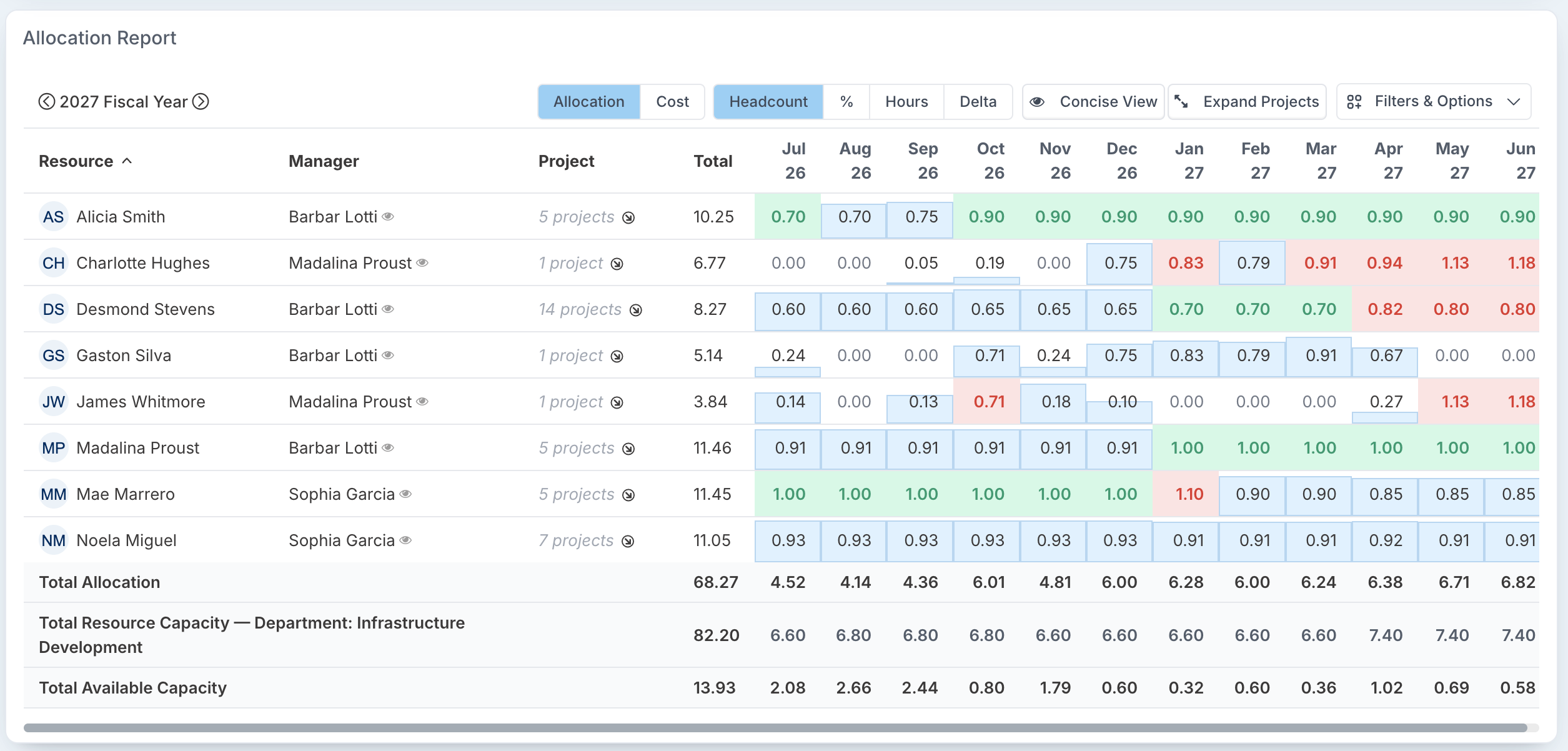
The grid lists each person in the view, with their manager, the number of projects they are allocated to, their total for the fiscal year and a value for each month.
What each cell shows
For open months, the forecast allocation. For closed months, the actual allocation, based on the time people booked.
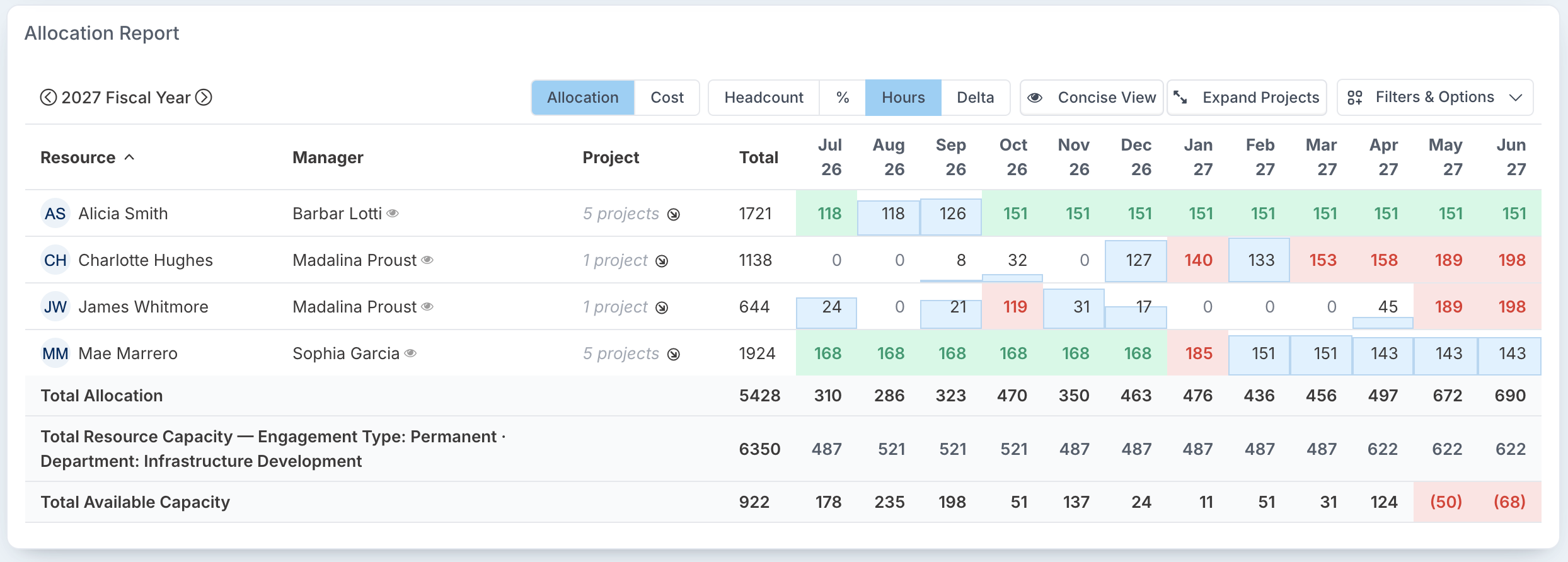
Green: the person is allocated exactly at their capacity.
Red: the person is allocated above their capacity.
Blue shading: the person has room. The shading fills the cell in proportion to how much of their capacity is used, so a nearly full cell means they are almost fully booked.
The totals at the bottom
Total Allocation: the allocation of everyone in the grid. It turns red when it exceeds their total capacity.
Total Resource Capacity: the capacity of everyone matching your filters, followed by the filters it reflects.
Total Available Capacity: capacity minus allocation. A red figure in brackets means the group is over-allocated that month.
Hover over a cell for the detail
Hover over a person's monthly value to see what lies behind it.
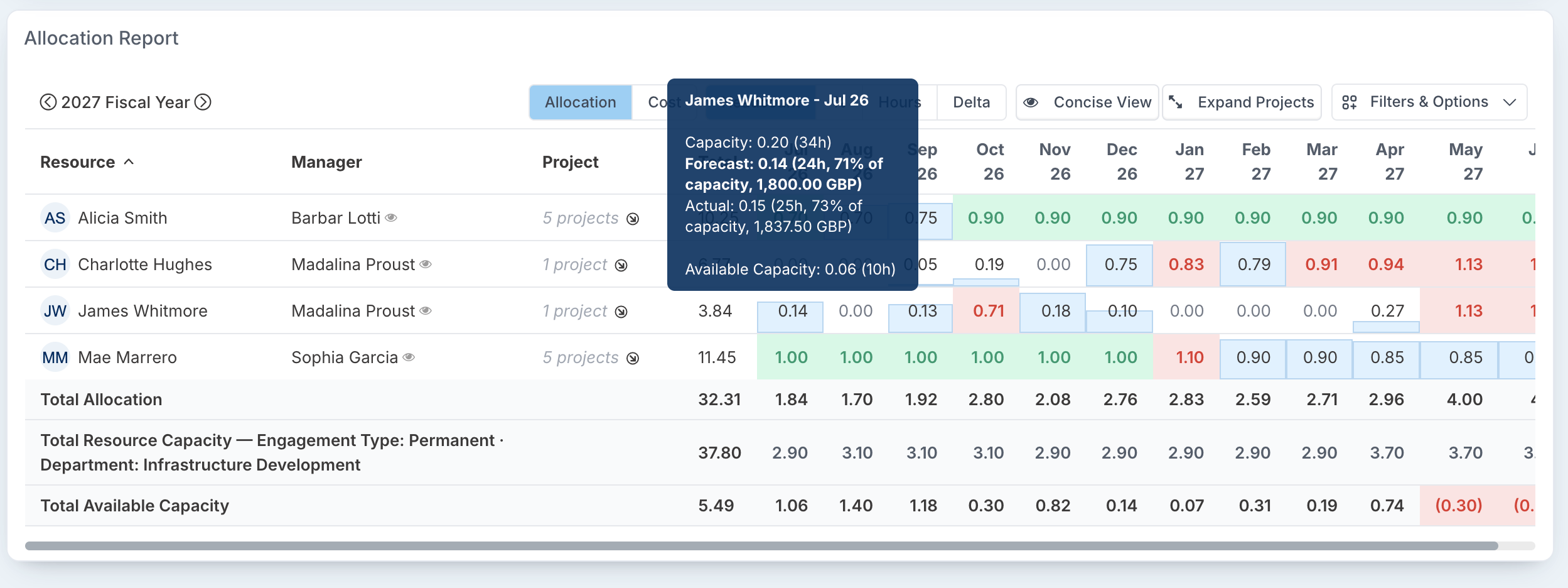
Capacity: the person's capacity that month, in headcount and hours.
Forecast: their forecast allocation, in headcount, hours and percentage of capacity.
Actual: the time they booked, shown the same way.
For an open month, Available Capacity: what is left after the forecast. For a closed month, how many hours they booked more or less than forecast, with the resulting under- or over-utilised capacity.
The figure the cell shows is in bold: the forecast for open months, the actual for closed months. If you have access to financials, the forecast and actual also show their cost.
In the example, James Whitmore has a capacity of 0.20 headcount (34 hours) in July 2026. He is forecast at 0.14 (24 hours, 71% of his capacity), so 0.06 headcount (10 hours) is still available.
The grid toolbar
Fiscal year: use the arrows either side of the year to move between years.
Allocation or Cost: show people's time, or what it costs.
Headcount, %, Hours or Delta: how values are shown, described below.
Concise View or Expanded View, and Expand Projects: how much detail each row shows, described below.
Filters & Options: which people are listed, what the grid measures, and how rows are grouped.
Show All Allocated Projects: appears when project filters are applied, and shows all of each person's work rather than only the filtered projects. See How to use project filters on the Resource Dashboard.
Expanded View and Expand Projects
The Expanded View adds a Project column with the number of projects each person is allocated to. Click Expand Projects to list those projects under every person, with each project's Category, Type and Status and its allocation month by month. To open just one person's projects, click their project count. Click Collapse Projects to close them again.
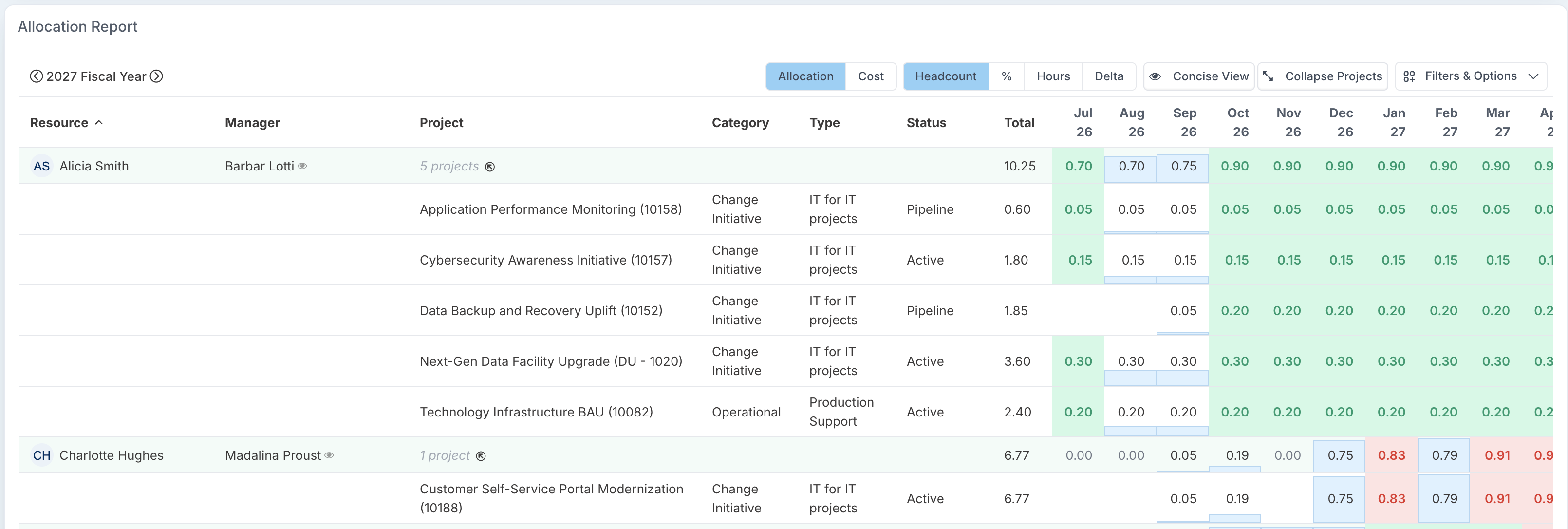
This is how you see where a person's time goes: in the example, Alicia Smith's 0.90 headcount from October 2026 is spread across five projects, including two still in the pipeline.
The Concise View hides the project detail and keeps one row per person, which is easier to scan when you only need totals.
Filters & Options
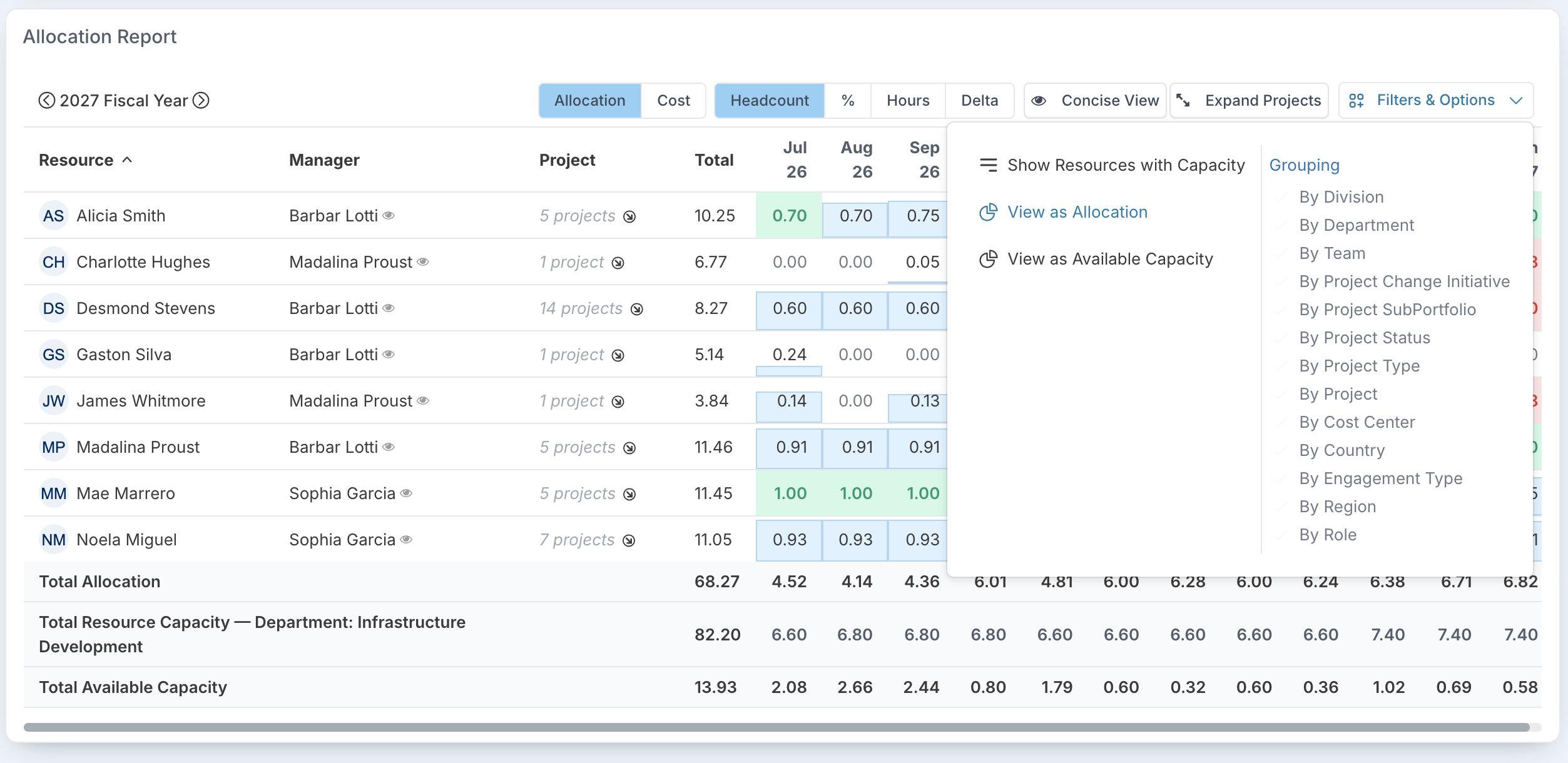
Show Resources with Capacity or Show All Resources: list only people with capacity in the period, or everyone matching your filters.
View as Allocation or View as Available Capacity: show what each person is allocated, or what they have left once their allocation is taken off their capacity.
Grouping: group the rows, for example by division, department, team, role, country or engagement type, or by a project field such as project, project type or project status.
Headcount, %, Hours and Delta
These four options change how every value in the grid is expressed.
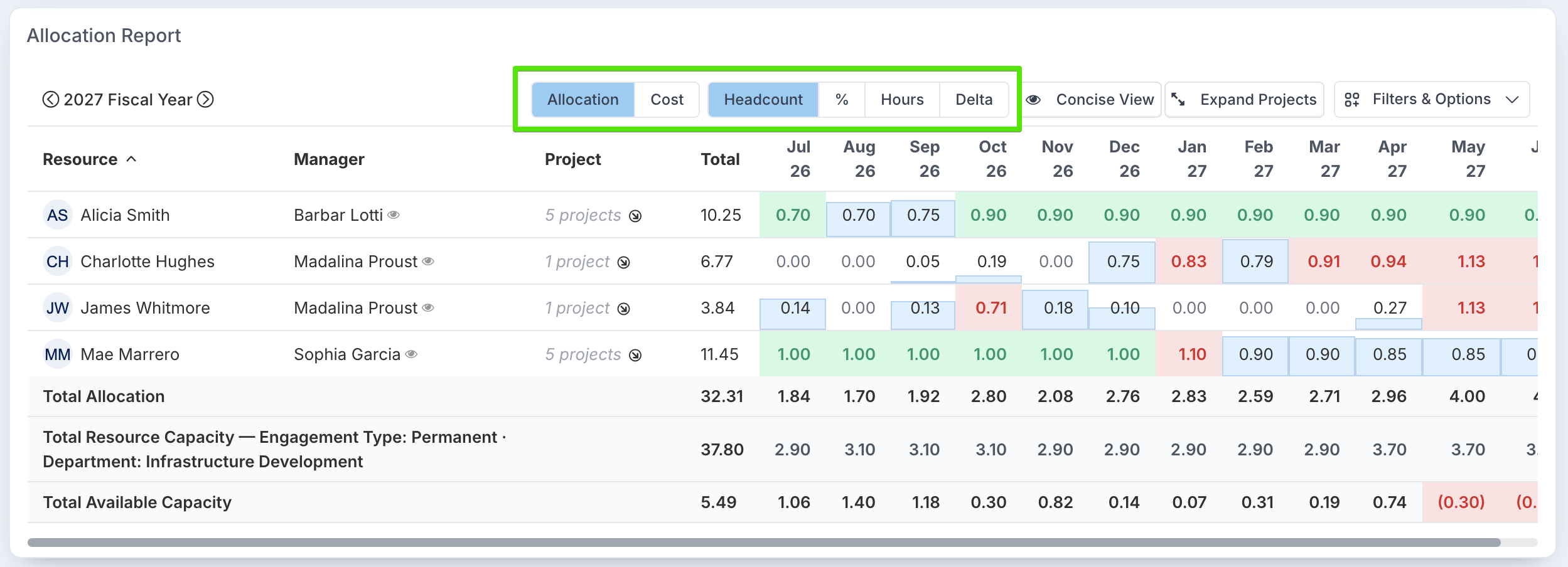
Headcount
Allocation in headcount, where 1.00 is one full-time person for the month. Compare each value with the person's capacity to see at a glance who has room, who is fully allocated and who is over-allocated. In closed months, compare the actual with what was forecast.
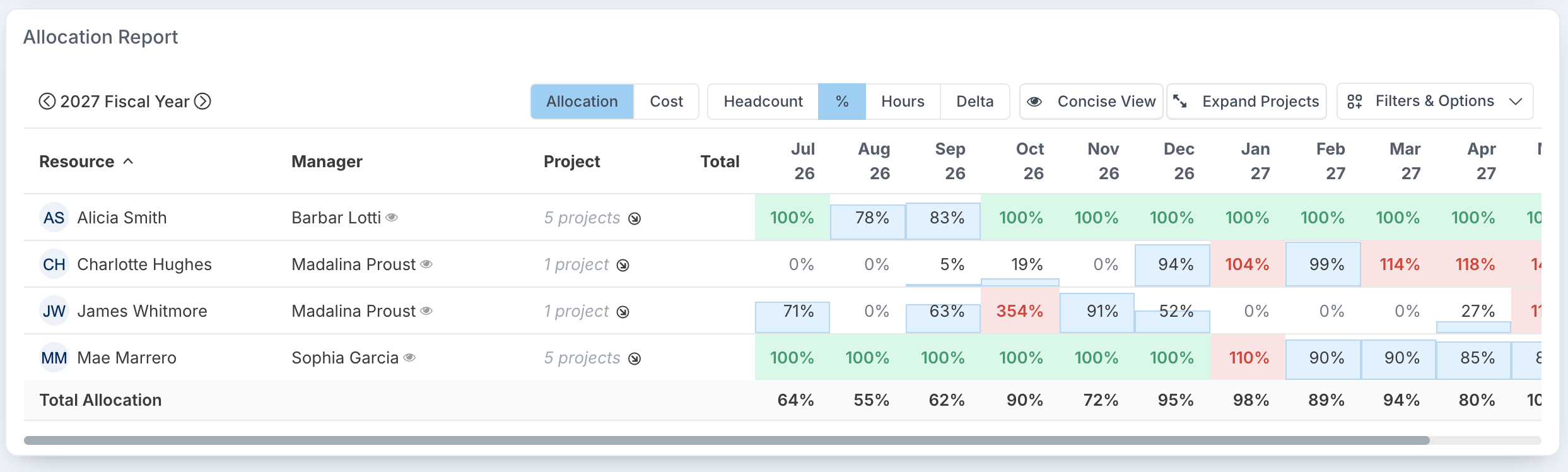
Percentage (%)
Each value as a percentage of the person's capacity, so people with different capacities can be compared directly. 50% means they are allocated half their available time; 110% means they are over-allocated by a tenth.
Hours
Allocation in hours: forecast hours for open months, booked hours for closed months. The capacity and available capacity rows are in hours too, which makes it easy to see how many hours a team still has to give, or how many it is short.
Delta
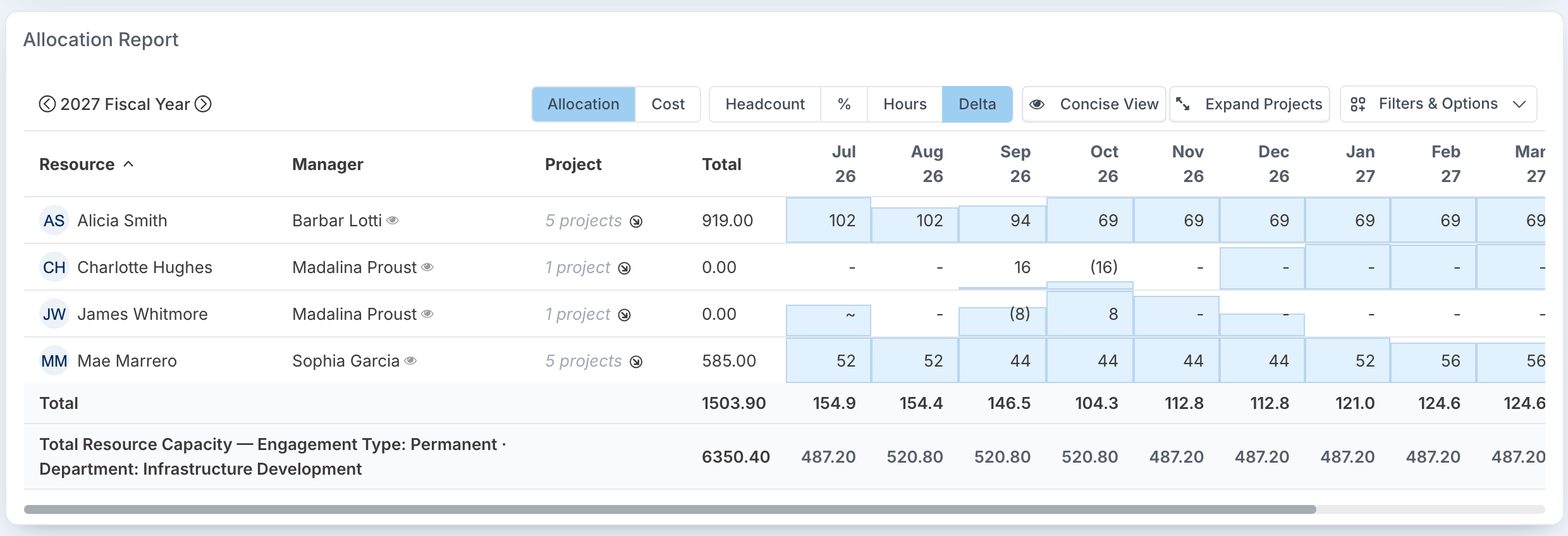
The difference between the hours people booked and the hours they were forecast to work. Use it to spot where forecasts were wrong, address variances early and improve future forecasts, and to see whether resource costs are running above or below forecast.
A positive number means more hours were booked than forecast.
A number in brackets means fewer hours were booked than forecast.
~ means the hours booked matched the forecast.
- means there is nothing to compare yet, for example an open month with no time booked.