When new work is being planned, or a set of projects is under pressure, a PMO or resource manager needs to answer two questions: are the people already working on these projects stretched, and how much of the wider team is there to draw on?
The Resource Dashboard answers both on one chart when you combine resource filters with project filters. It shows how busy the people working on the projects you select are, their combined capacity, and the capacity of the wider team they belong to.
How resource and project filters work together
The Resource Dashboard has two kinds of filter, and this view needs both.
Resource filters decide which people are in the view: for example Division, Department or Team, Role, Skills, Engagement Type, Cost Centre, Region, Country, Utilization Type, or your person custom properties.
Project filters pick the projects you are interested in. The dashboard then narrows the view to the people, from those matching your resource filters, who are allocated to those projects.
The project filters let you pick the work from whichever angle matters to you:
Where the work sits: Portfolio and Sub-Portfolio, to see whether a portfolio has the people it needs.
What kind of work it is: Project Type, Project Category, Business Driver and Tier, for example to check the people on your strategic or tier 1 projects.
Where it is in its life: Project Status, for example to look at the people already pencilled in on pipeline projects before approving more.
How it is going: Project RAG Status, for example to see whether the people on red projects are over-allocated.
Who is accountable: Project Manager, Executive, Owner and Business Owner, to look at the people working on one sponsor's or one manager's projects.
The role or skill people are allocated with: Project Role and Project Skill.
Several of these filters use the names your organisation has given those project fields, so they may appear under different labels on your dashboard.
Reading the Resource Allocation Overview chart
In the example below, the resource filter is Division: Technology and the project filter is Project Type: Regulatory Projects. The dashboard finds 7 resources in the Technology division with allocations on regulatory projects.
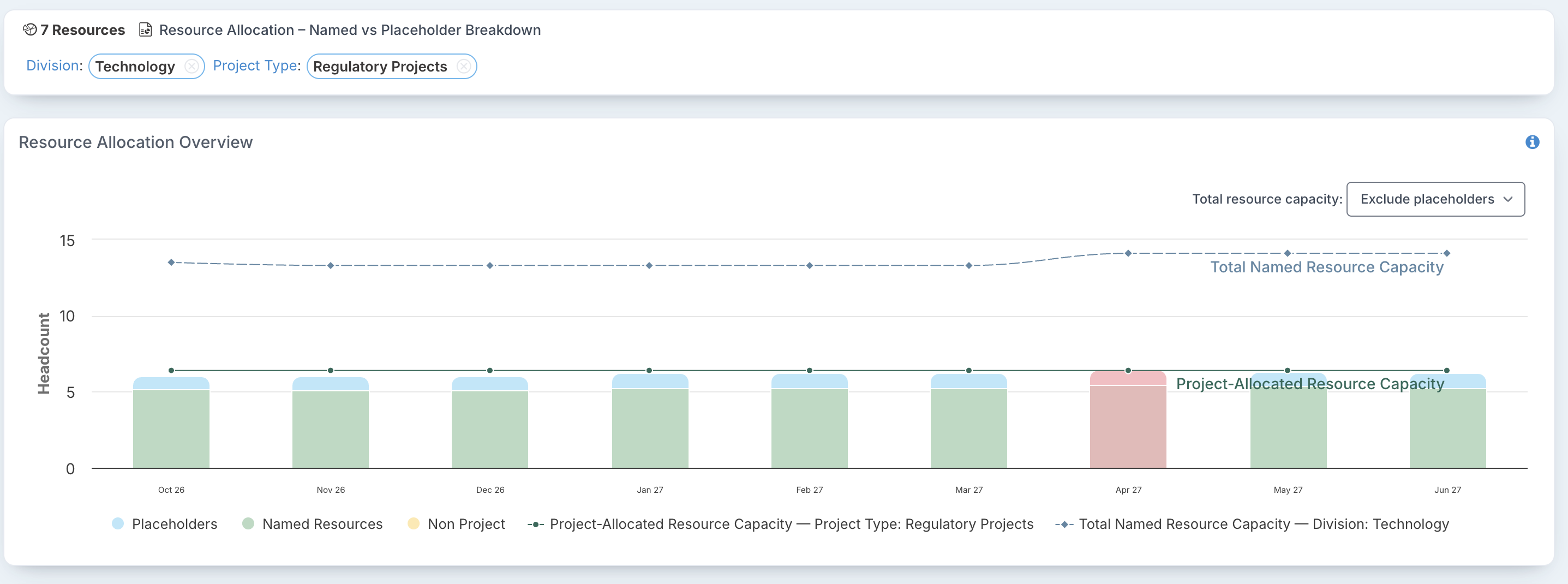
The bars show the total workload of those 7 resources each month: all their project allocations, not only their regulatory projects, plus non-project time. Each bar is split into named resources, placeholders and non-project time. In October 2026 they add up to about 6 headcount.
Project-Allocated Resource Capacity (the solid line) is the combined capacity of those same resources, including any placeholders allocated to the projects. Here it is 6.4 headcount every month. When the bars rise above this line, they turn red: the people working on these projects are over-allocated. In this example the bars sit just below the line for most of the year, so these people are almost fully booked, and in April 2027 they go over it.
Total Named Resource Capacity (the dashed line) is the capacity of every named person matching your resource filters, here the whole Technology division, whether or not they work on regulatory projects. Here it is 13.5 headcount, rising to 14.1 from April 2027.
Compare the dashed line with the named part of the bars (green) to see how much of the wider team the people on this work account for. In the example, the named people on regulatory projects carry a workload of a little over 5 headcount, against named capacity of 13.5 across the Technology division. So while the regulatory team is close to full, there are other named people in Technology who could relieve the April peak, after checking their own commitments.
Note: by default the dashed line counts named people only, while the solid line also counts any placeholders allocated to the filtered projects. If those projects rely heavily on placeholders, the solid line can even sit above the dashed line. Choose Include placeholders to compare like with like (see below, and Why is the Total Named Resource Capacity line below the Project-Allocated line?).
The chart legend names the filters each capacity line reflects, so a shared chart still says what it is showing.
The capacity rows in the allocation grid
Below the chart, the allocation grid lists the resources and shows the capacity figures month by month, so you can read the numbers behind the chart.
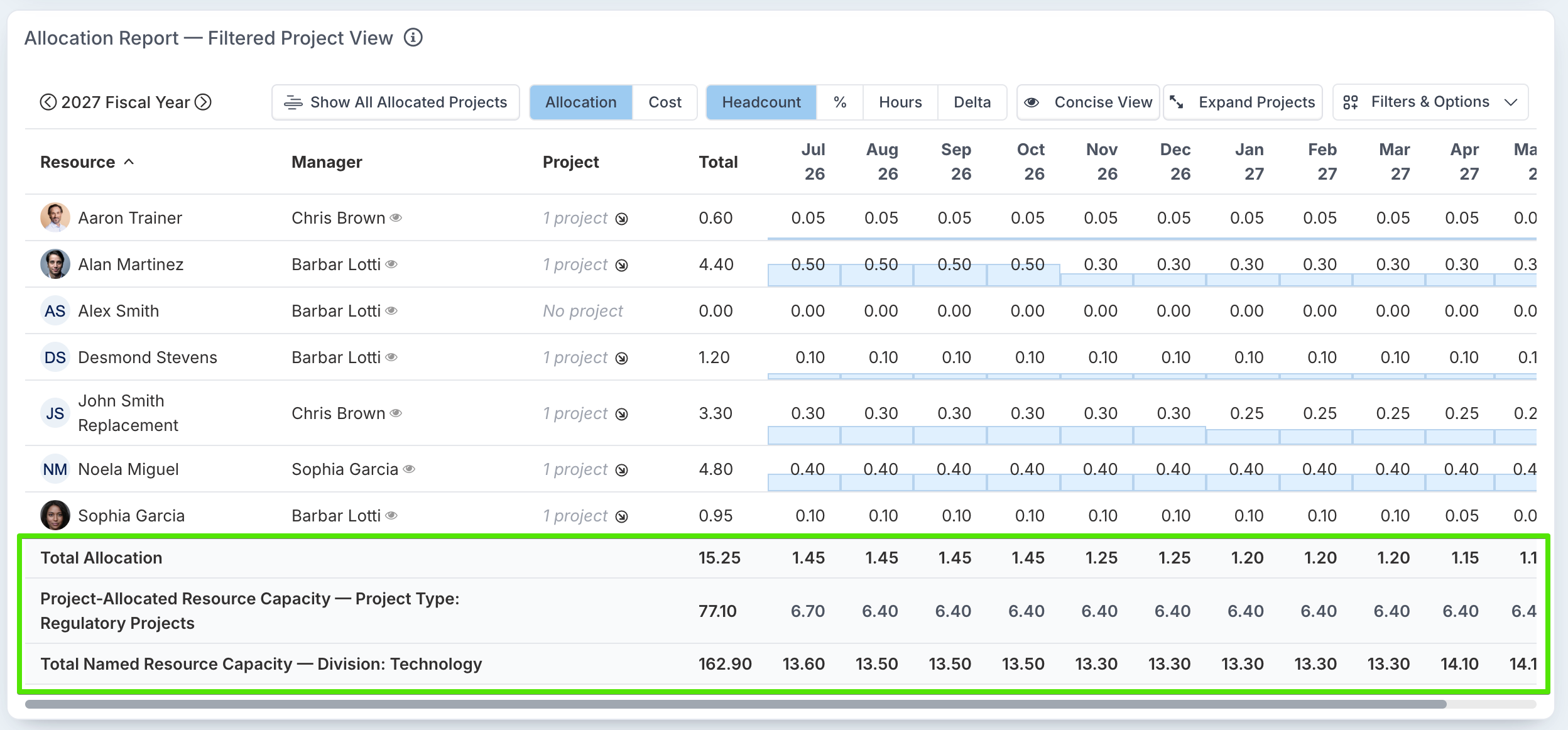
Total Allocation: by default the grid shows the Filtered Project View, so this row counts only the allocation to the filtered projects: 1.45 headcount on regulatory projects in October 2026. That is much lower than the chart's bar for the same month, about 6 headcount, because the chart counts all of these people's work. In other words, regulatory work takes only a small share of these people's time; it is their other work that fills them up. Click Show All Allocated Projects to switch the grid to the Full Allocation View and see all of their work.
Project-Allocated Resource Capacity: the capacity of the resources in the grid, followed by the project filters it reflects.
Total Named Resource Capacity (or Total Resource Capacity when placeholders are included): the capacity of everyone matching your resource filters, followed by the resource filters it reflects.
Reading the two views together tells you both how much of these people's time the filtered projects take (the grid) and how loaded they are overall (the chart).
The wider team's capacity row is always in headcount. When the grid is showing Hours or Delta, its label says so. The capacity rows are not shown when the grid is showing percentages.
Named people only, or planned roles too
Use the Total resource capacity option above the chart to choose what the wider team's capacity counts:
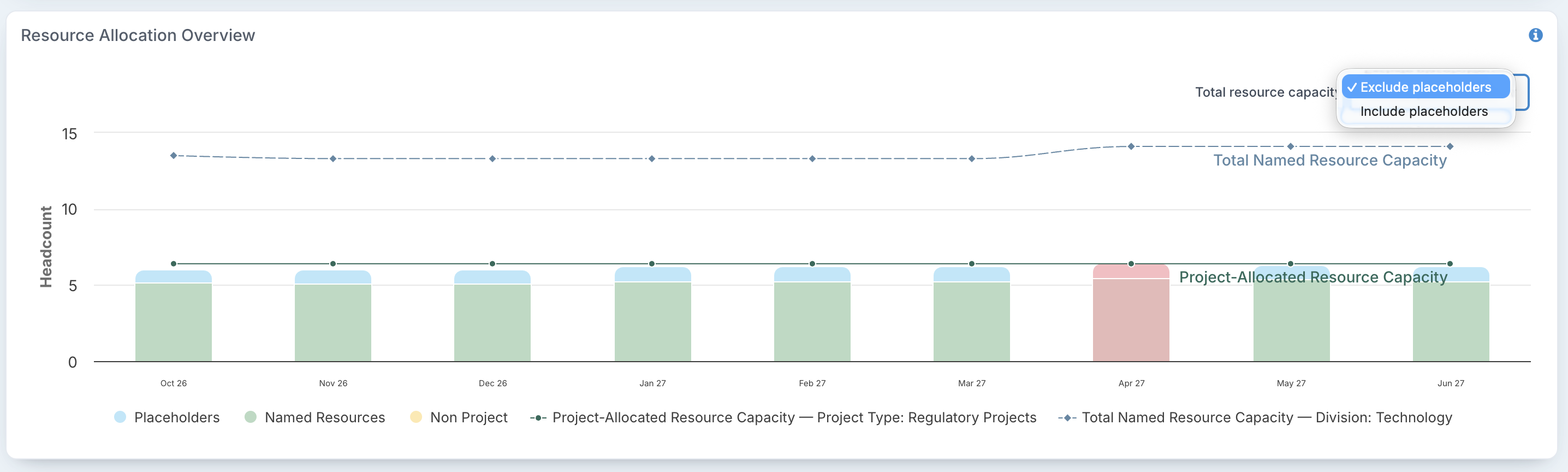
Exclude placeholders (the default) counts named people only, shown as Total Named Resource Capacity. This is the capacity you can actually staff work with today, so it is the right comparison for most staffing decisions.
Include placeholders adds the capacity of placeholder resources, such as roles you plan to hire or contract, shown as Total Resource Capacity. Use it when your plans already count on those roles being filled, or to compare like with like against the solid line.
Your choice is kept in the page address, so a bookmarked or shared link opens with the same option.
Questions you can answer
Can the people on this work take on more? Filter on the team and on the projects. If the bars are near or above the solid line, the people already on that work have no room.
Is there anyone else in the team to bring in? Compare the named part of the bars with the dashed line. If they are close, nearly everyone in the team is already on this work.
What do the projects themselves need? Read the grid's Total Allocation row in the Filtered Project View for the demand from the filtered projects alone.
Are our struggling projects short of people? Filter on Project RAG Status: Red and see whether the people on those projects are over-allocated.
Can we approve the pipeline? Filter on the project statuses used for proposed or pipeline projects to see whether the people pencilled in on them have room.
Without a project filter, the dashboard shows a single capacity line for the people in the view.