User roles: ✔ Application Administrator ✔ Integration Administrator Your people already use AI apps such as Claude, Microsoft 365 Copilot and GitHub Copilot. Without a connection, they copy project data into the app and paste answers back into Fluid by hand. That is slow, and you can't see or control what happens to the data.
Fluid can connect to these apps through the Model Context Protocol (MCP), an open standard for giving AI apps access to tools. Once connected, a user can ask the app things like "update this week's status report" or "which of my projects carry the most risk?", and the app does the work in Fluid on the user's behalf. You decide whether the feature is on, who may use it, which tools apps can use, and you can see and revoke every connection.
In this article you will learn how MCP is made available and switched on, how to try it with administrators first, how to give people access, how to choose which tools apps can use, how apps are connected, and how to see and revoke connections.
Beta. AI app connections are in beta, and the admin page carries a Beta badge. We recommend starting with administrators and a small trained pilot group.
Before You Start
Fluid has made MCP available on your site. MCP is off by default on every site, and only Fluid can make it available. Until then, nothing about MCP appears in Fluid. Contact Fluid Support to ask for it.
You are an Application Administrator. Only an Application Administrator can switch MCP on and give people access. Integration Administrators can help manage tools and connections once it is on (see Who can do what below).
The people you want to give access to have a Licensed licence. Collaborator, Community and Unlicensed users can't hold the MCP access role.
You have checked how your organisation handles AI providers. Information an app reads from Fluid is passed to that app's AI provider, under the user's own agreement with that provider.
How it works
One address per site. Your Fluid site has an MCP address:
https://<your-site>/mcp. Users paste it into their AI app.Users sign in with Fluid. When a user connects an app, the app opens Fluid's own sign-in and then a consent page. There the user ticks what the app may do. No tokens or passwords are handed to the app.
The app acts as the user. It sees and changes only what that user can see and change in Fluid. Project, board and financial permissions all apply as normal.
You stay in control. You can turn the whole feature off, limit it to administrators, choose who has access, switch off individual tools and revoke any connection.
Who can do what
Task | Application Administrator | Integration Administrator |
|---|---|---|
Open MCP Tools and Connected Apps while MCP access is off | Yes | No |
Turn Enable MCP Access on or off | Yes | No |
Turn Administrators only (evaluation) on or off | Yes | Yes, once MCP access is on |
Switch individual tools on or off | Yes | Yes, once MCP access is on |
Give or remove the MCP access role | Yes | No. They can see who has it. |
See and revoke every connected app | Yes | Yes, once MCP access is on |
Connect an app while Administrators only is on | Yes | Yes |
User Administrators can see the MCP access role on Edit User, but they can't change it.
Step 1: Make MCP available (Fluid)
Fluid makes MCP available on your site by turning off the Fluid-managed setting Disable MCP AI Agent Feature (Fluid managed). You can't change this setting yourself.
Once it is off, MCP Tools and Connected Apps appears in the Administration Console. MCP access itself is still off: no app can connect until you complete Step 2.
Step 2: Switch on MCP access
Open the Administration Console.
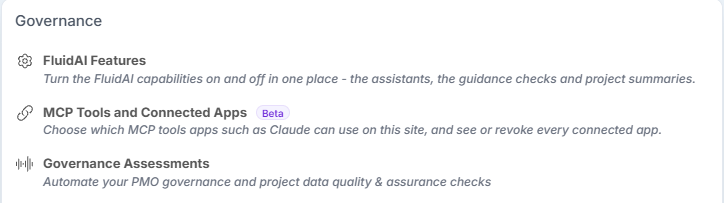
In the FluidAI panel, choose MCP Tools and Connected Apps, just below FluidAI Features & Assessments.
Switch on Enable MCP Access.
Enable MCP Access saves as soon as you switch it, and the page reloads. You don't need to click Save. When you switch it off, Fluid asks you to confirm first.
While Enable MCP Access is off, every MCP request is blocked and no app can connect. Your tool and access settings are kept, so you can turn it off at any time without losing your setup. You can also set up the tools and access on the page before you turn it on.
The page also has an About MCP and connected apps panel at the top, and a Connect an AI app panel with your site's MCP address and setup steps (see Step 6).
Step 3: Choose which tools apps can use
The tool list on MCP Tools and Connected Apps is a switchboard for your whole site. Turn a tool off and it disappears from every connected app, whatever the user allowed when connecting. Click Save after changing it.
Tools are grouped by toolset. Each row shows the tool's name, what it does, and the permission it needs on the consent page. Two badges mark the tools to think about most:
Changes data: the tool creates or updates records.
Permanent: the tool deletes records. A deletion made through an AI app is as real as one made by hand, so many sites switch these off.

Toolset | Reads | Changes data | Permanent |
|---|---|---|---|
Project Manager ( | My projects, project briefs, reporting options, custom property definitions, project status reports, RAG status updates, schedule, impacts such as risks and issues (lists, counts, summaries, single records); Ask FluidAI about a project or across my projects | Project status reports, RAG status updates, impacts, schedule item dates, effort, descriptions and assignees | Delete impacts; delete RAG status updates |
Board Manager ( | Find boards, read boards, card custom property definitions and cards, find people | Create, update, move, backlog and archive cards | None |
Portfolio Manager ( | Portfolio projects, top projects, low-governance projects, executive summary | None | None |
Every tool is described in Fluid MCP (Connectors) Tools Definition. Each toolset also has its own article with example prompts: Fluid AI Connector: Project Manager Tools, Fluid AI Connector: Board Manager Tools and Fluid AI Connector: Portfolio Health Tools.
Tool names changed in October 2026. Every tool name now starts with its toolset, for example
fluid_pm_get_weekly_statusrather thanpm-get-weekly-status. Tools you had switched off under the old names stay off. Anyone who set up a client by hand, or wrote instructions naming tools, needs the new names; the full list is in Fluid MCP (Connectors) Tools Definition.
Step 4: Try it yourself first: Administrators only (evaluation)
Administrators only (evaluation) is on when MCP is first made available. While it is on, only Application and Integration Administrators can connect apps, so you can try the feature before anyone else.
Users you give the MCP access role keep it, but while this setting is on they can't connect, and they don't see Connect an AI app in the Help menu or Connected AI apps in their user menu. Click Save after changing this setting.
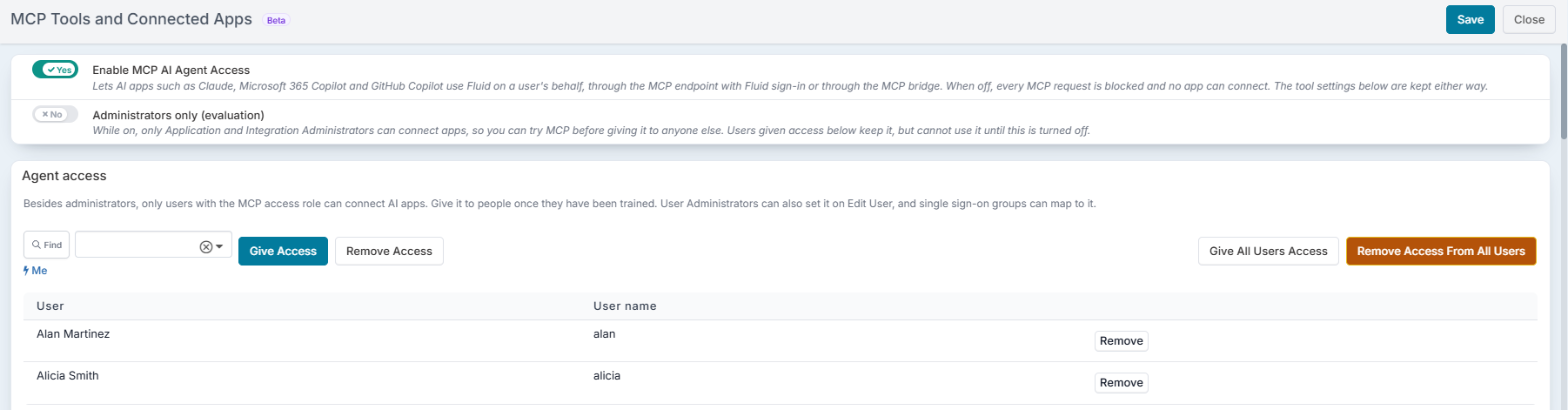
Recommended rollout: switch on Enable MCP Access and leave Administrators only on. Connect an app yourself and try the tools on a test project. Then give access to a small, trained pilot group, and turn off Administrators only.
Step 5: Give people access
Apart from administrators, only users with the MCP access role can connect AI apps. Give it to people once they've been trained. Only Application Administrators can give or remove the role.
You can manage the role in these places:
MCP Tools and Connected Apps → Agent access. Pick a user and click Give access or Remove access. To change everyone at once, use Give all users access or Remove access from all users; Fluid asks you to confirm. The table lists everyone who has the role, each with a Remove button. Administrators keep their access whatever you choose here.
Edit User. Tick the MCP access role like any other role. User Administrators see it but can't change it.
Manage Security Role Members → MCP Access tab. Add or remove role members in the same way as for other security roles.
User bulk edit. Set the McpAccess column in the resource bulk edit spreadsheet.
Single sign-on groups. Map an identity-provider group to the MCP access role so access follows group membership.
The role only appears in these places while MCP access is on.
Licence rules apply. Collaborator, Community and Unlicensed users can't hold the role. The Agent access picker only offers active users whose licence allows it, and Give all users access skips everyone else; Fluid tells you how many were left unchanged. Changes made on this page are recorded in Security Events.
Removing access is immediate. When you remove the role, that user's connected apps stop working on their next call.
A user without the role who tries to connect sees: "Your Fluid account is not set up to connect AI apps yet. Ask your Fluid administrator for the MCP access role."
Step 6: Connect an app
The Connect an AI app panel on MCP Tools and Connected Apps shows your site's MCP address with a Copy button, and the steps for each app. Each person then signs in to Fluid when the app asks.
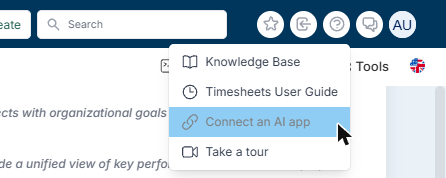
Once a user has access, Connect an AI app appears in their Help menu. It opens Connected AI apps. The same page is in their user menu as Connected AI apps (or Personal Access Token, where Personal Access Tokens are switched on).
The Connected AI apps panel lists the apps the user has connected, each with a Disconnect button. When nothing is connected yet, or after clicking How to connect another app, it shows their Fluid MCP address with a Copy button and step-by-step instructions for Claude and Claude Code.

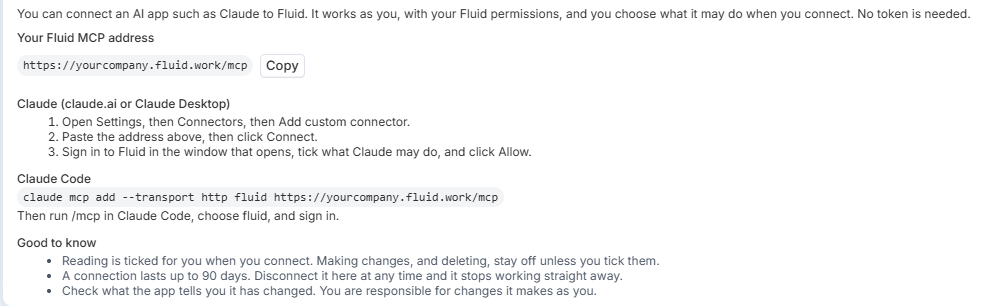
Claude (claude.ai or Claude Desktop)
Open Settings, then Connectors, then Add custom connector.
Paste the Fluid MCP address, then click Connect.
Sign in to Fluid in the window that opens, tick what Claude may do, and click Allow.
In a Claude organisation, an owner can add the connector once for everyone: name it Fluid and paste the address. People then choose Connect on the connector and sign in to Fluid.
Claude Code
Run claude mcp add --transport http fluid https://<your-site>/mcp. Then run /mcp in Claude Code, choose fluid, choose Authenticate and sign in.
GitHub Copilot (VS Code)
Add the server to .vscode/mcp.json:
{ "servers": { "fluid": { "type": "http", "url": "https://<your-site>/mcp" } } }
Then choose Start above it and sign in to Fluid.
Microsoft 365 Copilot
Add the Fluid MCP address as an MCP server or connector for the agent, for example as a tool in Copilot Studio. Sign in to Fluid when asked.
Other AI apps
Other AI apps that support MCP connectors with sign-in connect the same way. Add a custom connector or MCP server in the app, give it the Fluid MCP address, and choose OAuth sign-in if the app asks how to authenticate. The app opens Fluid's sign-in and consent page, exactly as for Claude. Menu names in AI apps change between releases, so follow the app's own help for adding a remote MCP server. Some apps need an administrator on their side to allow custom connectors first.
What users agree to when they connect
When a user connects an app, the consent page shows exactly which site the access is being sent to and lists the kinds of access the app asks for, with the tools each one switches on. The user ticks what to allow and clicks Allow, or clicks Deny. Select all ticks or clears every box at once.
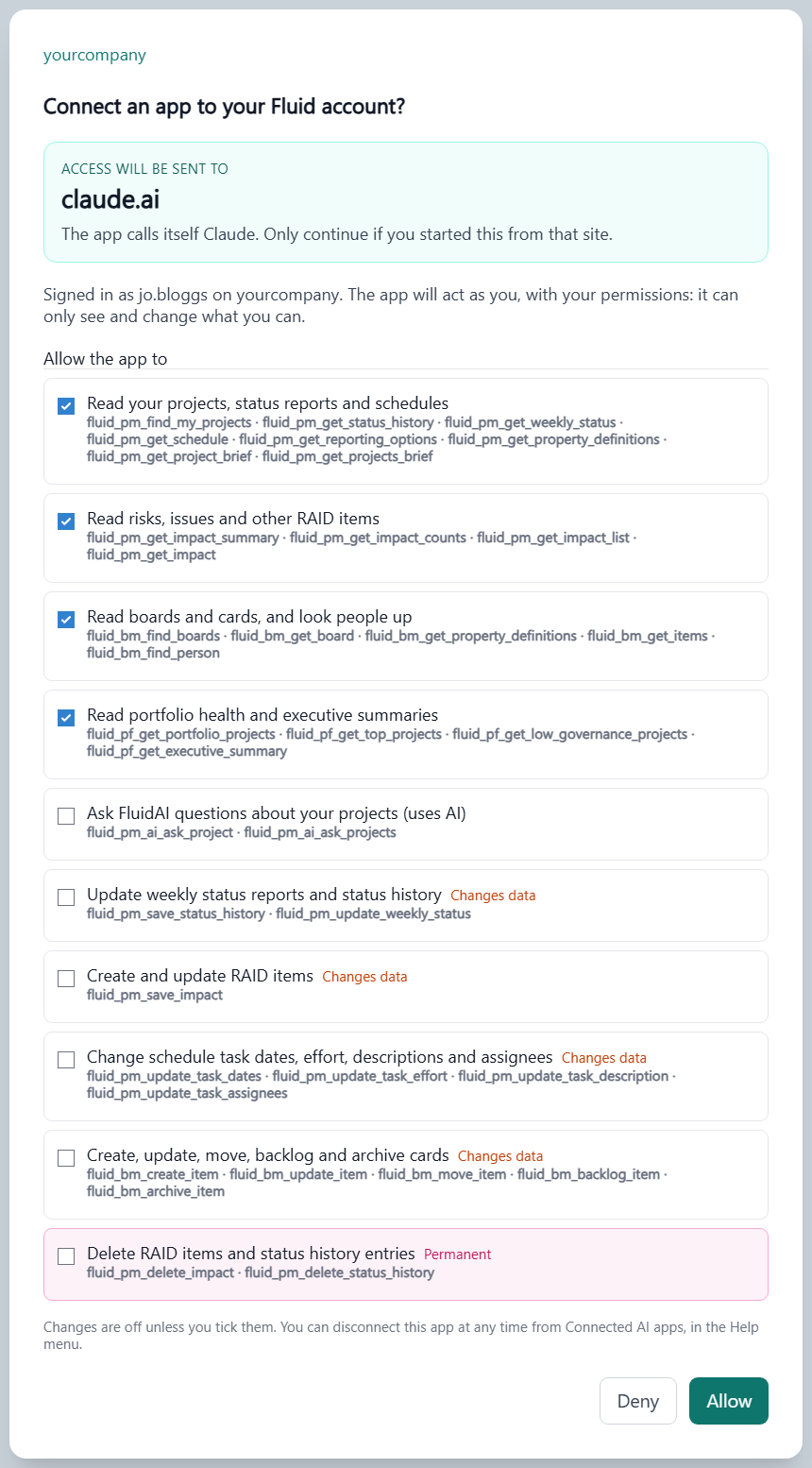
Access | Default |
|---|---|
Read your projects, status reports and schedules | Ticked |
Read the impacts on your projects - risks, issues, changes, dependencies and the rest | Ticked |
Read boards and cards, and look people up | Ticked |
Read portfolio health and executive summaries | Ticked |
Ask FluidAI questions about your projects (uses AI) | Ticked. It changes nothing but uses your site's AI, so users can untick it. |
Update project status reports and items' RAG status updates (Changes data) | Off |
Create and update impacts - risks, issues and the rest (Changes data) | Off |
Change schedule item dates, effort, descriptions and assignees (Changes data) | Off |
Create, update, move, backlog and archive cards (Changes data) | Off |
Delete impacts and RAG status updates (Permanent) | Off |
Changes are off unless the user ticks them. A kind of access whose tools you've all switched off isn't offered at all.
Step 7: See and revoke connected apps
The Connected apps (all users) panel on the same page lists every connection on your site. It shows the User, the App, where Access sent to, what was Allowed, when it was Connected and Last used, and its Status.
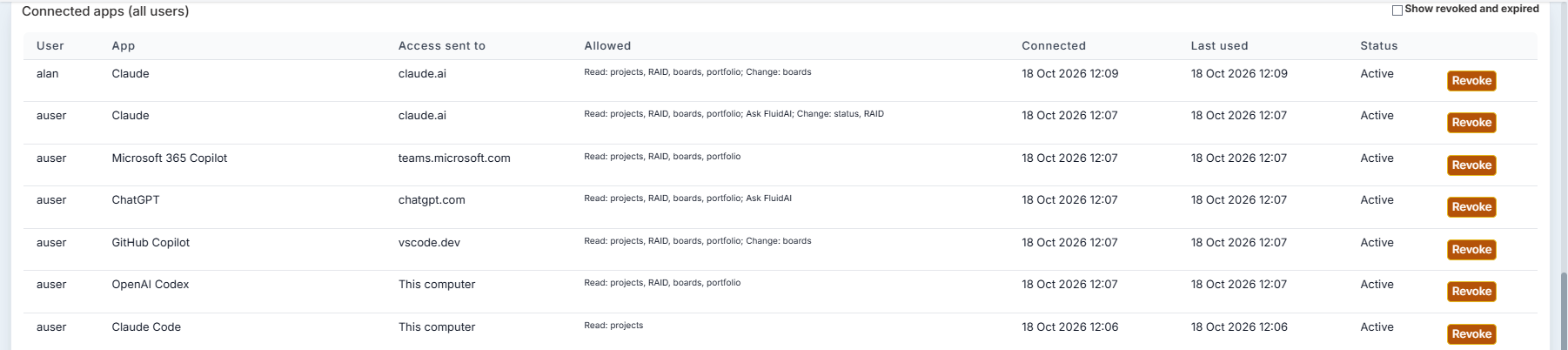
Click Revoke on an active connection to end it. Fluid asks you to confirm. The app stops working immediately, and the user has to connect it again.
Tick Show revoked and expired to see past connections too.
Type in Filter by user, app or status to narrow the list, and use Rows per page, Previous and Next to page through it.
Access sent to is the address the app's sign-in returned to. Check it against the app's name: an app called "Claude" whose access went somewhere other than claude.ai or the user's own computer is worth revoking and asking about.
Security and limits
Connection lifetime. A connection lasts up to 90 days from when the user approved it, after which the user signs in again. It ends sooner if the app doesn't use it for 30 days. Behind the scenes, the app's access is renewed every 4 hours, and every call is checked against the user's current access.
Revocation. Revoking a connection, removing the MCP access role, or turning off Enable MCP Access takes effect on the app's next call.
Rate limits. Each user can make up to 120 tool calls a minute. Questions put to FluidAI through the toolsets have their own lower per-user limit.
Audit. Connections, consents (granted and denied), revocations and access-role changes are recorded under Administration Console → Security Events. Calls made by AI apps are marked as agent traffic in usage logging, so you can tell them apart from people using Fluid directly.
IP-restricted sites. If your site only accepts connections from approved IP ranges, apps that run on the web (such as claude.ai and Microsoft 365 Copilot) connect from their provider's servers. Allow the provider's published outbound IP ranges, or have users connect from an app on their own computer, such as Claude Desktop or Claude Code.
Responsibility. Users are told that the app acts as them, and that they're responsible for changes it makes. Encourage them to ask the app to show changes before saving them.
Troubleshooting
Symptom | Check |
|---|---|
MCP Tools and Connected Apps isn't in the Administration Console. | Fluid hasn't made MCP available on your site yet (see Step 1), or you aren't an Application or Integration Administrator. |
An Integration Administrator gets "not found" when opening the page. | MCP access is still off. An Application Administrator must switch on Enable MCP Access first. |
No app can connect, and every request is refused. | Is Enable MCP Access on? |
Administrators can connect but other users can't. | Is Administrators only (evaluation) still on? Does the user have the MCP access role? |
The user doesn't see Connect an AI app in the Help menu. | The user doesn't have the role yet (see Step 5), or Administrators only (evaluation) is still on. While it is on, the menu items are hidden from role holders too. |
You can't find a user in the Agent access picker, or Give all users access leaves some users unchanged. | The user is inactive, or has a Collaborator, Community or Unlicensed licence, which can't hold the role. |
The Give access buttons are missing, or you can't tick the role on Edit User. | Only Application Administrators can change the MCP access role. |
The app connects but a tool is missing. | The tool is switched off on MCP Tools and Connected Apps, or the user didn't allow that kind of access when connecting. To change what they allowed, the user disconnects the app and connects it again. |
The app reports that a tool such as | The client or its instructions use a tool name from before October 2026. Reconnect the app so it fetches the new tool list, and update any instructions to the new names. |
The app says it isn't allowed to change something. | The user lacks that permission in Fluid itself, for example the Owner permission needed to update a status report. |
The app asks the user to sign in to Fluid again. | The connection reached its 90-day limit, or wasn't used for 30 days. The user connects again. |
Good to Know
Personal Access Tokens don't work with MCP. The MCP tools can only be reached through your site's MCP address with Fluid sign-in. Personal Access Tokens are for the published Fluid REST API.
Turning MCP access off keeps your setup. Tool switches, the people with the role and the list of connections are all kept.
Users choose too. A tool you leave on is still only available to an app if the user allowed that kind of access when connecting.