Project sharing lets a project manager give named people read-only access to a project for a set period - 7 days, 14 days, 1 month, 3 months, until the project ends, or until you revoke it. Recipients are notified by email, and their access is withdrawn automatically when the period ends. No administrator involvement, and nothing to remember to clean up.
Sharing works for anyone with a Fluid sign-in:
Community licence users see a read-only health summary of the project on their Community Portal - and nothing else. Sharing is the only way a Community user can see a project. See the Community License article.
Licensed and Collaborator users get read-only access to the project in the main application, as a project viewer.
For what each licence type includes, see Understanding Fluid Licences.
Why it matters. Sponsors, stakeholders, auditors and vendors often need to see how a project is doing without being part of the project team. Sharing gives them a window for exactly as long as they need it, and the default outcome is access ending - not access that persists because nobody remembered to remove it.
Turning project sharing on
Project sharing is off by default. To turn it on, go to Administration Console > Project Settings > Setup Project Features and turn on Allow Time-boxed Project Sharing. You need the Project Admin role to see this page.
Once it is on, the Share Project tool appears on every project for the people who are allowed to share it.
Who can share a project
Anyone with Manage permission on the project - typically the project manager and project owners, portfolio managers and administrators, and users with the Project Admin role. Fluid checks this permission every time a share is created, changed or revoked.
Sharing is available on projects only, not on programmes or portfolios.
Sharing a project
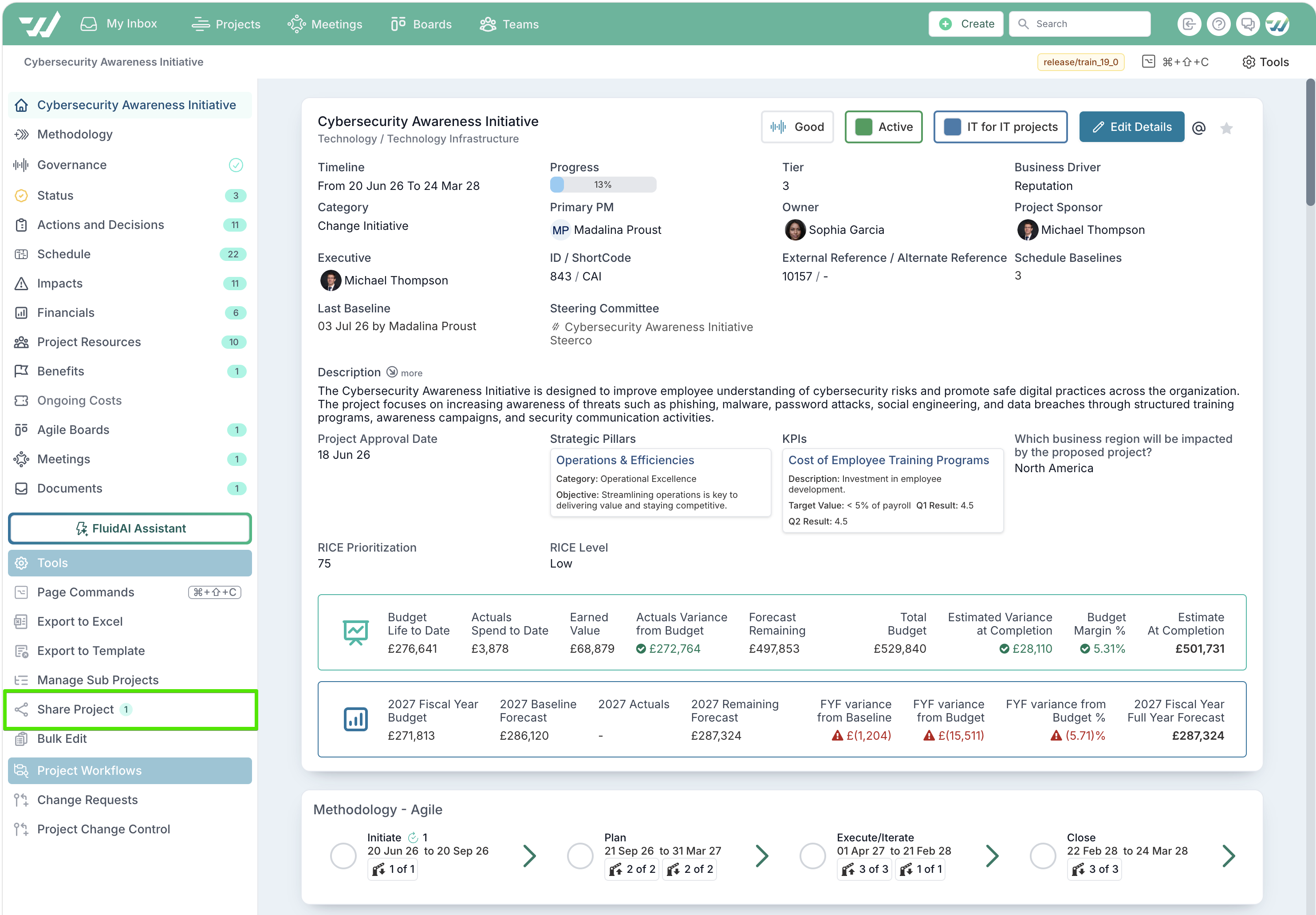
Open the project and select Share Project - in the Tools section of the left-hand navigation, or from the Tools menu at the top of the project. A counter next to it shows how many people the project is currently shared with.
Under Share with, search for and select one or more people. Type at least two characters. Only active users can be selected.
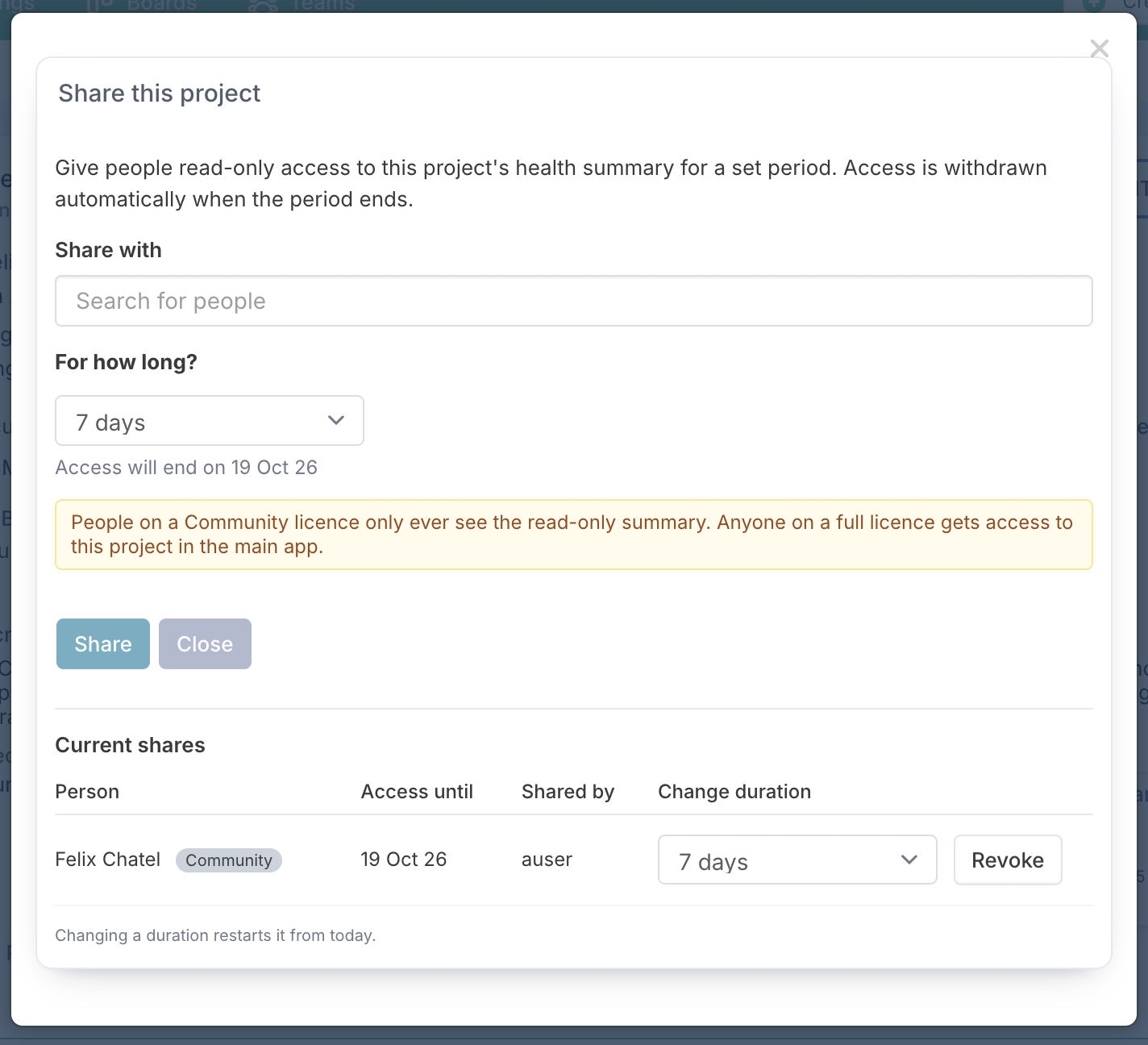
Under For how long?, choose a duration. The date access will end is shown under your choice.
Select Share.
The people you selected are added to Current shares and receive an email.
Check who you are sharing with. The dialog reminds you: people on a Community licence only ever see the read-only summary, but anyone on a full licence gets access to the project in the main application. Sharing with a licensed colleague gives them more than a summary. See Understanding Fluid Licences.
Durations
Option | Access ends |
|---|---|
7 days | 7 days from when you share. This is the default. |
14 days | 14 days from when you share |
1 month | 1 month from when you share |
3 months | 3 months from when you share |
Until project end | At the end of the project's end date - and follows it. Move the end date later and access is extended; bring it forward and access is shortened. Only offered when the project has an end date. |
Until revoked | Never - access stays until someone revokes it |
What the people you share with get
Recipient | What they can see | Where |
|---|---|---|
Community licence | A read-only, one-page health summary of the project - status, health, key dates and people, commentary, and the schedule and RAID items promoted to L1 - L3. No financials, nothing editable. | The Shared projects section of their Community Portal, showing when their access ends |
Licensed or Collaborator | The project in the main application, with viewer (read-only) access | The project workspace, as for any project they can view |
The share email
Each person receives an email when the project is shared with them, titled "{Project name} has been shared with you". It says who shared the project, the access period and, where there is one, the date access ends, with an Open the project button. Community users who open the link are taken to the project's health summary.
The email is sent when you share. No email is sent when you change a duration, revoke access, or when access expires.
Managing shares
Open Share Project again to see Current shares - each person, the date their access ends (or No end date), and who shared it. People on a Community licence are marked Community.
Change duration - pick a new duration in the person's row. The change applies straight away and restarts from today: changing a share to 7 days gives 7 days from now, not 7 days from the original share. You can also use this to restore access that has already ended.
Revoke - removes the person's access immediately, after you confirm.
Sharing a project again with someone who already has a share updates their existing share - with the new duration, starting today - and sends them a new email. It does not create a second share.
When access ends
Fluid withdraws access automatically when a share reaches its end date, and checks for expired shares every hour. For a Community user, the project disappears from their Portal and its health summary is no longer available. A licensed user can no longer open the project, unless they have access to it some other way.
Things to know:
Until project end shares follow the project's end date. Moving the end date into the past ends access. If the end date is removed, the share no longer expires.
Closing or archiving a project does not revoke its shares. Community users no longer see an inactive project on their Portal, but revoke shares you no longer want if the project may be reopened.
Sharing never removes other access. If someone already has access to the project through a project role, a share adds to it, and revoking or expiring the share leaves their other access in place.
Using project sharing effectively
Give sponsors a window instead of a status meeting. Share the project with its sponsor until project end. They can check the project's health whenever they like.
Time-box short-term stakeholders. Give auditors, vendors and secondees 7 days, 14 days, 1 month or 3 months. Access ends on its own.
Keep the health summary telling the right story. Community users only see schedule and RAID items promoted to L1 - L3, so keep promotion levels and the project update current before you share.
Use a Community licence for view-only stakeholders. Someone who only needs to follow a project's health does not need a full licence - share the project with them on a Community licence. See the Community License article.
Troubleshooting
I can't see Share Project on a project. Project sharing is not turned on for your site (see Turning project sharing on), or you do not have Manage permission on the project. Sharing is not available on programmes or portfolios.
I can't find a person in Share with. Type at least two characters of their name. Only active users can be selected - inactive users and placeholders cannot be shared with.
Until project end is not in the list. The project has no end date. Set one, or choose another duration.
A shared project does not appear on a Community user's Portal. The share may have ended or been revoked - check Current shares. The project may be inactive. The Portal lists up to 12 shared projects; the person can open others from the link in each share email.
Someone still has access after I revoked their share. They have access to the project another way, such as a project role. Sharing only removes the access it granted.
Frequently asked questions
Can I share with someone who doesn't have a Fluid account? No. Recipients must be active Fluid users. If the person only needs to view the project's health, give them a Community licence first - see the Community License article.
Can recipients edit anything? No. Every recipient gets read-only access.
Do Community users see financials? No. Financials are left out of the health summary.
Is the recipient told when their access changes or ends? No. An email is sent only when the project is shared with them.
Can I see a history of who a project was shared with? Current shares shows the shares in place now. Ended and revoked shares are not listed.
Is there a limit on how many people I can share with? No.