The Resource Dashboards show how your people's time is planned across projects and other work, month by month, against the capacity they have. They are where a PMO, resource manager or project manager goes to answer questions such as:
Who is over-allocated, and who has room?
Does a team, portfolio or programme have the people it needs over the coming months?
How does the time people booked compare with what was forecast?
What does our resourcing cost, by person and by project?
This article explains which dashboards are available, how the page is laid out, and what counts as capacity. Each part links to a more detailed article.
Who can use them, and how to open them
The Resource Dashboards are available to users with the Resourcing Access role.
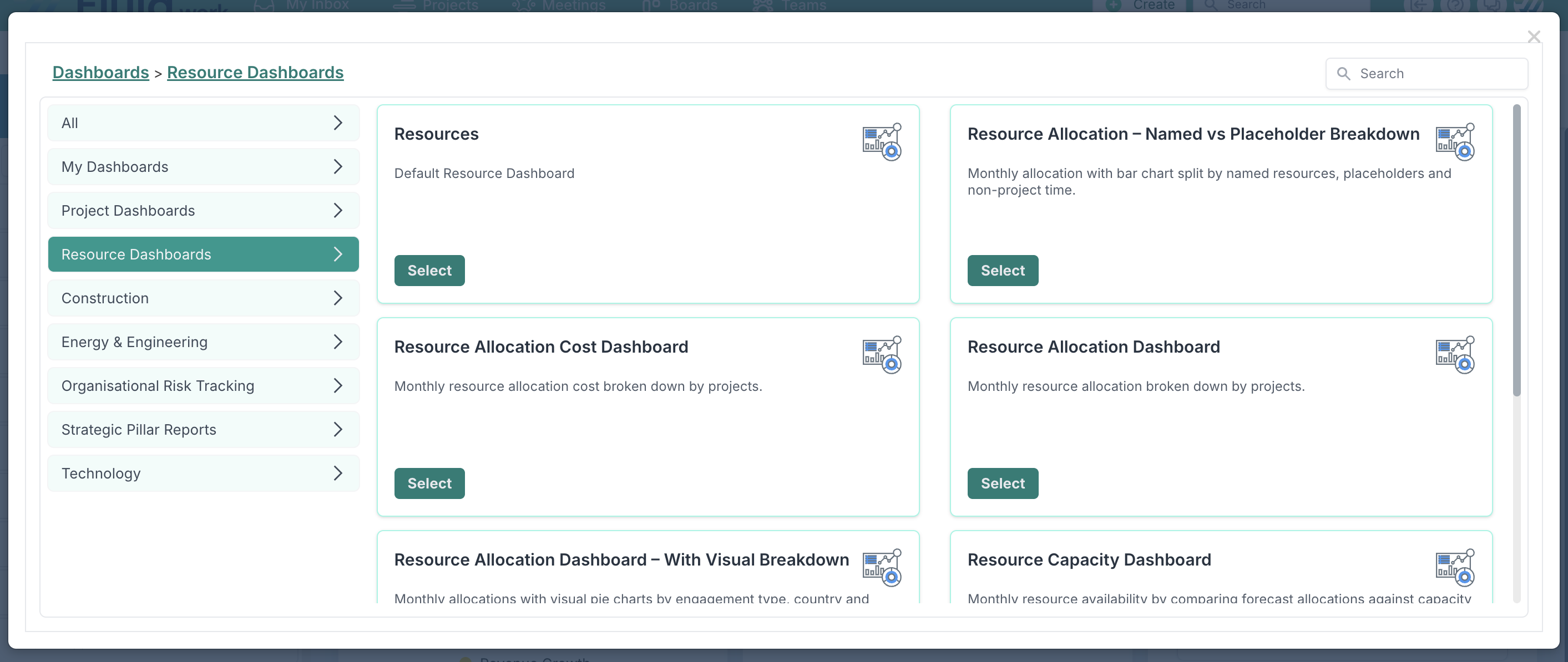
To open one, go to a dashboard page, such as the project dashboard, and click Custom Dashboards at the top right. In the dialog, choose Resource Dashboards on the left, then click Select on the dashboard you want.

The standard Resource Dashboards
Fluid comes with the following Resource Dashboards. They share the same filters and allocation grid, and differ in what they show first and which chart sits above the grid.
Dashboard | What it shows | Use it to |
|---|---|---|
Resources | The default Resource Dashboard. | Start here, then apply your own filters. |
Resource Allocation Dashboard | Monthly allocation for each person, broken down by project. | See who is working on what, and how much. |
Resource Capacity Dashboard | Available capacity: each person's capacity minus their forecast allocation. | Spot under- and over-utilisation, and find people with room. |
Resource Allocation Cost Dashboard | The cost of each person's allocation, by project. | Understand resourcing cost and compare it with budgets. |
Resource Allocation Dashboard – With Visual Breakdown | Allocation with pie charts by engagement type, country and department. | See the make-up of the people in the view at a glance. |
Resource Allocation – Named vs Placeholder Breakdown | Allocation with a monthly bar chart split into named resources, placeholders and non-project time, compared with capacity. | See whether demand fits capacity, and how much of it still relies on placeholders. |
Resource Capacity Dashboard – With Allocation Chart | Capacity against allocation, in the grid and as a monthly bar chart. | Track under- and over-utilisation over time. |
Your organisation may have renamed these dashboards or added its own.
How the page is laid out
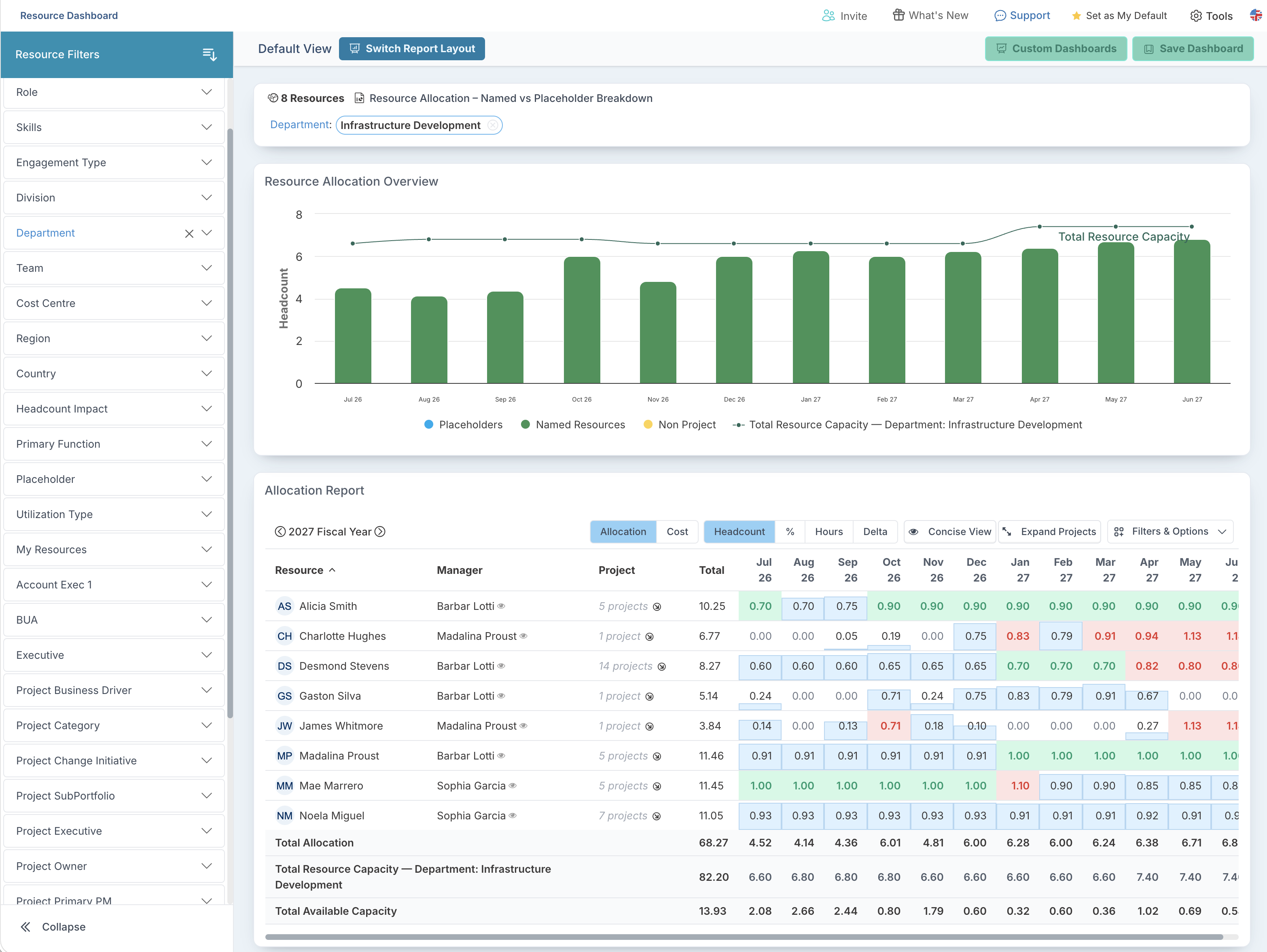
Filters
The filters decide what the dashboard covers. There are two kinds:
Resource filters choose the people, for example by Division, Department or Team, Role, Skills, Engagement Type, Cost Centre, Region, Country, Utilization Type, Placeholder, or your person custom properties.
Project filters choose projects, for example by Portfolio, Project Type, Project Status, RAG Status or Project Manager. The dashboard then shows only the people allocated to those projects.
Combining the two is how you compare the demand from a set of projects with the capacity of a team. See How to use project filters on the Resource Dashboard.
Charts
Depending on the dashboard, charts above the grid summarise the people in the view, for example by engagement type, or show allocation against capacity month by month.
The allocation grid
The grid lists each person with their manager, a total for the period and a value for each month, with totals at the bottom. From its toolbar you can:
Move between fiscal years with the arrows either side of the year.
Switch between Allocation and Cost.
Show values as Headcount, %, Hours or Delta (the difference between forecast and booked hours).
Switch between the Concise View, with one row per person, and the Expanded View, which also lists each person's projects with their category, type and status. Use Expand and Collapse to open or close the project rows.
Use Filters & Options to view the grid as Allocation or Available Capacity, show all resources or only those with capacity, and group the rows.
When project filters are applied, use Show All Allocated Projects to see all of each person's work, not only the filtered projects.
For what each value view tells you, see How to read the allocation grid on the Resource Dashboards.
What counts as capacity
Resource plans set each person's capacity, for example 1.0 headcount for a full-time person or 0.5 for someone available half the time.
Utilization Types decide whether someone counts at all. By default the dashboards count Include resources only. Use the Utilization Type filter to add Exempt resources. Exclude resources are never shown, because they are not planned resources. See Utilization Types.
Placeholders stand in for roles that are planned but not yet filled. They appear alongside named people, and you can filter them in or out with the Placeholder filter. See Placeholder Management.