29 September Release
A major release focused on stronger governance controls and more flexible board and schedule configuration.
Key changes include preserving property configuration when items are closed, capturing card snapshots for workflow approvals, locking custom properties by status, improved card archiving and status navigation, configurable card descriptions, and the option to separate timesheet bookings from schedule % Complete.
Read the full 29 September release notes.
22 September Patch Release
Enhancements & Fixes
Schedule filters: the filter drawers on the Gantt and the Portfolio Schedule now offer a custom property filter only when at least one visible item has a value for it, and option filters list only the values in use. Filters that could only ever empty the view no longer appear; a filter you've already applied always stays visible so you can clear it.
Milestone Finish-to-Finish dependencies: a zero-duration milestone linked Finish-to-Finish now sits exactly on its predecessor's finish day (previously it landed a day late), and a task linked Finish-to-Finish from a milestone now finishes on the milestone's day rather than the day before. Same-day links now show a lag of 0.
Schedule columns now support Number, Percentage and Yes/No properties. You can now add schedule custom properties of type Number, Percentage and Yes/No as columns on the Gantt, alongside the types already supported. Pick them from the column chooser under Custom Properties, click a cell to edit in place, sort by them (numbers sort by value, so 9 comes before 1,000), and filter — number and percentage columns offer range filters, Yes/No offers tick boxes. Numbers display with thousands separators and percentages with a % sign; an unanswered Yes/No stays blank, so "not yet answered" is distinguishable from a deliberate No.
Schedule saves: with Auto Replan on, dragging a task could occasionally save the dates where you dropped it rather than the dates the plan actually settled on — so when you next opened the schedule, the task wasn't where you'd last seen it. What you see on screen after the replan is now always what's saved, even if you close the page straight away.
Full Year Forecast: months that are frozen but not financially locked now correctly show Forecast values — the "Actuals" column header and actuals figures appear only for financially locked months.
Frozen financial periods: a scheduled freeze now takes effect at midnight in your organisation's time zone, rather than midnight UTC — so the freeze begins exactly when its date starts for you, not hours earlier or later.
Documents on card properties: Removing a document from a Document-type custom property on a card no longer deletes the file immediately: the removal only takes effect when you save the card, so cancelling your changes now leaves the document untouched (previously the file was permanently deleted the moment you clicked X, even if you never saved). Deleted documents are then kept for a 7-day grace period before being permanently purged, and documents that are linked from elsewhere or still in use by another property are never deleted, they're only detached.
Profile & homepage project lists: removing someone as Primary PM now removes the project from their profile and homepage Active Projects list even when they had a past resource allocation on it. Previously the old allocation kept the project showing on their lists. (Applies to organisations using the Show Allocated Projects setting.)
Pipeline cards — Capitalization Profile now syncs to the project: a card custom property named "Capitalization Profile" (or "Cap Profile") now writes through to the project's Cap Profile when the card creates or updates a project — previously the sync only ran the other way, from project to card. Values are matched against your configured profiles; an unrecognised value is ignored rather than overwriting the project's setting.
Timesheet Compliance — monthly view: the Timesheet Compliance page gains a Monthly tab, so you can review compliance month by month alongside the existing weekly and quarterly views.
Link to a schedule by project ID: Gantt links can now use the project's numeric ID (
/Schedule/Gantt/12345) as well as its GUID — Fluid redirects to the right schedule, keeping any filters in the link. Links generated from other systems that hold only the numeric ID now work without rewriting.
17 September Patch Release
Dependency edits no longer replan the whole schedule: changing or deleting a single dependency's lag used to reschedule and save the entire project. Edits are now scoped to that dependency: with Auto Replan off, at most the one linked task moves and manual placements are kept; with it on, the plan reschedules downstream without wiping manual placements. Editing lag in the Predecessors/Successors columns now moves the linked task's dates too, and the RePlan button still replans the full project when you want that.
SCIM — more user attributes manageable from your identity provider: person attributes backed by a catalog (such as Job Title) and attributes holding people or projects can now be set over SCIM, using either the name or the reference, and cleared with a remove operation.
16 September Release
Use Table property values in expressions
Expressions can now use values from Table custom properties in calculations. This allows teams to build calculated fields based on values entered across table rows and columns, such as total spend, a specific cost line value, or whether any row meets a condition.
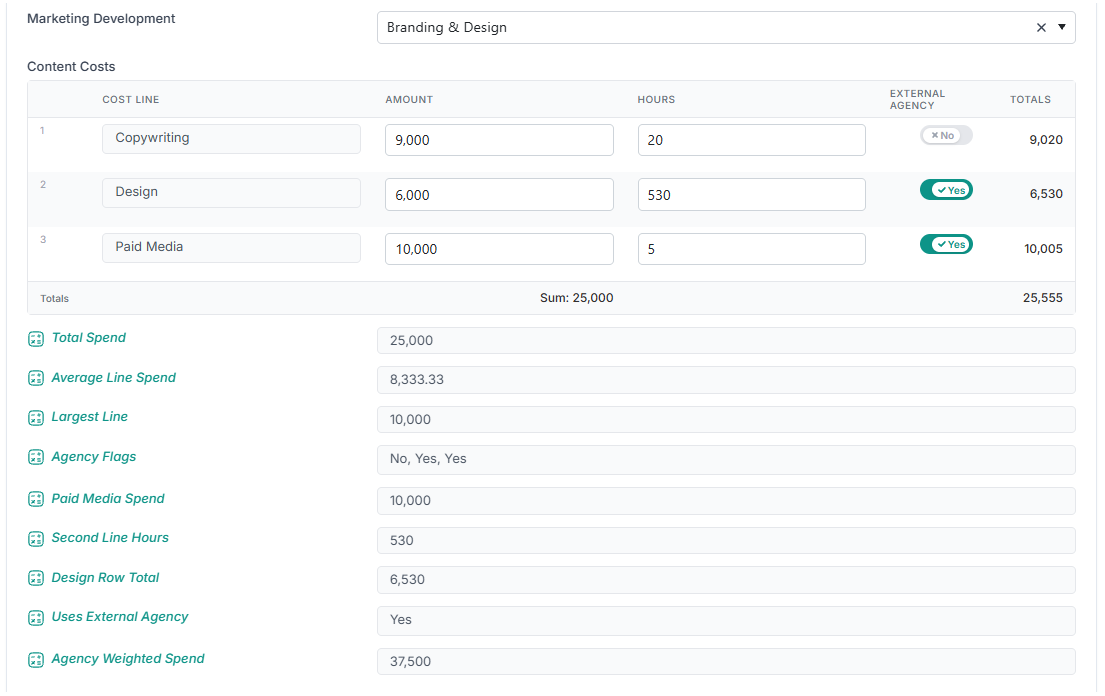
Three table functions are now available:
TABLETOTAL— total, average, minimum, or maximum a numeric column, or return values from a text column.TABLECELL— read a value from a specific row and column, or return a row total.TABLEANY— check whether any row in a table contains a specific value.
These functions can also be combined with other expression logic, such as IF, to support more advanced calculations, including weighted scores, spend calculations, or conditional approvals based on table data.
Table expressions update as users edit the table and are recalculated when the record is saved, so the value shown is the value that is stored.
You can read more about this change in the article Table Expressions: Using Table Property Values in Calculations.
Other Enhancements
Schedule filters: The schedule Filters drawer now includes a RAG Status filter, consistent with the Portfolio Schedule. Each RAG is shown with its configured colour, and users can select one or more RAG statuses to narrow the schedule to matching tasks. The filter includes the configured RAGs as well as any other RAG values currently used by tasks in the schedule. Selected RAG filters are retained in the page URL, so filtered schedule views can be shared.
Schedule custom property filters: Filters for option-type schedule custom properties now only show values that are used in the current schedule. For example, a Release filter will only list releases assigned to tasks in that schedule, rather than every value configured for the property. This keeps the filter list focused and avoids options that would return no results. The available values also refresh when the Filters drawer is opened, so newly assigned values are available straight away.
Project Viewer access: Users with the read-only Viewer role can now open previous project status reports. This aligns status report access with their project read permissions. An issue that prevented Viewers from opening the baseline overview has also been fixed.
Resource Allocation dashboard performance: the Resource Allocation grid now loads dramatically faster for large resource pools by fetching allocation data in bulk and building only the visible page.
SCIM user updates: SCIM updates for resource Division, Department, and Team now handle unmatched values more safely. Team values can now be matched using either the team name or team reference. If a Division, Department, or Team value sent by SCIM cannot be matched to the configured setup in Fluid, the existing value on the user is kept instead of being cleared, helping prevent valid resource data from being removed by a misconfigured sync.
Card expressions —
[CardType]now works on cards: a custom property expression referencing[CardType]evaluated correctly in the expression editor but returned nothing on the card itself, in both the card edit and create dialogs. It now resolves correctly, and recalculates immediately if the card's type is changed in the dialog.Scored Option properties: option scores defined on Scored Option and Scored Option (Calc) custom properties are now saved and redisplayed correctly from the property editor.
11th September Patch Release
Enhancements & Fixes
Scheduled Reports: the Run Job button now delivers the report to its configured recipients, exactly as a scheduled run would — previously it wrongly emailed the report to the admin who clicked it. Download is unchanged and still sends a copy to the user who triggered the download. The change applies to the Scheduled Reports panel in both the Data Admin console and the Financials Data Management page.
Project Details Upload — status change approvals now raised correctly. For organisations using the Status Report Driven Project Status Change Workflow: when a project was created through the project feed with a status report whose RAG calls for a project status change, the approval request for that change was silently never created — the project and its report appeared, but no one was ever asked to approve the status change, and nothing indicated anything had gone wrong. The approval request is now raised correctly and assigned to the project's approver, on behalf of the report's author.
Project Details Export — no more six-phase limit: Project Details exports now include every phase for methodologies with more than six phases. Previously the file had a fixed six-phase layout and any phases beyond that were silently left out. The export now sizes its phase columns to the projects being exported. The blank template is unchanged and keeps its standard six-phase layout.
Two things to know:
Column headers can now carry phase names. When all the exported projects' methodologies share the same ordered phase names, headers show the name (e.g. 'Phase1_InitiateEnd') instead of a plain index ('Phase1End'); where the names differ, the plain indexed headers are kept. If you have Power BI reports, macros or saved templates that reference these column names — or that assume exactly six phase columns — you may need to update them.
Previously downloaded files still upload correctly. The bulk-edit upload now reads the phase-column layout from the sheet itself, so older files and either header style import without changes.
Scored Option properties: Scored Option and Scored Option (Calc) custom properties now save their option scores correctly from the property editor. When administrators define options with scores, the values are retained and display correctly when the property is reopened. This applies to custom properties in every area — boards, projects, schedules, impacts and the rest — not just boards.
SCIM user provisioning: Your identity provider can now match a user's team using its reference/ID as well as its name when syncing users into Fluid. Also, if a division, department or team value sent by your identity provider doesn't match anything set up in Fluid, the value already saved for that user is now kept rather than cleared — so a misconfigured sync no longer removes correct data.
8th September Patch Release
Enhancements & Fixes
Schedule Promotion — default task levels: Parent Project and Program workspaces now automatically show the right level of schedule detail: Parent Projects display their own tasks down to Level 3, with Level 2 tasks shown for sub-projects; Programs display their own tasks down to Level 3, with Level 1 tasks shown for projects within the programme. The Word and PowerPoint schedule export templates now also include a promotion level option, with an "Auto" setting that follows this same default.
Resource Forecast: Uploads now accept CSV as well as Excel, add an optional Alternate Reference column for identifying projects, and are available through a new API for single and bulk records.
Resource Labels and Field Names: Fixed an error that could stop the Resource Fields Setup page from loading correctly.
7th September Release
Schedule Performance
Faster, smoother schedules: The schedule no longer freezes while it loads, when you expand or collapse the whole plan, or after you save a change from the task dialog. On a large schedule of around 3,000 tasks, actions that used to lock the screen for 20–30 seconds now finish almost immediately.
Deleting a schedule item is instant: Deleting a task used to reload the entire schedule before the row disappeared. The row now goes straight away, and the surrounding WBS numbering, parent progress and dates update in place.
Schedule Enhancements
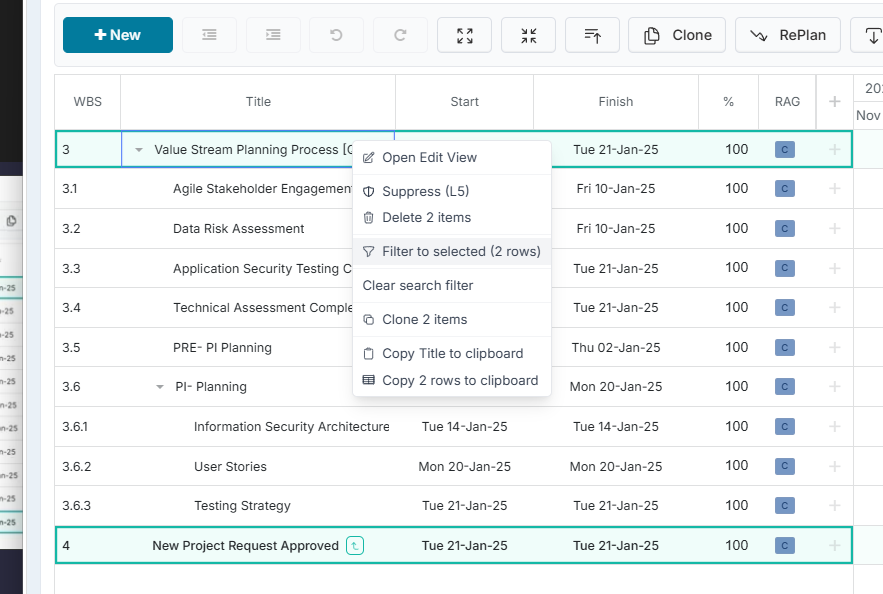
Right-click menu on schedule rows: Right-clicking a row opens a menu with Open Edit View, Indent, Outdent, Suppress (L5), Delete, Filter to this row, Clone item, Copy Title to clipboard and Copy row to clipboard. Indent and Outdent appear only where the move is actually possible, and the editing options only appear if you have edit rights on the schedule.
Filter by schedule custom properties: The Filters & Options drawer now includes your schedule custom properties, so you can narrow a plan to the items carrying a particular value. The selection is held in the page address, so a filtered view can be bookmarked or shared.
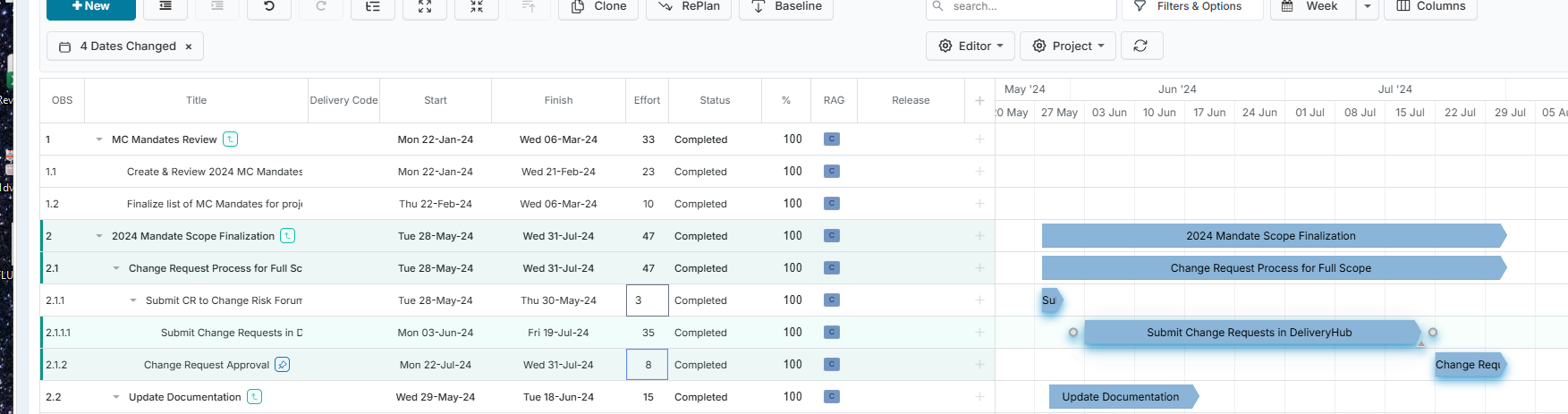
See which dates moved: Any row whose start or finish date shifts after an indent, outdent, drag, Replan or dependency change is highlighted, including parent rows that rolled up automatically. A Dates Changed chip in the toolbar shows the count — click it to filter the plan to those rows, or the × to clear.
Search for several items at once: The keyword search now accepts a comma-separated list, so entering 13., 14., 15. brings those branches of the plan up together. Selecting rows and choosing Filter to this row fills the search in for you.
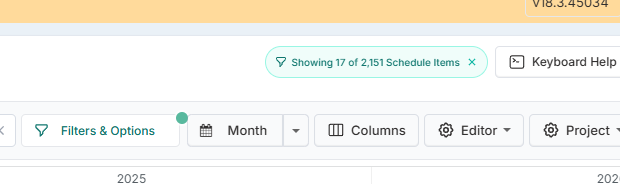
See what is being filtered and hidden L5 items. See what is being filtered out: While a filter is active, a pill above the schedule shows Showing x of y Schedule Items, including how many rows are hidden because they are suppressed (L5). Click the × on the pill to clear every filter at once.
Keep context when filtering: New options show the child rows of matching items, or the full tree of ancestors and descendants, so a filtered plan still reads as a plan.
Show Protected Items and Show Suppressed (L5): Two new toggles in General Filters. Unticking Show Suppressed (L5) also clears the matching promotion level, so the two stay consistent.
Separate Expand All and Collapse All buttons: Previously a single button that sometimes had to be pressed twice to reach the state you wanted.
Fit to View: A new option on the date scale menu sizes the timeline so the whole schedule fits on screen.
Filters are remembered on refresh: Your keyword and WBS search is kept when the page reloads.
Portfolio Schedule
Filter by schedule custom properties: The custom property filtering added to the Gantt is now available on the Portfolio Schedule too, so both views filter the same way.
Show Protected Items: A new toggle in General Filters, matching the Gantt.
2nd September Release
Enhancements & Fixes
Resource Capacity vs Project Demand export: The Excel export now includes each resource’s profile Role, such as Business Analyst or Developer. This is the role recorded on the person’s resource profile, not their role on a specific project. The new column appears alongside Department, Team and Engagement Type, making it easier to compare capacity and demand by job role without using a separate report. Saved spreadsheet templates, pivot tables or macros may need updating because the new Role column has been added before Skills.
Financial actuals: The Comment field in the Add Financial Actuals dialog now displays the rich text editor toolbar inline, consistent with other comment fields in Fluid.
Actions and Decisions: Filters in the Actions and Decisions view now respond correctly when several filter values are selected in quick succession. The list updates consistently to reflect all selected filters, making it easier to refine results without needing to reapply filters or refresh the page.