User roles: ✔ Benefit Administrator ✔ Project Manager
A forecast says what a benefit should be worth; it does not show whether the change behind it is working. By the time money is realized, or fails to be, it is too late to act. Qualitative benefits are harder still: they carry no money at all, so without measures there is no evidence they were delivered.
KPIs give each benefit its own measures, each with a target for every period and a result when it is reported. Fluid turns targets and results into a realisation percentage for every KPI and for the benefit, and colours them green, amber or red on every list and dashboard. Leading KPIs show early whether the change is taking hold; lagging KPIs show whether the outcome arrived.
In this article you will learn how a Benefit Administrator sets up the building blocks for KPIs, and how a project manager defines the KPIs on a benefit: their role, direction, starting value, cadence, weighting and targets.
Before You Start
KPIs need the Show Benefit KPI Tracking feature. Units of measure and KPI types can be set up before it is on: the Units of Measure panel shows a note until it is.
Setting up units, KPI types, reporting cadences and RAG thresholds needs the Benefit Administrator role. Adding KPIs to a benefit needs Manage permission on its project.
How KPIs Measure a Benefit
A KPI is a measure that shows whether a benefit is happening. A benefit can have several, each in its own unit and on its own cadence. Every KPI has a Target for each period and, once someone reports it, an Actual. Fluid turns the two into a realisation percentage for the KPI, and combines the benefit's KPIs into one realisation percentage for the benefit.
KPIs work for quantitative and qualitative benefits alike. A qualitative benefit carries no money, so its KPIs are the main evidence that it was delivered.
Step 1: Set Up Units of Measure
In Benefits Administration, go to Units of Measure and click Add Unit.
Field | What to enter |
Unit | The name shown on KPIs and reports, for example Minutes or Score (1–5). |
Description | What the unit means, if the name alone could be misread. |
Applicable Benefit Types | The benefit types whose KPIs can use this unit. Select none to allow all. |
Applicable KPI Types | The KPI types that can use this unit. Select none to allow all. |
Active | Turn off to stop offering the unit on new KPIs. KPIs already using it keep it. |
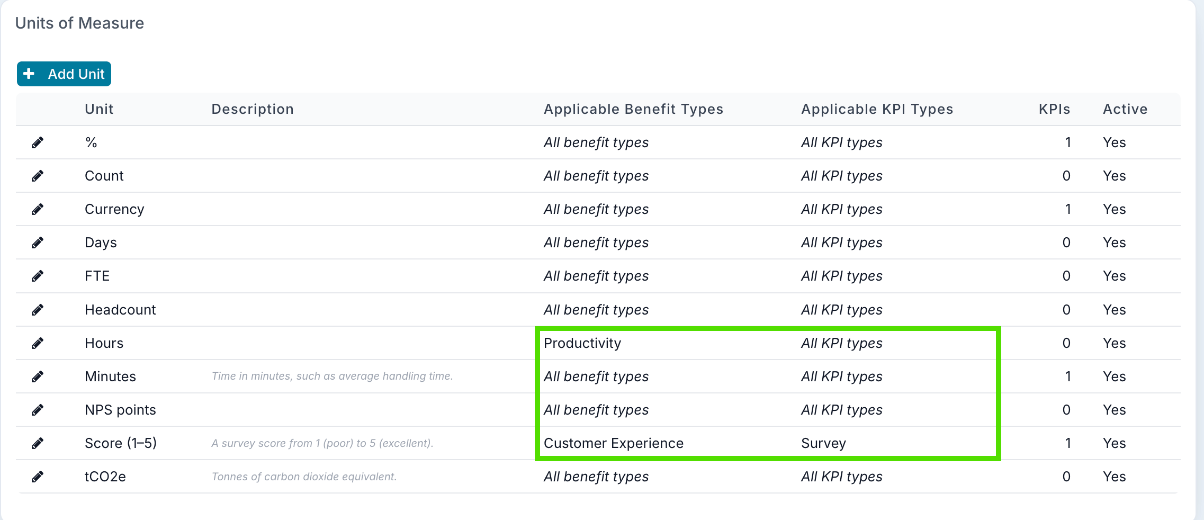
A KPI measured in a currency is converted like any other money. Every other unit is reported exactly as recorded.
Renaming a unit renames it on every KPI that uses it.
A unit in use cannot be deleted; make it inactive instead.
Step 2: Set Up KPI Types
A KPI type says how a KPI is managed: where its number comes from and how far it can be trusted. It is a label for reporting and filtering, and it does not change how realisation is calculated.
Go to KPI Types and click Add KPI Type. Enter the KPI Type name and a Description, and optionally a Default Unit of Measure, which is pre-selected when someone picks this type on a KPI that has no unit yet.
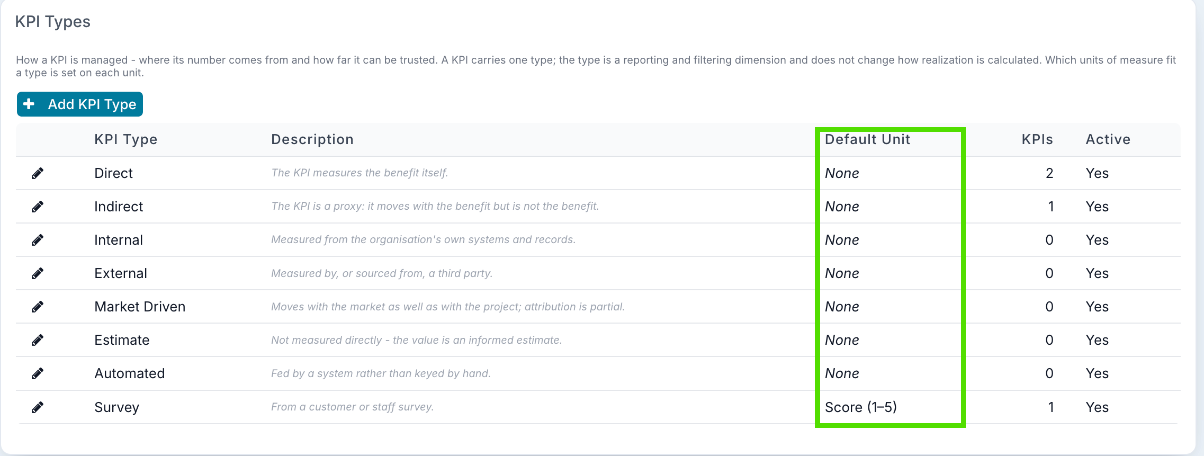
Which units fit a KPI type is set on the unit, in Applicable KPI Types, not on the KPI type.
Step 3: Choose the Cadences and RAG Thresholds
Two panels on Benefits Administration apply to every KPI:
Reporting Cadence: the cadences people can choose. Turn off any of Monthly, Quarterly or Annual under KPI cadence to stop offering it. A KPI already on a cadence you remove keeps it.
KPI Realisation RAG: Green at or above (%) and Amber at or above (%). Below the amber threshold a KPI is red. Use Fluid's Defaults puts back 90 and 70.
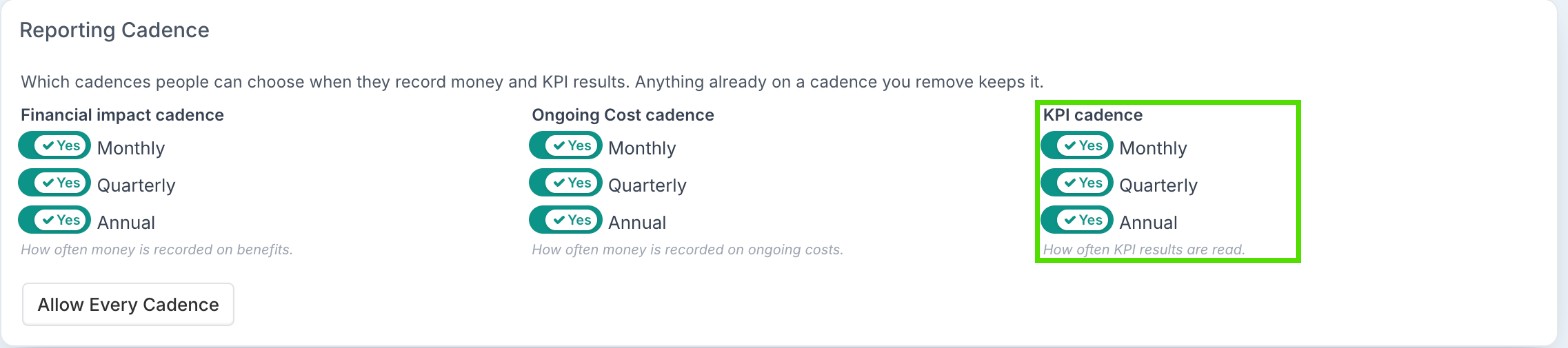

Click Save at the top of the page.
Step 4: Add KPIs to a Benefit
Open the benefit and go to KPIs.
Turn on Track KPIs for this Benefit. The KPI dialog opens for the first KPI; for more, click Add KPI.
Fill in the details below. KPI Name and Unit of Measure are required.
In Measurements, enter a Target for each period (step 5).
Click OK, then save the benefit.
Field | What to enter |
KPI Name | What is measured, as it will appear on dashboards. For example Average handling time. |
KPI Type | How the KPI is managed, from your KPI types. It starts as Untyped. |
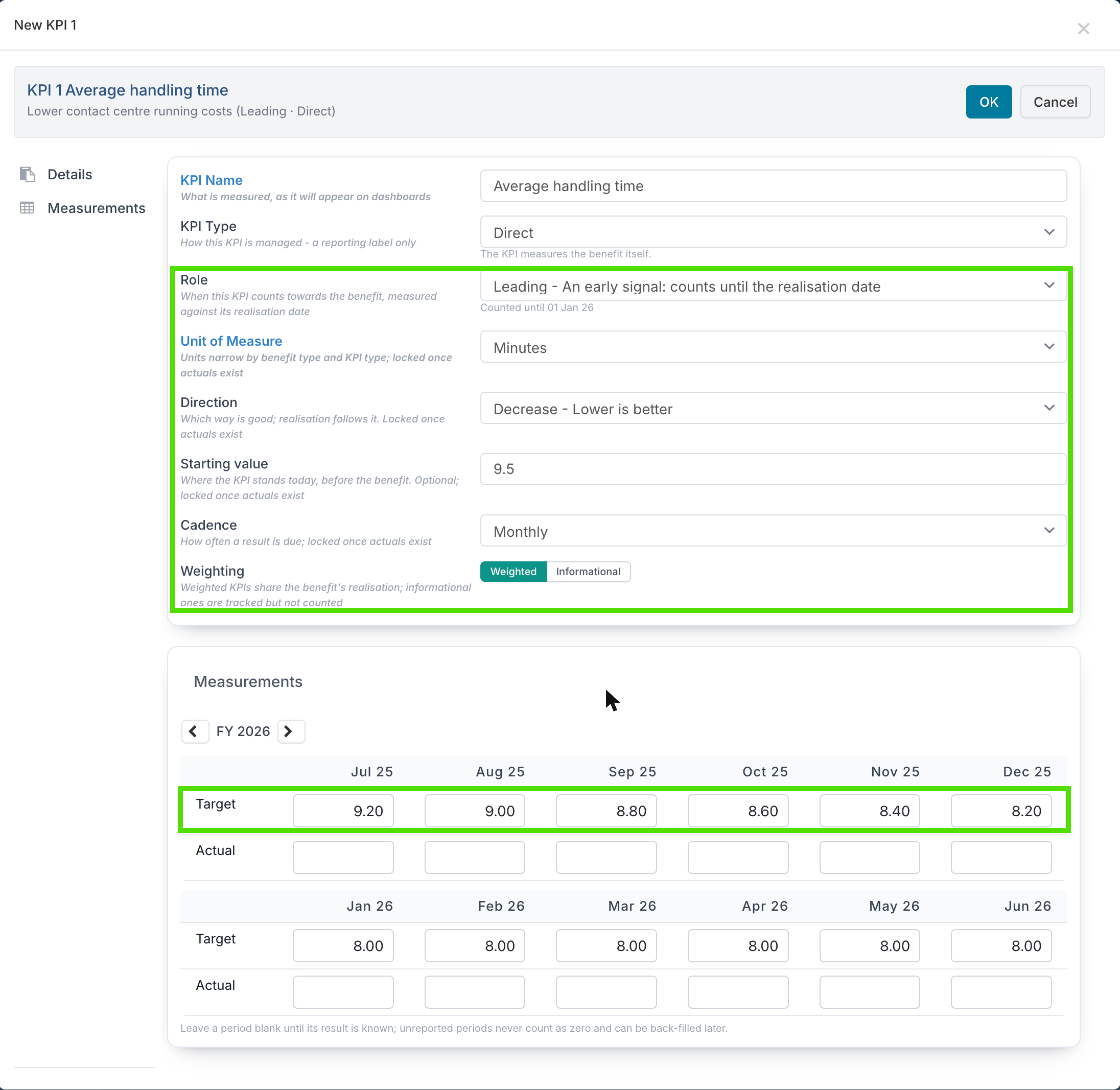
Role | Continuous, Leading or Lagging. This decides when the KPI counts (see below). |
Unit of Measure | The units offered depend on the benefit's type and the KPI type. |
Direction | Increase (higher is better), Decrease (lower is better) or Maintain (hold the level; either side is a miss). |
Starting value | Where the KPI stands today, before the benefit. Optional, but it is what shows the KPI has improved. |
Cadence | How often a result is due: Monthly, Quarterly or Annual, as allowed by Reporting Cadence. A new KPI starts at Quarterly. |
Weighting | Weighted KPIs share the benefit's realisation. Informational KPIs are tracked but not counted. |
Owner | Shown with the Enable Benefit KPI Owners feature. A person or work hub who records this KPI's results. They can open the benefit read-only and enter results for this KPI only, without project permission or the Benefit access role. |
Choosing a role
Role | When it counts | Use it for |
Continuous | Throughout. | A KPI that matters for the whole life of the benefit. |
Leading | Until the benefit's realisation start date. Informational after it. | An early signal that the change is taking hold, such as adoption or handling time. |
Lagging | From the realisation start date. Informational before it. | The outcome itself, such as cost per contact or revenue. |
Nobody has to switch a KPI between leading and lagging: the benefit's Realization Start Date does it. A KPI outside its window shows a note such as Counts from or Counted until, with the date, and keeps its history either way.
Choosing a direction
Realisation follows the direction, so a KPI that should go down reads above 100% when it beats its target.
Direction | Realisation | Example |
Increase | Actual ÷ target | Self-service adoption of 36% against a target of 40% is 90%. |
Decrease | Target ÷ actual | Average handling time of 7.6 minutes against a target of 8.0 is about 105%. |
Maintain | 100% on target, reduced by the gap either side | Service availability of 99.0% against a target of 99.5% is about 99.5%. So is 100%. |
Setting a starting value
With a starting value, the KPI's row on the benefit compares the latest result with where it started: Improved, Worse or Unchanged vs start (for a Maintain KPI, Held or Drifted). A KPI can be ahead of its target and still worse than where it began, and this shows it.
Step 5: Set Targets by Period
In the KPI dialog, open Measurements. Use the financial year arrows to move between years, and enter a Target for each period you expect to measure, at the KPI's cadence. The Actual row is filled in as results come in. See Reporting on Benefits and KPIs.
A period with a target but no actual is unreported, not zero. It is left out of realisation and shown as a reporting gap instead, so results can be back-filled without distorting the figures. A KPI with no results yet counts as On Track with a blank percentage, and is counted as Not Yet Measured on the dashboards.
When the benefit is approved, each KPI's targets are copied to an Approved Target row above Target. Targets stay editable, but the Approved Target does not change, so what was agreed stays visible. See Setting Up Benefit Baselines and Approval.
Step 6: Decide How the KPIs Combine
When a benefit has more than one KPI, Realisation weighting on the KPI Tracking section decides how they combine into the benefit's realisation:
Equal: every weighted KPI counts the same. Right for most benefits.
Custom: drag the pills on the weighting bar to move weight between neighbouring KPIs. A KPI dragged to nothing becomes informational. Weights do not have to add up to 100.
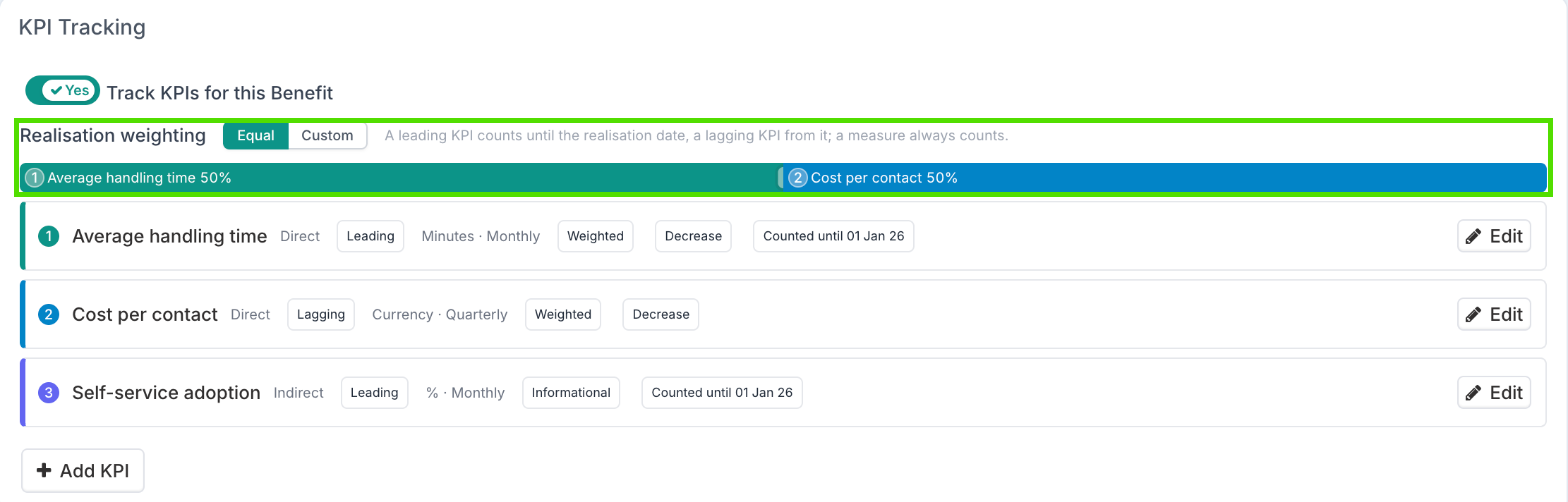
Only KPIs that are counting at the time, by their role and the realisation start date, contribute. An informational KPI still shows its own figure.
What Locks Once Results Are Recorded
As soon as a KPI has an actual, its Unit of Measure, Cadence, Direction and Starting value lock, because changing them would relabel or regrade results already reported. The lock applies to that KPI alone. Its name, type, role and weighting stay editable, and actuals can still be recorded and back-filled.
Delete KPI removes a KPI that has no results.
Retire KPI stops a KPI with results from counting while keeping its history. Restore KPI brings it back.
When the benefit is Closed or Cancelled, its KPI results lock.
Example: Two Benefits and Their KPIs
Lower contact centre running costs is quantitative, typed Cost Reduction and aligned to Reduce cost to serve by 15%. Its realisation start date, January 2026, is when the old telephony platform is switched off.
KPI | Role | Unit | Direction | Starting value | Cadence | Weighting |
Average handling time | Leading | Minutes | Decrease | 9.5 | Monthly | Weighted |
Cost per contact | Lagging | Currency | Decrease | 4.20 | Quarterly | Weighted |
Self-service adoption | Leading | % | Increase | 22 | Monthly | Informational |
Until the switch-off, the benefit's realisation follows average handling time; from then on, it follows cost per contact. Self-service adoption is watched throughout but never counted.
Higher customer satisfaction is qualitative, typed Customer Experience and aligned to Improve customer satisfaction. It carries no money, so one KPI is its evidence:
KPI | Role | Unit | Direction | Starting value | Cadence | Weighting |
Customer satisfaction score | Continuous | Score (1–5) | Increase | 3.6 | Quarterly | Weighted |
Good to Know
My KPI says 105% realised. Is that wrong?
Probably not. Check its Direction: on a Decrease KPI, beating the target reads above 100%.
Why can't I change a KPI's unit or cadence?
It already has results. Retire it and add a new KPI if the measure has genuinely changed.
Why is the unit or cadence I want not in the list?
Units are limited by the benefit's type and the KPI's type, and inactive units are not offered. Cadences are limited on the Reporting Cadence panel.
My KPI is marked Informational.
Either it is set to Informational, or its role puts it outside its window: a leading KPI after the realisation start date, or a lagging KPI before it.
Can KPIs be loaded with Bulk Edit Benefits?
No. The workbook covers benefits, ongoing costs and their money values. KPIs and their results are set up on the benefit.