A Table custom property can hold several related values across multiple rows and columns. When writing an expression, you may want to use those values just as you would use any other custom property - for example, to calculate total spend, retrieve the amount for a particular cost line, or check whether any row meets a condition.
Fluid provides three functions for working with table values:
Function | Use it when you want to... |
|---|---|
| Calculate a total, average, minimum or maximum across a column, or return the values from a text column |
| Retrieve a value from a specific row and column |
| Check whether any row contains a particular value |
Expressions that use these functions are worked out as you edit the table — change an Amount and every dependent field updates straight away — and are calculated again when the record is saved, so the figure you see is the figure that gets stored.
In this article you will learn how to find the column keys you need, how to use each of the three functions, how to combine them into a weighted calculation, and what happens when a row, column or cell is missing.
New to expressions? This article covers the table functions only. For general syntax — IF, CONTAINS, arithmetic and referencing properties in [square brackets] — see the Dynamic Logic expressions guide.
The example used in this article
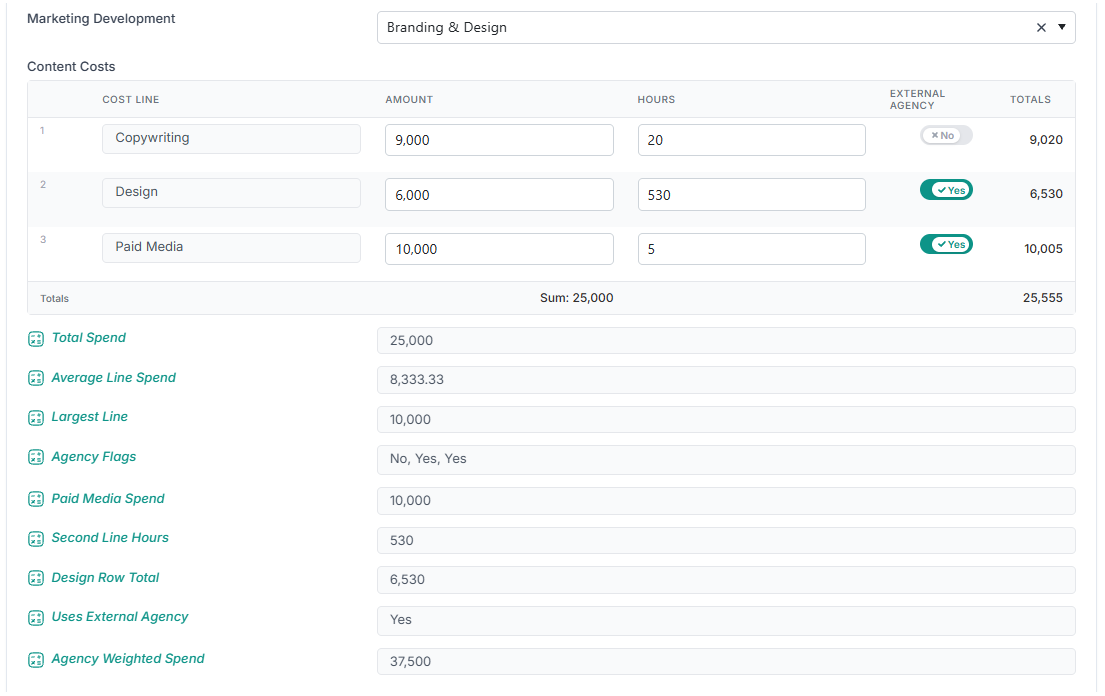
Every example below uses a Table property called Content Costs, set up to track the cost of a marketing deliverable.
# | Cost Line | Amount | Hours | External Agency | Totals |
|---|---|---|---|---|---|
1 | Copywriting | 9,000 | 20 | No | 9,020 |
2 | Design | 6,000 | 530 | Yes | 6,530 |
3 | Paid Media | 10,000 | 5 | Yes | 10,005 |
Totals | Sum: 25,000 | 25,555 |
It is configured like this:
Column header | Column Key | Data Type | Show Column Totals |
|---|---|---|---|
Cost Line |
| Text (Read-Only) | — |
Amount |
| Number | Sum |
Hours |
| Number | None |
External Agency |
| Yes/No | — |
Enable Row Totals is switched on, which produces the Totals column on the right.
The examples at a glance
These are the nine calculated properties shown beneath the table. Each is explained in the sections that follow.
Property | Expression | Result |
|---|---|---|
Total Spend |
| 25,000 |
Average Line Spend |
| 8,333.33 |
Largest Line |
| 10,000 |
Agency Flags |
| No, Yes, Yes |
Paid Media Spend |
| 10,000 |
Second Line Hours |
| 530 |
Design Row Total |
| 6,530 |
Uses External Agency |
| Yes |
Agency Weighted Spend |
| 37,500 |
Before you start: column keys, not column headers
Table functions refer to a column by its Column Key, written in quotes. The key is not always the same as the header people see on screen — in the example the header is External Agency but the key is ExternalAgency, because keys can only contain letters and numbers.
To find a column's key, open the Table property in Custom Properties and look at the Column Key field on each column. Keys are not case-sensitive, so "amount" and "Amount" both work.
Tip: If you type a column key that does not exist, the error message lists every key the table does have — a quick way to check the spelling.
The table itself is referenced like any other property, by its name in square brackets: [Content Costs].
TABLETOTAL — totalling a column
TABLETOTAL(table, column [, function or separator])What TABLETOTAL does depends on the kind of column you point it at.
Numeric columns
For Number and Percentage columns, TABLETOTAL adds up, averages or finds the lowest or highest value in the column. The optional third argument chooses which:
Third argument | Result |
|---|---|
(left out) | The total configured under Show Column Totals for that column, or Sum if none is set |
| Adds every value |
| The average of the values |
| The lowest value |
| The highest value |
Total Spend — the whole Amount column:
TABLETOTAL([Content Costs], "Amount")Result: 25,000. No function is given, so the column's own configured total (Sum) is used — the same figure shown in the table's footer.
Average Line Spend — the average cost line:
TABLETOTAL([Content Costs], "Amount", "Average")Result: 8,333.33 (25,000 ÷ 3).
Empty cells are skipped rather than counted as zero, so an Average divides by the number of rows that actually hold a value. This matches the totals shown in the table's footer.
Largest Line — the most expensive cost line:
TABLETOTAL([Content Costs], "Amount", "Max")Result: 10,000 (Paid Media).
A total is an ordinary number, so you can use it in any calculation:
TABLETOTAL([Content Costs], "Amount") / 12
IF(TABLETOTAL([Content Costs], "Amount") > 20000, "Board approval", "Delegated")
Text, Yes/No and other non-numeric columns
A column that does not hold numbers cannot be added up, so TABLETOTAL instead lists its values in row order.
Agency Flags — a readable list of the External Agency values:
TABLETOTAL([Content Costs], "ExternalAgency", ", ")Result: No, Yes, Yes.
For a text column the third argument is the separator placed between values, used exactly as you type it — including any spaces. A few variations:
Expression | Result |
|---|---|
| Copywriting, Design, Paid Media |
| Copywriting / Design / Paid Media |
| No||Yes||Yes |
If you leave the separator out, values are joined with ||, Fluid's standard separator. It looks odd on screen, but it is the safest choice when the result will be read by another expression, because cell values often contain commas and || cannot be confused with the content. When a person will read the result — on a card or in a report — pass your own separator, such as ", ".
Empty cells are left out of the list.
Note: "Average", "Min" and "Max" cannot be applied to a text column and will report an error rather than returning a meaningless zero. A function name is never mistaken for a separator, so a typo such as TABLETOTAL([Content Costs], "CostLine", "Max") shows an error instead of joining the values with the word Max.
TABLECELL — reading one cell or one row
TABLECELL(table, row [, column])TABLECELL reads a single value. You can identify the row in two ways:
Refer to the row by | Example | Notes |
|---|---|---|
Its label |
| The text in the table's first column. Not case-sensitive. |
Its row number |
| The number shown beside the row, counting from 1. Written without quotes. |
Reading a cell by row label
Paid Media Spend — the Amount on the Paid Media line:
TABLECELL([Content Costs], "Paid Media", "Amount")Result: 10,000.
Reading a cell by row number
Second Line Hours — the Hours on row 2:
TABLECELL([Content Costs], 2, "Hours")Result: 530 (the Design line).
Row numbers start at 1, matching the number printed beside each row. A number written in quotes is treated as a label, not a position — so TABLECELL([Content Costs], "2", "Hours") looks for a row labelled "2". This means a row that is genuinely called "2" can still be reached.
Reading a row total
Leave out the column to get the row's total.
Design Row Total:
TABLECELL([Content Costs], "Design")Result: 6,530 — the same figure as the Totals column for that row.
Watch out: a row total adds every numeric cell in the row, whatever the column represents. In the example, 6,530 is 6,000 (Amount) plus 530 (Hours) — money and hours added together. That is what the on-screen Totals column shows too, but if your columns measure different things you almost always want a specific cell, such as TABLECELL([Content Costs], "Design", "Amount"), rather than the row total.
The row total is available to expressions whether or not Enable Row Totals is switched on for the table.
Yes/No cells
A Yes/No cell reads as "Yes" or "No", exactly like a standalone Yes/No property, so you can compare it the way you would expect:
TABLECELL([Content Costs], "Design", "ExternalAgency") = "Yes"Result: TRUE.
Which way should I refer to a row?
Method | Best for |
|---|---|
Row label | Most tables. Easiest to read, but it stops matching if someone renames the row. |
Row number | Fixed tables where rows cannot be added or removed. In a table where Allow Add Rows is on, a number is only a position and can point to a different line as rows change. |
Tip: If your expressions refer to rows by label, make the label column Read-Only and supply the lines as default rows, as in the Content Costs example. Users can then fill in the figures but cannot rename a line and break the expression.
TABLEANY — does any row hold this value?
TABLEANY(table, column, value)TABLEANY returns TRUE when at least one row holds that value in that column, and FALSE when none does.
Uses External Agency:
IF(TABLEANY([Content Costs], "ExternalAgency", "Yes"), "Yes", "No")Result: Yes — the Design and Paid Media lines both use an agency. Wrapping TABLEANY in IF turns TRUE/FALSE into wording that reads well on a card.
TABLEANY compares whole values using the same rules as the = operator:
Text is not case-sensitive —
"yes"matchesYes.Numbers are compared as numbers —
TABLEANY([Content Costs], "Amount", 6000)is TRUE.A cell must hold exactly the value — part of a value does not count.
That last point is why TABLEANY is the right tool for "is this value present?", rather than searching the list produced by TABLETOTAL. Imagine a Status column holding Not Approved and Rejected:
Expression | Result |
|---|---|
| FALSE — correct, no row is Approved |
| TRUE — misleading, because text search finds the word Approved inside Not Approved |
Use CONTAINS with TABLETOTAL only when you really do want to search for a fragment of text, such as any note mentioning "urgent":
CONTAINS(TABLETOTAL([Table], "Notes"), "urgent")An empty table returns FALSE, because it genuinely contains no such value.
Combining the functions
Table functions return ordinary numbers, text and TRUE/FALSE values, so they can be combined with each other and with the rest of the expression language.
Agency Weighted Spend — increase spend by half when any line uses an external agency, to reflect the extra management overhead:
IF(
  TABLEANY([Content Costs], "ExternalAgency", "Yes"),
  TABLETOTAL([Content Costs], "Amount") * 1.5,
  TABLETOTAL([Content Costs], "Amount")
)
Result: 37,500 — at least one line uses an agency, so 25,000 × 1.5.
The same weighting, but applied only when the Design line specifically uses an agency:
IF(
  TABLECELL([Content Costs], "Design", "ExternalAgency") = "Yes",
  TABLETOTAL([Content Costs], "Amount") * 1.5,
  TABLETOTAL([Content Costs], "Amount")
)
Paid Media's share of total spend, as a percentage:
IF(
  TABLETOTAL([Content Costs], "Amount") = 0,
  0,
  TABLECELL([Content Costs], "Paid Media", "Amount") / TABLETOTAL([Content Costs], "Amount") * 100
)
Result: 40. The IF guards against dividing by zero while the table is still empty.
Blended cost per hour across the whole table:
IF(
  TABLETOTAL([Content Costs], "Hours") = 0,
  0,
  TABLETOTAL([Content Costs], "Amount") / TABLETOTAL([Content Costs], "Hours")
)
Result: 45.05 (25,000 ÷ 555 hours).
What happens when something is missing
Situation | Result |
|---|---|
The table has no rows yet | TABLETOTAL returns 0 (or empty text for a text column); TABLEANY returns FALSE |
A column has no values | 0, or empty text for a text column |
A single cell is empty | 0 for a numeric column, empty text otherwise |
The row cannot be found | The expression reports an error |
The column key does not exist | The expression reports an error |
A row number is 0, a decimal, or higher than the number of rows | The expression reports an error |
The difference is deliberate. An empty table genuinely totals to nothing, so it succeeds with zero. A row or column that cannot be found is almost always a mistake — a renamed line or a mistyped key — so the expression reports an error and the property keeps its previous value, rather than quietly changing a score or cost to zero with no warning.
FAQs
Can I use a column's header instead of its key?
No. Table functions always use the Column Key. Headers can be reworded at any time for display, while keys stay stable, which keeps your expressions working.
Why does my text total show
||between the values?
That is the default separator. Add a third argument to choose your own, for example TABLETOTAL([Content Costs], "CostLine", ", ").
My expression used to reference the whole table as
[Content Costs]. Has that changed?
No. A bare reference to a table behaves exactly as it did before. The new functions are purely additive.
Why did my calculated value stop updating after someone edited the table?
The most likely cause is a renamed row or a changed column key, which makes the expression report an error so the property keeps its last good value. Check the row labels and column keys the expression refers to.
Can I compare a table cell with a standalone Yes/No property?
Yes. Both read as "Yes" or "No", so TABLECELL([Content Costs], "Design", "ExternalAgency") = [Agency Approved] works as expected.
Quick reference
Function | Syntax | Returns |
|---|---|---|
TABLETOTAL (numeric column) |
| A number |
TABLETOTAL (text column) |
| Text — the values joined together |
TABLECELL (cell) |
| The cell's value |
TABLECELL (row total) |
| A number — every numeric cell in the row added together |
TABLEANY |
| TRUE or FALSE |