User roles: ✔ Project Administrator ✔ All Users
In this article you will learn how to ask FluidAI questions about the projects on a project dashboard, how to read its answers, how to keep the conversation going with follow-up questions, and how to take an answer away with you.
Before You Start
The FluidAI Assistant is only available when your organisation has switched it on. An Application Administrator controls this on the FluidAI Features page in the Administration Console — see Setting Up FluidAI.
Enable FluidAI Assistant adds the FluidAI Assistant button to project dashboards, with the Portfolio tab.
Enable FluidAI Portfolio Risk & Schedule Assistants adds the Risks & Issues and Schedule tabs, both together. Without it, the assistant has the Portfolio tab only.
The Portfolio tab answers from each project’s FluidAI Project Overview, which needs Enable FluidAI Project Summaries and Enable FluidAI for Fluid Jobs. The Portfolio tab still opens without them, but answers only from each project’s basic details and official RAG, so they will be thin. The Risks & Issues and Schedule tabs do not depend on them.
While Restrict FluidAI to Project Admins is on, only Project Admins see the button.
The button appears on every project dashboard. It is not on resource dashboards.
Opening the Assistant
A project dashboard already shows you the projects you care about. The FluidAI Assistant lets you ask questions about exactly those projects in plain English — “what are our biggest open risks?”, “what is due in the next 30 days?” — and get an answer without building a report first.
Select FluidAI Assistant at the top of the dashboard. The assistant opens over the dashboard and works from the projects in this view: whatever filters the dashboard has applied, the assistant applies too, so an answer never draws on projects you have filtered out. A note at the top right of the assistant, such as Grounded on the projects in this view, is a reminder of what it is working from. Change the filters and ask again to widen or narrow the question.

The Three Tabs
The assistant has either one tab or three, each answering a different kind of question about the same set of projects. Portfolio is always there. Risks & Issues and Schedule are added together when Enable FluidAI Portfolio Risk & Schedule Assistants is switched on. With only Portfolio, there is no tab bar and the assistant opens straight onto it.
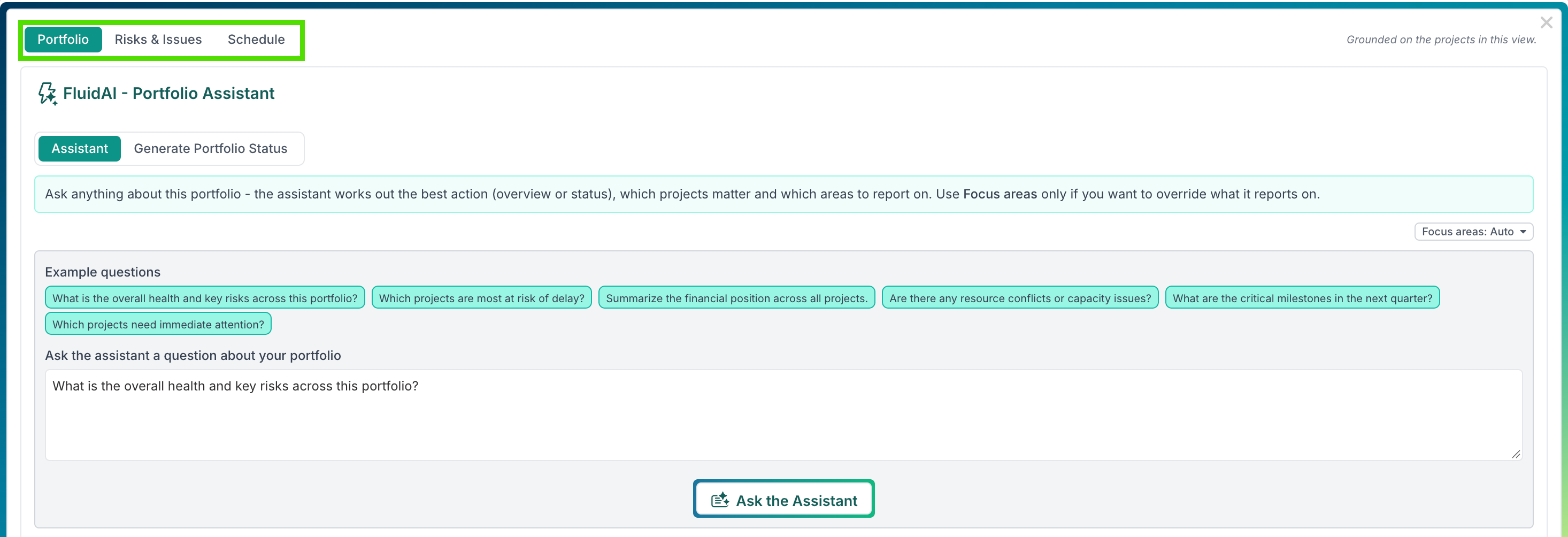
Portfolio
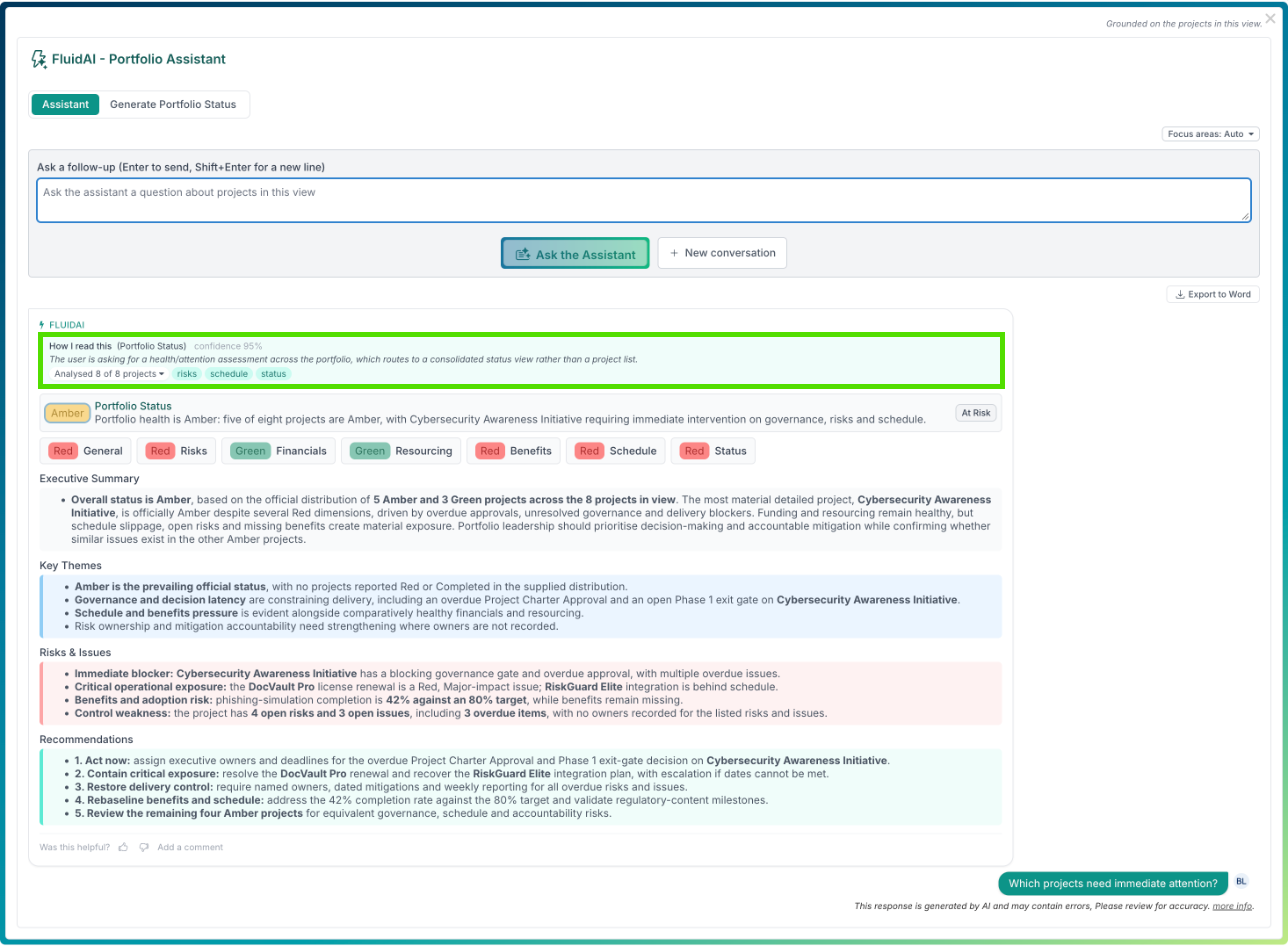
The overall picture across the projects in view: health, delivery, financial position and resourcing. Try “Which projects need immediate attention?” or “Summarize the financial position across all projects.”
The Portfolio tab answers from each project’s FluidAI Project Overview, so its answers are only as current as those overviews. It has two modes:
Assistant for questions. From your question, the assistant decides whether to answer with an overview or a portfolio status, and which areas to report on. Focus areas lets you override that and choose the areas yourself.
Generate Portfolio Status writes a status for the projects in view without a question. You can add an optional emphasis, such as focus on delivery risk.
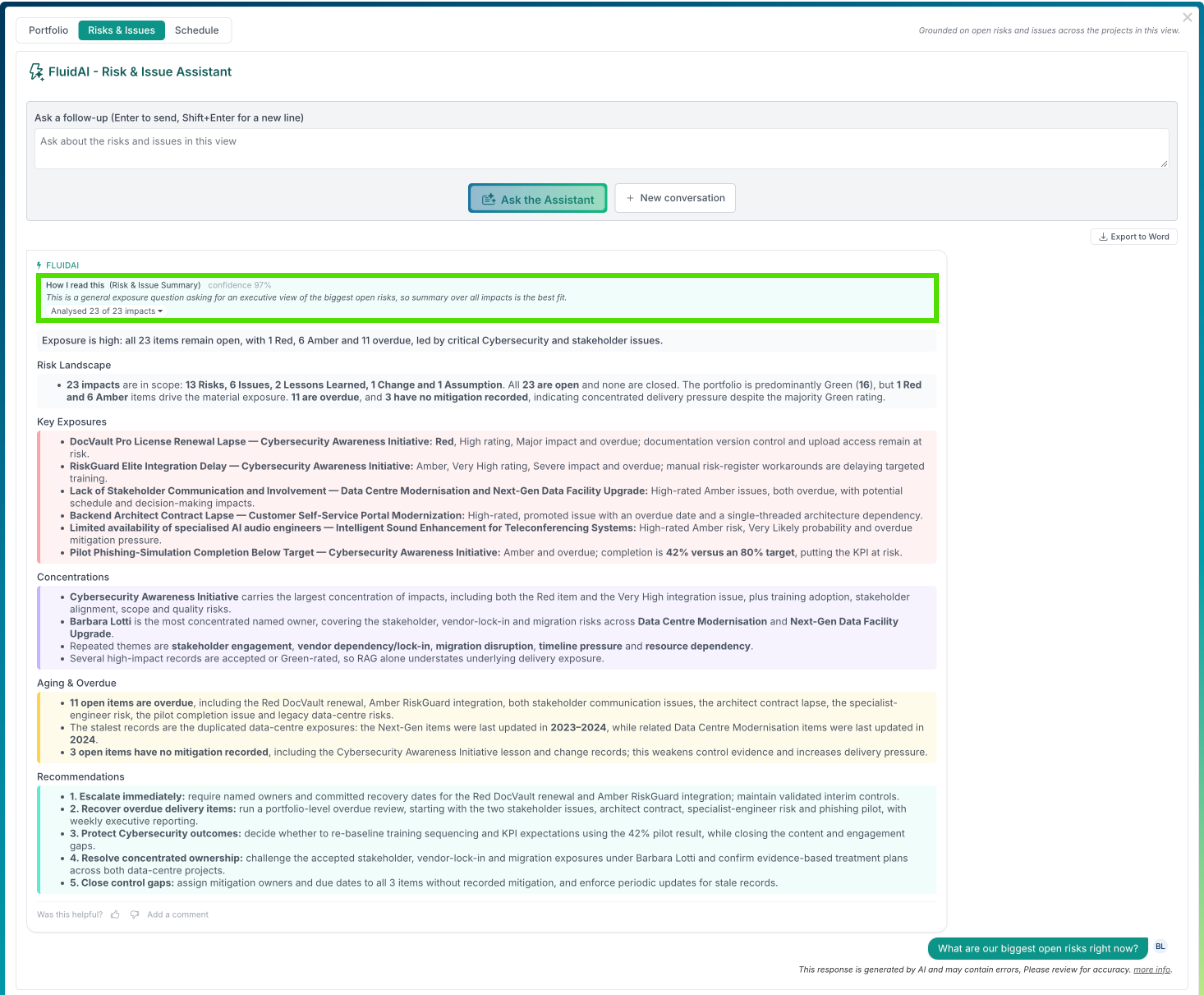
Risks & Issues
The open risks and issues across the projects in view. Try “What are our biggest open risks right now?”, “Who owns the most severe open issues?” or “List the risks with no mitigation recorded.”
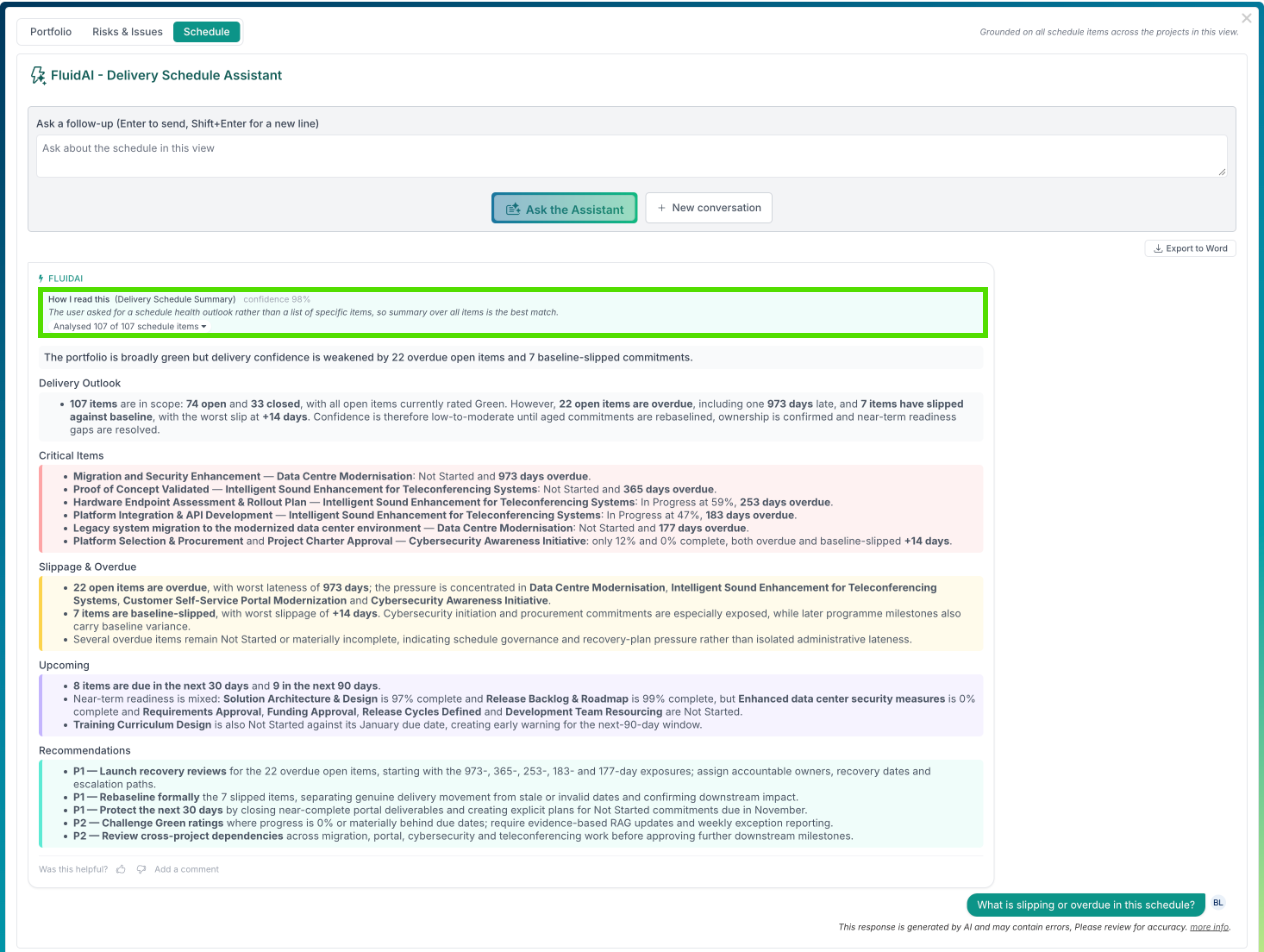
Schedule
The milestones, deliverables and tasks on the projects in view. Overdue and slippage figures are calculated from the schedule, not estimated. Try “What is slipping or overdue in this schedule?” or “What is due in the next 30 days?”
Asking a Question
Each tab offers a row of Example questions. Select one to put it in the question box, edit it if you like, then select Ask the Assistant. You can also type any question of your own. Press Enter to send, or Shift+Enter for a new line.
Broad questions across a large portfolio take longer, because more has to be read. While the assistant is working you can select Stop and ask something narrower.
Reading an Answer
You do not need to say what kind of answer you want. The assistant works it out from the question.
A broad question gets a summary: a short headline followed by sections. The sections depend on the tab:
Portfolio: Executive Summary, Key Risks, Financial Overview, Resourcing Overview, Schedule Highlights, Recommendations. A question about overall health or what needs attention gets a portfolio status instead: an overall RAG and theme, a RAG for each area, then Executive Summary, Key Themes, Risks & Issues and Recommendations.
Risks & Issues: Risk Landscape, Key Exposures, Concentrations, Aging & Overdue, Recommendations.
Schedule: Delivery Outlook, Critical Items, Slippage & Overdue, Upcoming, Recommendations.
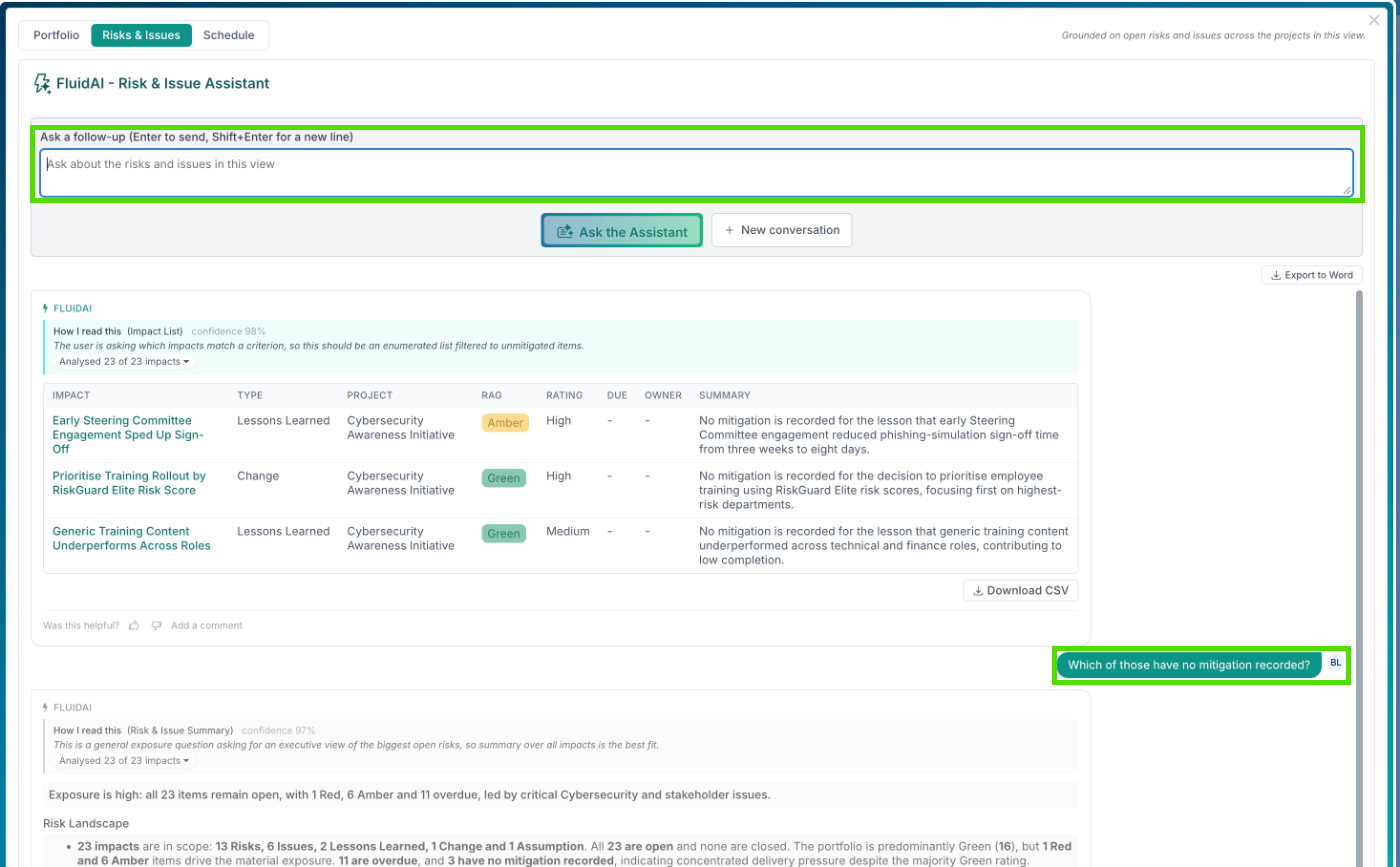
A question that asks for specific items gets a list: a table of the matching items, each linked to the item itself so you can open it. On the Risks & Issues tab each row shows the item’s type, project, RAG, rating, due date, owner and a one-line summary. On the Schedule tab it shows the item’s type, RAG, due date, whether it is overdue and by how much it has slipped, its owner and a summary. On the Portfolio tab a list is of projects, with each project’s primary project manager and a summary. Lists answer best when the question narrows things down.
How I read this. Answers to questions open with a How I read this panel. It is worth a glance before you read the answer itself, because it tells you what the assistant understood:
the kind of answer it chose, such as a summary, a list or a portfolio status, and how confident it is;
a one-line explanation of how it interpreted your question;
how many items it analysed out of the total in view, for example Analysed 23 of 23 impacts;
any filters it applied, shown as tags.
If the panel shows the assistant read your question differently from how you meant it, rephrase and ask again. (A status produced with Generate Portfolio Status has no How I read this panel, because there is no question to interpret.)
If a question is genuinely ambiguous, the assistant asks you to clarify rather than guess — you will see an amber I need a little more detail box. Answer it in the question box and it carries on.
Having a Conversation
The assistant is a conversation, not a one-off search. After its first answer, the question box becomes Ask a follow-up, and you can reply to what it said. It remembers the recent questions and answers, so a follow-up can build on the previous answer without repeating it.
A good pattern is to start broad and then narrow down. After asking for the biggest open risks, ask “Which of those have no mitigation recorded?” and the assistant lists just those. You can narrow by project, owner, type, rating and more in the same way — for example “Just the Cybersecurity Awareness Initiative ones, as a list.”
Some things to know about conversations:
The newest answer appears at the top, directly under the question box. Scroll down to see the earlier questions and answers.
Each tab has its own conversation. Switching between Portfolio, Risks & Issues and Schedule keeps each one where you left it.
Select New conversation to start again on a different subject.
Closing the assistant ends the conversation. When you open it again, every tab starts afresh. If you want to keep an answer, export it first.
Taking an Answer With You
Export to Word saves the tab’s whole conversation as a Word document, with tables and lists intact. Useful for a steering pack or a portfolio review.
Download CSV appears under a list and saves the listed items as a spreadsheet.
Telling Us How It Did
Under each answer, Was this helpful? offers a thumbs up and a thumbs down, and Add a comment lets you say why. Your administrator can review this feedback on the FluidAI Feedback page, and an answer that missed the point is the most useful kind to report.
Things to Keep in Mind
It answers from what is recorded. If a risk has no owner or a milestone has no date in Fluid, the assistant cannot know them. Gaps in an answer often point to gaps in the data, which is useful in itself.
It sees only the projects in view, and only what you are allowed to see. It does not reach beyond the dashboard’s filters or your own access.
Check before you act. Answers are generated by AI and can contain mistakes. Every item in a list links to the record itself; open it before making a decision that depends on it.
If you cannot see the button, one of the settings in Before You Start is off for your organisation, or the assistant is still limited to Project Admins. Ask your Fluid administrator.