User roles: ✔ Project Administrator ✔ All Users
In this article you will learn how to set the standard your status reports are held to, how the FluidAI check applies it when a report is saved, what project managers see, and how it differs from the impact guidance check.
The setup sections are for the project administrators who write the guidance. What Project Managers See describes the experience for everyone who writes status reports.
Before You Start
The Status Report Guidance Check is only available when your organisation has switched it on. An Application Administrator controls this on the FluidAI Features page in the Administration Console — see Setting Up FluidAI.
Enable FluidAI Status Report Guidance Check turns the check on, and adds the private guidance field to Status Report Settings.
Enable FluidAI for Fluid Jobs must also be on. Without it, reports save without being checked.
Status reports come with Fluid’s default private guidance, so reports are checked as soon as the setting is on. There is no job to run: the check happens when a report is saved. It applies to everyone who writes status reports, and is not affected by Restrict FluidAI to Project Admins.
What It Does
Status reports are usually written under time pressure, often the night before they are read. The predictable results are a strapline that says “on track” above a narrative describing three weeks of delay, achievements that restate the plan rather than what was delivered, and next steps that are the same as last month’s.
The Status Report Guidance Check reviews a report against your reporting standard at the moment it is saved, and tells the author what is missing while they are still in the report and can fix it.
In this article, the check means that review. When someone saves a status report, FluidAI reads the report together with your private guidance and decides whether the report meets it. If it does, the report saves as normal. If it does not, the author is told what is missing and chooses whether to change the report or save it anyway.
It is the same mechanism as the impact guidance check, applied to a different artefact. If you have read that article, most of this will be familiar — the section on what is different is the part worth your attention.
Setting the Standard
1. Open Status Report Settings
From the Administration Console, in the Project Settings section, open Status Report Settings. Select Guidance & Instructions in the side navigation to go straight to the guidance.
2. Find the guidance fields
The Status Report Guidance & Instructions panel holds the two fields that matter here, and they do different jobs. (Between them sits Status Report Component Commentary Placeholder, the prompt text shown in each component’s commentary box; it is not part of the check.)
Status Report Instructions is marked (Public guidance - shown to users). It appears to the author at the top of the status report, so keep it short and practical. It is a rich text editor, so you can use formatting and lists.
Private AI guidance is marked (used by the AI guidance check). Only FluidAI reads it. Be as specific and as long as you need — nobody has to read it but the check.
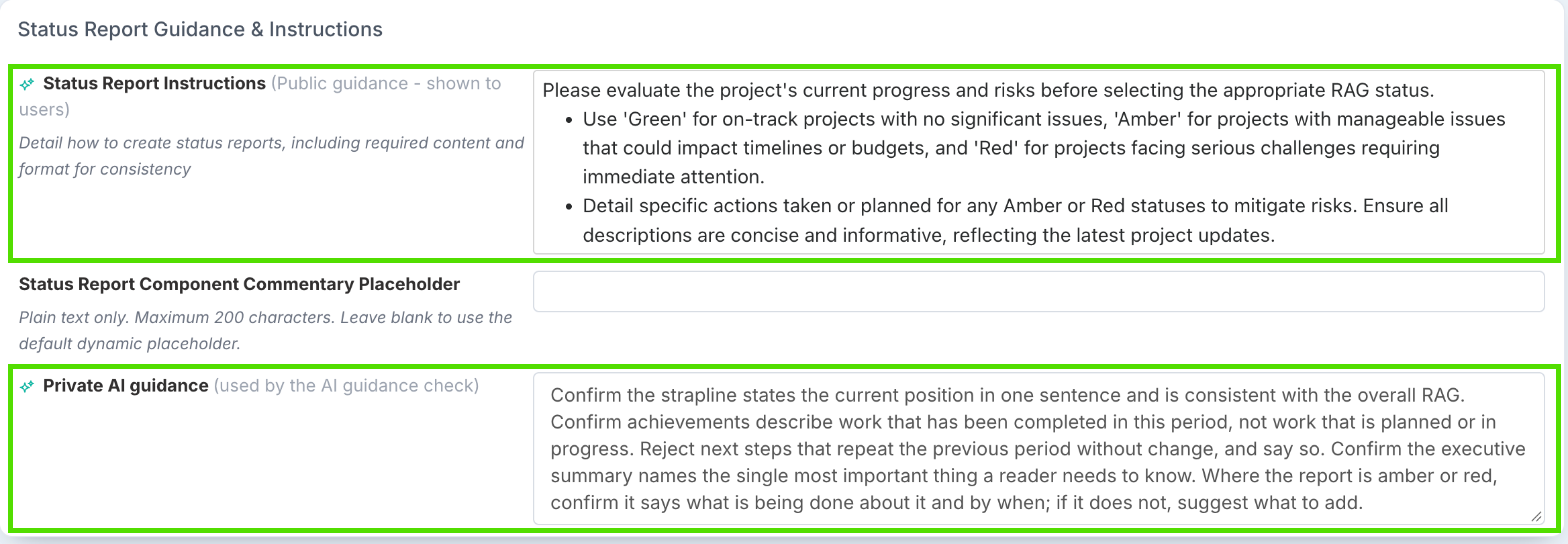
The private field only appears once Enable FluidAI Status Report Guidance Check has been switched on in FluidAI Features. If you cannot see it, that is why.
3. Write the private guidance, then select Save
Save is at the top right of the page; once saved, you are taken back to the Administration Console. The private guidance in the screenshot above:
Confirm the strapline states the current position in one sentence and is consistent with the overall RAG. Confirm achievements describe work that has been completed in this period, not work that is planned or in progress. Reject next steps that repeat the previous period without change, and say so. Confirm the executive summary names the single most important thing a reader needs to know. Where the report is amber or red, confirm it says what is being done about it and by when; if it does not, suggest what to add.
Notice this is written as instructions to a reviewer — confirm, reject, suggest — and that every requirement refers to something on the report. See Writing Good AI Guidance for why that matters more than anything else on this page.
Check Your Own Guidance
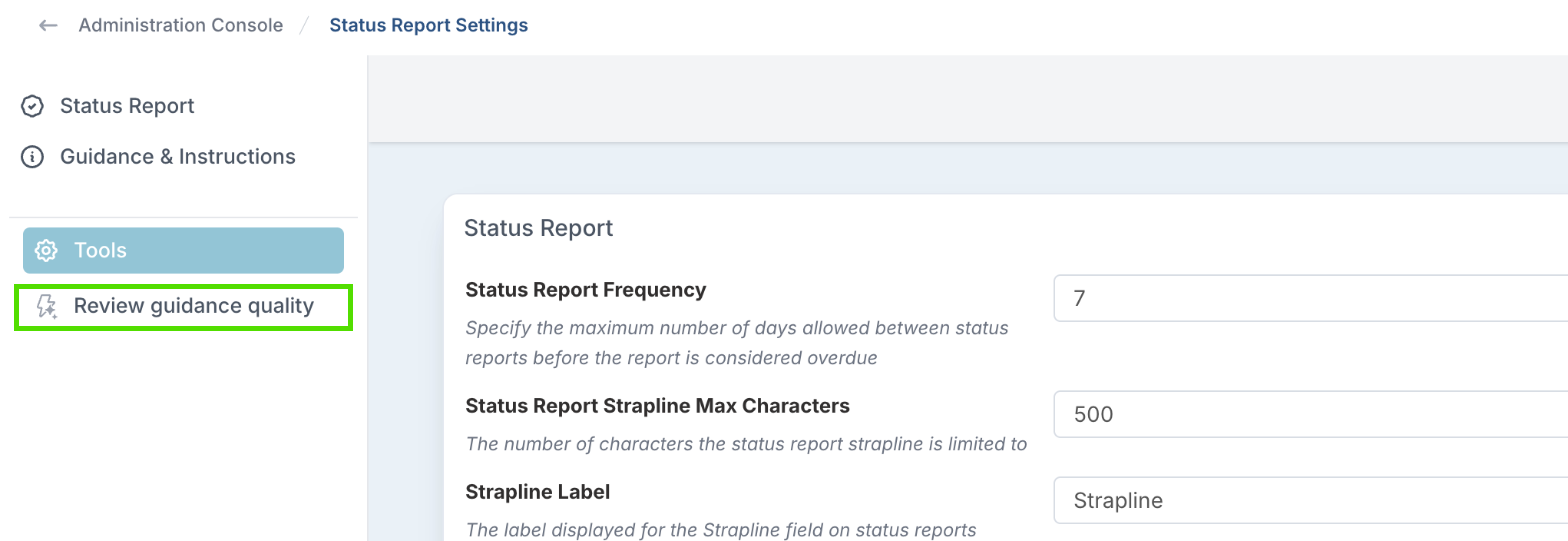
From the Tools section of the Status Report Settings side navigation, Review guidance quality runs an AI review of the standard you have written. Save your guidance first: the review reads what is saved, not what is on screen.
The results appear at the top of the page under Guidance review, for your status report guidance:
a rating of Strong, Adequate or Weak;
an explanation of what holds the guidance back, and a few suggestions;
a Suggested rewrite you can copy into Private AI guidance. Nothing changes until you paste it in and select Save.
Select Dismiss to close the review.
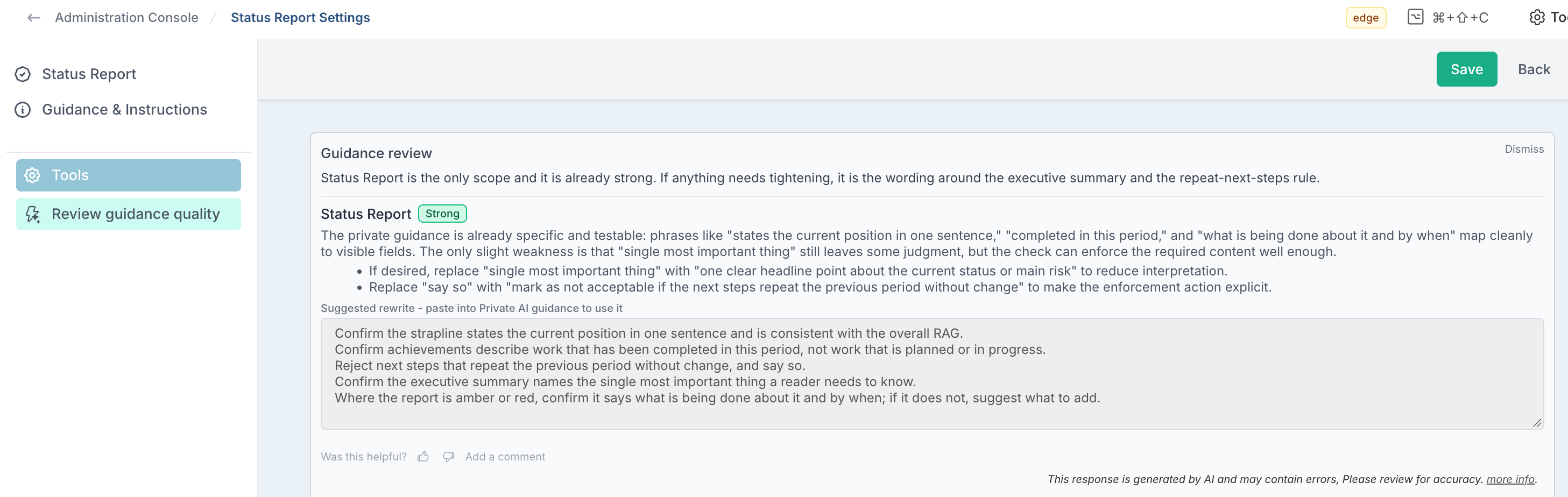
Run it from this page rather than from Impact Settings — the review is scoped to the page you launch it from, so you get findings about your status report standard rather than about impact types you were not looking at.
What FluidAI Can See When It Checks a Report
When it checks a report, FluidAI is given the project name, the overall RAG, the strapline, achievements, next steps, the executive summary and comments.
That is everything it can judge. Guidance asking about milestone dates, financial variance, resource allocation or whether last period’s actions were closed is asking about information the check never receives — it will not error, it will simply produce judgements that do not hold up. Put requirements like those in the public instructions, where a human who can see the rest of the project is reading.
What Project Managers See
The check lives in the status report. It runs whenever a project manager — or anyone else who writes status reports — saves a new report or a draft, for example after selecting New Report in the Status Report section of the project workspace.
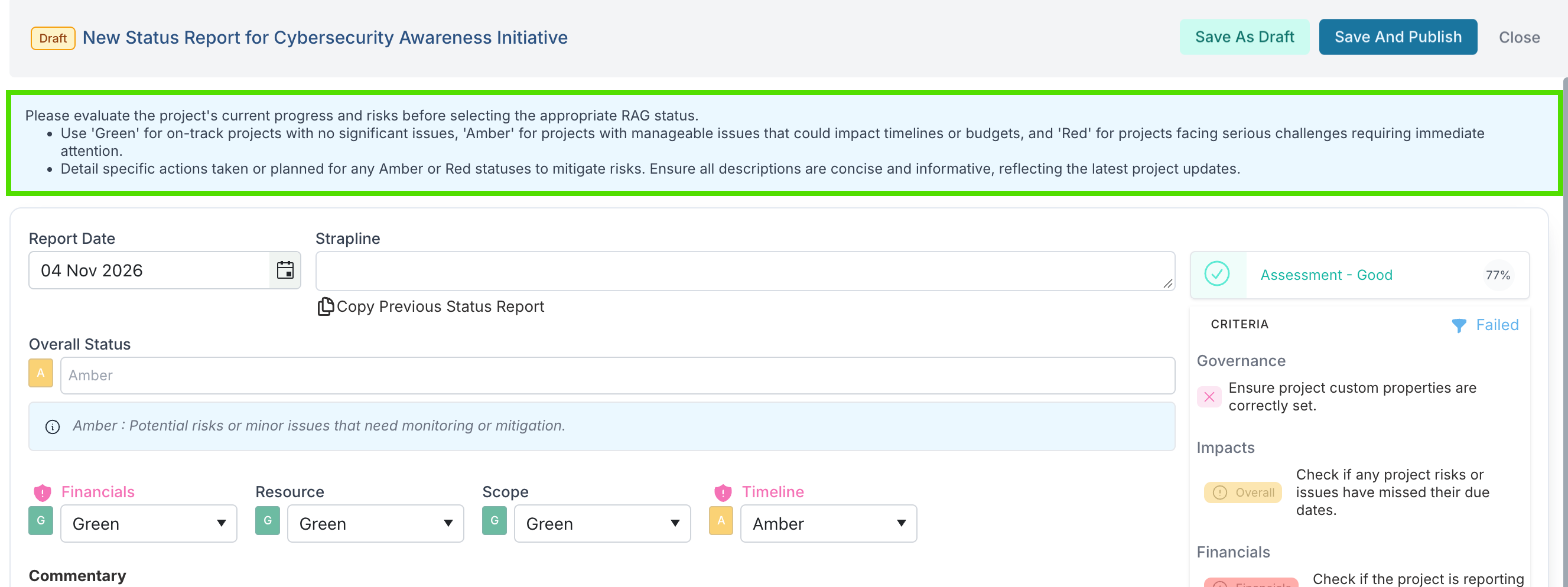
Opening the report. The status report instructions appear in a blue box at the top of the report, so the author sees your standard before they start writing.
Saving. When the author selects Save As Draft, Save And Publish or Save, the report is first validated as normal — for example, a component that is not Green needs its commentary, owner and path to green date. Then the check runs. Saving takes a little longer while it does: the button area shows Checking with a running count of seconds, and a short message says what is happening — Checking this report against the project guidance, then Reviewing the detail you have written.
If the report meets the guidance, it saves. Nothing else happens, and this is the common case.
If it falls short, the report stays open and a yellow warning headed This report may not meet the project’s guidance. takes the place of the instructions at the top. It gives one short sentence describing the main issue, a few specific suggestions, and two options:
OK closes the warning so the author can edit the report. The instructions come back, and the next save runs the check again.
Save Anyway saves the report as written. It reads Save Anyway As Draft or Save Anyway And Publish to match the button the author selected.
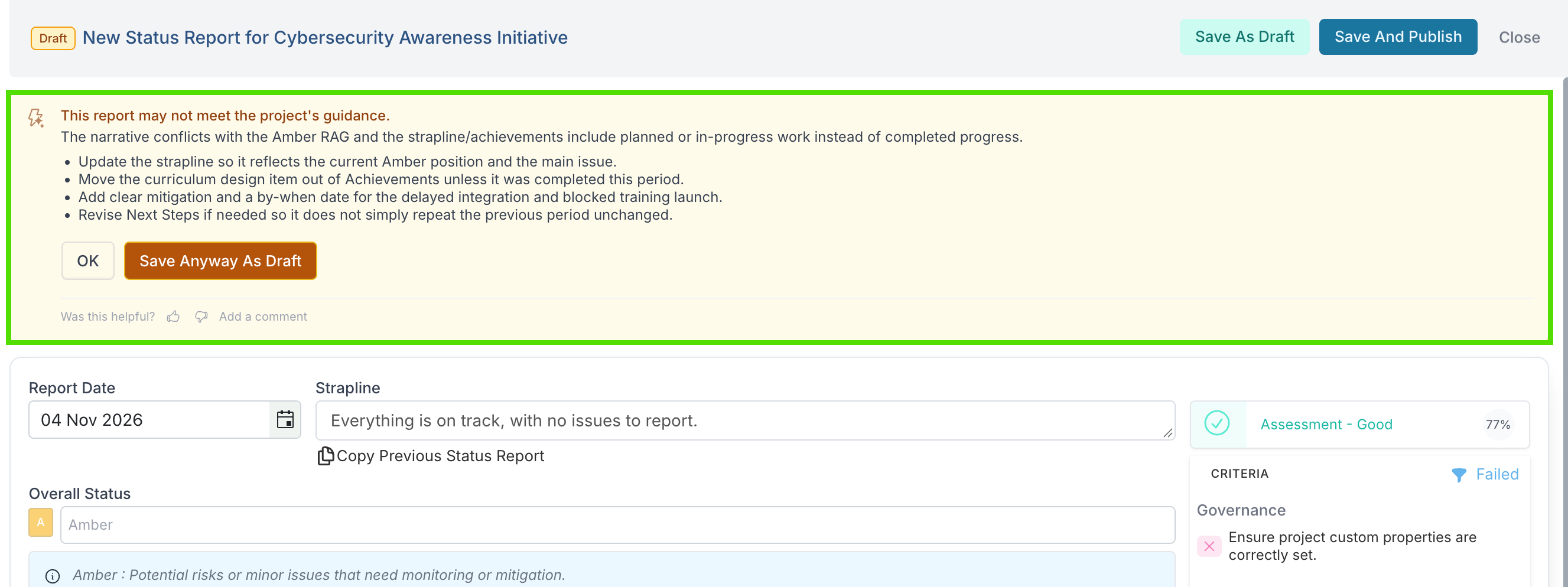
As with every FluidAI check, the author is never blocked. The person writing the report knows things the standard does not, and a check that prevents submission teaches people to write for the check rather than for the people who read the report.
The warning also carries Was this helpful? with a thumbs up and thumbs down. The ratings are collected on the FluidAI Feedback page in the Administration Console, and a run of thumbs-down is the clearest sign that your standard is too strict.
What Is Different From the Impact Check
There is one standard, not one per type. Impacts have separate guidance for Risk, Issue, Dependency and so on. Status reports have a single standard covering the whole report, so it has to address every section you care about in one piece of writing.
The check also tests the narrative against the RAG. Regardless of what your guidance says, FluidAI checks whether the story the report tells is consistent with the overall RAG. A report at your healthiest RAG whose narrative describes a material delay, an at-risk milestone or an unresolved blocker is flagged, and so is a report at your most severe RAG whose narrative reports no problems. This is the status report equivalent of the impact check catching a risk written as an issue, and in practice it is the finding administrators value most — it is the discrepancy a busy reader is most likely to miss.
Three ways to save, one check. The check runs whether the author selects Save, Save As Draft or Save And Publish. It does not run again when someone edits a report that has already been published.
Save Anyway is not recorded on the report. On an impact, saving against the guidance is recorded on the record; on a status report it is not.
The public field is a rich text editor. Status Report Instructions supports formatting; impact public guidance is plain text.
Before You Switch It On
Replace the private guidance before you rely on it. The field arrives with a default standard of ours, so the check starts applying that the moment you switch it on.
Align it with the public instructions. If the instructions on the report say one thing and the check measures another, authors lose confidence in both.
Warn people that saving takes a moment longer. It is a small change but an unexplained delay on a familiar action reads as a fault.
Read the first reporting cycle’s results. One cycle of real reports will tell you more about your standard than any amount of redrafting.