This Train 19.2 release introduces Board Views on Kanban boards. You can save the way you look at a board, whether that is your own cards, the approval queue or the board without its done columns, and switch between those views in one click. Views can be kept to yourself or shared with the whole board, and a view can be shared, read-only and for a set period, with people who are not on the board at all. The My Boards page has also been redesigned, with a list view, search, sorting and grouping.
Custom properties gain property dependencies: a property can now be shown by a rule that combines several answers with a project’s own fields, and rules chain together, so forms only ask the questions that apply.
Fluid can now also be connected to AI assistants such as Claude and Copilot through Fluid MCP, in Beta. People sign in with their own Fluid account, and the assistant can work with the boards, cards, status, RAID and schedules they already have access to, and nothing more.
For administrators, Personal Access Tokens have a page of their own: people can hold several named tokens, and administrators can review and revoke every token in use. Timesheet reminder and returned-for-amendment emails now send reliably, and administrators can get a daily email of SCIM user details that could not be applied.
The release also includes a number of smaller enhancements and fixes.
Board Views: save, switch and share how you look at a board
A Kanban board rarely serves just one purpose. The same board is used by a team lead checking what is waiting for approval, by team members looking for their own cards, and in review meetings that only care about the work still in progress. Until now, each of them had to set up the filters, grouping and columns again every time they opened the board, and anyone outside the team who needed to follow part of it had to be added to the board.
Kanban boards can now save views. A view remembers the board’s filters, grouping and collapsed groups, which columns are collapsed or hidden, and whether card details are shown. Your views appear as tabs under the board name, so moving between them is instant.

Personal or board views: keep a view to yourself, or show it to everyone on the board so the whole team works from the same picture. Only the view’s creator and the board owners can change a board view.
All cards: once a board has a view, an All cards tab is always there to take you back to the whole board, with no filters and every column shown.
Hide columns: hide the columns a view does not need, from the new Columns button or a column’s menu. Unlike a collapsed column, a hidden column is not loaded, so the task and point totals only cover what you see.
Defaults: choose the view that opens for you on each board. Board owners can also set a board default, so everyone without their own default lands on the same view.
Manage views: pin, rename, duplicate, share and delete views in one table.
Share a view with people outside the board
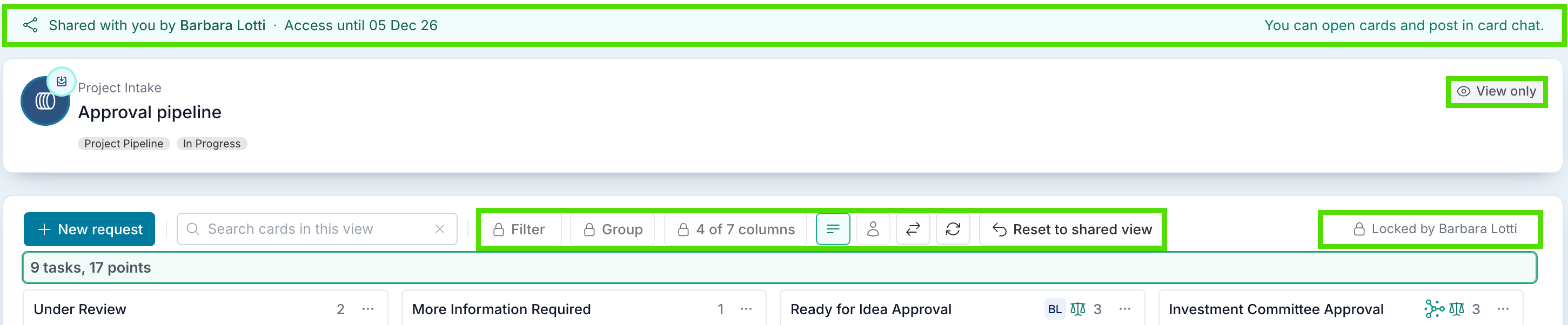
You can now share a saved view with named people, including people who are not on the board, for 7, 30 or 90 days, until a date you choose, or with no end date. They see just that view, read-only, with any controls you lock, and they can open cards and post in card chat. Fluid gives them Viewer access to the board while the share lasts and removes it when the share ends, and tells them when a view is shared, two days before it ends, and when it ends. Shared views appear under Shared with you on their home page and on My Boards.
Getting started
Views are available straight away on every Kanban board, for Board Members and Owners. There is nothing to switch on. Board Viewers keep the read-only board they have today.
Sharing views with people is off by default. Ask your Fluid administrator to turn on Allow Shared Board Views for your site.
For full details, see Saving and Switching Board Views, Showing and Hiding Columns on a Board, Managing Board Views, Sharing a Board View with People and Opening a Board View Shared with You.
Board toolbar: a cleaner toolbar with icon buttons
The toolbar on a board had grown into a row of text buttons: Assigned to Me, Show Card Details and Show Scroll Controls, with search, clear and refresh squeezed together beside the search box, and Expand All or Collapse All on a bar of its own under the toolbar. It took up room, and there was no telling at a glance which options were on.
These controls are now icon buttons beside Group. Hover over a button to see its name. A button with a teal border is on, and clicking it again turns it off.

Collapse All / Expand All: appears when the board is grouped, and closes or opens every group in one click. It replaces the bar under the toolbar.
Card details: shows or hides the extra details on each card, such as its custom properties.
Assigned to me: shows only the cards assigned to you. Click it again to see everyone’s cards.
Scroll controls: shows the left and right scroll buttons on a board too wide for the screen.
Refresh board: reloads the cards, to pick up changes other people have made.
Search cards: one box, with the magnifier inside it and an X to clear the search. Press Enter or click the magnifier to search.
Columns: on Kanban boards, shows how many columns are showing, such as Columns 4/7, with a dot when some are hidden.
On a board view shared with you, the buttons the person sharing it has locked are greyed out, and their tooltip says why. There is nothing to set up: everyone sees the new toolbar.
My Boards: find the board you need, in a list or as tiles
As people join more boards, the My Boards page of tiles meant scrolling to find the one you wanted, and reading each tile to see what kind of board it was, who ran it and whether you had work on it.
My Boards has been redesigned around a list view, which is now the default. Each board is one row with its type, owners, members and how many of your tasks are on it, and buttons to open the board, or the backlog for a sprint board, and its Board Workspace. Boards that take work requests show their request level under the name, and a link icon that copies the board’s work request link.
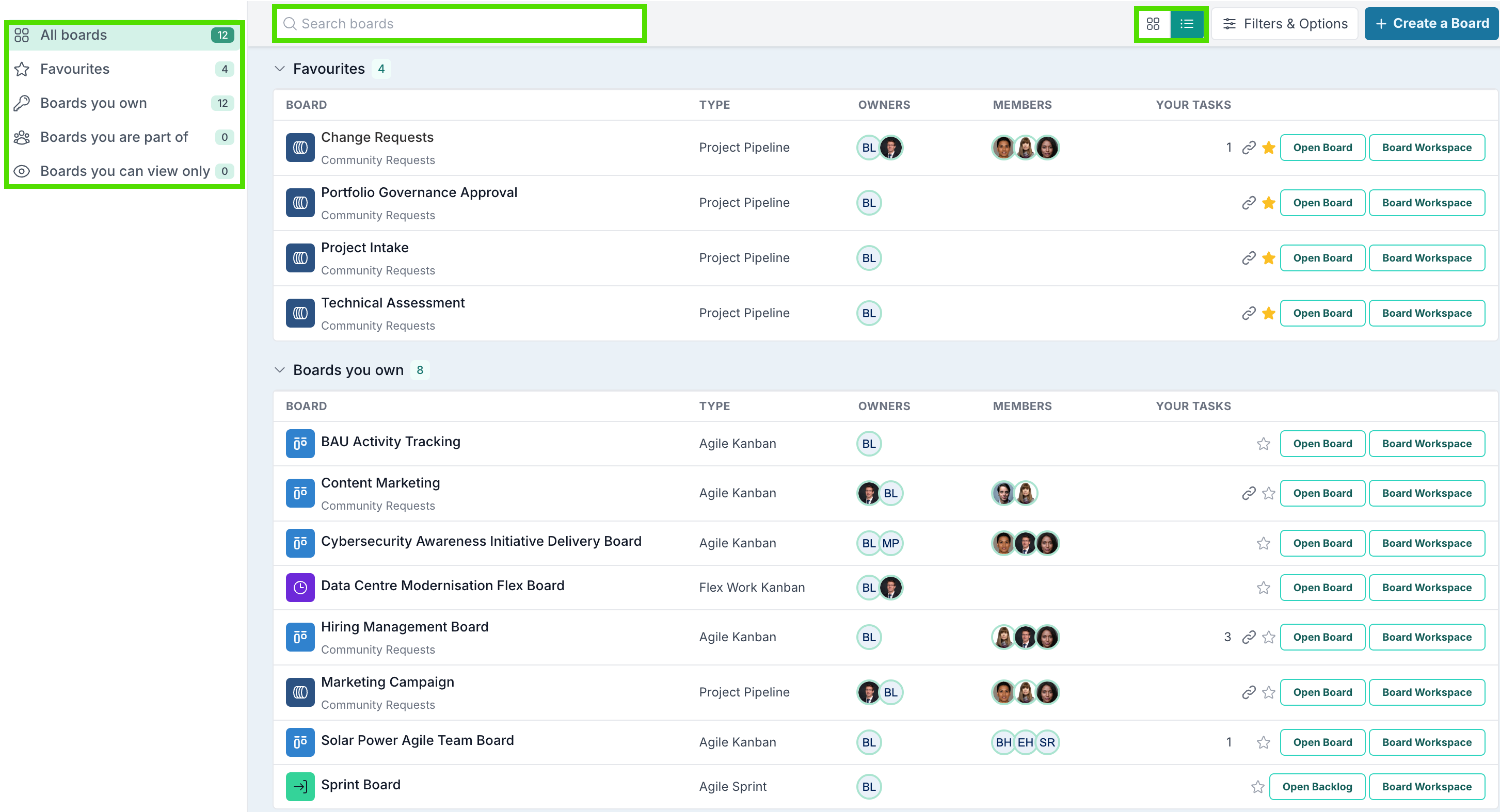
Left menu: jump to All boards, Favourites, Boards you own, Boards you are part of or Boards you can view only. Each shows how many boards it holds.
Search boards: type part of a board’s name or its type. The list and the counts in the left menu narrow as you type.
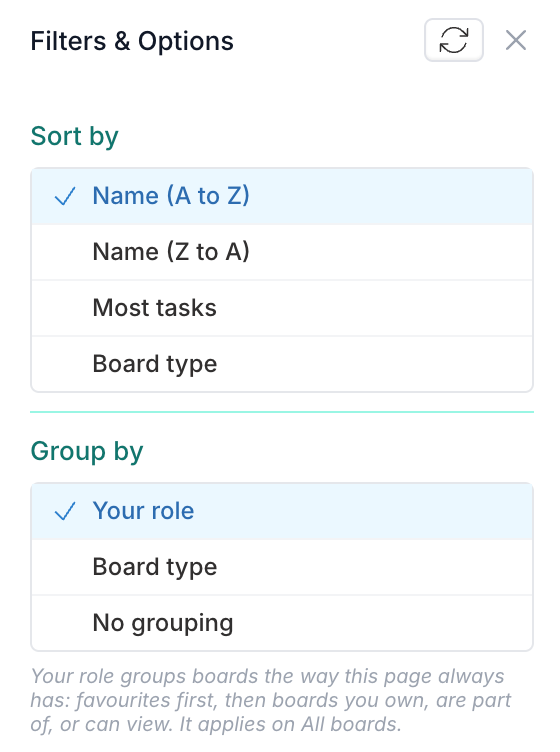
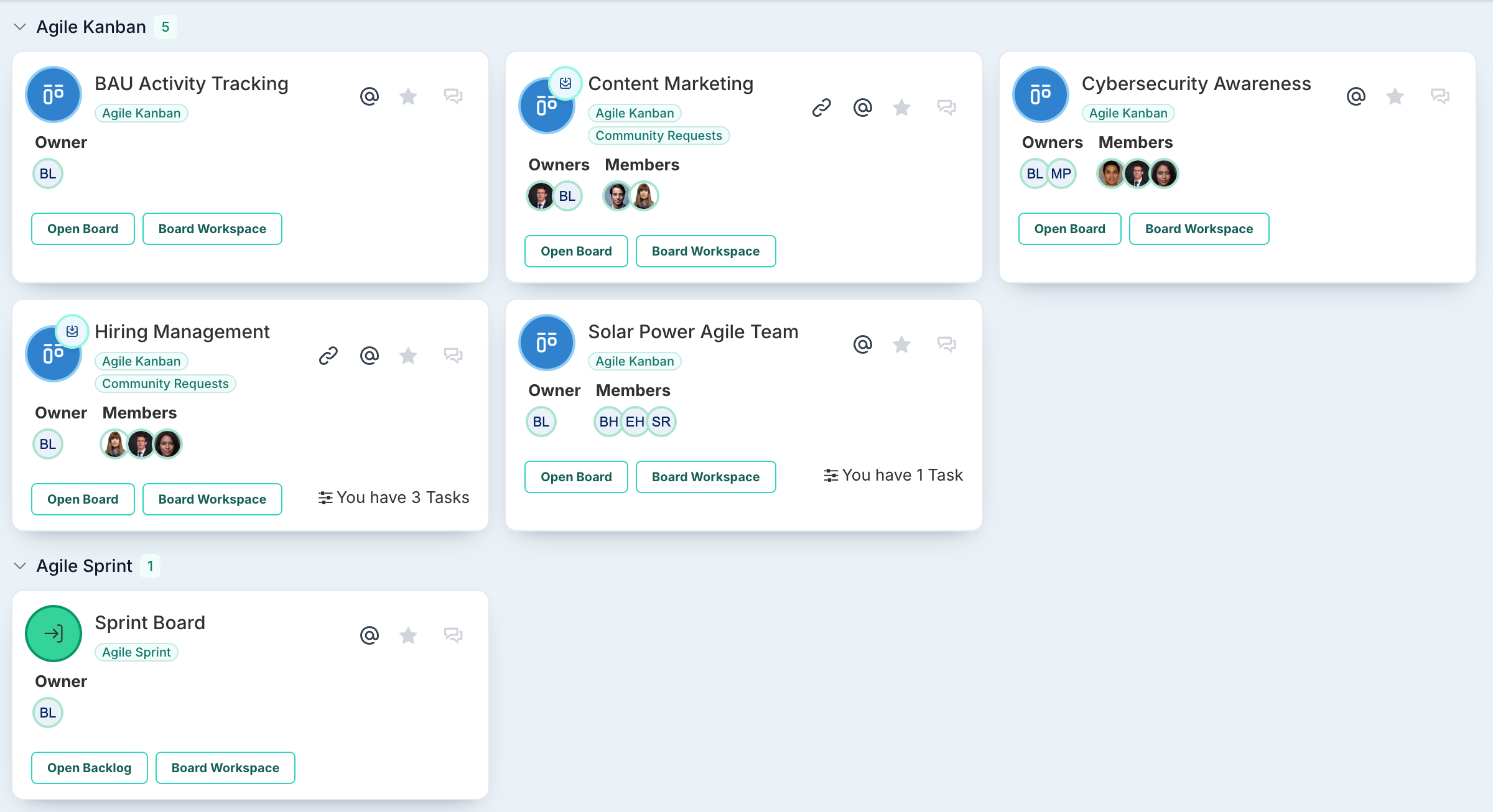
Filters & Options: sort by name, most tasks or board type, and group by Your role (favourites first, then the boards you own, are part of or can view, as before), by Board type, or not at all. Each group can be collapsed, and a dot on Filters & Options shows when something other than the default is chosen.
Tiles or list: prefer the tiles? Switch with the layout buttons beside the search. Fluid remembers the layout you choose. The tiles now show the board type and request level as labels.
Shared with you: board views other people have shared with you appear at the top of the page. See Board Views above.
There is nothing to set up. Everyone sees the new page, opening in list view until they choose tiles.
Property Dependencies: show each question only when it applies
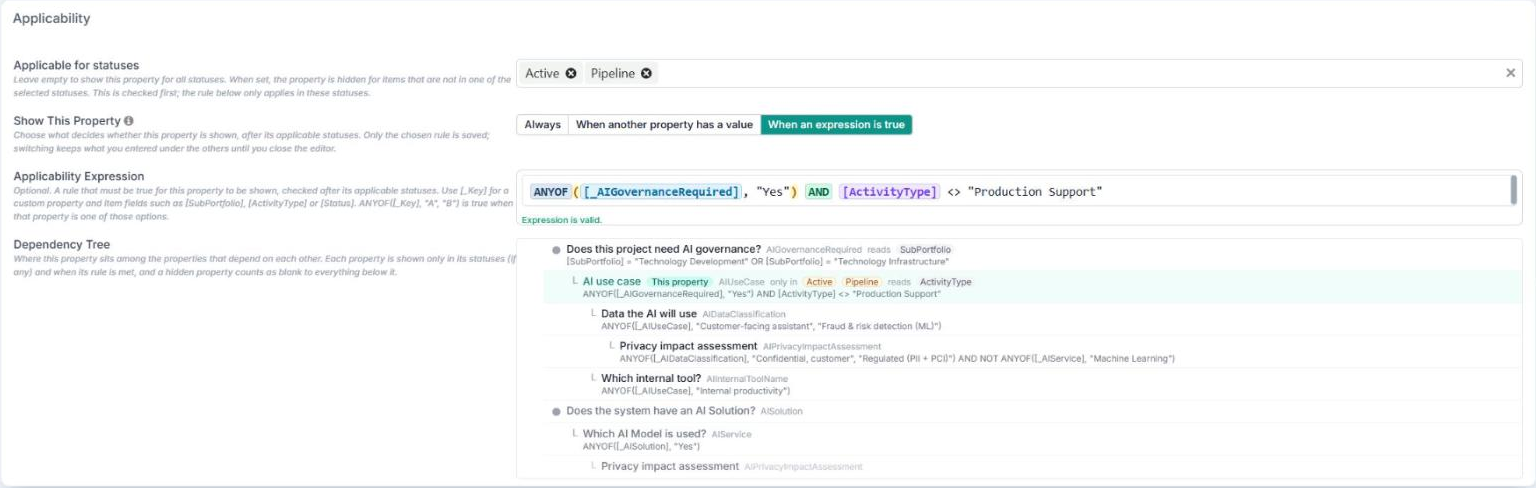
Project and card forms often carry questions that only matter in some cases: a privacy impact assessment only when an AI system will use customer data, a list of affected applications only when a change is to an existing one. Until now a custom property could only depend on one answer to one other property, so anything more involved meant asking everyone every question, and reports filled up with blank or meaningless answers.
Custom properties can now be shown by a rule, an applicability expression. One rule can combine several custom properties with the item’s own fields, such as a project’s Sub-Portfolio, Project Type or Status, using AND, OR and NOT. Rules chain into a dependency tree: when a property is hidden, every property that depends on it is hidden too, so people only see the questions that apply to them.
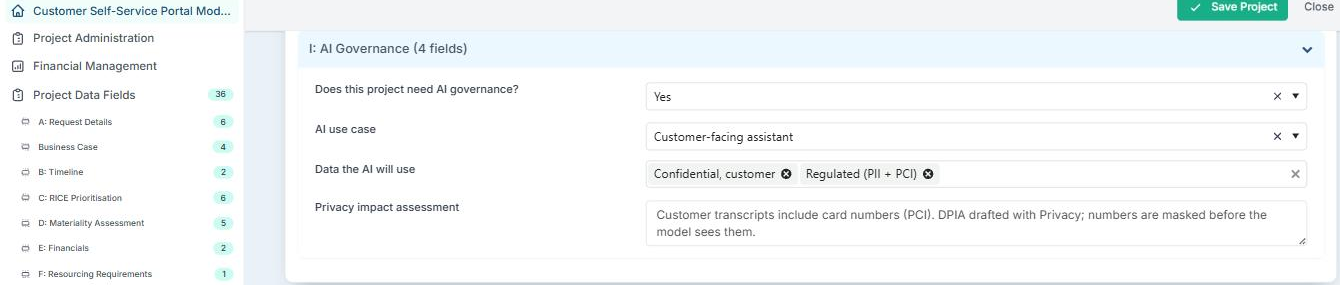
Show This Property: in the property editor’s Applicability section, choose Always, When another property has a value for a simple dependency as before, or When an expression is true for a rule. Convert to expression turns an existing simple dependency into the same rule, ready to extend.
Dependency Tree: the editor shows where a property sits, what it depends on, the statuses it is limited to and what depends on it, and follows your changes before you save. A rule that would create a loop cannot be saved.
Writing rules: the expression field has autocomplete and Functions and Fields menus. On project properties, Evaluate tries a rule against a real project, and where FluidAI is turned on, AI Assistant drafts one from a plain-English description.
One rule for a whole category: the category’s Bulk Set dialog gives every property in it the same rule.
A clearer properties table: pills on each row show which properties are conditional, what they depend on and how many depend on them, and properties whose setup no longer works are highlighted, with the reason. Group the table by Category, Type, Applicable status, Required, Reportable, Visibility mode, Dependency tree or Issues.
Safer changes: before you save a change that would affect when other properties are shown, such as removing an option they rely on, Fluid lists them and asks you to confirm. It does the same when a board save renames or removes a status that properties use.
Only answers that apply are kept: a hidden property keeps its answer while someone edits, and answers to properties that no longer apply are removed when the item is saved.
Getting started
There is nothing to switch on. Application and Data Administrators can use it on project properties, and Board Owners on board properties.
Existing simple dependencies keep working as before. They now also ignore upper and lower case, can depend on a multi-select property, and are hidden on save when their parent is hidden by its status.
For full details, see Conditional Custom Properties: Simple Applicability and Conditional Custom Properties: Advanced Applicability.
Fluid MCP (Beta): work with Fluid from your AI assistant
Many people already use an AI assistant to draft updates, summarise work and plan their week, but the assistant cannot see Fluid, so the details get copied in and out by hand.
Fluid can now be connected to AI assistants that support MCP connectors, such as Claude, Claude Code, GitHub Copilot and Microsoft 365 Copilot. A person signs in to Fluid from the assistant with their own account and chooses what it may do. The assistant can then read and update the boards, cards, weekly status, RAID and schedules that person has access to. It can never see or change more than they can.
For people who use an AI app
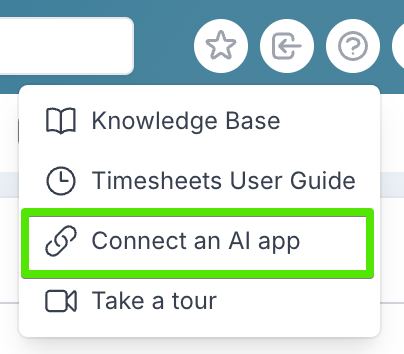
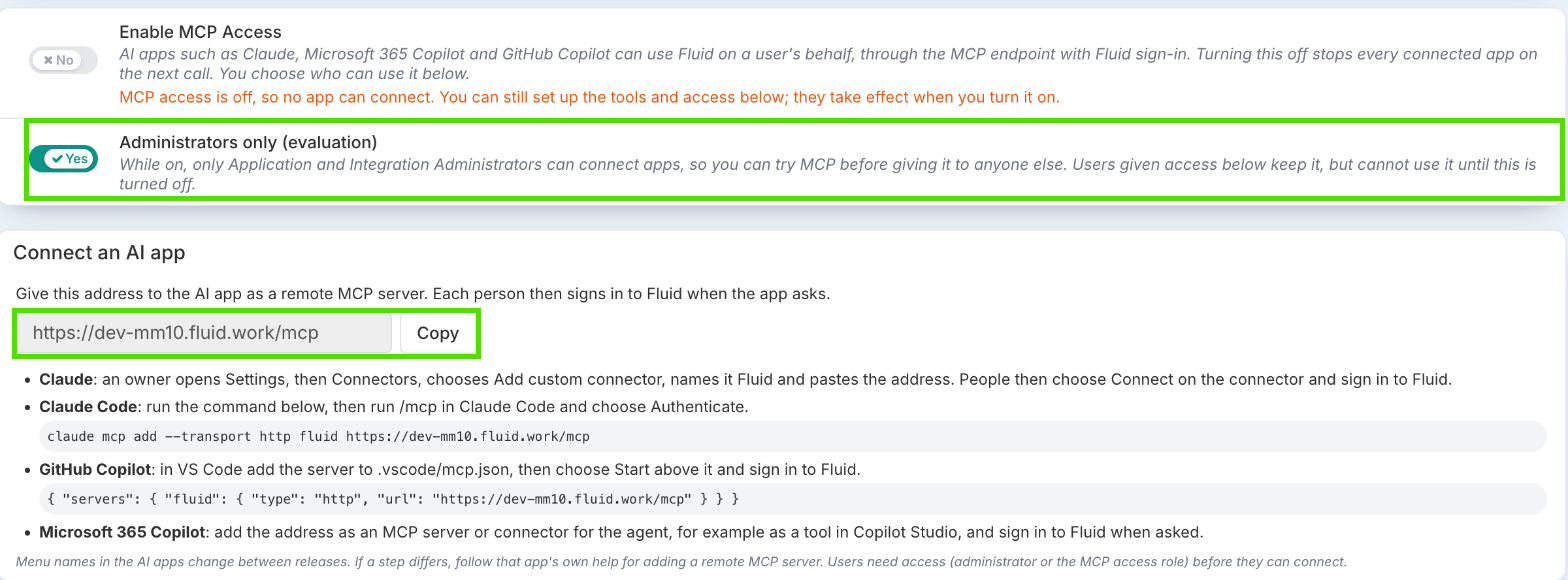
Connecting an app: in Fluid, open the Help menu and choose Connect an AI app. This opens Connected AI apps, which shows your site’s MCP address with a Copy button. Add that address to your AI app as a connector, then sign in to Fluid when the app asks.
Choosing what the app may do: after you sign in, Fluid shows a consent page that lists what the app is asking for, area by area. Reading is ticked for you. Changing and deleting stay off unless you tick them.
Ask FluidAI: one of the options on that consent page. It lets the app ask Fluid’s own AI, FluidAI, questions about a project or a set of projects. It is ticked by default, and each question uses your site’s FluidAI allowance, so untick it if you do not want that.
Seeing and disconnecting your apps: Connected AI apps lists every app you have connected. Choose Disconnect to stop one straight away. You can also open it from Connected AI apps in your user menu, under your initials.
For administrators
Everything is on one page: Administration Console → FluidAI → MCP Tools, titled MCP Tools and Connected Apps.
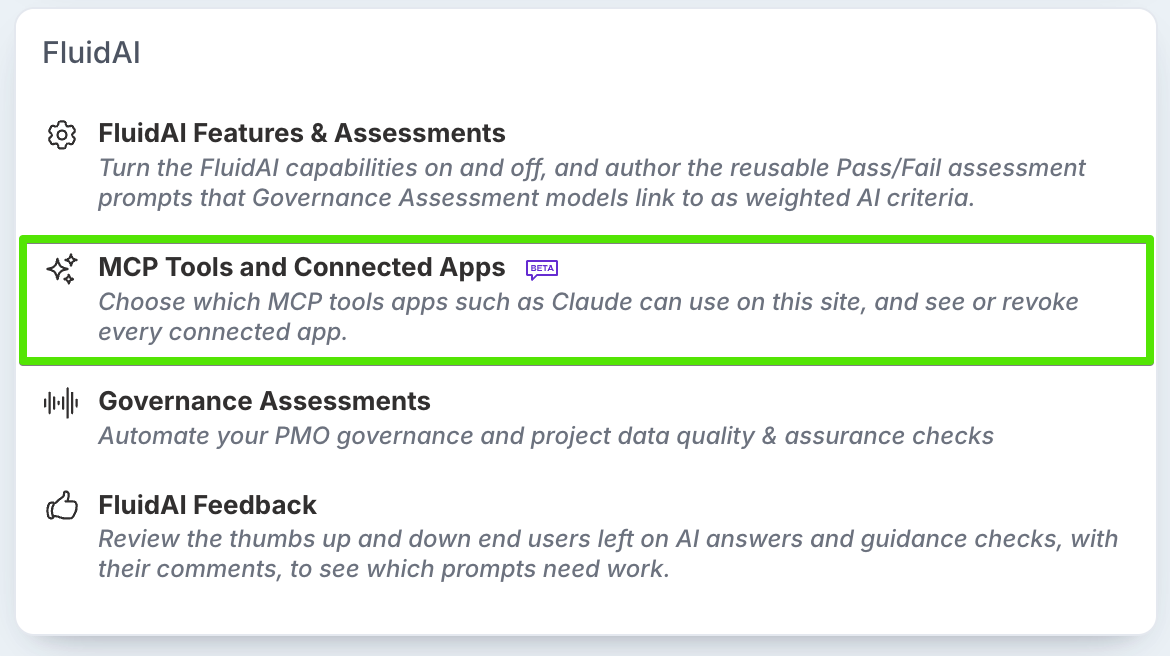
Turning MCP on: the Enable MCP Access switch turns MCP on for your site. Only an Application Administrator can change it.
Trying it out first: Administrators only (evaluation) starts on. While it is on, only Application and Integration Administrators can connect an AI app, so you can test MCP before anyone else uses it. Turn it off when you are ready.
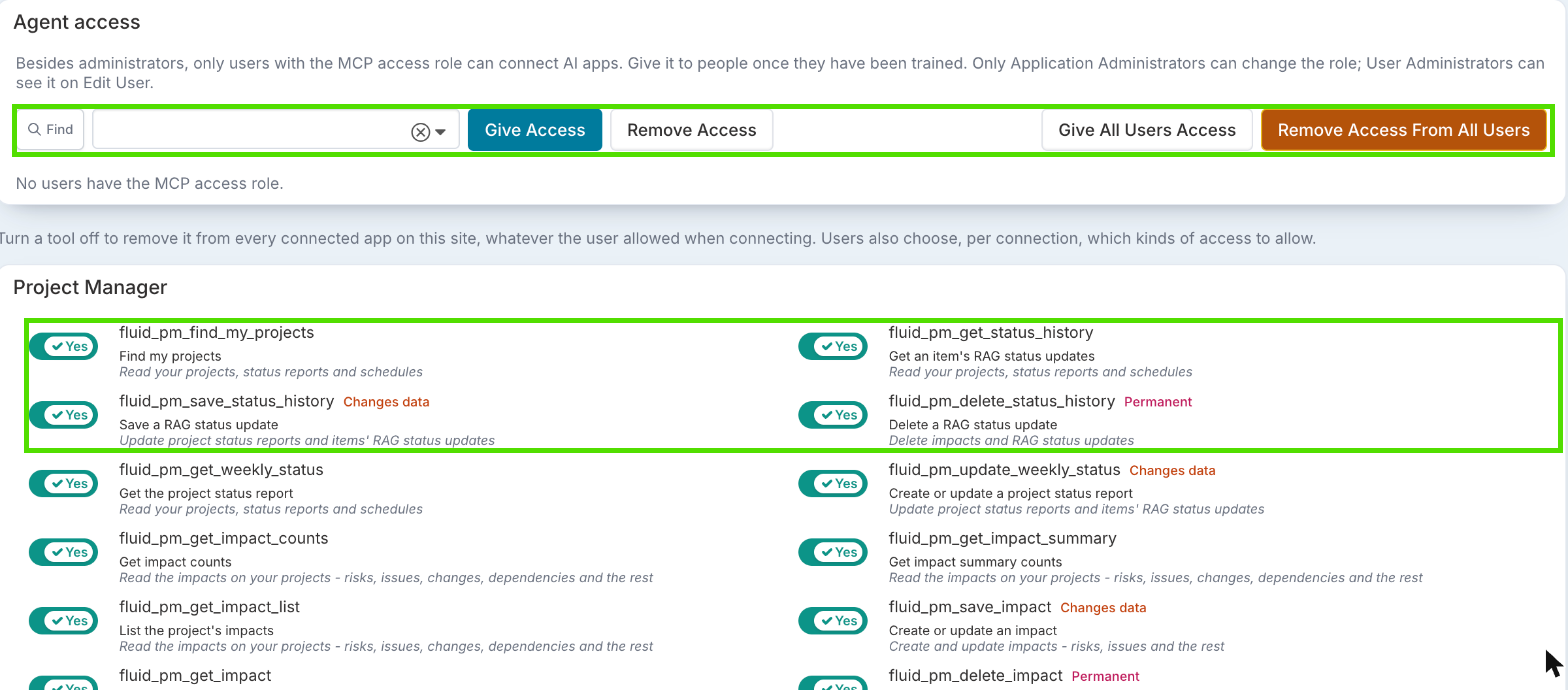
Choosing who can use it: everyone else needs the new MCP access role. Application Administrators give or remove it in the page’s Agent access section, one person at a time or with Give All Users Access, on a person’s Edit User page, or in bulk with the McpAccess column in the resources bulk edit. People on Collaborator or Community licences, or without a licence, cannot have it.
Choosing which tools apps can use: every tool is listed with an on/off switch. A tool turned off here is unavailable to every app on the site, whatever people allowed when they connected. Tools that change data are marked Changes data, and tools that delete are marked Permanent.
Setting up apps: the page shows your site’s MCP address, with setup steps for Claude, Claude Code, GitHub Copilot and Microsoft 365 Copilot.
Seeing every connection: the page lists every app connected on your site. Revoke ends a connection straight away.
Getting started
MCP is off by default on every site. Ask Fluid to make it available for your site.
An Application Administrator then turns on Enable MCP Access on the MCP Tools page. Administrators only (evaluation) starts on, so administrators can try it first. When you are ready, give the MCP access role to the people who will use it and turn Administrators only off.
AI assistants are not always correct. Changes an assistant makes to Fluid data are the responsibility of the person who connected it. Nothing changes for people who do not use MCP. For full details, see Connect AI apps to Fluid with MCP, Managing Fluid AI Connectors (MCP) for Administrators and Fluid MCP (Connectors) Tools Definition. Example prompts for each toolset are in Fluid AI Connector: Project Manager Tools, Fluid AI Connector: Board Manager Tools and Fluid AI Connector: Portfolio Health Tools.
Personal Access Tokens: several tokens, managed in one place
Integrations such as Power BI refreshes and scripts use a Personal Access Token to call the Fluid API. Until now each person had a single token, so every integration shared it, and revoking it to stop one integration stopped them all. Administrators also had no view of which tokens existed or whether they were still used.
Personal Access Tokens now have their own page, opened from Personal Access Token in the user menu, under your initials.
Several tokens: create a token for each integration, with a name and an expiry date. Leave the date blank for the default lifetime of one year. The token is shown only once, so copy it straight away.
See what is in use: the list shows each token’s issued date, expiry date and when it was last used, with a status: New or Unused if it has never been used, Active if it was used in the last 30 days, Stale if it has not been used since, Expiring Soon, Expired or Revoked.
Revoke one at a time: revoke a single token without affecting the others. You are asked to confirm, and the token stays in the list marked Revoked.
For administrators: Personal Access Tokens in the Administration Console lists every token across the site, so administrators can spot unused or stale tokens, issue a token on someone’s behalf and revoke any that should no longer work.


Getting started
Personal Access Tokens are available when Enable Personal Access Token is on for your site.
A new setting, Restrict Personal Access Token Management to Administrators, lets only User and Application Administrators see, create and revoke tokens. With it off, everyone manages their own.
Timesheets: reminder and amendment emails you can rely on
Several timesheet emails were not being sent, or went to the wrong people. They now work as the buttons suggest.
Timesheet Compliance: the envelope on a row now sends reminders to the people on that row and below them. It only shows on rows with someone to remind.
My Team and Timesheet Administration: the reminder buttons always send, even when the weekly reminder is switched off. Sending to the whole division is limited to timesheet administrators, and reaches everyone in the division who has time planned that week and no timesheet in.
Returned for amendment: returning a timesheet with a comment now saves, and the person gets one email per timesheet, sent five minutes later so it includes the latest comments. With project-level approval, it is one email per timesheet, not one per project.
Email preferences: reminders and late timesheet emails sent by hand only go to people who have email notifications switched on.
Clearer emails and pages: the late timesheet email subject now reads “week of” followed by the date, and on Timesheet Administration and My Team the approval lists scroll under their filters and the settings links have icons and short descriptions.
The Current week Timesheet Reminder setting still switches the automatic weekly reminder and the weekly late timesheet email to managers on and off.
Other Enhancements & Fixes
SCIM attribute issues: Application Administrators can now receive a scheduled email, daily by default, listing the SCIM user attributes that could not be applied, which users they affected and why. Recording is on for sites that use SCIM; the email is off until an administrator turns on Allow SCIM attribute create/update issue admin emails.
FluidAI in the Administration Console: FluidAI now has its own panel in the Administration Console, with Features & Assessments, MCP Tools, Foundation Assessments and Feedback. FluidAI Features and Reusable Assessments are now one page, with the features grouped into panels.
Status report commentary: Component commentary written as rich text now shows formatted, instead of raw HTML tags, on the project workspace, the Project Health Report and the Program Dashboard. Harmful content is removed from commentary, including reports saved before this release.