Not everyone with a Fluid account is someone whose time you plan. Requesters, approvers, sponsors and senior executives often need a Fluid account, but counting them as resources fills your capacity reports with people nobody is actually planning - and makes your utilisation figures wrong.
The Utilization Type fixes this. It answers one question for each person: is this person's capacity actively managed?
Utilization Type is not a licence. A licence controls what someone can open in Fluid. A Utilization Type controls whether they are planned as a resource. See Understanding Fluid Licences.
The three Utilization Types
Type | What it means | Use it for |
|---|---|---|
Include | A planned resource. Has capacity, can be allocated to projects, appears on resourcing dashboards and counts towards capacity - on capacity dashboards and in their Delivery Team. | Anyone whose time you plan - delivery staff, project managers, most employees. This is the default, and how Fluid has always worked. |
Exempt | Works on projects, but their capacity is not managed. Can be allocated to projects - the allocation and its cost count as normal - but they do not count towards capacity or utilisation, on capacity dashboards or in Delivery Team capacity. | Senior managers and executives who contribute to projects, but whose spare capacity nobody manages. |
Exclude | Not a resource. No capacity, cannot be allocated to a project, and never counts towards capacity - it does not appear on capacity dashboards or in Delivery Team capacity. | People who use Fluid but are not in your resource pool - requesters, approvers, Community licence users. |
Whatever their Utilization Type, everyone can still be a project stakeholder, be assigned actions and decisions, and be assigned flex schedule tasks and book time against them. Utilization Type only decides whether someone is planned - not whether they can take part.
Examples
Your capacity report is full of people nobody plans. You have rolled Fluid out to the wider business so people can raise work requests. Set those users to Exclude and they drop out of capacity planning, leaving your reports showing only the people you actually resource.
Executives distort your utilisation figures. Your COO spends a few days a month on a transformation programme. You want that time - and its cost - on the project, but nobody needs to know whether the COO is 80% booked. Set them to Exempt: their allocation counts on the project, but they stay out of your team's capacity and utilisation.
Someone leaves the resource pool part-way through the year. A delivery lead moves into a governance role in July. Utilization Type is set per resource plan, so add a new resource plan starting in July set to Exclude or Exempt. Their earlier plan, allocations and history stay as they were.
Setting a Utilization Type
Go to Administration Console > User & Resource Management, open the user, then open their resource plan. Choose the Utilization Type in Resource Details. The Resource Plans list shows each plan's Utilization Type.
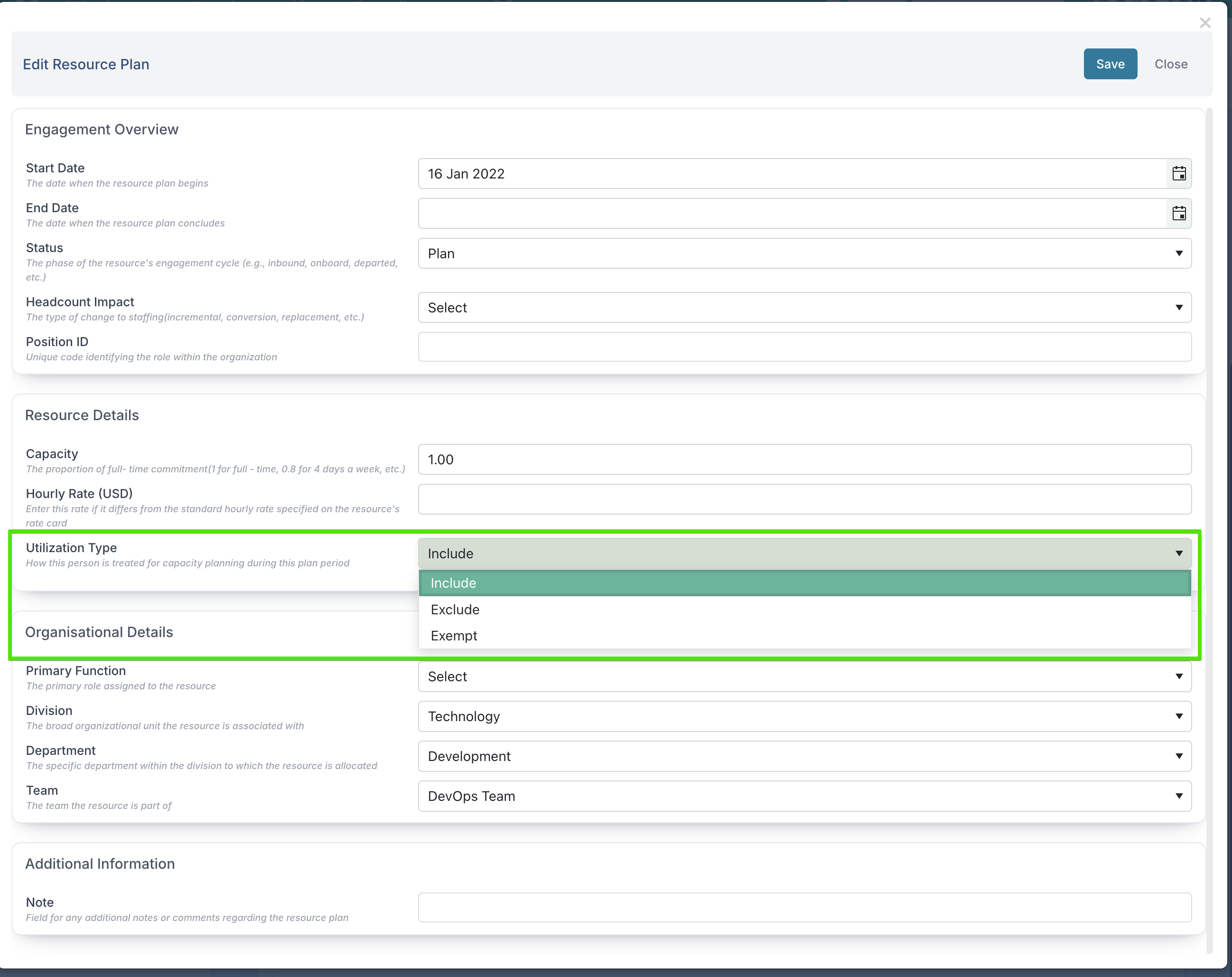
You don't need to set it for everyone - Fluid gives every resource plan a default. See Default values below.
To set Utilization Types for many people at once, use the UtilizationType column in the Manage resource Plans bulk edit file (Include, Exclude or Exempt).
Utilization Types are part of licence management, so they are only available when licence types are enabled for your site. If you don't see the field, ask Fluid support to turn on Show User Licenses.
Default values
Fluid fills in a Utilization Type for every resource plan, so you only need to change it for the people who should be Exempt or Exclude. The default depends on how the plan was created:
Situation | Starting Utilization Type |
|---|---|
Resource plans that existed before Utilization Types were introduced | Include |
A new user with a Community licence - however they are created (by an administrator, through SSO, an invitation, SCIM or an import) | Exclude |
A new user with any other licence - Licensed, Collaborator or Unlicensed | Include |
A new resource plan you add to an existing user | Based on the user's licence: Exclude for Community, Include for everyone else. It is not copied from their previous plan. |
A row in the bulk edit file with the Utilization Type left blank, or a file without the | Based on the user's licence: Exclude for Community, Include for everyone else |
A row in the bulk edit file with a value Fluid does not recognise | Based on the user's licence, and the import log shows a warning for that row |
Placeholders | Always Include - placeholders do not have a Utilization Type |
Things to keep in mind:
A default is only a starting value. You can change any resource plan's Utilization Type afterwards.
Changing a licence does not change the Utilization Type. If you move someone from Licensed to Community, their saved resource plans stay as they were - set them to Exclude yourself if the person should no longer be planned.
On a new user, the default follows the licence until you save. In Add New User, if you change the licence before saving, the user's resource plan updates to match - choose Community and it becomes Exclude.
Check new plans for Exempt and Exclude people. A plan you add for someone who is Exempt starts as Include (or Exclude for a Community user), not Exempt. Set it before you save.
Fill in the column when you re-import. A blank Utilization Type in the bulk edit file sets that plan back to the licence default - so an Exempt person imported with a blank cell becomes Include. Always include the Utilization Type for people you have set to Exempt or Exclude.
Things to know
You can't set Exclude over existing allocations. If the person has a project allocation, forecast or booked time in that resource plan's period, Fluid won't change the plan to Exclude - it won't delete their allocations for you. Remove the allocations first, or create a new resource plan starting from the date they stop being a resource.
Only Include people count towards capacity. Capacity dashboards and Delivery Team capacity are calculated from Include people only - Exempt and Exclude people never add to capacity or utilisation figures. Exempt people are also hidden from Resource Dashboards by default: to see them, tick Exempt in the dashboard's Utilization Type filter. They appear with their allocations but no capacity - filtering them in makes them visible, it doesn't add them to your capacity or utilisation figures. Exclude people never appear.
Only Include people can be Delivery Team members, so a team's capacity only ever includes Include people. Choosing Exempt or Exclude removes the person from their Delivery Team. An Exempt person can still own a Delivery Team, but does not add to its capacity.
Community licence users can be set to Include, but Fluid warns you: they would count as a resource on capacity reports they cannot open. See Community License.
Frequently asked questions
What is the difference between Exempt and Exclude? Exempt people work on projects and can be allocated, with normal cost - their capacity just isn't measured. Exclude people are not resources at all and cannot be allocated to a project. Neither counts towards capacity on dashboards or in Delivery Teams.
Someone has disappeared from my Resource Dashboard. Why? Check their Utilization Type for that period. Exclude people never appear; Exempt people appear only if you tick Exempt in the dashboard's Utilization Type filter.
Can an Exclude person still do work and record time? Yes. They can hold actions and decisions, be assigned flex schedule tasks and book time against them. Exclude stops them being planned as a resource, not from working.