Esta guía explica cómo crear un flujo de Power Automate que recibe eventos de webhook de Fluid, los filtra según el estado de la tarea y envía una notificación con formato a un canal de Microsoft Teams.
Nota: Power Automate usa autenticación SAS. Por lo tanto, para la integración mediante webhook, elija "Shared Secret Signature Validation" e ingrese un valor para el secreto. Power Automate luego lo anulará y usará su propia autenticación SAS internamente.
Visión general
Esta configuración le permite:
-
Recibir eventos de webhook de Fluid
-
Analizar el payload JSON entrante
-
Aplicar lógica condicional (p. ej., enviar actualizaciones solo cuando el estado = “Hecho”)
-
Enviar una notificación enriquecida con Adaptive Card a Microsoft Teams
Requisitos previos
-
Acceso a Microsoft Power Automate
-
Permiso para crear flujos
-
Acceso al canal de Microsoft Teams de destino
-
Una integración de webhook configurada en Fluid para enviar datos a Power Automate- Cómo configurar webhooks para la integración con los tableros de Fluid
Paso 1: crear el flujo
-
Haga clic en Crear
-
Seleccione Flujo de nube instantáneo
-
Ingrese un nombre (p. ej., Teams Webhook Filter)
-
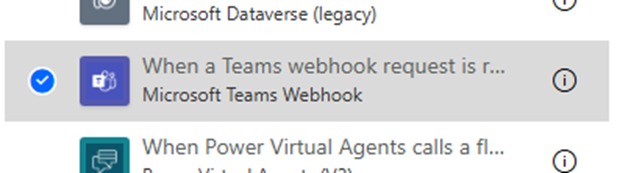
Elija el desencadenador:
-
Cuando se reciba una solicitud de webhook de Teams
-
Haga clic en Crear
-
Asegúrese de que el desencadenador esté configurado en Cualquier persona puede desencadenar
Paso 2: analizar el JSON entrante
-
Haga clic en + Nuevo paso
-
Busque y seleccione Analizar JSON
-
En Contenido, seleccione Cuerpo en Insertar contenido dinámico
-
Haga clic en Usar payload de ejemplo para generar esquema
-
Pegue el payload JSON de ejemplo proporcionado
{
	"fields": {
		"assignee": null,
		"attachmentCount": 0,
		"boardCategory": 0,
		"boardId": 0,
		"boardGuid": "2c8f0918-4f6b-4f5e-9dee-f12e582bbdef",
		"boardTitle": "webhook",
		"businessValue": 0,
		"contentType": "Process",
		"createDate": "2026-03-30T17:30:48.0000000Z",
		"description": "This is a test payload generated by Fluid to verify the webhook endpoint is reachable and authentication is configured correctly.",
		"descriptionHtml": "This is a test payload generated by Fluid to verify the webhook endpoint is reachable and authentication is configured correctly.",
		"dueDate": "2026-04-06T17:30:48.0000000Z",
		"endDate": "2026-04-06T17:30:48.0000000Z",
		"impediment": 0,
		"isClosed": false,
		"modifiedDate": "2026-03-30T17:30:48.0000000Z",
		"points": 1,
		"parentGuid": "672aea66-22a5-40d6-b658-f2f6b20d12e6",
		"priority": "Medium",
		"principalGuid": "2c8f0918-4f6b-4f5e-9dee-f12e582bbdef",
		"ragStatus": "Green",
		"shortCode": "TEST-1",
		"startDate": "2026-03-30T17:30:48.0000000Z",
		"status": "Not Started",
		"statusCode": 1,
		"taskType": "Task",
		"title": "[Test] Webhook connectivity test",
		"titleRichText": "[Test] Webhook connectivity test",
		"titleHtml": "<p>[Test] Webhook connectivity test</p>"
	},
	"id": 99999,
	"methods": [
		{
			"type": "PermaLink",
			"httpMethod": "GET",
			"url": "https://localhost:62199/Action/EditFull/21ed8132-f904-48f2-a682-eaf615d6d273"
		},
		{
			"type": "Update",
			"httpMethod": "PUT",
			"url": "https://localhost:62199/rest/api/action/99999",
			"description": "Update Action",
			"payload": {
				"fields": {
					"description": "<Description>",
					"title": "<Title>"
				},
				"attachments": null,
				"customProperties": [],
				"checkList": null
			}
		},
		{
			"type": "Delete",
			"httpMethod": "DELETE",
			"url": "https://localhost:62199/rest/api/action/99999"
		}
	],
	"related": {},
	"guid": "21ed8132-f904-48f2-a682-eaf615d6d273",
	"url": "https://localhost:62199/rest/api/action/99999"
}-
Haga clic en Hecho
Paso 3: agregar una condición (lógica de filtro)
-
Haga clic en + Nuevo paso
-
Seleccione Condición
-
Configure:
-
Valor izquierdo: fields → Insertar contenido dinámico → Estado del cuerpo
-
Operador: es igual a
-
Valor derecho: p. ej., Hecho
💡 Puede modificar esta condición para filtrar por cualquier campo (p. ej., prioridad, tablero, tipo de tarea) disponible en el esquema.
Paso 4: enviar notificación a Microsoft Teams
Dentro de la rama Si es así:
-
Haga clic en Agregar una acción
-
Busque Microsoft Teams
-
Seleccione Publicar tarjeta en un chat o canal
-
Configure:
-
Equipo → Seleccione su equipo
-
Canal → Seleccione su canal
-
Adaptive Card → Pegue el JSON de su Adaptive Card
-
Ejemplo
{
    "type": "AdaptiveCard",
    "$schema": "http://adaptivecards.io/schemas/adaptive-card.json",
    "version": "1.4",
    "body": [
        {
            "type": "ColumnSet",
            "columns": [
                {
                    "type": "Column",
                    "width": "auto",
                    "items": [
                        {
                            "type": "TextBlock",
                            "text": "🔔",
                            "size": "Large"
                        }
                    ],
                    "verticalContentAlignment": "Center"
                },
                {
                    "type": "Column",
                    "width": "stretch",
                    "items": [
                        {
                            "type": "TextBlock",
                            "text": "New Task",
                            "weight": "Bolder",
                            "size": "Medium",
                            "wrap": true
                        },
                        {
                            "type": "TextBlock",
                            "text": "@{triggerBody()?['fields']?['title']}",
                            "wrap": true,
                            "size": "Default",
                            "weight": "Bolder",
                            "color": "Accent"
                        }
                    ],
                    "verticalContentAlignment": "Center"
                }
            ]
        },
        {
            "type": "ColumnSet",
            "separator": true,
            "spacing": "Medium",
            "columns": [
                {
                    "type": "Column",
                    "width": "stretch",
                    "items": [
                        {
                            "type": "FactSet",
                            "facts": [
                                {
                                    "title": "📋 Board",
                                    "value": "@{triggerBody()?['fields']?['boardTitle']}"
                                },
                                {
                                    "title": "🏷️ Type",
                                    "value": "@{triggerBody()?['fields']?['taskType']}"
                                },
                                {
                                    "title": "📌 Status",
                                    "value": "@{triggerBody()?['fields']?['status']}"
                                },
                                {
                                    "title": "🎯 Priority",
                                    "value": "@{triggerBody()?['fields']?['priority']}"
                                },
                                {
                                    "title": "🚦 RAG",
                                    "value": "@{triggerBody()?['fields']?['ragStatus']}"
                                },
                                {
                                    "title": "🆔 Code",
                                    "value": "@{triggerBody()?['fields']?['shortCode']}"
                                }
                            ]
                        }
                    ]
                }
            ]
        },
        {
            "type": "TextBlock",
            "text": "📝 Description",
            "weight": "Bolder",
            "spacing": "Medium",
            "separator": true
        },
        {
            "type": "TextBlock",
            "text": "@{triggerBody()?['fields']?['description']}",
            "wrap": true,
            "spacing": "Small"
        }
    ],
    "actions": [
        {
            "type": "Action.OpenUrl",
            "title": "🔗 View in Fluid",
            "url": "@{triggerBody()?['methods']?[0]?['url'] }",
            "style": "positive"
        }
    ]
}
Esta tarjeta puede incluir valores dinámicos como:
-
Título de la tarea
"@{triggerBody()?['fields']?['title']}" -
Estado
"@{triggerBody()?['fields']?['status']}" -
Prioridad
"@{triggerBody()?['fields']?['priority']}" -
Fechas
@{formatDateTime(triggerBody()?['fields']?['startDate'], 'dd MMM yyyy')} -
Enlace directo de regreso a Fluid
triggerBody()?['methods']?[0]?['url'] -
Tipo de evento
triggerOutputs()?['headers']?['X-Fluid-Event']
Más información sobre las adaptive cards:
Paso 5: dejar “Si no” vacío
No se requiere ninguna acción en la rama Si no.
Si no se cumple la condición, no se enviará ninguna notificación.
Paso 6: guardar y probar
-
Haga clic en Guardar
-
Active un evento de prueba desde Fluid
-
Confirme que:
-
El flujo se ejecuta correctamente
-
Se envía una notificación de Teams solo cuando se cumple la condición
-