There are times when you need to stop forecast values from changing without closing the financial period.
For example, during a budget review or reforecast, you may want the forecast being reviewed to remain unchanged. Similarly, you may want to freeze the forecast a few days before month end while the close is being prepared.
A Frozen Period is designed for these situations. It makes financial forecast values read-only while leaving the period open. Actuals can continue to post, and project managers can continue updating resource allocations.
Your Fluid instance must be configured to use Frozen Periods. Once enabled, Financial Administrators can set, change and remove Frozen Periods from the Financial Administration page.
A freeze is temporary and reversible. Financial Administrators can also provide a reason for the freeze and optionally set a date for it to be removed automatically.
Frozen Period vs Month End Close
A Frozen Period and a Month End Close both prevent changes to financial forecast values, but they affect the financial period and resource planning differently.
A Financial Lockdown closes the financial period completely. Financial forecast and actual values become read-only, and resource allocations can no longer be updated for the closed period.
A Frozen Period only freezes the financial forecast. The period remains open, actuals continue to post, and resource allocations can still be updated.
Month End Close | Frozen Period | |
|---|---|---|
Financial forecast | Read-only | Read-only for frozen months |
Financial actuals | Read-only | Continue to post and update normally |
Resource allocations | Read-only for the closed period | Remain editable |
Resource forecast cost | Locked because the underlying allocation can no longer change | Financial cost is held even if the underlying allocation changes |
Financial period | Closed | Remains open |
Can it be reversed? | No. The close only moves forward. | Yes. A Financial Administrator can change or remove the freeze at any time. |
Typical use | Month-end close, to fix the final financial and resource position for the period | Temporarily holding forecast values during a review, reforecast or ahead of month end while planning continues |
In simple terms, Month End Close closes the period and stops further financial and resource planning changes. A Frozen Period holds the financial forecast while allowing the period and resource planning to continue.
A Frozen Period applies to all financial forecast values, including Capex and Opex cost lines and costs generated from resource allocations.
Only months that are still open can be frozen. A month that has already been closed through the Financial Lockdown remains closed.
Set a Frozen Period
Only Financial Administrators can set, change or remove a Frozen Period.
Frozen Periods are managed from the Financial Administration page. In the Financial Locks section, the Frozen Period tile shows whether a freeze is currently active. When a freeze is in place, the tile also shows the period covered, the automatic unfreeze date if one has been set, the reason for the freeze, and who last changed it.

Select the settings icon on the Frozen Period tile to open the configuration dialog.
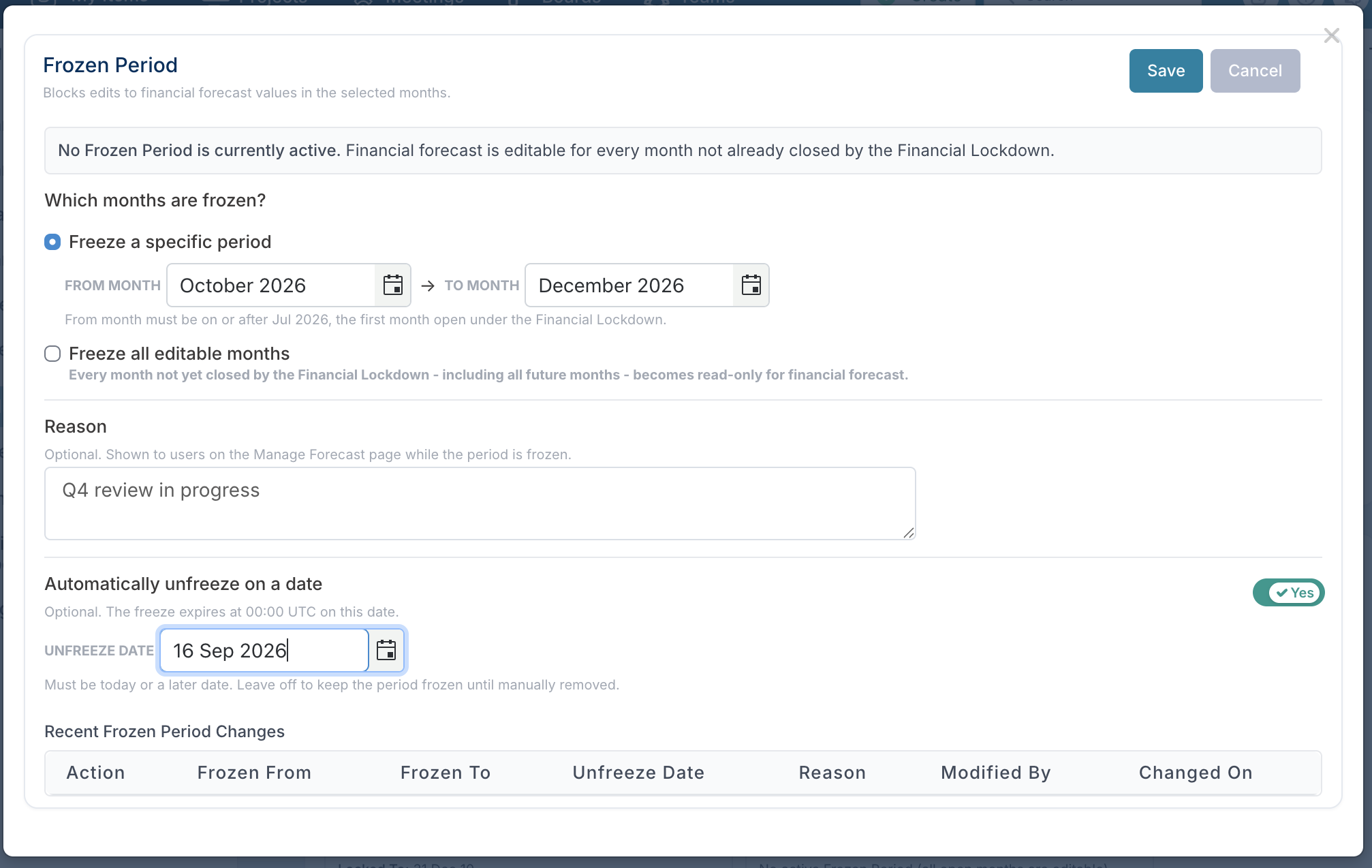
You can either freeze a specific range of months or freeze all months that are currently editable.
To freeze a specific period, select a From Month and To Month. Whole months are frozen, from the first day of the From Month through to the last day of the To Month. The From Month must be on or after the first month that remains open under the Month End Close.
Alternatively, select Freeze all editable months to freeze every month that has not yet been closed by the Month End Close, including future months.
You can enter a Reason for the freeze. This is shown to users on the Manage Forecast page while the period is frozen, helping them understand why forecast values cannot currently be changed.
If the freeze should end automatically, set Automatically unfreeze on a date to Yes and select an unfreeze date. The freeze expires at 00:00 UTC on that date. If no date is set, it remains in place until a Financial Administrator changes or removes it.
Select Save to apply the Frozen Period.
All changes are audited, including who made the change, when it was made and what changed. Recent Frozen Period changes are also displayed in the configuration dialog.
What users see during a Frozen Period
On the Edit Forecast grids, frozen months become read-only and are displayed in a similar way to closed months.
A banner and tooltip identify the Frozen Period and display the reason entered by the Financial Administrator, making it clear that the forecast has been temporarily frozen rather than the month being closed.
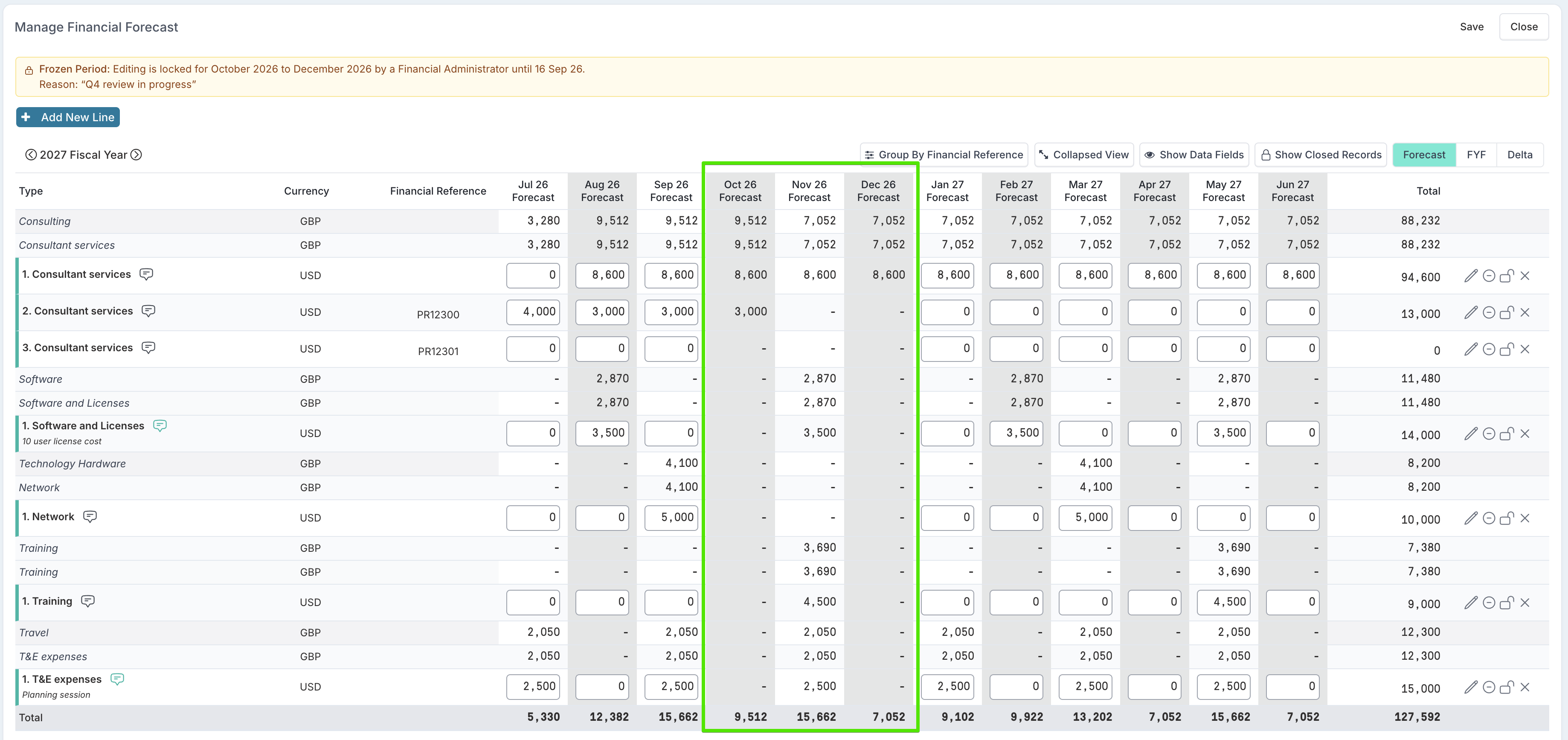
Users can still create new cost lines. Only forecast values within frozen months are protected.
There is no override within the Edit Forecast grids, including for Financial Administrators. To change forecast values in a frozen month, a Financial Administrator must first change or remove the Frozen Period.
Resource allocations remain editable
A Frozen Period freezes the financial cost, not the resource plan.
Project managers can continue to update resource allocations as normal. They can change allocations, clear them, remove resources or move allocation between resources.
However, when an allocation affects a frozen month, the corresponding financial cost is not recalculated. The cost remains at the value it held when the period was frozen.
As a result, resource allocations and their financial costs may temporarily be out of sync during a freeze. This is expected behaviour.
When an allocation affecting a frozen month is saved, Fluid informs the user that the allocation has been updated but the corresponding cost has not.
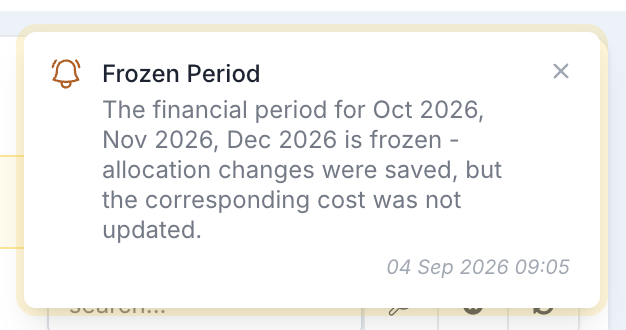
Processes that normally recalculate resource costs also respect the freeze, including schedule synchronisation, resource uploads and the overnight rate card process.
Closing financial periods while a freeze is active
You cannot perform a month-end close while any month in the same financial year is frozen.
For example, if October to December are frozen, you cannot close August if all three months belong to the same financial year.
A freeze in a different financial year does not prevent the close.
The same restriction applies to the Capitalization Close. If a close cannot be completed because of a Frozen Period, Fluid identifies the months that are causing the restriction.
A Financial Administrator must first change or remove the relevant Frozen Period before completing the close.
Change or remove a Frozen Period
Only Financial Administrators can change or remove a Frozen Period.
A Frozen Period can be shortened, extended or removed at any time. It can also end automatically if an automatic unfreeze date was configured.
When months are released from a freeze, Fluid recalculates resource costs across the affected open months for the division. This brings financial costs back into line with any resource allocation changes made while the forecast was frozen.
Scenario Planning
Scenarios can still be created and edited while a Frozen Period is active because changes within a scenario do not immediately affect live financial data.
However, a scenario cannot be committed if doing so would change values in a frozen month.
If this happens, Fluid identifies the affected items and months. You can then change the scenario or ask a Financial Administrator to remove or change the relevant Frozen Period before committing it.
If the scenario contains values for frozen months but those values are identical to the live data, the scenario can still be committed.
Forecast uploads
Frozen Periods also apply when forecast data is uploaded.
Upload type | Behaviour |
|---|---|
Financial forecast upload | Rows affecting frozen months are rejected and the message identifies the Frozen Period. Financial Administrators retain their existing ability to upload through a freeze, as they can with the Financial Lock. |
Resource forecast upload | The resource allocation is uploaded as normal, but the corresponding financial cost is not updated for frozen months. A warning is shown where the uploaded allocation differs from the value currently stored. |