User roles: ✔ All Users
Sometimes you need to follow part of a team’s work without being part of the team: the approval pipeline you sponsor, the requests you raised, the cards that affect your project. Asking to join the board gives you far more than you need, and the team has to remember to take you off again.
When someone shares a board view with you, you can open just that part of their board, even if you are not on it. You see the cards the view shows, laid out the way they set it up, for as long as they choose. You can read cards and talk about them in card chat, but you cannot change the board.
In this article you will learn how you are told about a shared view, where to find it, what you can and cannot do in it, and what happens when the share ends.
Before You Start
Someone on the board shares the view with you by name. You need to be signed in to Fluid as yourself to open it.
Your organisation must have board view sharing switched on. To share a view yourself, see Sharing a Board View with People.
You Are Told About the Share
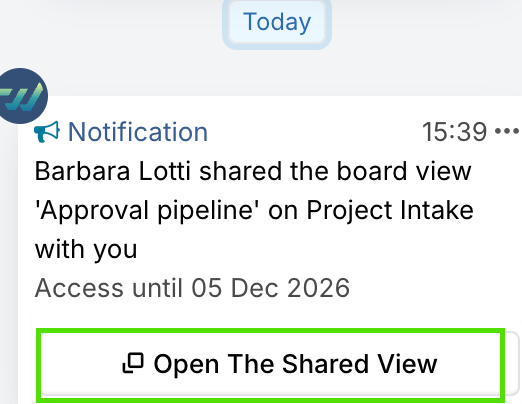
When a view is shared with you, you get an email with an Open view link, and a notification in Fluid. The notification appears in your System chat channel, with an Open The Shared View button. Both tell you who shared the view, on which board, and when your access ends.
Finding Your Shared Views
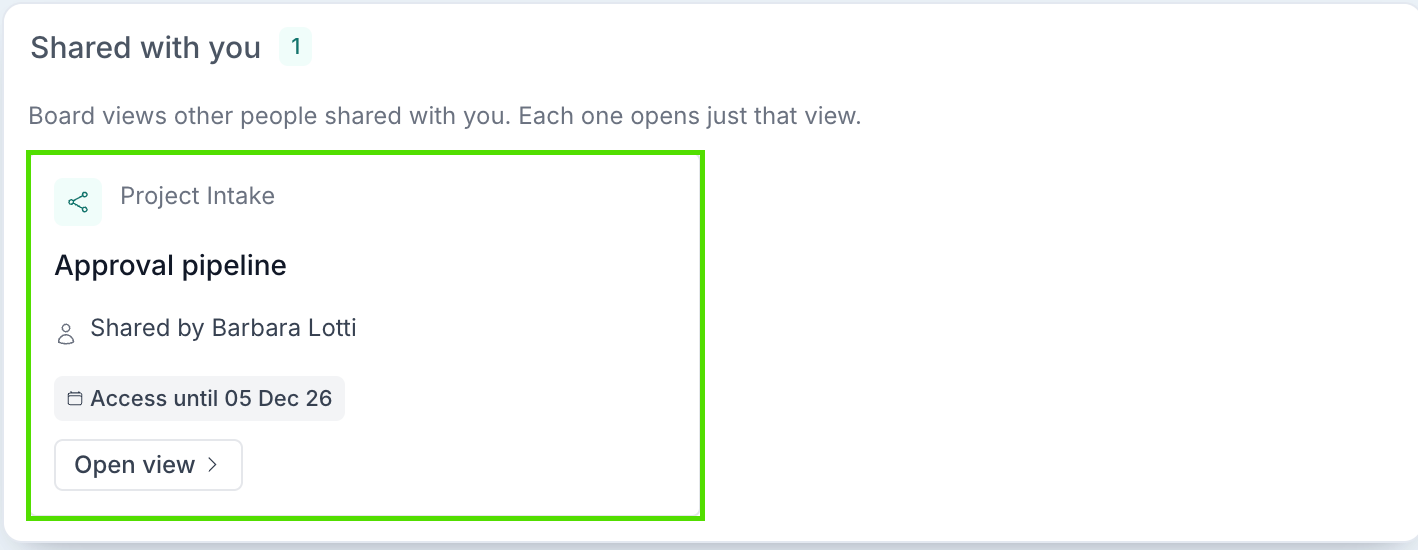
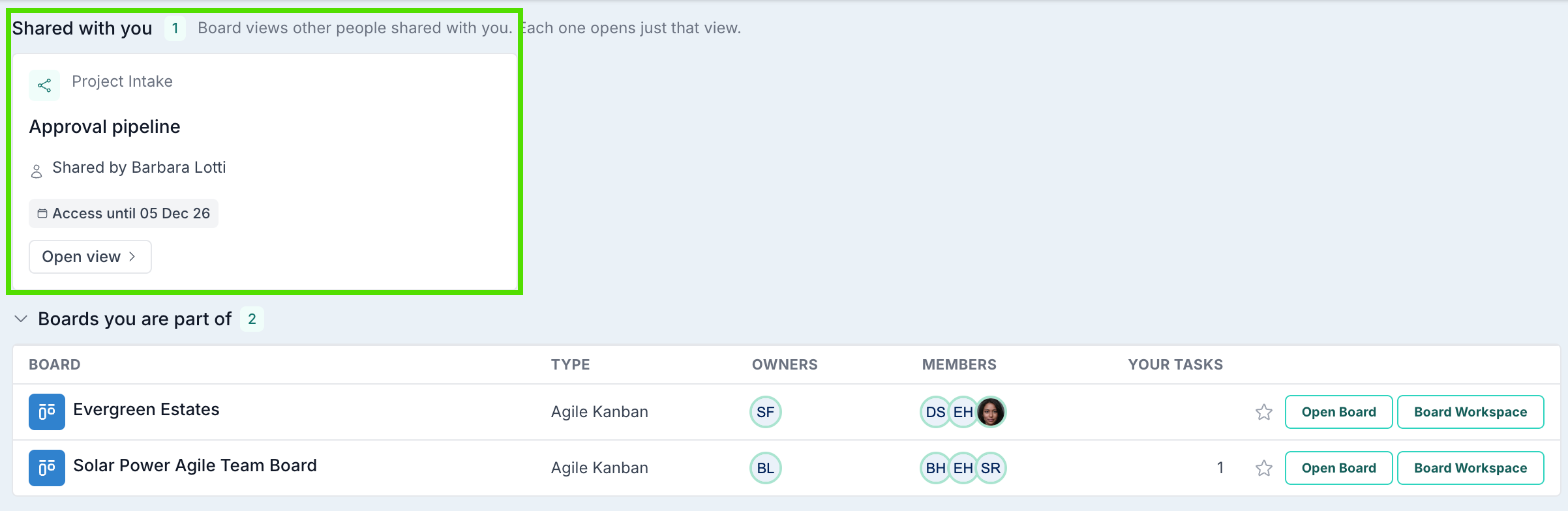
Every view shared with you is listed under Shared with you, on your home page and at the top of My Boards. Each one shows the board, the view, who shared it and when your access ends, with an Open view button. Views whose access ends soon are marked Ending soon.
If you open the board some other way, for example from a link a colleague sent you, Fluid takes you to your shared view instead. If more than one view of the board has been shared with you, you are asked to choose one.
NOTE: If you are already a Member of the board, a share link opens the normal board on that view, with everything you can usually do.
What You See
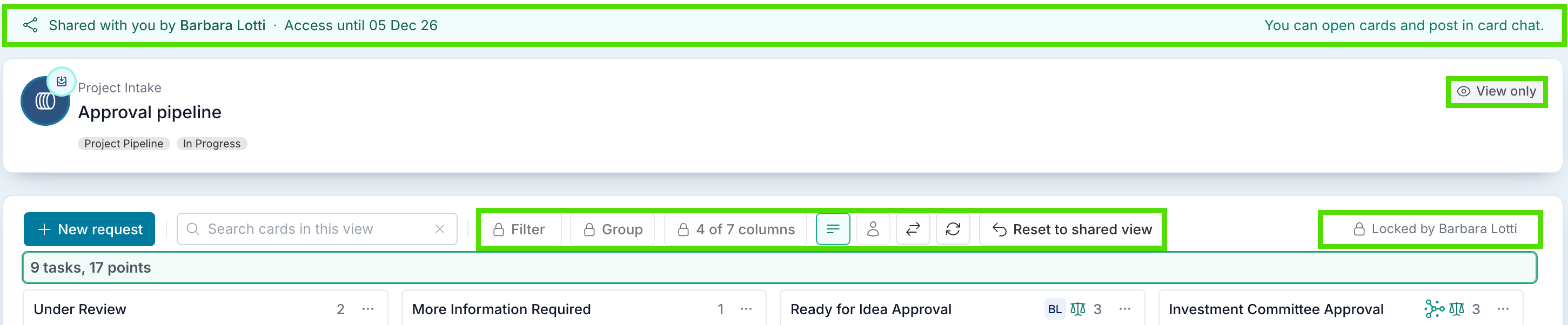
The shared view shows the board and view name, marked View only. A banner says who shared it with you and when your access ends, and reminds you that you can open cards and post in card chat.
The toolbar shows only what you can use. A control the person who shared the view has locked shows a padlock, and the toolbar says who locked it.
What You Can Do
Read cards and talk about them
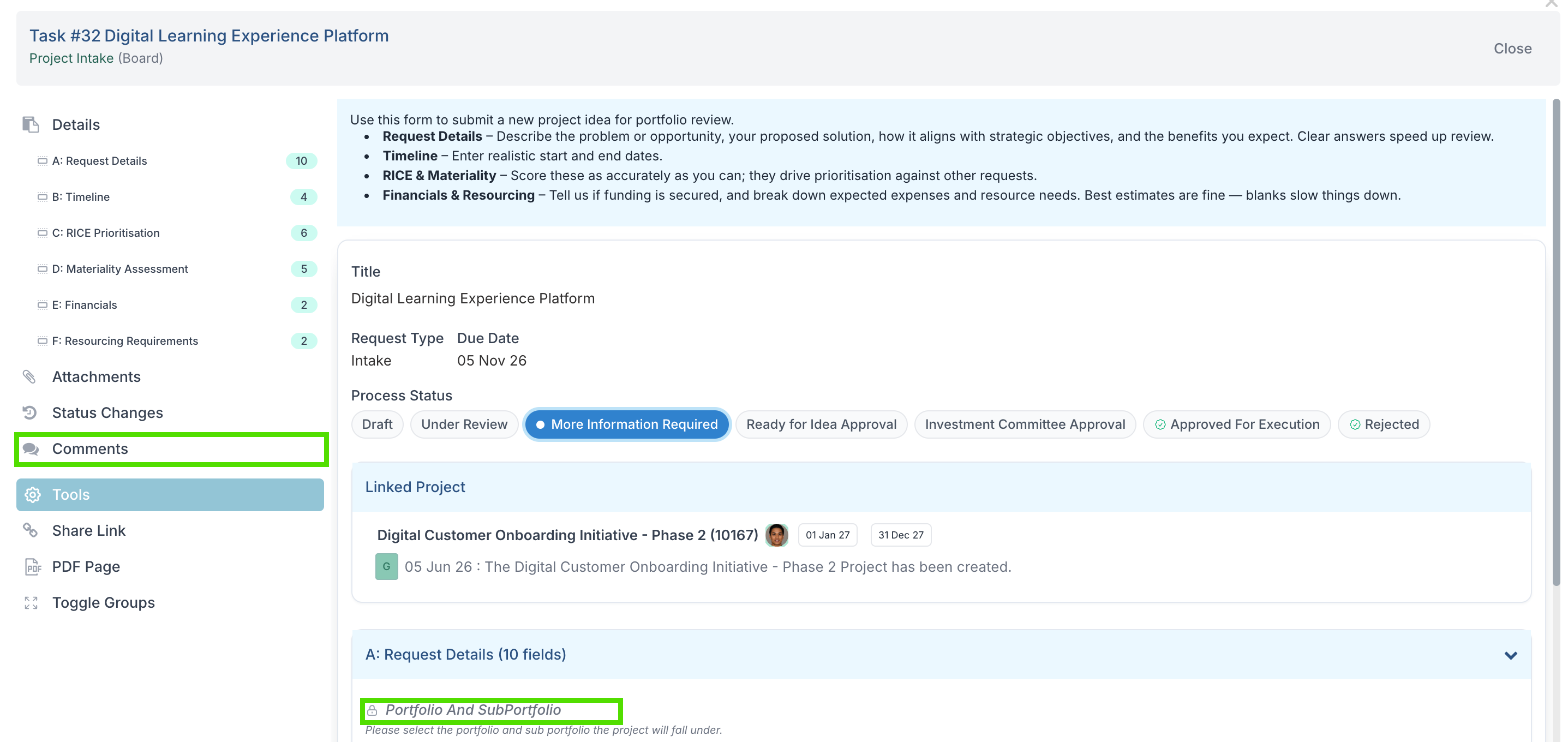
Use Search cards in this view to find a card. Open a card to read its details: its fields are read-only. Select Comments to read and post messages in the card’s chat.
Change what you are allowed to
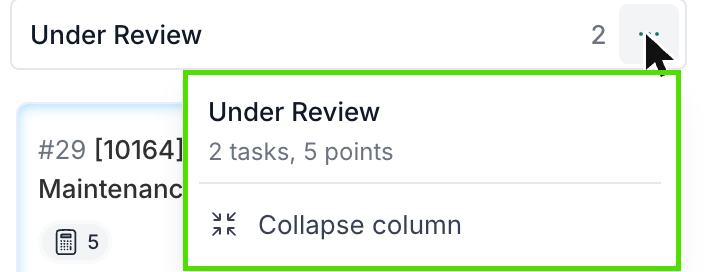
You can use any control the person who shared the view left unlocked, such as collapsing a column from its … menu. The menu only offers what you are allowed to do.
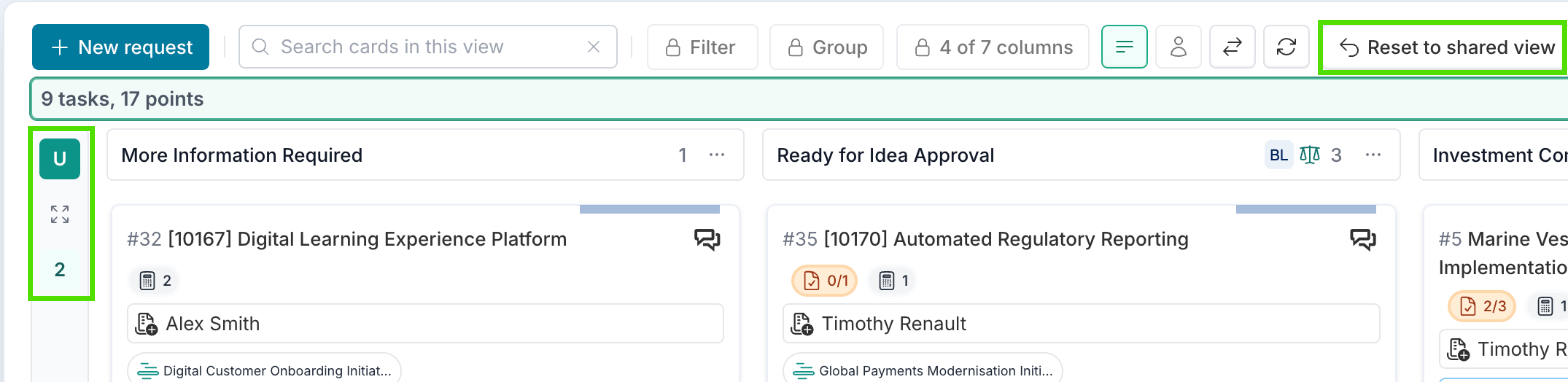
Your changes stay in your own browser and do not change the view for anyone else. Select Reset to shared view to go back to the view as it was shared.
Submit a request
If the board takes work requests and you are allowed to submit them, the toolbar shows New request. It opens the board’s request form. After you submit it, your request appears in the view if it matches the view’s filters and columns.
What You Cannot Do
Some limits depend on how the view was shared with you. Others apply to every shared view.
Limits set by the person who shared the view
When someone shares a view, they choose which of the controls below to lock. A locked control shows a padlock, and its tooltip says who locked it. Anything they leave unlocked, you can change for yourself, as described in What You Can Do.
Control | Default when a view is shared |
|---|---|
Change filters | Locked |
Show hidden columns | Locked |
Change the grouping field | Locked |
Choose which groups are shown | Locked |
Expand or collapse columns | Allowed |
Expand or collapse groups | Allowed |
Change sort and card details | Allowed |
So with the usual settings, you see only the cards and columns the view includes, grouped the way it was shared. If the person sharing unlocks filters or hidden columns, you can change the filters or show the hidden columns, and see more of the board’s cards. Searching for a card is never locked, but it only searches the cards already in your view.
Limits on every shared view
Whatever was locked, you cannot:
Open the full board, the backlog, the board’s other views or its settings
Move cards between columns, or edit or archive cards
Create cards, other than with New request
Save or share the view
If you try to open a part of the board that is not in your view, Fluid shows a message saying you do not have permission. Use the link in your email, or Shared with you on your home page, to get back to the view.
When the Share Ends
You are told two days before your access ends, when the person who shared the view changes the end date, and when they end your access early.
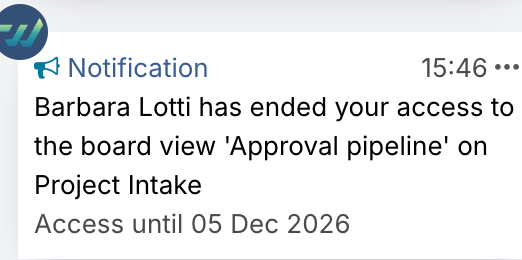
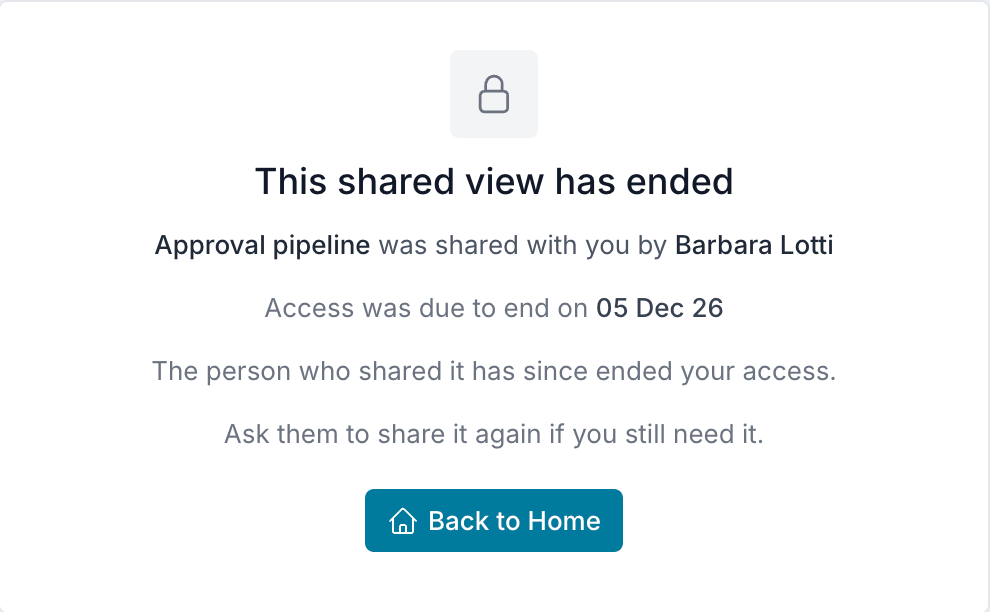
After the share ends, the view disappears from Shared with you, and its link shows This shared view has ended, with who shared it and when your access was due to end. If you still need it, ask the person who shared it to share it again.