User roles: ✔ Board Owner ✔ Board Member
A Kanban board rarely serves just one purpose. The same board is used by a team lead checking what is waiting for approval, by team members looking for their own cards, and in review meetings that only care about the work still in progress. Until now, each of them had to set up the filters, grouping and columns again every time they opened the board.
Board views let you save that set-up under a name and come back to it in one click. Each view appears as a tab across the top of the board, so moving between your own cards, the approval queue and the whole board is instant. You can keep a view to yourself, or make it available to everyone on the board so the whole team works from the same picture.
In this article you will learn what a view remembers, how to create a view for yourself or for the whole board, how to switch between your views, and how to update a view when your needs change.
Before You Start
Board views are available on Kanban boards.
You need to be a Board Member or Board Owner to create and use views. Board Viewers can see the board but cannot create or use views, unless someone shares a view with them (see Sharing a Board View with People).
What a View Is
A view remembers:
the filters, including custom property filters and the quick filters in the toolbar
how the board is grouped into swimlanes, and which groups are collapsed
which columns are collapsed and which are hidden
whether card details are shown
Keyword search is not saved with a view, so you can search within any view without changing it.
There are two kinds of view:
Personal views are yours. Only you can see and use them.
Board views are shared with the board. Every member and owner can use them, but only the person who created the view and the board owners can change, rename or delete it.
Creating a View
Until a board has any views, the row under the board name shows the message No saved views yet, with a New View button on the right.

To create a new view:
1. Set up the board
Change the board until it shows what you want. The toolbar has what you need:
Filter for any filter, including custom properties, and the Assigned to me button for your own cards.
Group to group the board into swimlanes. When the board is grouped, the button beside it expands or collapses all groups.
Card details to show or hide the details on each card.
Columns to hide the columns you do not need. See Showing and Hiding Columns on a Board.
2. Save it
Select New View, or press Ctrl+S (Cmd+S on a Mac).
3. Name it and choose who can see it
Enter a name, then choose who can see the view:
Only me: only you can see and use it.
Board members and owners: everyone on the board can use it. Only you and the board owners can change it.
Leave Pin to tabs ticked to show the view as a tab. Saved with this view at the bottom summarises what the view will remember. Select Save.
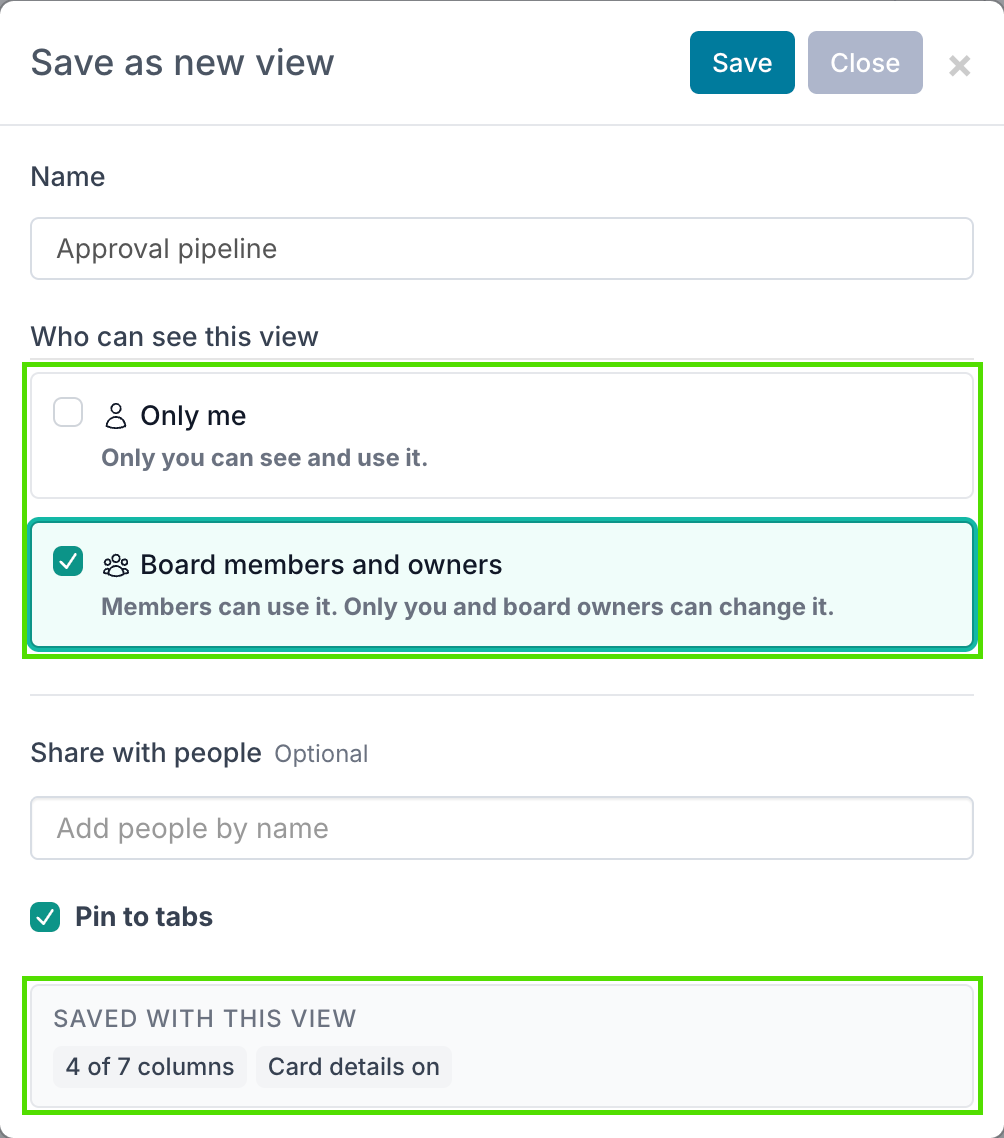
You can also share the view with named people in the same step, under Share with people. See Sharing a Board View with People.
4. Find your view in the tabs
The view opens on the board straight away, and the row under the board name now shows it as a tab.
As soon as a board has its first view, an All cards tab also appears, in front of your views. All cards is the whole board with no view applied: no filters, and every column shown, including the columns your views hide. It is not a saved view, so it cannot be renamed or deleted, and whichever view you are in, one click on All cards takes you back to the full board.
Repeat these steps for each way you look at the board. Each new view gets its own tab next to the first.

Switching Between Views
Click a tab to switch to that view.
Views that are not pinned are not shown as tabs. Click All views to see every view you can use. Views you created are listed under My views, and views other people show to the board are listed under Board views. Each one shows its owner and who can see it, and the board default is labelled Board default. Use Search views to find a view by name.
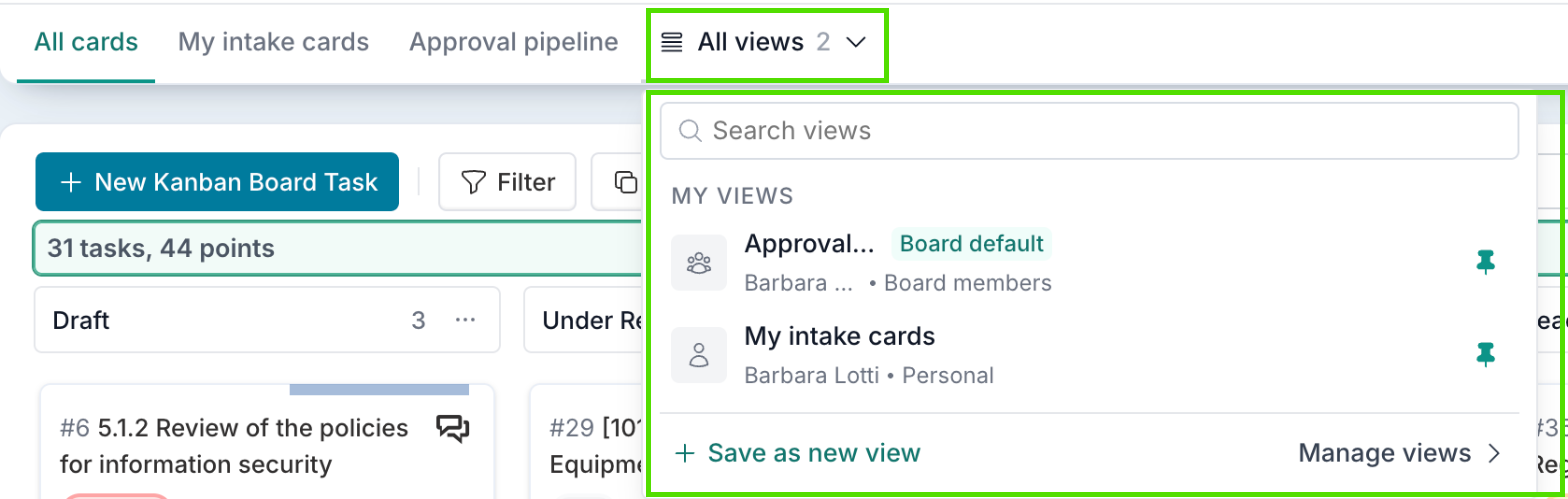
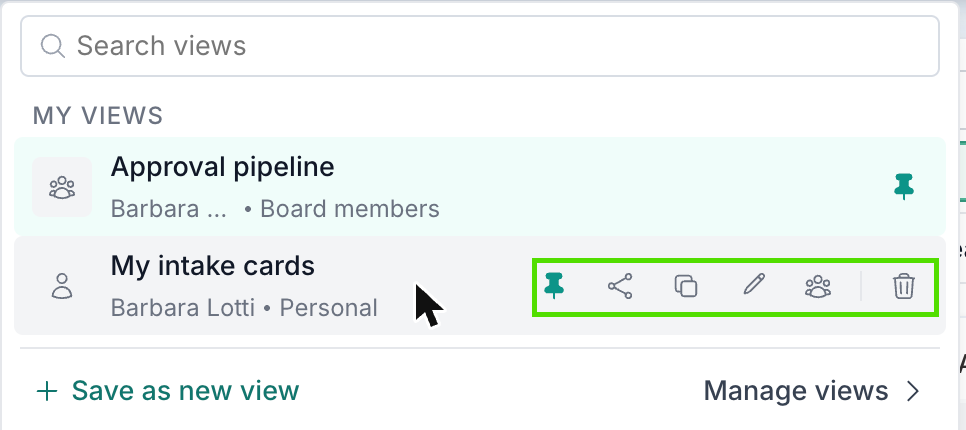
Move the pointer over a view in the list to pin or unpin it, share it, duplicate it, rename it, switch it between personal and board, or delete it. The actions you see depend on whether you can change that view. Manage views at the bottom of the list shows all of this in one table; see Managing Board Views.
Clicking a tab always opens the view as it was saved. If you had changed the board and not saved, those changes are discarded. Clicking the tab of the view that is already open resets it the same way.
The address bar includes the open view, so your browser’s Back and Forward buttons move between the views you opened, and you can send a colleague a link to a view. They see it if it is a board view; a personal view opens only for you.
Changing a View
When you change the board while a view is open, Save View shows the number of changes. Select it to see what changed, then choose:
Save changes updates the view for everyone who uses it. You only see this if you can change the view.
Save as new view keeps the original and saves your changes as a new view of your own.
Discard changes puts the board back to how the view was saved.
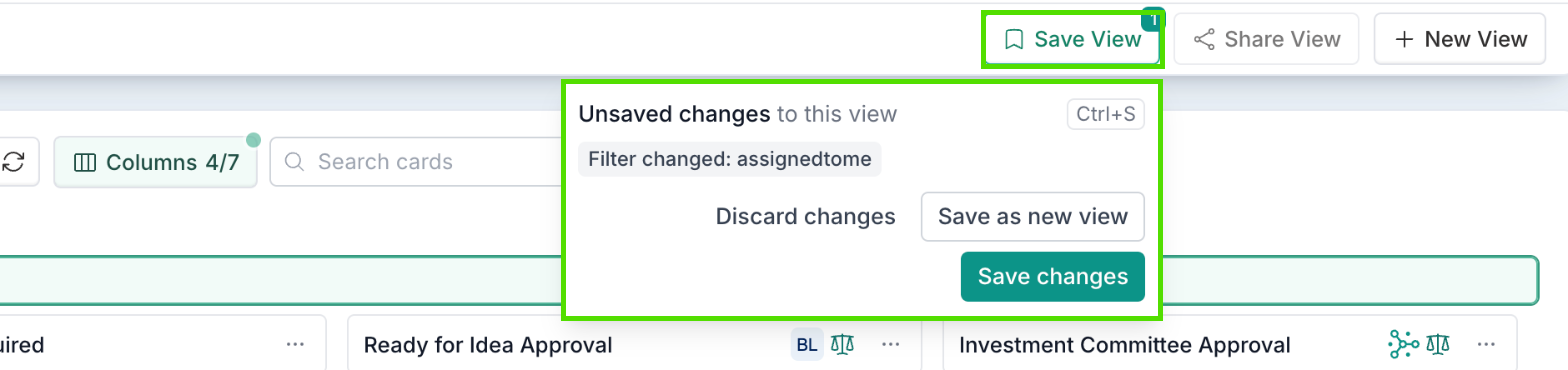
If you can use a board view but cannot change it, set the board up the way you want and save it as a new view. It becomes a personal view of yours.
Good to Know
Views are saved per board. A view on one board does not appear on another.
When you open a board, it opens on the view in your link, then your own default view, then the board default, then the last view you used. You set defaults in Managing Board Views.