User roles: ✔ Board Owner ✔ Board Member
Not everyone who needs to follow a board’s work should be a member of it. A sponsor wants to watch the approval pipeline, a stakeholder wants to follow their own requests, a partner team wants to see the cards that affect them. Adding them to the board shows them everything and lets them change things, and keeping their access up to date becomes one more thing to remember.
Sharing a board view gives named people just that view, read-only, for as long as you choose. Fluid gives them the access they need when the share starts and removes it when the share ends, and you decide which parts of the view they can change.
In this article you will learn how to share a view, how to choose what the people you share with can change, how to manage your shares, and what those people see.
Before You Start
Sharing is only available when your organisation has switched on Allow Shared Board Views. When it is off, you will not see Share View.
You need to be a Board Member or Board Owner. You can share views you created, and board owners can share any view shown to board members. Board Viewers cannot share views.
The view must be saved. To create one, see Saving and Switching Board Views.
Sharing a View
1. Open the share dialog
Open the view and select Share View in the row under the board name, or select the share icon next to the view in All views or Manage views.
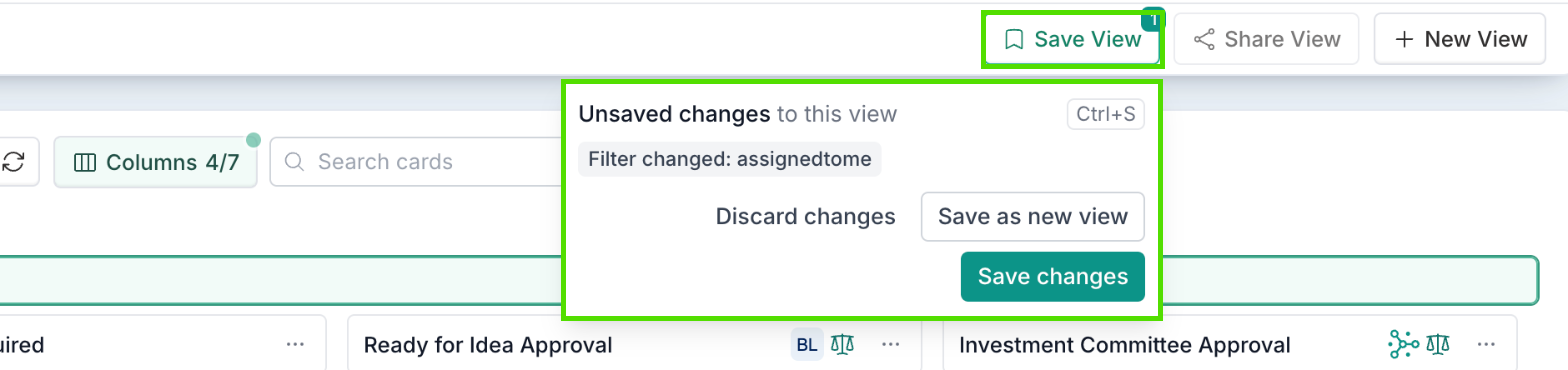
While the view has unsaved changes, Share View is greyed out, and its tooltip tells you why. Save or discard your changes first, so that people see the view as it is saved.
2. Add people
Under People, type at least two letters of a name and pick each person. You can add up to 50 people to one share. Shares are for people only: you cannot share with a group.
Under each person, Fluid says what will happen:
Someone with no access to the board will be added as a Board Viewer until the share ends. This only lets them open the shared view.
For someone who is already a Board Viewer, locks will apply.
Members and owners always see the full board, so locks do not apply to them.
3. Choose an end date
Under Access until, choose No end date, 7 days, 30 days, 90 days or a Custom date. Fluid shows the date access ends.
4. Choose what Viewers can change
Under What Viewers can change, untick anything the people you share with should not be able to change. By default:
Viewers can | Viewers cannot |
|---|---|
Expand or collapse columns Expand or collapse groups Change sort and card details | Change filters Show hidden columns Change the grouping field Choose which groups are shown |
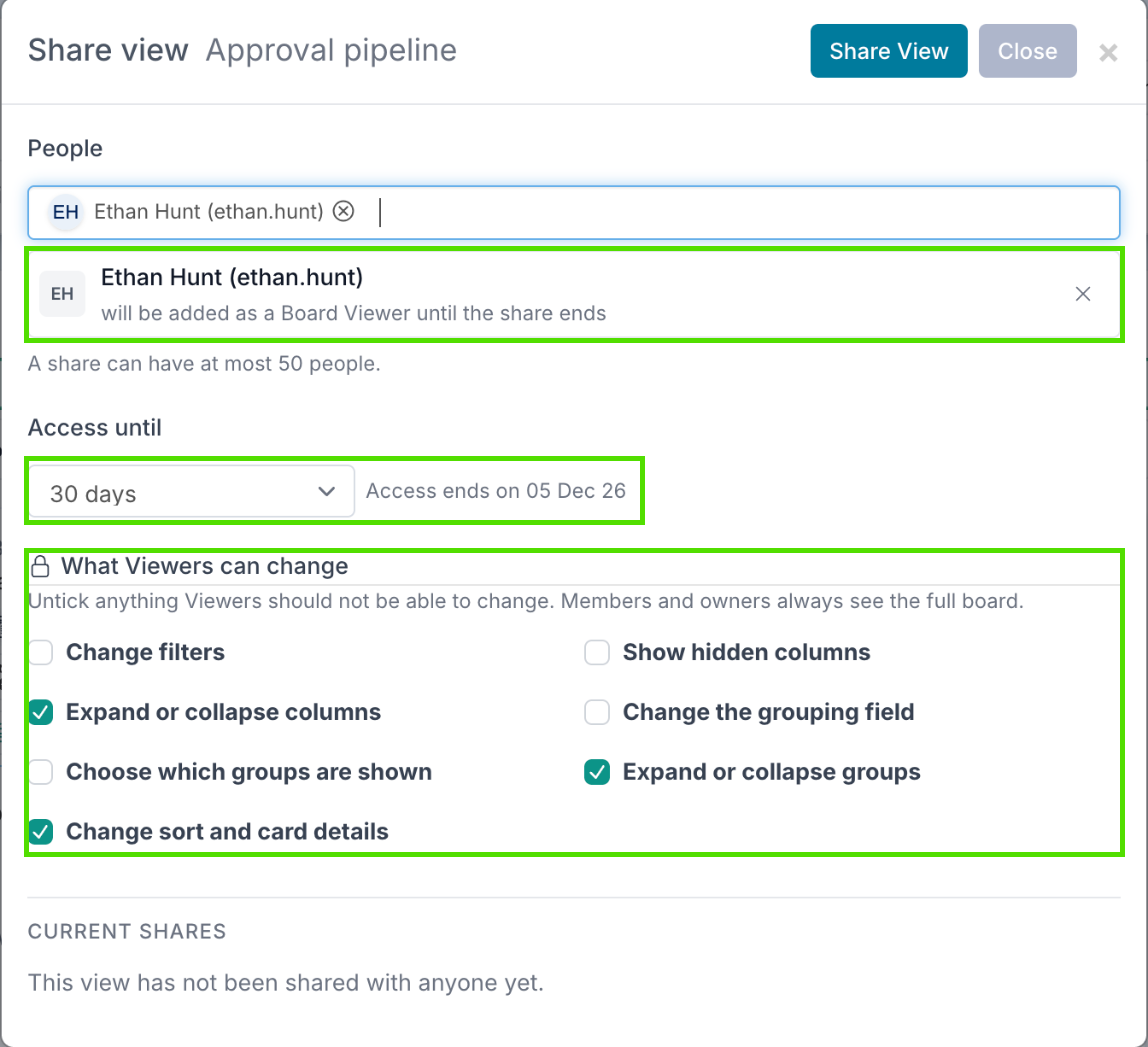
Whatever they change stays in their own browser and never changes your saved view. They can always search the cards in the view.
5. Share
Select Share View at the top of the dialog. Each person gets an email and a notification in Fluid with a link to the view and the date their access ends.
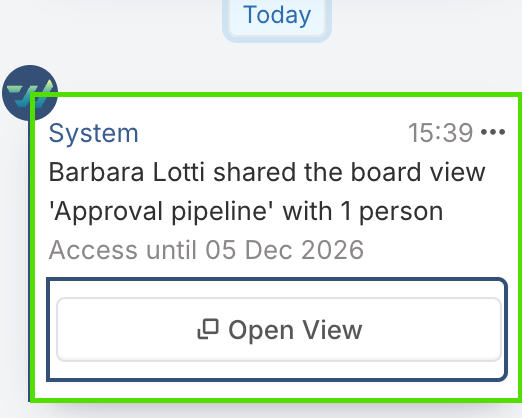
A message is also posted in the board’s chat channel, so the team knows part of the board has been shared. It says how many people the view was shared with, not who they are, and its Open View button opens the view on the board, not the share link.
Sharing While You Save a New View
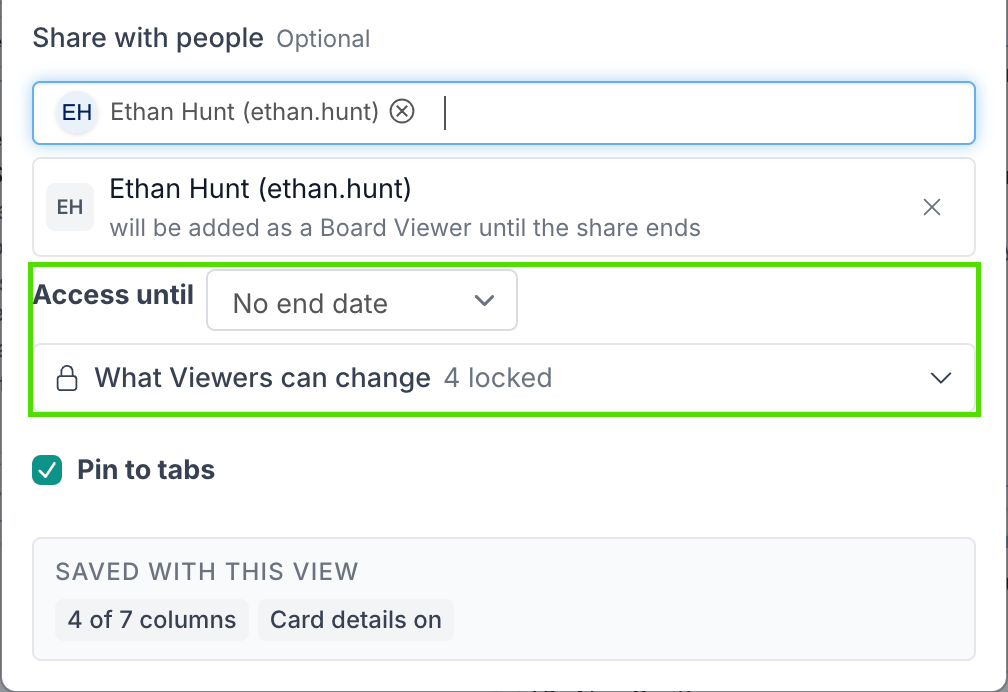
You can save a new view and share it in one step. In the Save as new view dialog, add people under Share with people. Access until and What Viewers can change then appear: choose an end date, and open What Viewers can change if you want to change the locks. Select Save to save and share the view together.
Managing Shares
Open Share View again. Current shares lists each share with its people, the date access ends, who shared it, what is locked, and its status.
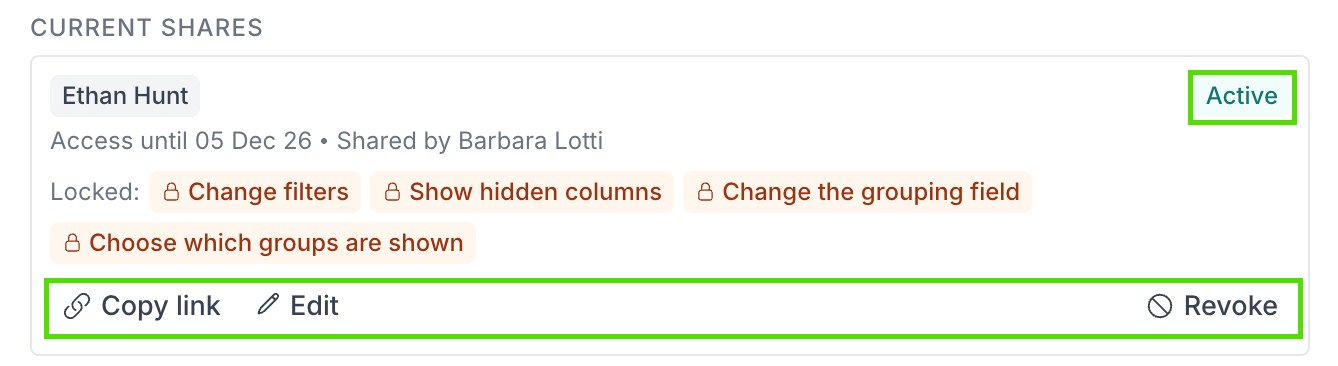
Copy link copies the share link. The link only works for the people on the share, so forwarding it does not give anyone else access.
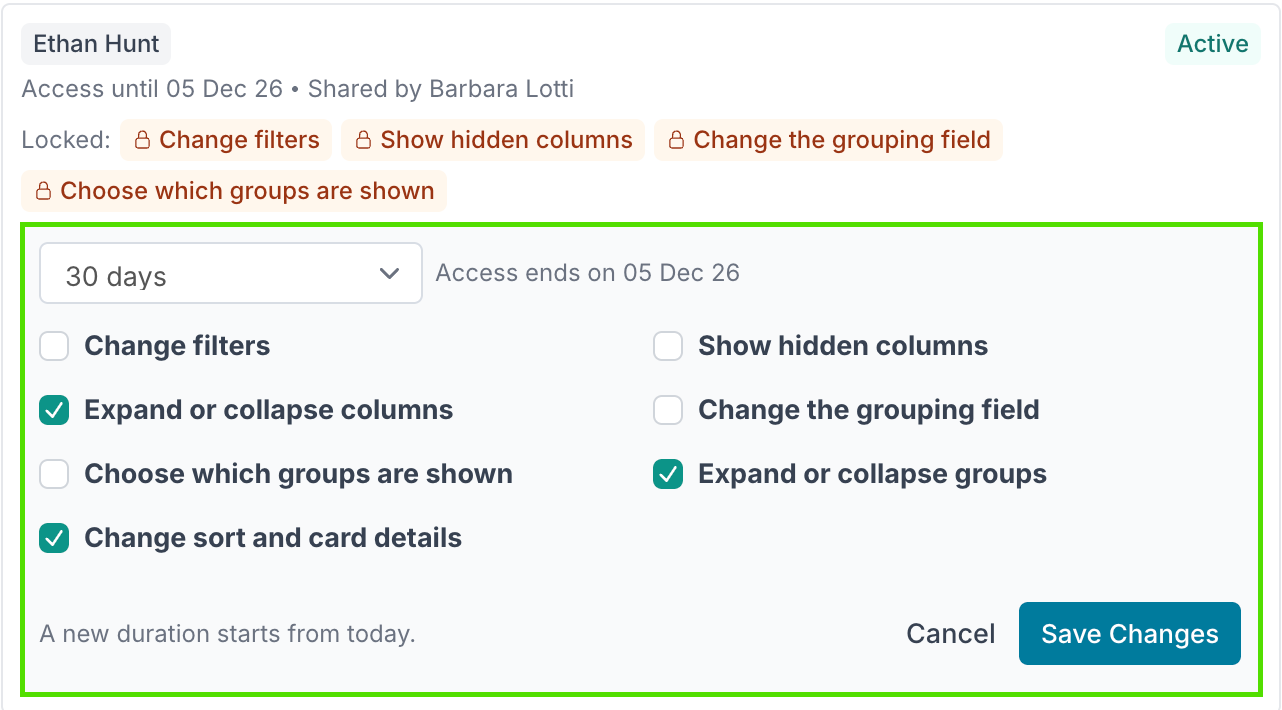
Edit changes the end date or the locks. Choose the new settings, then select Save Changes. A new duration starts from today. Changing only the locks does not notify anyone.
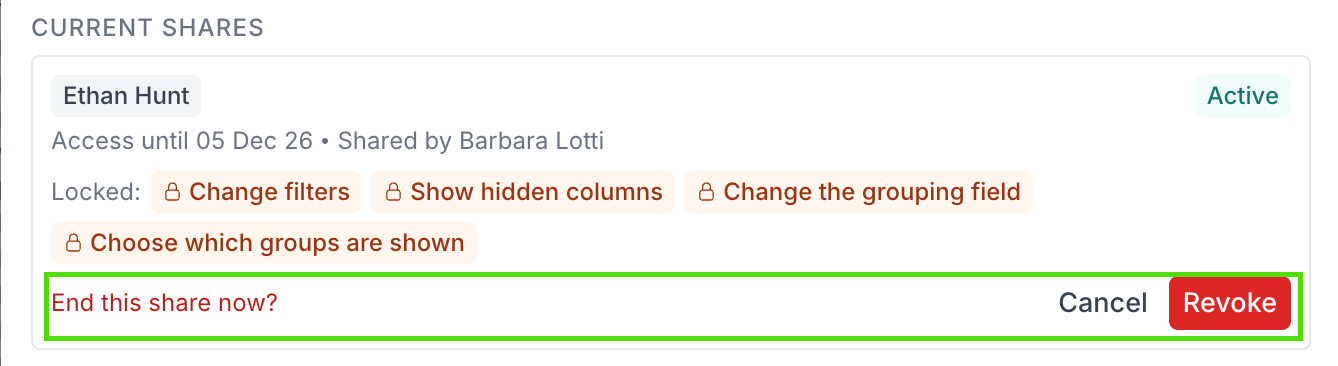
Revoke ends the share straight away. The row asks End this share now?: select Revoke to confirm, or Cancel.
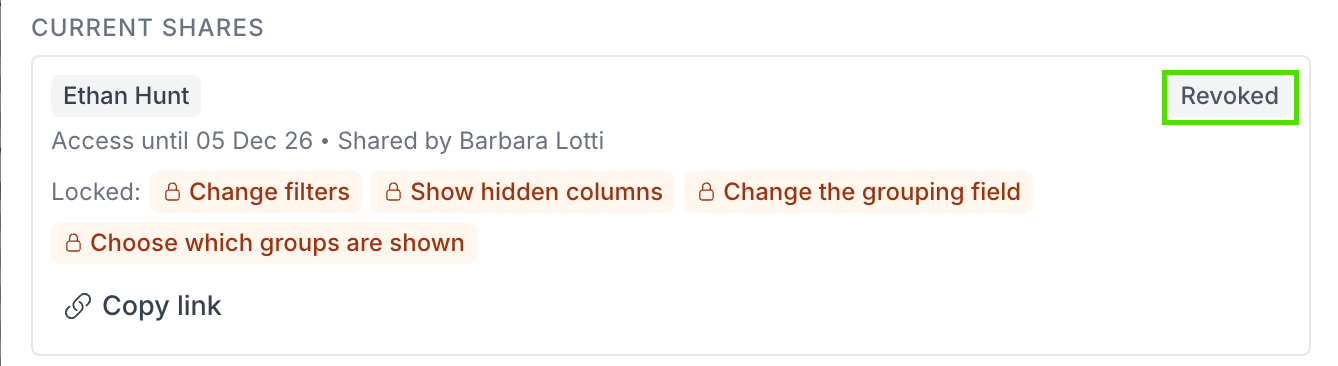
A revoked share stays in the list, marked Revoked. A share that has reached its end date shows Share again, which starts it again for the same people. A revoked share cannot be restarted: share the view with them again instead.
Anyone who can use the view can see its shares, but only the view’s owner or a board owner can add one. Deleting a view ends all of its shares.
What the People You Share With See
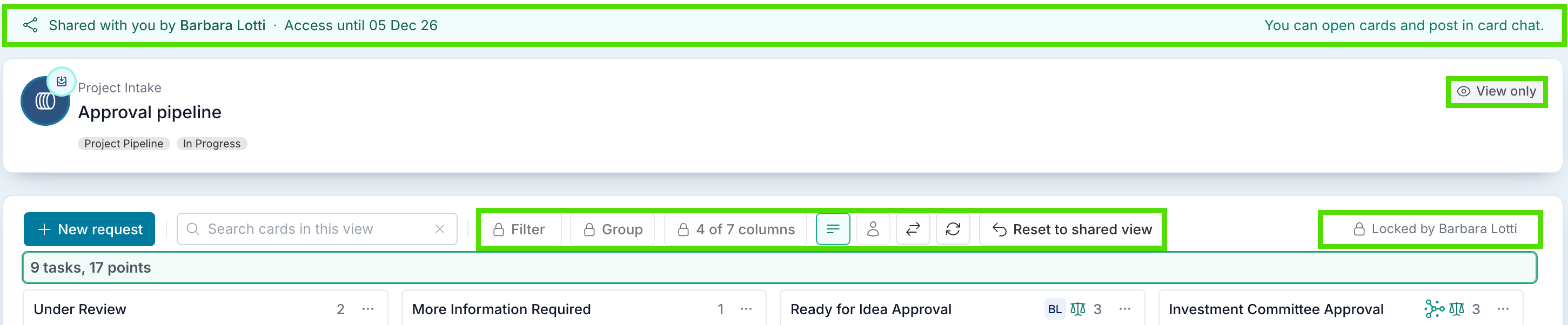
The people you share with see just that view, marked View only, with a banner saying who shared it and when their access ends. The controls you locked show a padlock. They can search the cards in the view, open cards, and read and post in card chat, but they cannot move or edit cards or see the rest of the board.
For everything they see and can do, see Opening a Board View Shared with You.
When a Share Ends
The people you share with are told when you change the end date, two days before the share ends, and when it ends or you revoke it.
When a share ends, the Board Viewer access it gave is removed, so people who only had access through the share can no longer open the board. People who were already members or viewers of the board keep their own access.