User roles: ✔ Board Owner ✔ Board Member
Not every column on a board matters for every task. Long Approved or Done columns make it harder to focus on the cards that are still moving, and scrolling past them in every review wastes time.
You can hide the columns you do not need, so the board shows only the stages you care about. Unlike collapsing a column, hiding it takes its cards off the board completely. Because hidden columns are saved with a board view, each view can show its own set of columns: a review view without Done and Rejected, an intake view with only the first stages.
In this article you will learn how to hide and show columns, how hiding differs from collapsing, and how to keep your choice of columns in a view.
Before You Start
Board views are available on Kanban boards.
You need to be a Board Member or Board Owner to save hidden columns in a view. Board Viewers can see the board but cannot create or use views, unless someone shares a view with them (see Sharing a Board View with People).
Hiding and Showing Columns
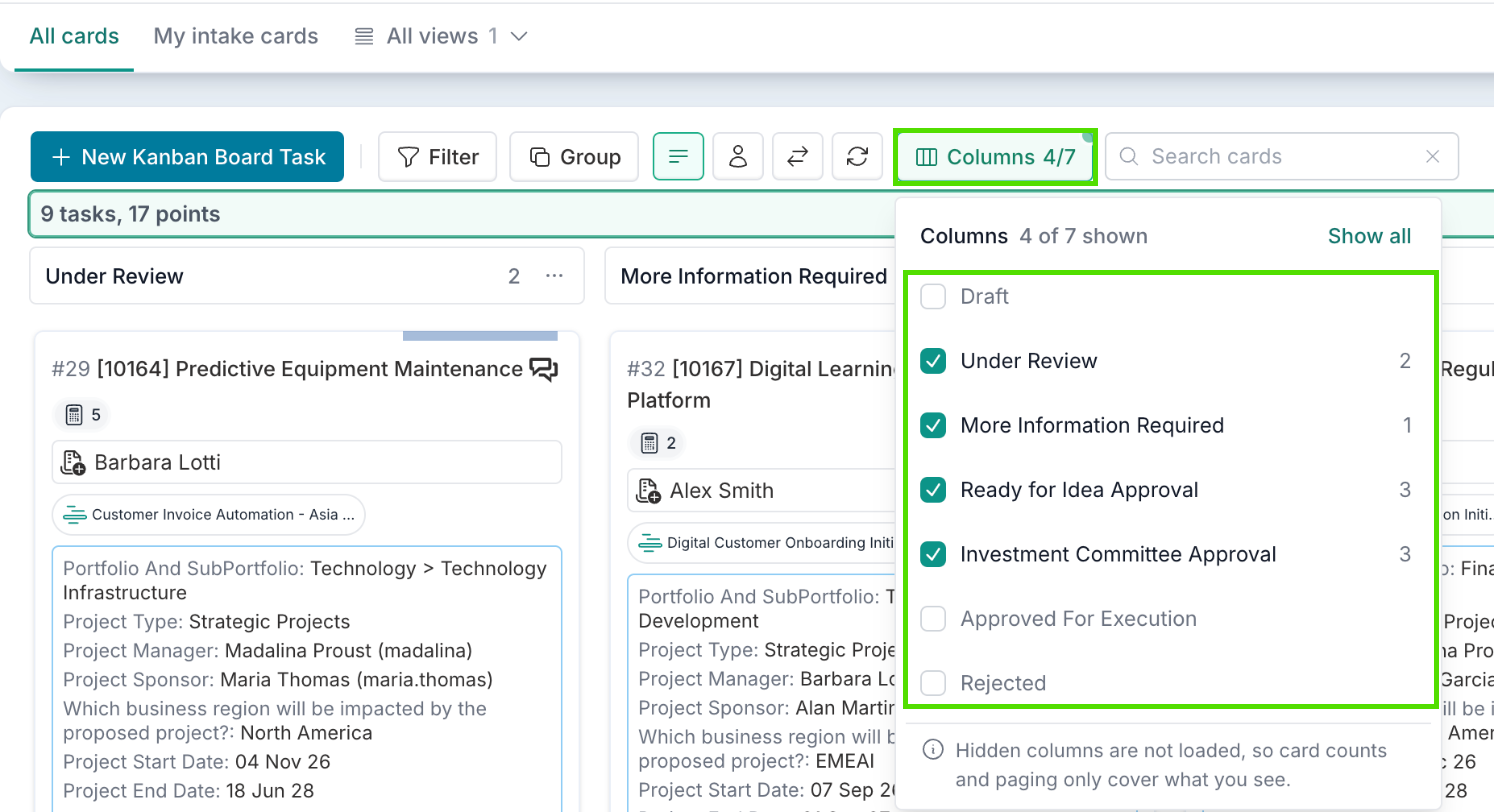
Select Columns in the board toolbar.
Untick a column to hide it, or tick it to show it again. The panel shows how many cards each column holds, and stays open while you tick and untick.
Select Show all to bring back every hidden column.
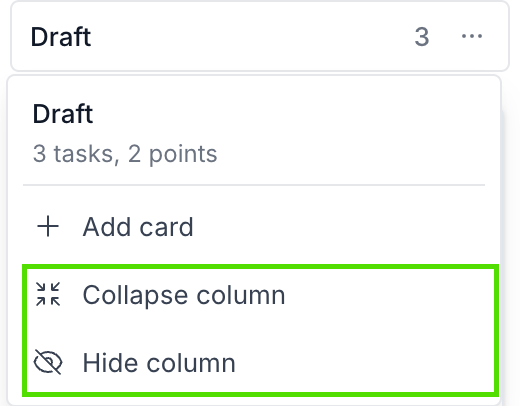
You can also hide a single column from its header: select … next to the card count, then Hide column.
When columns are hidden, the Columns button shows how many are visible, for example Columns 4/7, and a dot. At least one column must stay visible.
Hiding a Column or Collapsing It
Collapsing a column (… > Collapse column) makes it narrow. Its cards are still loaded and counted.
Hiding a column removes it and its cards from the board. The board does not load those cards, so the task and point totals at the top of the board, and paging, only cover the columns you can see.
NOTE: Hiding a column changes what you see, not who can see it. Anyone using the board can show hidden columns again, unless the view was shared with them with that option locked. To control who can see cards, use Board Permissions.
Saving Hidden Columns with a View
Hidden columns are saved with a board view, so each view can show a different set of columns. If a view is open when you hide or show a column, Save View shows an unsaved change. Select it, then Save changes to keep the new set of columns in the view, or Save as new view to save it as a separate view. See Saving and Switching Board Views.
Good to Know
Renaming a column does not break a view, because views remember the column itself, not its name.
All cards always shows every column, so a view that hides columns can never hide them from the whole board.