User roles: ✔ Board Owner ✔ Board Member
Once a board has a few views, they need looking after. The ones you use every day should sit in your tabs, out-of-date ones should go, and everyone opening the board should land on the right one: a team that agrees on one view for its stand-up does not want each member to open the board on something different.
Manage views brings all of a board’s views into one table. From there you can pin, rename, duplicate, share and delete views, choose the view that opens for you, and, as a board owner, set the view that opens for everyone else on the board.
In this article you will learn how to pin views to your tabs, choose the view that opens for you and for the board, copy, rename, share and delete views, and who can do each of these.
Before You Start
Board views are available on Kanban boards.
You need to be a Board Member or Board Owner to create and use views. Board Viewers can see the board but cannot create or use views, unless someone shares a view with them (see Sharing a Board View with People).
Opening Manage Views
Select All views next to the view tabs, under the board name.
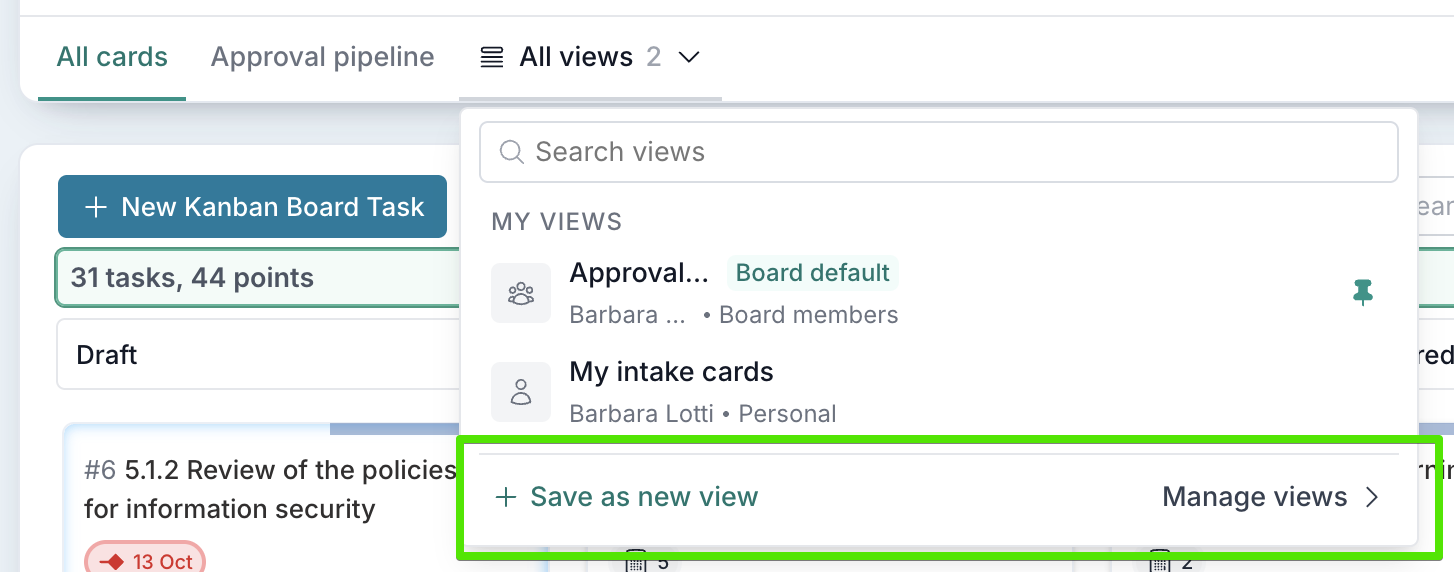
Manage views is at the bottom of the All views list. Select Manage views at the bottom of the list.
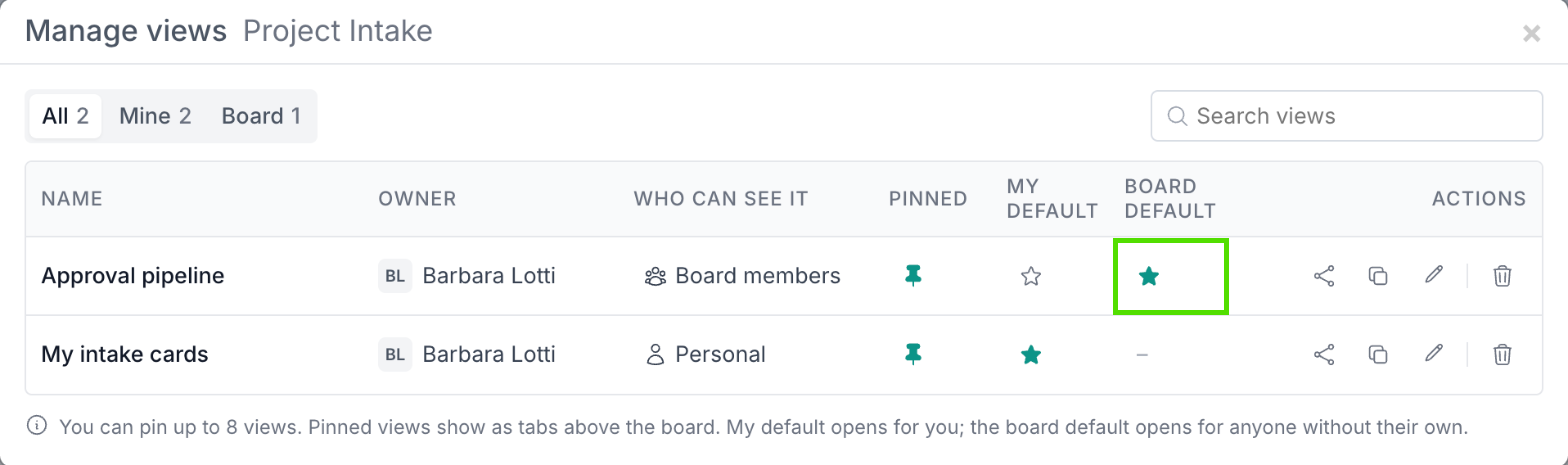
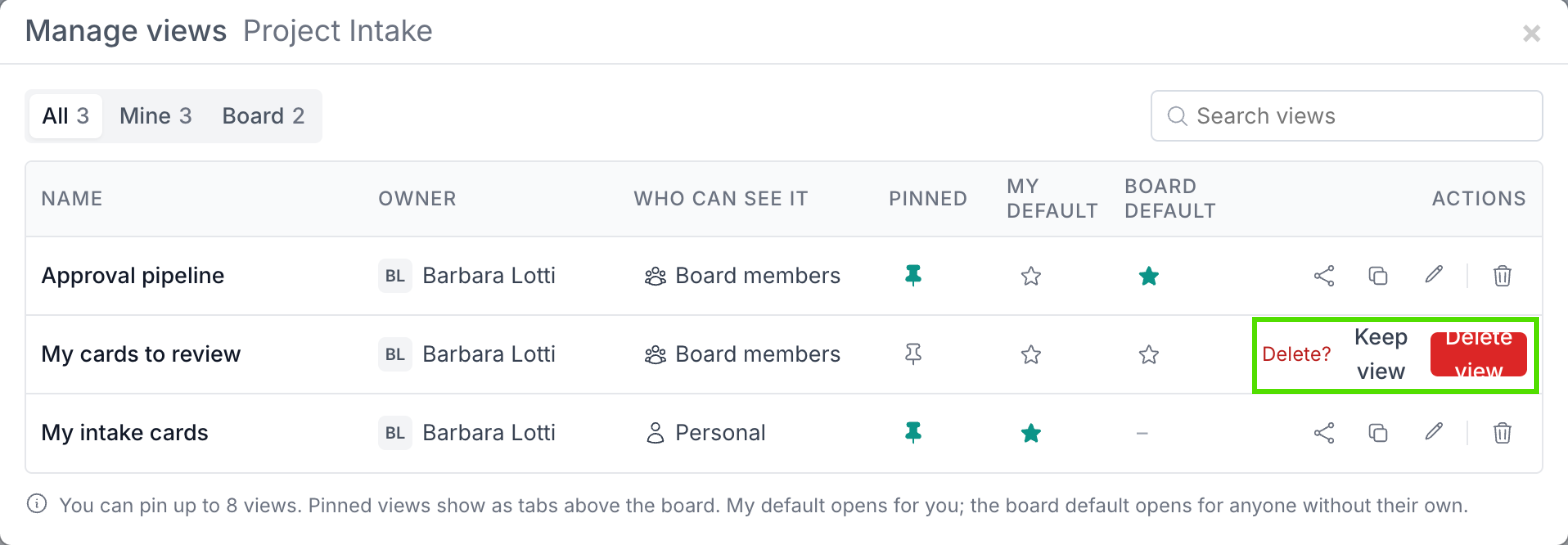
The window lists every view you can use on the board, with its owner, who can see it, whether it is pinned, and whether it is a default. Use All, Mine and Board to filter the list, or search for a view by name.
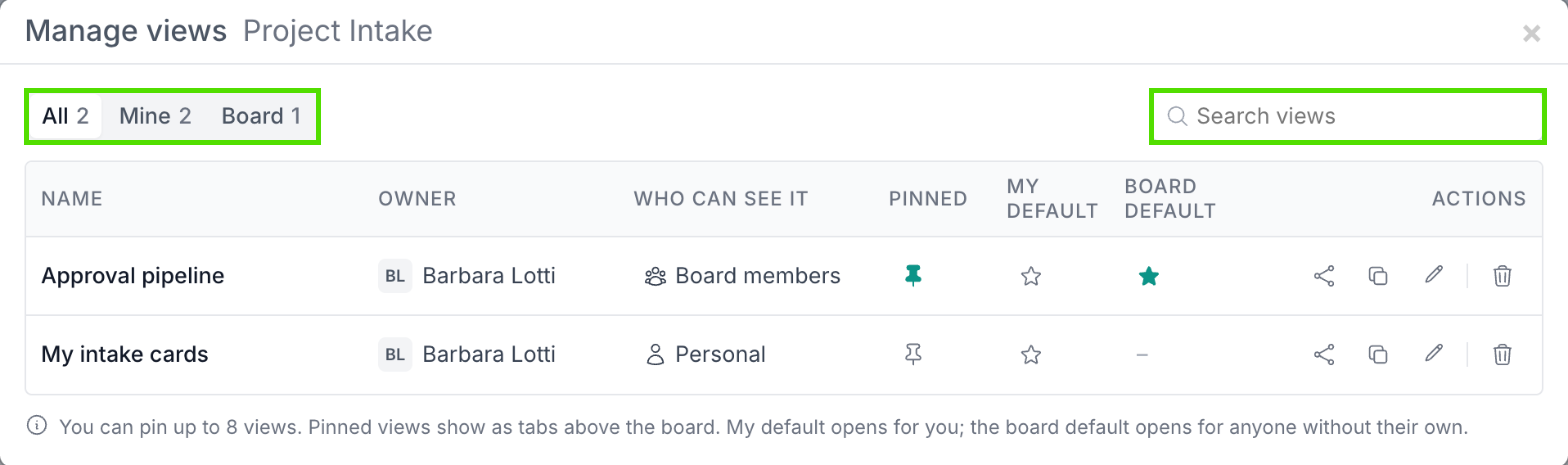
Pinning Views to Your Tabs
Pinned views show as tabs above the board; the others are only in All views. Select the pin in the Pinned column to pin or unpin a view. You can pin up to 8 views, and pinning only changes your own tabs, not anyone else’s.
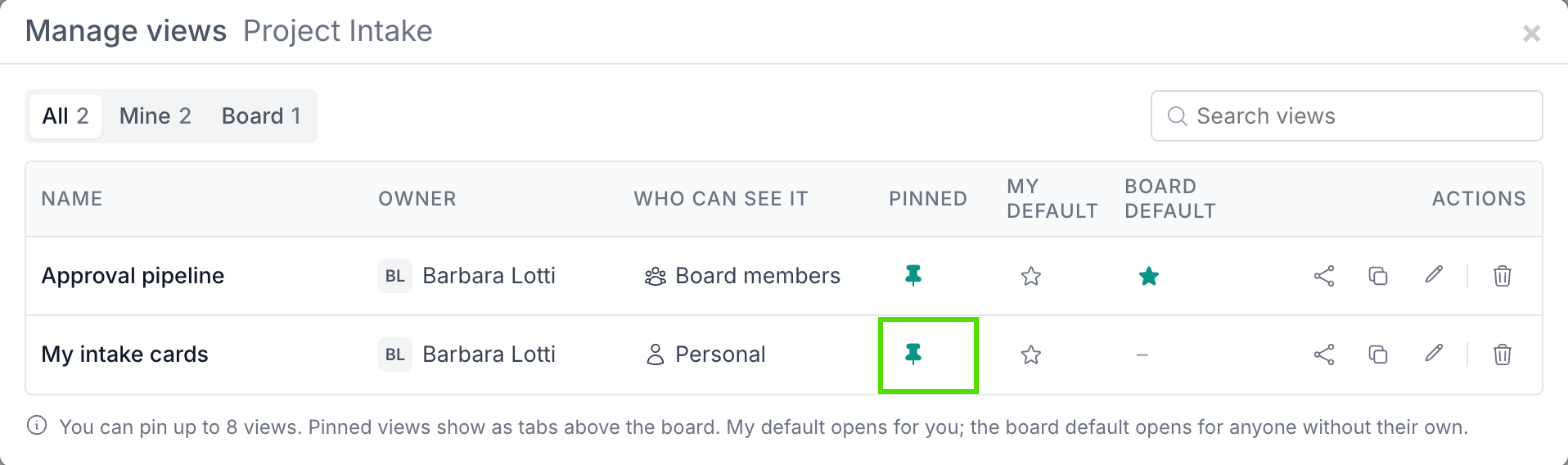
The view appears as a tab straight away.

Choosing the View That Opens for You
Select the star in the My default column to make a view the one that opens for you whenever you open the board. You can choose any view you can see, including a personal one. Select the star again to stop using it as your default.
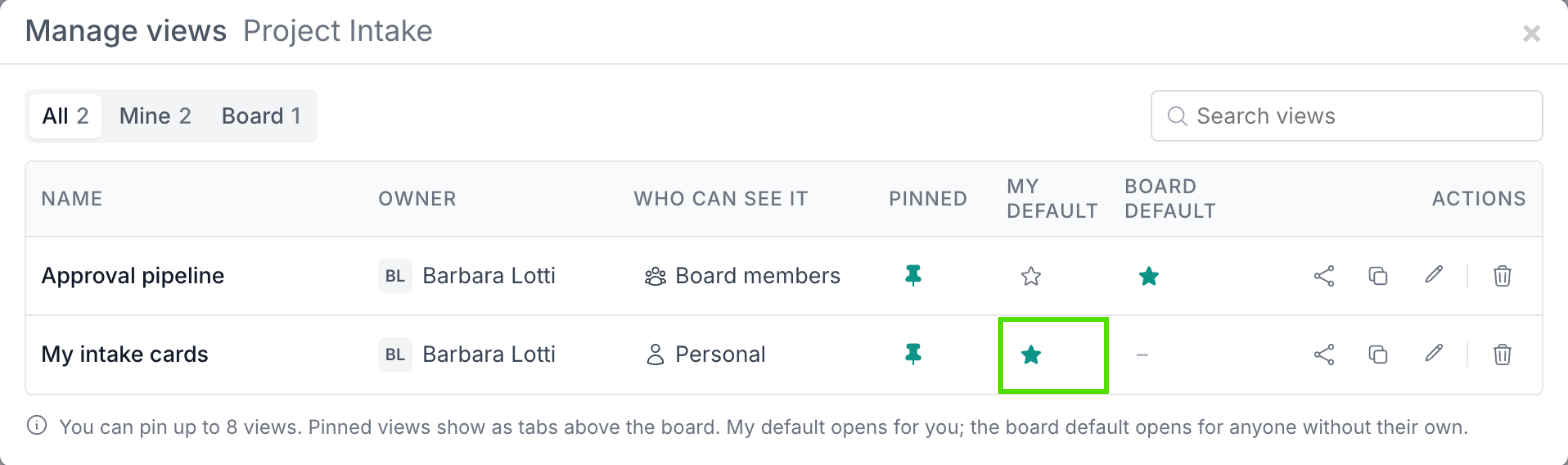
Setting the Board Default
The Board default is the view that opens for anyone on the board who has not chosen their own default, so the whole team lands on the same view. Only board owners can set it, by selecting the star in the Board default column. Everyone else sees which view is the board default, but cannot change it.
Only a view shown to board members can be the board default. A personal view shows a dash in this column.
Which View Opens First
With defaults set, when you open a board Fluid opens, in this order:
the view in the link you followed, if there is one
your My default view
the Board default view
the last view you used on that board
If none of these applies, the board opens on All cards.
Copying a View
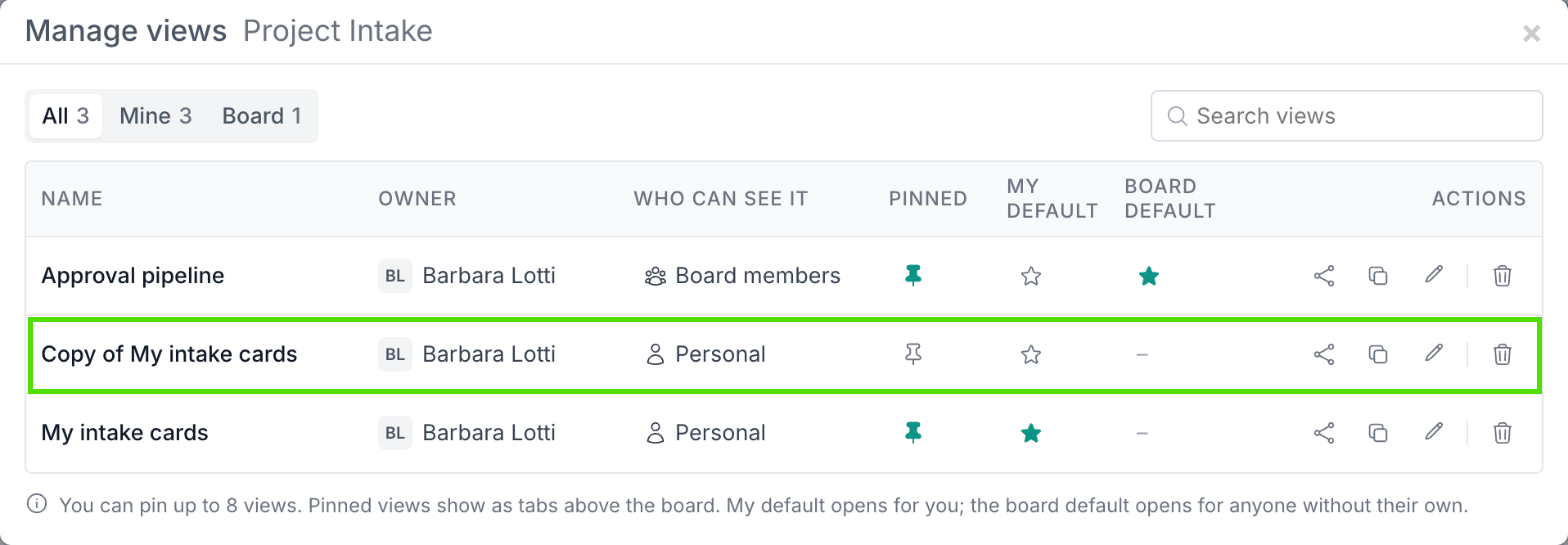
To build a new view from an existing one, select Duplicate in the Actions column. Fluid adds a copy named Copy of …, which you own and can change, even if the original was someone else’s. The copy starts as a personal view and is not pinned.
Renaming a View and Changing Who Can See It
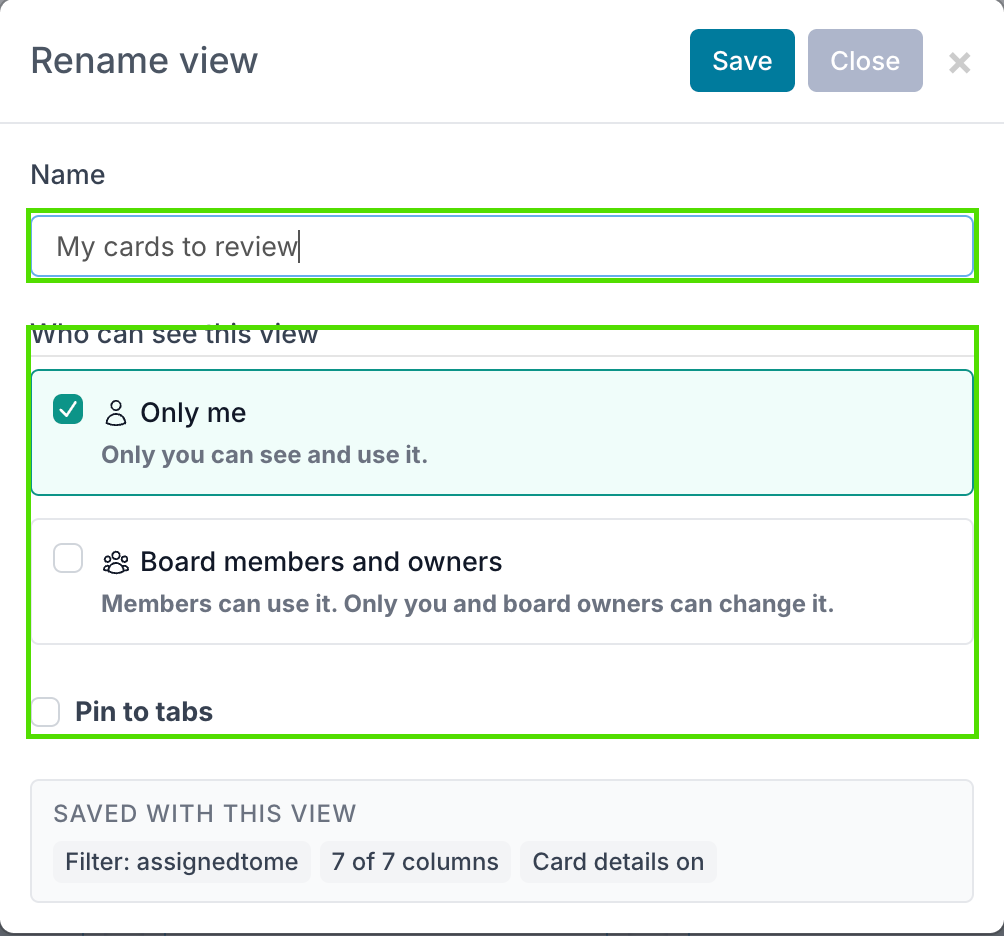
Select Rename (the pencil) to open the view’s details. You can change its name, who can see it and whether it is pinned, then select Save.
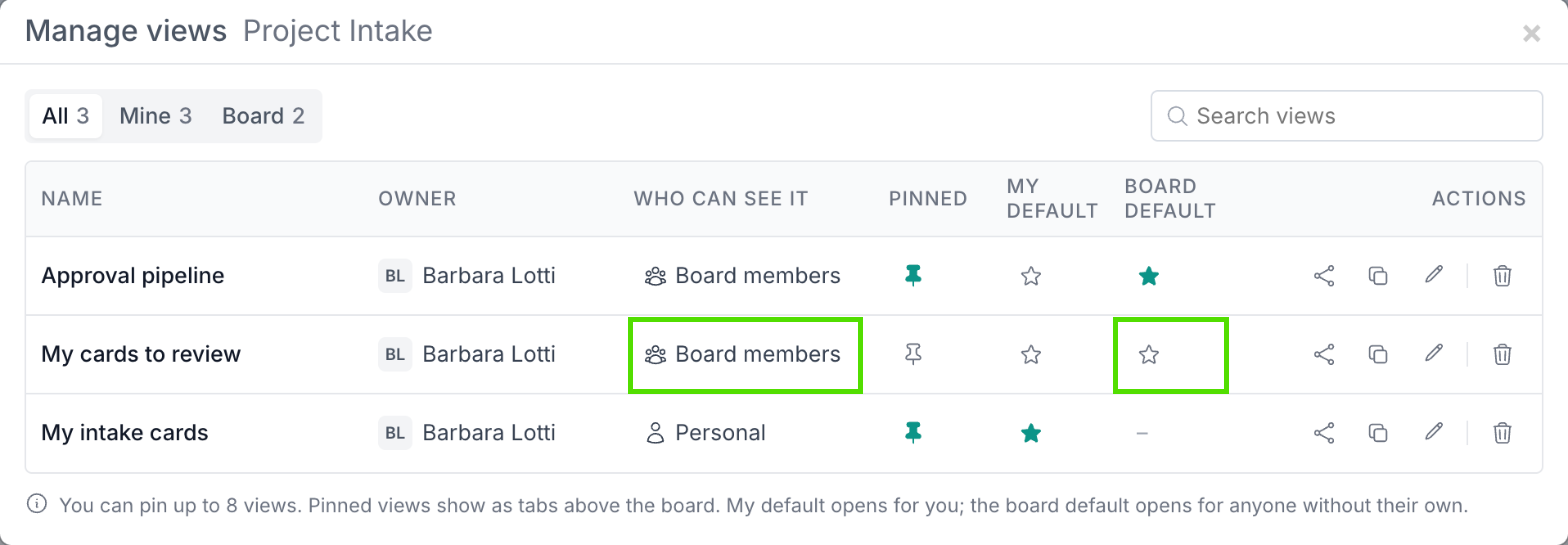
You can also switch a view between Personal and Board members straight from the table, by selecting its entry in the Who can see it column. A view shown to board members can then be made the board default.
Sharing a View
Select Share in the Actions column to share the view with named people, including people who are not on the board. See Sharing a Board View with People.
Deleting a View
Select Delete (the bin) in the Actions column. The row asks Delete?: select Delete view to confirm, or Keep view to cancel.
Deleting a view removes it for everyone who uses it, and ends any shares of it. It cannot be undone.
Who Can Do What
Action | Your own views | Board views created by others |
|---|---|---|
Use, pin, duplicate, set as My default | Yes | Yes |
Save changes, rename, change who can see it, delete | Yes | Board owners only |
Share with people | Yes | Board owners only |
Set as board default | Board owners, once the view is shown to board members | Board owners only |
NOTE: Board Viewers can see the board but cannot create or use views, unless a view is shared with them.