Fluid lets you download any project schedule as a Microsoft Project file (MPP). You can build and manage your plan in Fluid - tasks, milestones, phases, dependencies, assignments, progress and calendars - and export it whenever you need to review it, share it, or continue working on it in Microsoft Project. No local installation of Microsoft Project is needed to create the file.
In this article, you will learn:
✔ What the MPP Export feature is and when to use it
✔ Where to find the export option and how to export a schedule step by step
✔ Which schedule information is carried into the MPP file, and what is not
✔ How the exported schedule appears when it is opened in Microsoft Project
✔ The permissions, prerequisites and limitations you should know about
What is MPP Export?
MPP Export creates a Microsoft Project file (.mpp) from the schedule of a Fluid project. The file contains the schedule exactly as it is configured in Fluid at the moment you export it, so when you open it in Microsoft Project you see the same tasks, hierarchy, dates, durations, dependencies, progress, resources and working calendars.
Typical reasons to export a schedule:
A stakeholder, contractor or PMO team works in Microsoft Project and wants to review the plan there.
You want to use Microsoft Project features such as detailed critical path analysis or printed Gantt layouts.
You need a point-in-time copy of the plan in a standard file format for archiving or contractual reporting.
You want to make a batch of changes in Microsoft Project and then bring them back into Fluid using MS Project Upload.
Important: MPP Export is a one-time file export. Fluid does not keep the file in sync with Microsoft Project. Changes you make in Fluid after exporting are not reflected in the file, and changes you make in Microsoft Project do not flow back into Fluid unless you upload the edited file again. See One-time export, not a live sync below.
Before you start
Check the following before you export:
Requirement | Details |
Permission | You need Manage permission on the project. Users with View permission can open the schedule but will not see the MS Project option in the Tools menu. |
Feature enabled | The Allow MS Project Upload feature must be switched on for your Fluid instance. An Application Administrator can enable it from the Administration Console under Fluid Feature Guide. The same feature controls both upload and download. |
Microsoft Project version | The export produces a standard .mpp file. Fluid's Microsoft Project integration has been tested with Microsoft Project 2007 to 2019. Later desktop versions of Microsoft Project can open files in this format; if you use a different version and see unexpected results, please contact Fluid support. |
Project Calendar | Make sure the schedule's Project Calendar (Gantt view > Settings) reflects your working week and holidays. The calendar is written into the MPP file, so Microsoft Project calculates durations on the same working days as Fluid. See Choosing Calendars for a Project Schedule and Individual Tasks. |
Complete task rows | Every task needs a title, a start date and an end date to be included. Rows missing any of these are left out of the file and listed in the export messages. |
Where to find the export option
The export lives in the Gantt view of the project schedule, in the same dialog as MS Project Upload:
Open the Project Workspace of the project you want to export.
Scroll to the Schedule section (or select Schedule in the left navigation) and click Edit in Gantt View.
In the Gantt view, open the Tools menu at the top right of the screen.
Select MS Project Upload / Download.
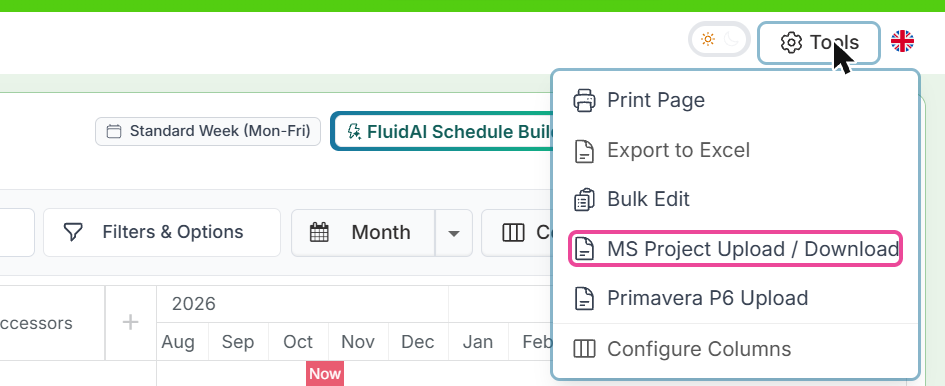
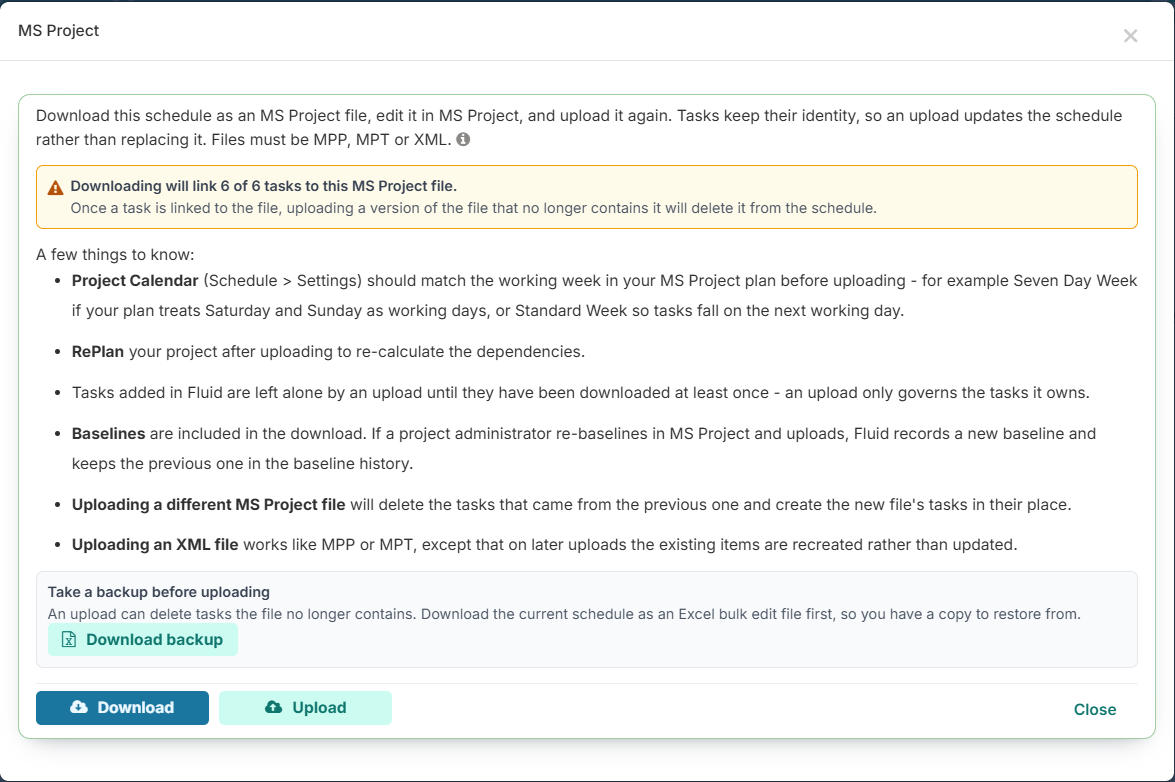
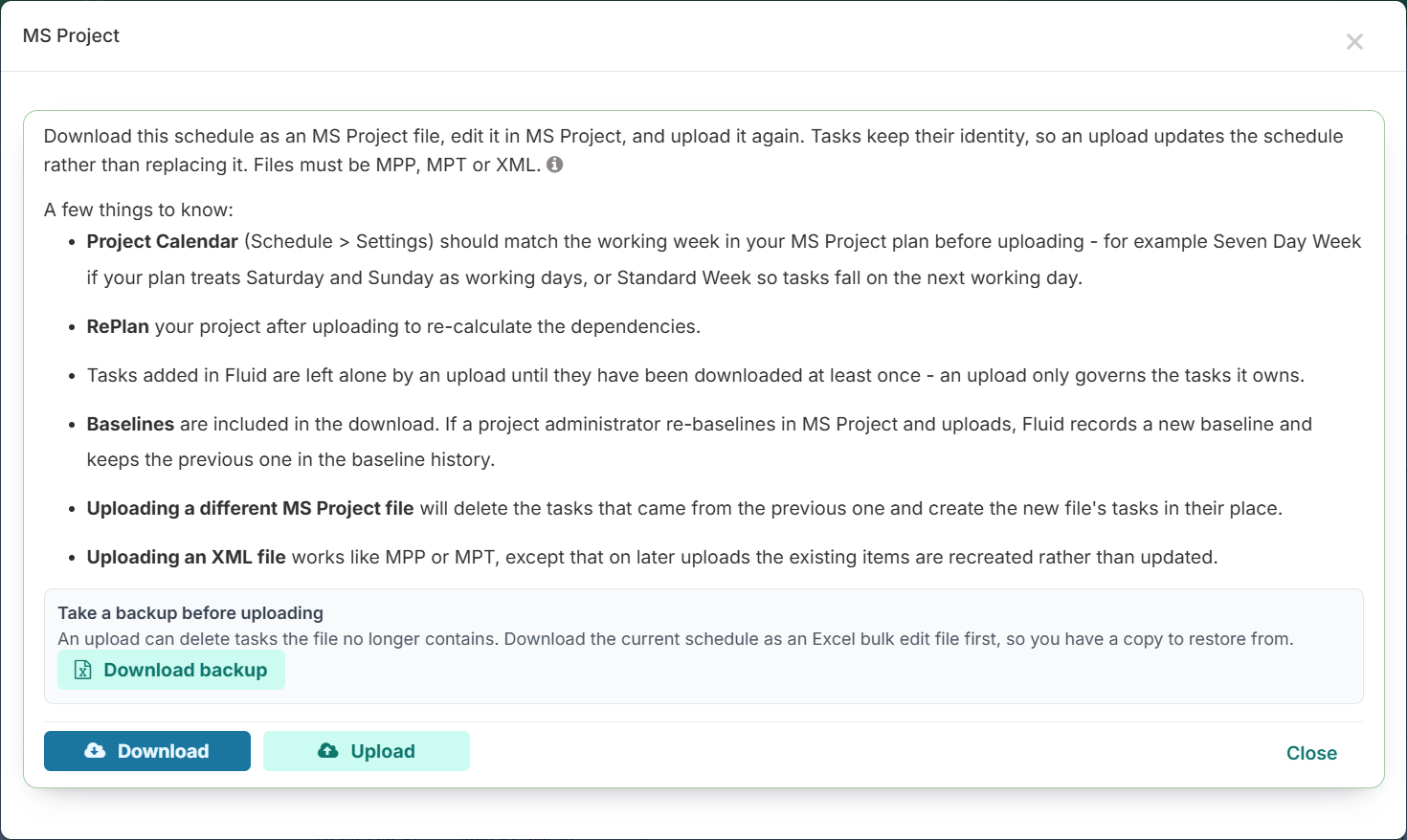
The MS Project dialog opens with two actions: Download (export the schedule to an MPP file) and Upload (import an MPP, MPT or XML file into the schedule).
How to export a Fluid schedule as an MPP file
Open the project's schedule in the Gantt view and choose Tools > MS Project Upload / Download, as described above.
Read the notes in the dialog. If some tasks have never been exported before, a yellow message tells you how many tasks will be linked to the MS Project file - for example "Downloading will link 12 of 12 tasks to this MS Project file." This link is what allows a later upload of the same file to update tasks rather than duplicate them (see One-time export, not a live sync).
Click Download.
Fluid prepares the file. The progress panel shows Preparing your MS Project file and then lists what was exported, together with any messages about rows that were skipped or values that could not be carried across.
Your browser saves the file. It is named after the project, for example Office Relocation.mpp.
Review the messages, then click Done to close the dialog (or Start again to run another download or an upload).
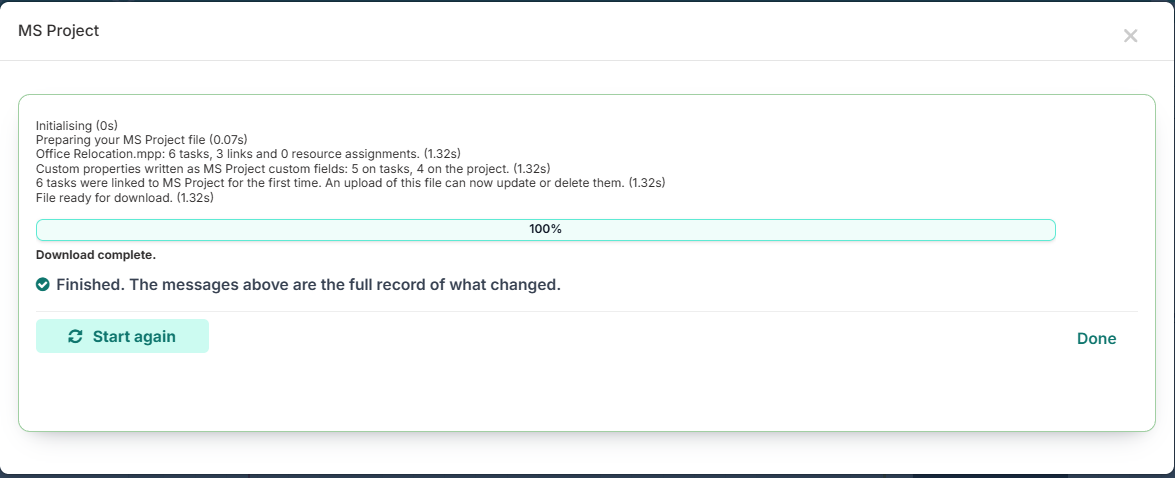
A finished download: what the file holds, the custom fields written, and the tasks linked for the first time. Open the file in Microsoft Project. The schedule appears with the same structure, dates and working calendars as in Fluid.
Tip: The whole schedule is always exported. Filters, column choices and the zoom level of your Gantt view do not affect what goes into the file.
What is included in the MPP file
The table below lists the schedule information Fluid writes into the file and where you will find it in Microsoft Project.
In Fluid | In Microsoft Project | Notes |
Task Title | Task Name | Special characters are preserved. |
Description | Notes | Copied word for word. If the description was formatted in Fluid, the formatting tags are visible in the Notes pane. |
Hierarchy and order (Phases, Workstreams, Deliverables and their sub-tasks) | Outline (summary tasks and sub-tasks), WBS order | Tasks appear in the same order and with the same indentation as in the Fluid Gantt. Any task with children becomes a summary task. |
Milestone | Milestone (zero duration) | Shown as a diamond on the Microsoft Project Gantt chart. |
Start Date and End Date | Start and Finish | Written using Microsoft Project's working-day convention: a task starts at 08:00 and finishes at 17:00. Each working day holds 8 hours (08:00 to 12:00 and 13:00 to 17:00), the length of one day of duration. |
Effort (working days) | Duration | Whole working days, counted on the task's own calendar - a task on a Six Day Week counts its Saturdays, and holidays are not counted - so Microsoft Project finishes it on the same day as Fluid. |
% Complete | % Complete, % Work Complete, Actual Work and Remaining Work | Written so that Microsoft Project rolls progress up to summary tasks correctly. |
Manually schedule task | Task Mode (Manually Scheduled / Auto Scheduled) | Pinned tasks are exported as manually scheduled; all other tasks, including auto-calculated roll-ups, are auto scheduled. |
Predecessors (dependencies) | Predecessors, with link type and lag | Finish-to-Start, Start-to-Start, Finish-to-Finish and Start-to-Finish links are all supported, including positive and negative lag in days. |
Assigned To | Resources and Resource Names | Each assignee is created as a work resource with their display name and email address. The email is what lets Fluid match the resource again on a later upload. |
Flex work hours | Work (task and assignment) | When Flex Work is enabled, each task's hours and each assignee's hours are written to the Work column, with assignment units worked out on the task's calendar so the hours come back unchanged if the file is uploaded again. |
Schedule Baseline | Baseline (Baseline Start / Baseline Finish) | The current Fluid baseline is written as Microsoft Project's Baseline. Tasks that have never been baselined are left without a baseline. |
Project Calendar and task-level calendars | Project calendar and task calendars | The working week, weekend days, non-working dates (holidays and Global Exceptions) and working overrides are written as calendars, with the correct calendar attached to each task. Exceptions are included from one year before to two years after the schedule's date range. |
Schedule custom properties | Custom task fields (Text, Number, Date and Flag fields), renamed to the property name | Text, rich text, number, percentage, date, yes/no and option-list properties are carried across. Person, project, cascading option and table properties are not. |
Project custom properties | Project properties (File > Info > Project Information > Advanced Properties, Custom tab) | Written under the property name, so the values travel with the plan. See Mapping MS Project custom fields to Fluid custom properties. |
Suppressed tasks (promotion level L5) | Inactive tasks | Tasks you have kept out of reporting in Fluid are marked inactive in Microsoft Project. |
Task identity | Hidden unique identifier on each task | Used by Fluid to recognise the same task when the file is uploaded again. You do not need to do anything with it. |
How the schedule appears in Microsoft Project
When you open the exported file, the schedule information configured in Fluid is reflected directly:
Structure: Phases and other parent tasks appear as summary tasks with their sub-tasks indented beneath them, in the same order as your Fluid Gantt.
Dates and durations: Each task keeps its Fluid start and end dates. Durations are shown in working days, calculated on the calendar that was assigned to the task in Fluid.
Calendars: The Fluid Project Calendar becomes the project's calendar in Microsoft Project, so weekends and holidays are greyed out in the same places. Tasks that use a different calendar in Fluid keep their own calendar (visible in the Task Information dialog, Advanced tab).
Dependencies: Link lines and the Predecessors column show the same relationships and lags as Fluid.
Progress: The % Complete column and the progress bars inside the Gantt bars match Fluid, and summary tasks roll progress up from their children.
Resources: The Resource Sheet lists everyone assigned in Fluid, and the Resource Names column shows who is assigned to each task.
Baseline: If your schedule has a baseline, Tracking Gantt views show the baseline bars beneath the current plan.
Note: The file is written without triggering Microsoft Project's own re-scheduling, so it opens exactly as Fluid saved it. If you later change dates or links in Microsoft Project, its scheduling engine takes over for those changes in the normal way.
What is not included
Microsoft Project has no equivalent for some Fluid information, so it stays in Fluid only:
RAG status, priority and task status (Not Started / In Progress / Completed). Microsoft Project derives a task's state from % Complete instead.
Scheduling constraints such as Must Start On or Finish No Later Than (see Task Scheduling Constraints). Tasks are exported with the dates the constraints produced.
Checklists, status updates, comments, documents, linked Project Impacts and linked board tasks.
Task colours and Gantt display settings.
Time of day. Fluid schedules whole days; the file uses the standard 08:00 to 17:00 working day with an hour for lunch.
Some custom properties. Person, project, cascading option and table-type properties are not exported. Microsoft Project also has a fixed number of custom field slots (30 text, 20 number, 10 date and 20 flag fields); if your schedule has more properties than slots, the extra ones are left out and named in the export messages.
One-time export, not a live sync
The download is a snapshot. Fluid does not connect to Microsoft Project and does not push later changes into the file. Treat the MPP file as a copy of the plan at the moment you exported it.
If you want changes made in Microsoft Project to appear in Fluid, upload the edited file using the Upload button in the same MS Project dialog. Because every exported task carries a hidden identifier, Fluid recognises the tasks and updates them instead of creating duplicates. Full details of the upload rules are in Importing MS Project plans.
Two things to keep in mind once a schedule has been exported:
Exported tasks become linked to the file. If you later upload a version of that file which no longer contains one of those tasks, the task is removed from the Fluid schedule. Tasks created in Fluid that have never been exported are never touched by an upload.
Take a backup before uploading. The MS Project dialog offers a Download backup button that saves the current schedule as an Excel Bulk Edit file, so you always have a copy to restore from.
Example: build a schedule in Fluid and export it
This short example creates a small plan in Fluid and exports it. The project is called Office Relocation.
1. Create the schedule in Fluid
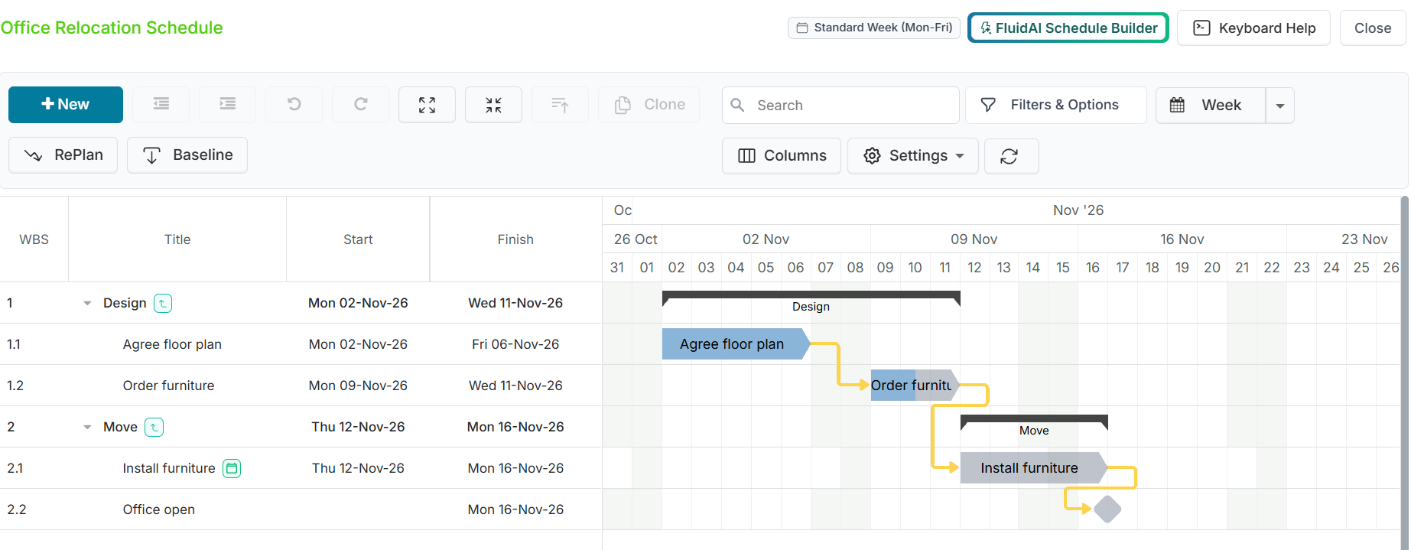
Open the Office Relocation project workspace, go to Schedule and click Edit in Gantt View.
Click Settings and confirm the Project Calendar is Standard Week (Mon-Fri).
Use New Task to add a Phase called Design with two Deliverables beneath it: Agree floor plan (5 days) and Order furniture (3 days).
Add a second Phase called Move with the Deliverable Install furniture (4 days) and a Milestone Office open. The fitters work Saturdays, so right-click Install furniture's bar and give it the Six Day Week (Mon-Sat) calendar.
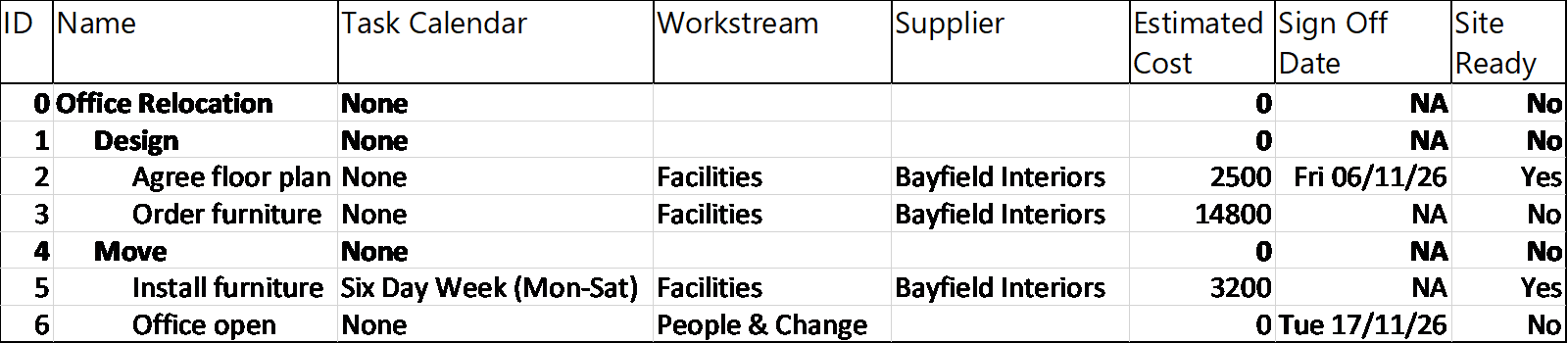
In the Predecessors section of each task, link Agree floor plan, Order furniture, Install furniture and Office open Finish-to-Start in that order, and fill in the schedule custom properties - here Workstream, Supplier, Estimated Cost, Sign Off Date and Site Ready.
Mark Agree floor plan as 100% complete and Order furniture as 50% complete.
2. Export it
Open Tools > MS Project Upload / Download.
The dialog reports that downloading will link 6 of 6 tasks to the file. Click Download. The messages confirm 6 tasks, 3 links and the custom properties written to the file.
Save Office Relocation.mpp and click Done.
3. Open it in Microsoft Project
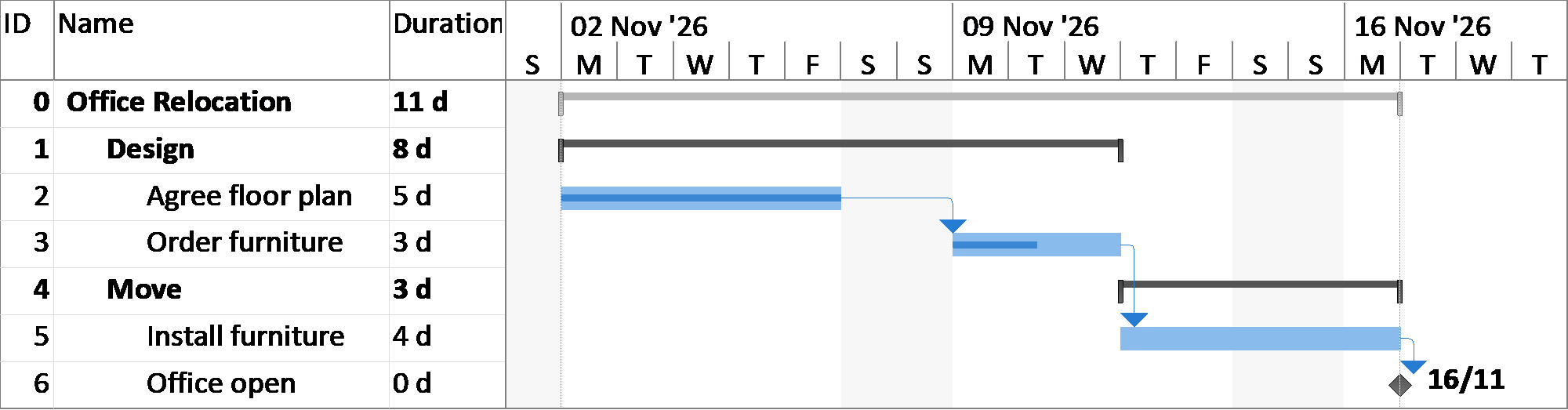
The Gantt Chart view shows the two summary tasks, the three deliverables and the milestone in the same order. Agree floor plan shows 100% and Order furniture 50%, the Design summary task rolls those up, and the Finish-to-Start links are drawn between the bars. The project calendar is a Monday-to-Friday week, while Install furniture keeps its Six Day Week: it runs Thursday 12 to Monday 16 November, four working days including the Saturday, and Office open falls on Monday 16 November - the same dates as in Fluid. The custom properties appear as named custom fields, as in the Task Sheet shown earlier.
Frequently asked questions
I cannot see MS Project Upload / Download in the Tools menu.
Either you do not have Manage permission on the project, or the Allow MS Project Upload feature is not enabled for your instance. Ask your project administrator or application administrator.
The dialog says downloading will link tasks to the file. Is that safe?
Yes. Linking simply records that the task has been exported, so a later upload of the same file can update it. It does not change any dates or other task data. The only effect is on future uploads: a file that no longer contains a linked task will remove that task from the schedule.
A task is missing from the file.
Tasks without a title, start date or end date are not exported. The export messages list each one. Complete the task in Fluid and download again.
Durations in Microsoft Project differ from Fluid.
Check the calendar Microsoft Project is using for the task (Task Information > Advanced). The export writes Fluid's calendars into the file; if the file has been edited and re-saved with a different calendar, durations are recalculated by Microsoft Project.
Can I export only part of the schedule?
No. The export always contains the complete schedule so that a later upload can be matched safely. If you need a filtered report rather than an editable plan, use Export to Excel or a schedule report template instead.
Do I need Microsoft Project installed to export?
No. Fluid creates the file on the server. You only need Microsoft Project to open it.