Your project's calendar decides which days count as working days: it drives how effort is counted, where tasks land when the plan is replanned, and which days are shaded on the Gantt chart. Every schedule uses one project calendar, and any individual task can be given a different calendar when it follows another working pattern - a contractor working seven days, or an offshore team working Sunday to Thursday.
In this article, you will learn:
✔ Why the calendar matters for task effort and dates
✔ How to choose the calendar for a project schedule
✔ How to override the project calendar on an individual task for row-level non-working days
✔ What is recalculated when a calendar is selected or changed
✔ A worked example of one schedule using two calendars
Why the calendar matters
Effort is counted in working days. A 5-day task on a Monday-to-Friday calendar runs Monday to Friday. Start the same task on a Thursday and it runs Thursday to the following Wednesday, skipping the weekend. On a seven-day calendar it would finish on Monday.
Tasks land on working days. When Replan moves a task, or you create or drag one, its dates snap to working days. A task never starts on a Sunday or a public holiday unless its calendar says those are working days.
You can see it on the Gantt. In Day and Week views, weekends and holidays are shaded. At Month zoom and above, non-working periods of five days or more are drawn as a band. Dates your administrator has given a colour - a change freeze, for example - are drawn as a coloured band with the name shown when you hover.
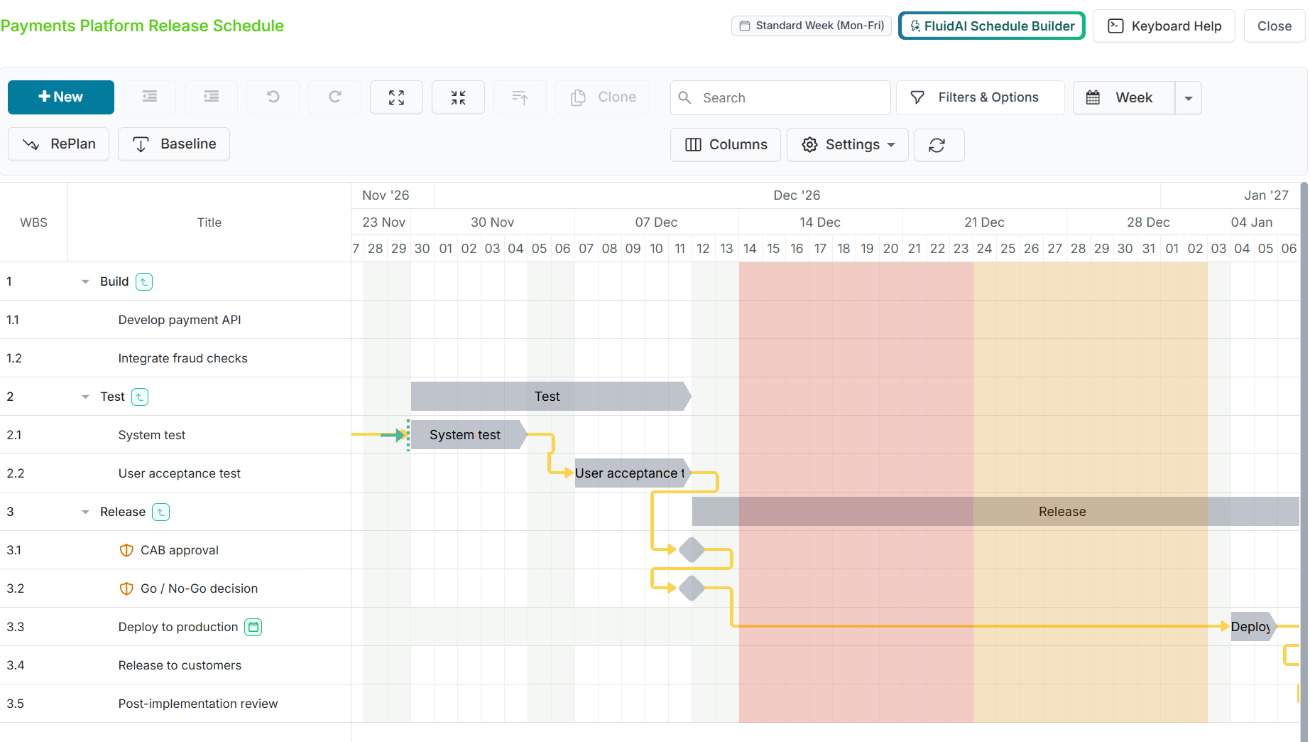
Calendars are created and maintained centrally by administrators - see Managing Project Calendars and Global Exceptions. As a project manager you choose from the calendars they have published.
Permissions: you need Manage permission on the project to change its calendar or set a calendar on a task. With View permission you can see the schedule and its shading but not change how it is scheduled.
Choosing the calendar for a project schedule
Open the Project Workspace, go to the Schedule section and click Edit in Gantt View.
Click Settings at the top of the Gantt view.
In the Project column, find Project Calendar - "Working days and holidays used for scheduling" - and choose a calendar from the drop-down.
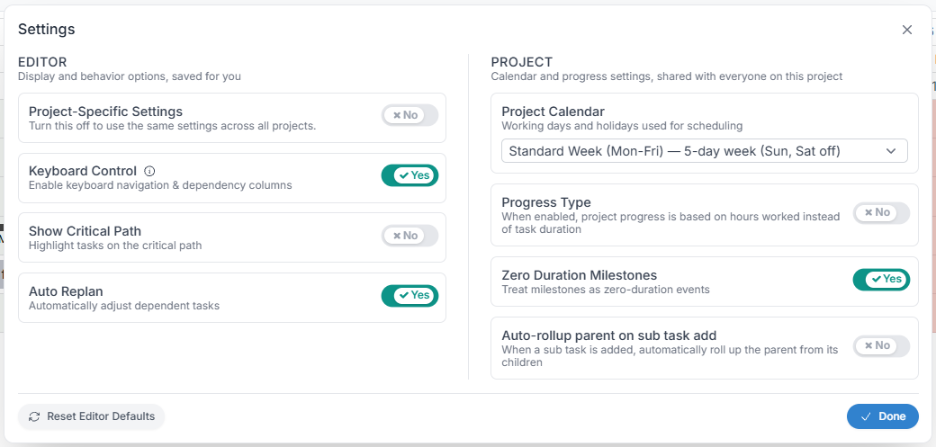
Gantt Settings: the Project Calendar is in the Project column. Confirm the change. Fluid tells you that the start and end dates of existing tasks stay where they are and that their effort will be recalculated on the new working days.
What is in the list. Every active calendar your administrator has published: regional working weeks (Monday to Friday, Sunday to Thursday, six or seven days), national holiday sets (UK, US, CA) and any custom calendars built for your organisation. If the one you need is missing, ask an administrator.
If you never choose one, the project uses the organisation default - normally Standard Week (Mon-Fri).
Weekends come from the calendar. The earlier Include Weekends toggle in the project settings has been replaced by the Project Calendar. To count weekends as working days choose Seven Day Week (Mon-Sun); for a Sunday-to-Thursday or six-day week choose a calendar with that weekend rule. Projects that had Include Weekends switched on were moved to a seven-day calendar automatically, so their dates did not change.
Overriding the project calendar on an individual task
Some rows in a schedule do not follow the project's working week. Give those tasks their own calendar and their effort and dates are worked out on that calendar's working days, while everything else stays on the project calendar. Different tasks in the same schedule can use different calendars.
From the task dialog
Open the task in the Schedule Task Dialog (or use New Task when creating one).
On the date row, choose a calendar in the Calendar drop-down. (Project default) means the task inherits the project calendar.
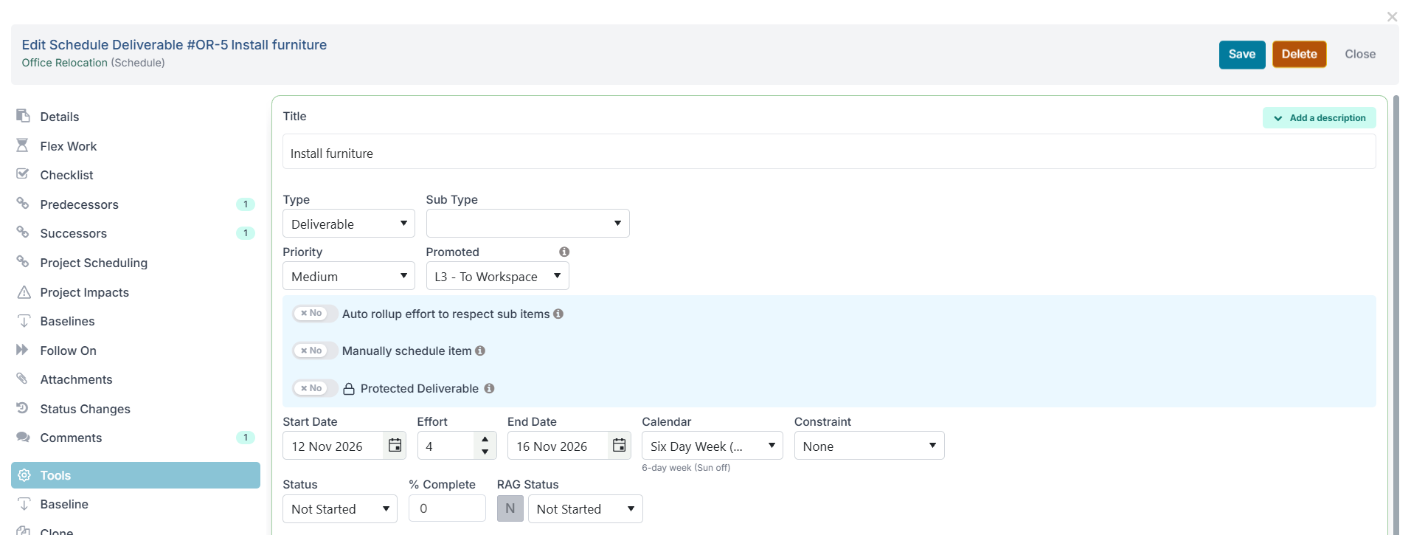
The Calendar drop-down on the date row of the task dialog, with the calendar’s working week shown beneath it. Save the task. Its effort is recalculated on the new calendar.
From the Gantt chart
Right-click the task's bar in the chart to open the Task Scheduling popup. From the grid on the left, right-click the row and choose Task Scheduling... from the menu.
Choose the Calendar and click Save. The description under the drop-down shows the calendar's working week. The same popup holds the task's scheduling constraint - see Task Scheduling Constraints.
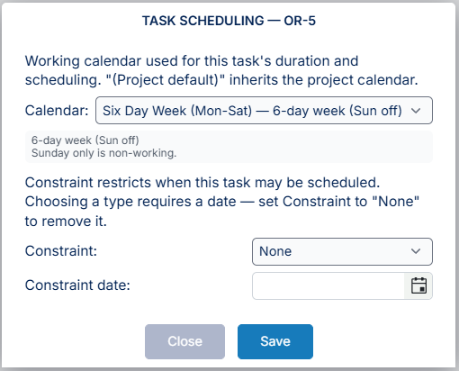
The Task Scheduling popup for a task on the Six Day Week calendar.
Seeing which tasks have their own calendar
A task with its own calendar shows a calendar icon next to its title in the grid; hover over it for the calendar's name and working week. To list them, open Filters & Options and use the Calendar group, which lists the calendars used in this schedule - the project calendar is labelled - with each one's working week.
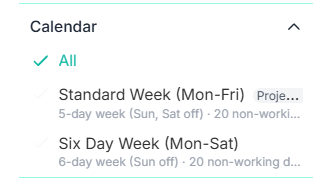
For many tasks at once
The Schedule Bulk Edit download includes an optional Calendar column containing each task's calendar name. Type the calendar name against the rows that need it and upload. A blank cell returns the task to the project calendar; a name Fluid does not recognise is reported and that row's calendar is left unchanged.
Rules to remember
A task's effort is measured in its own calendar's working days.
Auto-calculated parent tasks (phases and other roll-ups) always inherit the project calendar because their dates come from their children. Milestones have no duration to count, so the Calendar field is not shown for them in the task dialog.
When a dependency pushes a task, the successor's calendar decides where it lands.
Your organisation's Global Exceptions (company-wide dates such as a Christmas shutdown) apply to task calendars as well as the project calendar.
Choosing (Project default) again removes the override.
What is recalculated when a calendar changes
Fluid never moves a task's start or end date just because a calendar changed. What changes is the effort; dates move only when you edit tasks or replan.
What happens | Effect on the schedule |
You select a different Project Calendar | Dates are unchanged; effort is recalculated for every task that inherits the project calendar. A 10-day Monday-to-Friday task switched to a seven-day calendar keeps its dates and now shows 14 days of effort. |
You set or change a task's own calendar | That task's dates are unchanged and its effort is recalculated on the new calendar. Other tasks are unaffected. |
An administrator applies a calendar change (for example adds a holiday) | Every project on that calendar is recalculated in the background: dates unchanged, effort re-counted. A 5-day task that now spans the new holiday shows 4 days of effort until you extend it. |
You create a task, change its dates, or drag it | Dates snap to working days on the task's calendar. A start on a non-working day moves to the next working day, and the end date is placed so the effort is preserved. |
You Replan, or Auto Replan is on and a predecessor moves | Dependent tasks move to keep their sequence and lag, landing on working days according to each task's calendar and keeping their effort. See Recalculating Task Dates with Replan. |
Tip: after changing a project or task calendar, run Replan if you want the plan re-sequenced on the new working days rather than only re-counted. Check the effort column first so you know which tasks you expect to move.
Example: one schedule, two calendars
A fit-out project has a design team working Monday to Friday and an installation contractor working every day of the week. The project manager wants design tasks counted in business days and installation tasks in calendar days.
Set the project calendar. In Settings > Project Calendar, choose Standard Week (Mon-Fri). Every task uses business days unless told otherwise.
Plan the design task. Create Design layout starting Monday 2 March 2026 with 10 days of effort. It runs Monday 2 March to Friday 13 March, skipping the weekend in between.
Plan the installation task on its own calendar. Create Install racking with 10 days of effort, link it Finish-to-Start after Design layout, open it and set its Calendar to Seven Day Week (Mon-Sun).
Because the successor's calendar decides where it lands, Install racking starts on Saturday 14 March, the day after design finishes.
Ten calendar days later it finishes on Monday 23 March.
Left on the project calendar it would have started Monday 16 March and finished Friday 27 March - four days later.
Add a holiday and see the difference. An administrator adds Good Friday (3 April 2026) and Easter Monday (6 April 2026) to the Standard Week calendar and applies the change. A later 5-day design task starting Wednesday 1 April now runs to Thursday 9 April, because the Friday, the weekend and the Monday are all skipped. The installation task is on the seven-day calendar, so the holidays do not affect it.
The same pattern on a smaller plan: in Office Relocation the fitters work Saturdays, so Install furniture has the Six Day Week (Mon-Sat) calendar while the project stays on Standard Week. Its 4 days of effort run Thursday 12 to Monday 16 November, counting the Saturday, and the calendar icon beside its title marks the override.
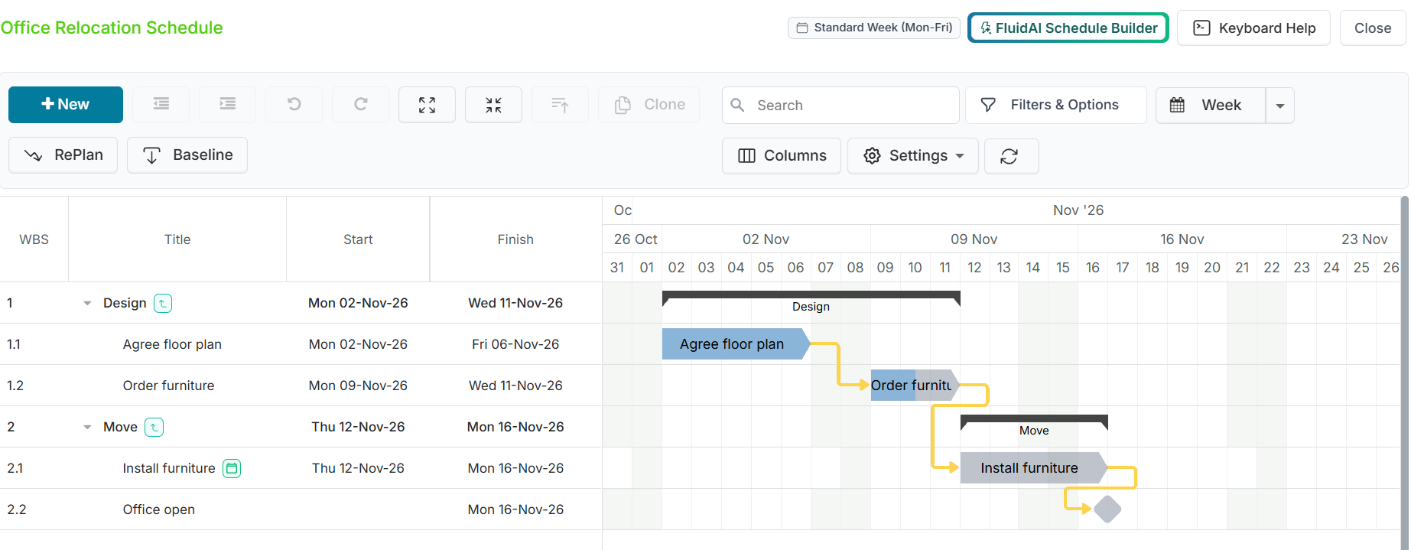
Follow this pattern whenever parts of a schedule follow different working patterns: pick the calendar most tasks share as the Project Calendar, and set a task-level calendar only on the rows that differ.
Tips and limitations
Projects always follow their calendar. When an administrator applies a change to the calendar you use, your effort figures are recalculated. If a project must not be affected by central changes, ask for its own calendar before the change is applied.
Archived projects do not move. When a project is archived, Fluid keeps a frozen copy of its calendar, so later calendar changes never alter an archived schedule.
A working override always wins. If a holiday seems to be ignored on one task, check whether that task's calendar lists the date as a working override.
Calendars travel with MS Project exports. The project calendar and any task calendars are written into an exported MPP file, so durations match in both tools. See Exporting a Fluid Schedule to Microsoft Project.
Bulk Edit uploads respect calendars. Start dates on non-working days are moved to the next working day and effort is counted on the task's calendar, exactly as in the Gantt.
Troubleshooting
"My task effort changed and I did not touch the task."
An administrator applied a calendar change, or the task's calendar was changed. A new holiday inside the task's date range reduces its effort because the dates stayed put. Extend the task or Replan if you need the original effort back.
"A task starts on a Saturday."
The task, or the whole project, is on a calendar without a weekend rule (for example Seven Day Week). Choose a calendar with weekends excluded.
"The calendar I need is not in the drop-down."
It has not been created, it has been archived, or its latest changes have not been applied yet. Ask an administrator.
"I cannot see the Calendar field on a task."
The task is a milestone or an auto-calculated parent. Milestones have no duration to count, and parents always inherit the project calendar.
"A global holiday did not apply to my task."
The task's calendar, or the project calendar, lists that date as a working override.