Most tasks in a plan simply follow their dependencies: when a predecessor moves, they move. Some dates are not like that. Equipment arrives on a fixed day, a regulator needs the submission by the end of the month, a release has been agreed with the business. A scheduling constraint tells Fluid about a date like that, so Replan respects it - and tells you when the rest of the plan makes it impossible.
In this article, you will learn:
✔ The six constraint types and when to use each one
✔ How to set, change and remove a constraint from the task dialog, the Gantt chart or Bulk Edit
✔ How constraints are shown on the Gantt chart and in the grid
✔ How constraints affect Replan, dragging and dependencies
✔ How constraints behave on pinned tasks, and what is not supported
The six constraint types
Fluid uses the same constraint types as Microsoft Project. Every constraint has a type and a date, and a task has at most one constraint. A task with no constraint is scheduled as soon as its dependencies allow.
Constraint | What it means | Typical use |
Start No Earlier Than | The task cannot start before the date. If its dependencies would start it earlier, it waits. | Work that cannot begin until a delivery, an approval or a contract start date. |
Start No Later Than | The task must start on or before the date. | A start the business has committed to. |
Finish No Earlier Than | The task cannot finish before the date. | A task that must still be running on a given day, for example cover that runs to the end of a support period. |
Finish No Later Than | The task must finish on or before the date - a deadline. | Regulatory submissions, contract milestones, anything with a hard due date. |
Must Start On | The task starts on the date, whatever its dependencies say. | A fixed event such as a training day or a site visit. |
Must Finish On | The task finishes on the date, whatever its dependencies say. | An agreed release or go-live date. |
The constraint date is a calendar day. For the three finish constraints it is the day the task finishes on: a task with Finish No Later Than 22 January meets it by finishing on 22 January.
Tip: Use the softer types (No Earlier Than, No Later Than) wherever you can. Must Start On and Must Finish On hold a task in place even when its dependencies say otherwise, so they are best kept for dates that genuinely cannot move.
Setting a constraint
You need Manage permission on the project to set or change a constraint. A constraint always needs both a type and a date: choosing a type without a date is not saved, and setting the type back to None removes the constraint.
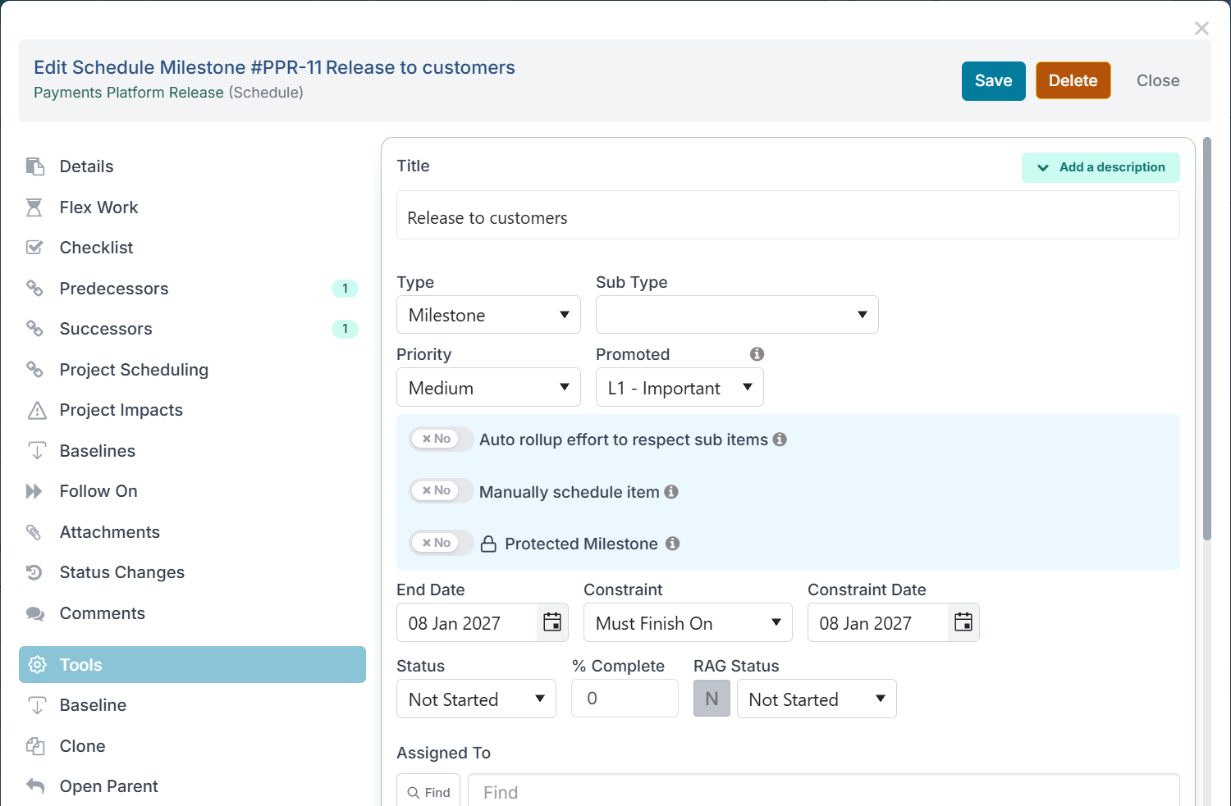
From the task dialog
Open the task in the Gantt view.
On the date row, choose the Constraint type. A Constraint Date field appears next to it.
Pick the date and click Save.
From the Gantt chart
Right-click the task's bar in the chart to open the Task Scheduling popup. From the grid on the left, right-click the row and choose Task Scheduling... instead.
Choose the Constraint and the Constraint date. Non-working days on the task's calendar are greyed out in the date picker.
Click Save.
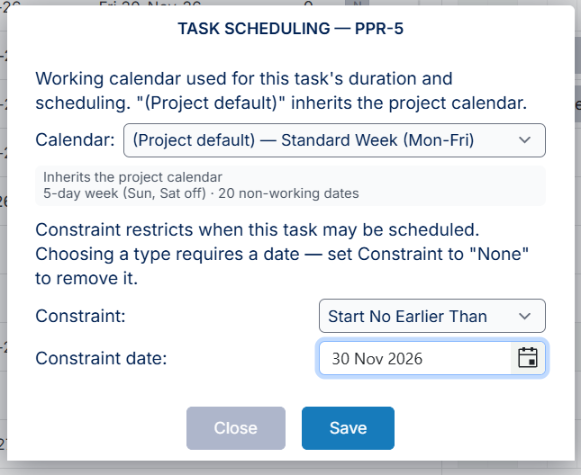
Clicking a cell in the Constraint or Constraint Date column opens the same popup (so does pressing Enter on either cell), so the type and the date are always saved together.
For many tasks at once
The Schedule Bulk Edit file has Constraint and ConstraintDate columns. Enter the constraint by the name shown in the schedule, for example Must Start On, with its date. A blank Constraint cell removes the constraint. A type with no date, or a name Fluid does not recognise, is reported in the upload messages and that row's existing constraint is left unchanged. After the upload, open the Gantt and use RePlan so the new constraints are applied to the dates.
Seeing constraints on the schedule
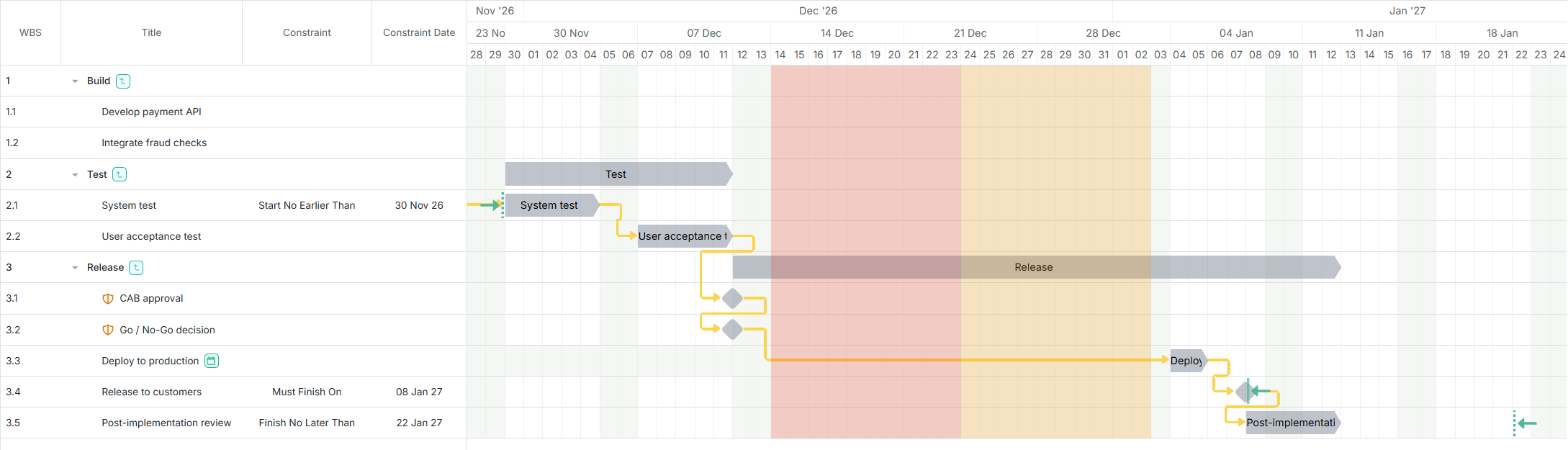
Switch on the Constraint and Constraint Date columns from Columns, in the Dates & Scheduling group.

On the chart, a constrained task carries a marker at its constraint date: an arrow pointing the way the constraint pushes, and a barrier line on the date. A dashed line is a limit (the four No Earlier Than / No Later Than types); a solid line is a fixed date (Must Start On and Must Finish On). A finish constraint's line sits at the end of its day, where the bar finishes.
How constraints affect the schedule
Replan applies them. With Auto Replan on, constraints are applied as you edit the plan. With it off, they are applied when you click RePlan. RePlan keeps every constraint you have set; it only discards the positions of tasks you have nudged by hand.
They work in the task's own calendar. Working days, holidays and the working week all come from the calendar the task is scheduled on. See Choosing Calendars for a Project Schedule and Individual Tasks.
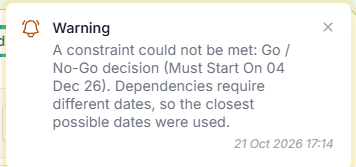
A dependency that cannot be met is reported, not hidden. When a constraint holds a task earlier than its dependencies allow - a Start No Later Than or Finish No Later Than that the plan has overrun, or a Must Start On or Must Finish On dated too early - Fluid uses the closest possible date and shows a warning naming the task. A constraint that only holds a task later than its dependencies is not a conflict: that is simply slack.
Dragging a constrained task moves its constraint with it. The type stays the same and the date follows the bar - the new start for a start constraint, the new finish day for a finish constraint. This is how Microsoft Project behaves.
Nothing else moves a constraint. Replan, Auto Replan, a date typed into the task dialog or a change to the title keep the constraint date you set. A deadline stays where it is, so the plan can show that it has been missed.
Dragging never adds a constraint. Moving a task that has no constraint leaves it without one.
Pinned tasks and constraints
A pinned task (Manually schedule item) keeps the dates you give it, and Replan leaves it alone. Pinning wins over a constraint: the constraint stays stored but has no effect while the task is pinned. The grid shows it struck through, and the Task Scheduling popup explains why and disables the constraint controls.
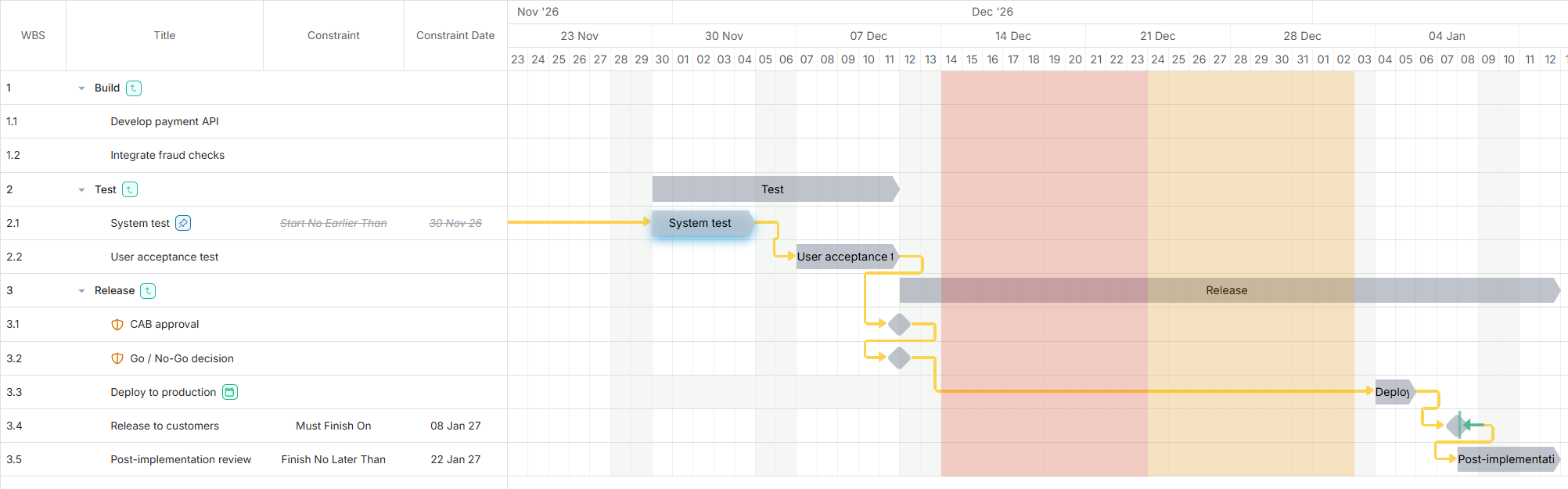
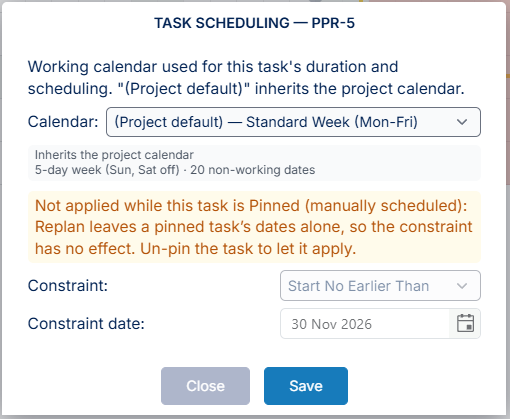
Un-pin the task to let the constraint apply again.
Limitations
Auto-calculated parent tasks cannot carry a constraint. Their dates come from their children.
As Late As Possible is not supported. Tasks are scheduled forward from their dependencies.
Constraints are not carried to or from Microsoft Project. An MPP download contains the dates the constraints produced, not the constraints themselves, and an upload does not read constraints from the file. See Exporting a Fluid Schedule to Microsoft Project.
A Bulk Edit upload does not replan. Constraints from the file are stored straight away and applied the next time the plan is replanned.
Frequently asked questions
I set a constraint and nothing moved.
Constraints are applied when the plan is replanned. Switch on Auto Replan, or click RePlan. If the task is pinned, the constraint is not applied - un-pin it.
Why does my Finish No Later Than show a warning?
The task's dependencies now finish too late for it to finish by the constraint date. Fluid has used the closest possible date; bring the predecessors forward, or agree a new date.
I dragged a task and its constraint date changed.
That is intended: dragging a constrained task moves its constraint with it. To keep the date fixed, edit the task's dates in the dialog instead of dragging, or set the constraint again afterwards.
Can I constrain a milestone?
Yes. Must Finish On is the usual choice for an agreed milestone date. See Managing Change Freezes and Release Windows for a worked example.