Most organisations run change freezes - the year-end freeze, quarter-end financial close, a period around a major event - and many only allow production releases inside agreed release windows. Project managers have to plan around these dates, and the PMO wants every project to respect them and to carry the same release gates. This article shows how three Fluid features work together to do that: calendars to keep work out of freeze windows, protected schedule items to keep the release gates in every plan, and project templates to give every new project both from day one.
In this article, you will learn:
✔ How to set up a company-wide change freeze that every schedule respects
✔ How to restrict only deployment tasks to release windows while other work continues
✔ How to make the standard release gates mandatory with protected schedule items
✔ How to bake calendars and protected gates into a project template
✔ How to handle an emergency change inside a freeze, and how to roll the setup forward each year
The building blocks
Feature | What it does for a freeze or release process | Who sets it up |
Global Exceptions | Company-wide non-working dates merged into every project and task calendar. A freeze entered here keeps every schedule in the organisation out of the window. | Administrator |
A dedicated calendar (e.g. Production Deployments) | A calendar whose non-working dates are the closed release periods. Assigned to deployment tasks only, so build and test work carries on while deployments can only land in open windows. | Administrator creates it; project manager assigns it to tasks |
Exception colour | Draws the freeze as a coloured band on every Gantt chart, with its name on hover, so a freeze looks different from a public holiday. | Administrator |
Working overrides | Re-open a single date inside a freeze for an approved emergency change, on one calendar only. | Administrator |
Protected schedule items | Gates and milestones that project managers cannot rename, retype or delete - Change Approval, Go/No-Go, Release, Post-implementation Review - while dates, owners and progress stay editable. | Project Administrator |
Project templates | A standard schedule file with the release gates marked protected and the deployment rows already on the release calendar, applied to every new project created from the template. | Project Administrator |
Scheduling constraints | Anchor the Release milestone to its agreed date with Must Finish On, so Replan reports when upstream slippage threatens it instead of silently moving it. | Project manager |
The detailed how-to for each feature is in Managing Project Calendars and Global Exceptions, Choosing Calendars for a Project Schedule and Individual Tasks, Protected Schedule Items and Setting Up Project Templates. This article focuses on combining them.
Pattern 1: a company-wide change freeze
Scenario. No changes of any kind are made to production between Monday 14 December 2026 and Sunday 3 January 2027. Every project must plan around it.
Administrator
Open Administration Console > Governance > Project Calendar Management and select Global Exceptions.
In Date Exceptions, add one exception per day from 14 December 2026 to 3 January 2027 (weekend days included, so the band is continuous). Use the same Name for every day, for example Year-end change freeze, leave Working day unticked, and pick the same Colour - red is the usual choice for a freeze.
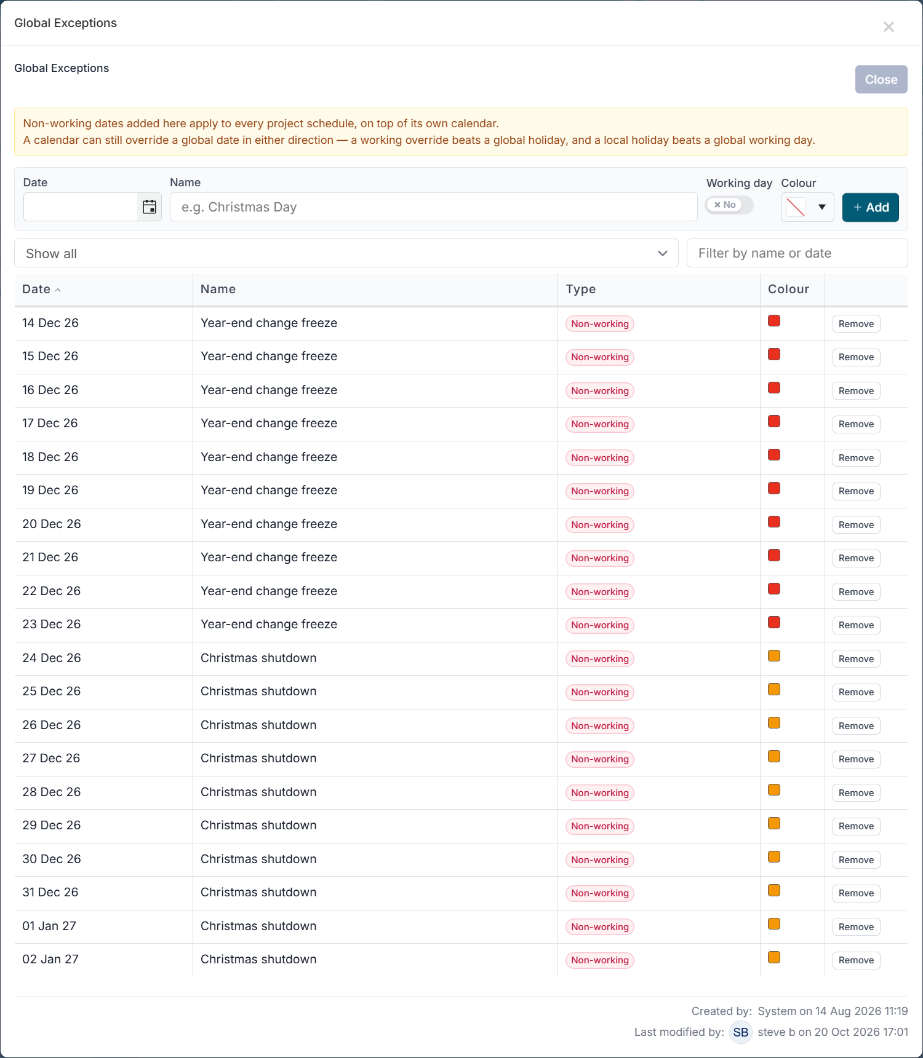
Global Exceptions: a year-end change freeze in red, followed by the Christmas shutdown in amber. Different names and colours for different parts of the period show up as separate bands. Click Save & Apply, check the Impact line in the review dialog and click Apply to all projects.
What project managers see
Every Gantt chart shows a red band across the freeze. Hovering it shows Year-end change freeze: 14 Dec 26 - 03 Jan 27 (21 days). Consecutive dates with the same name and colour are drawn as one band.
Tasks already spanning the window keep their dates and show reduced effort, because effort is counted in working days. Nothing is moved until the project manager replans.
From now on Replan treats the freeze as non-working time: a deployment task that would have fallen on Wednesday 16 December is pushed to Monday 4 January 2027, and everything that depends on it follows.
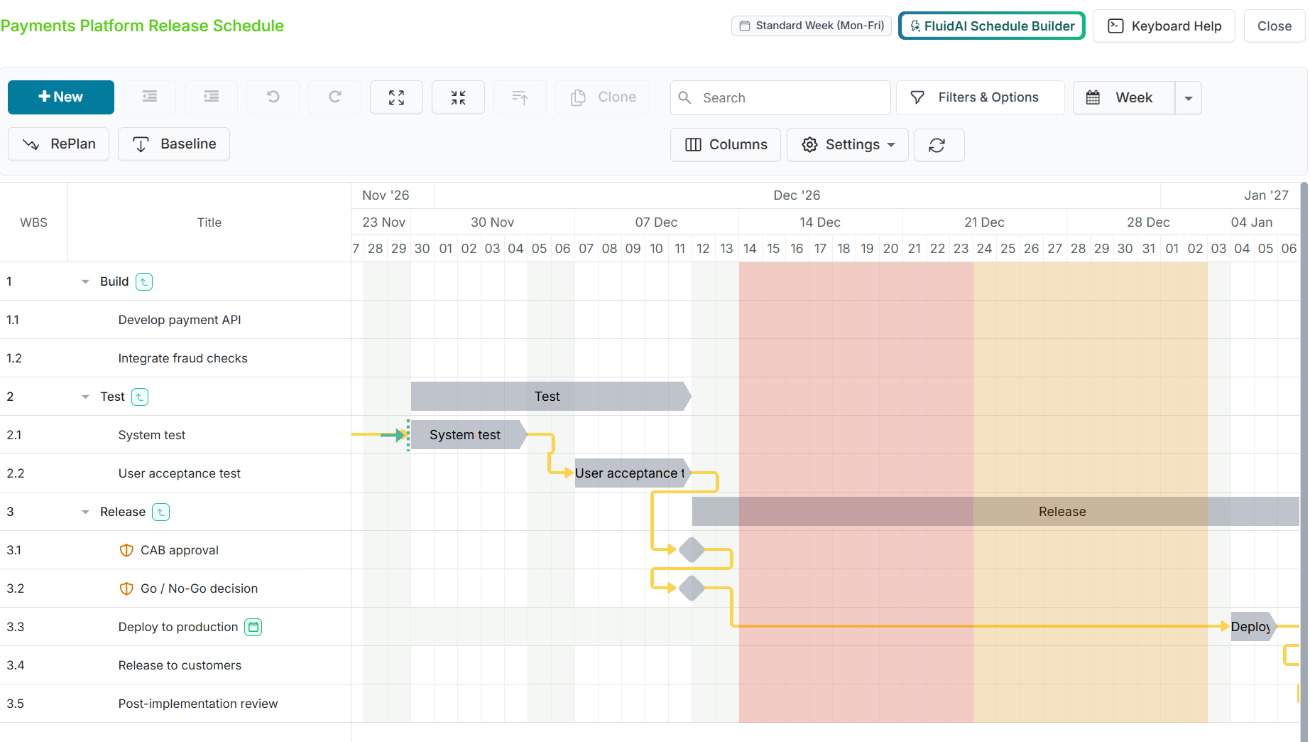
The freeze and the shutdown drawn on a release schedule. Deploy to production has been replanned to 4 January, after both.
Use Global Exceptions only when the freeze really is company-wide. Every project and every task calendar in the organisation is affected. If only some work must stop - typically production changes - use Pattern 2 instead.
Pattern 2: release windows for deployment tasks only
Scenario. Production releases are only allowed in the first full week of each month, and never in the two weeks around quarter end. Design, build and test work continues throughout. The freeze should bite deployment tasks and nothing else.
Administrator - build the release calendar
Open the system Standard Week (Mon-Fri) calendar and choose Copy Calendar under Tools. Name the copy Production Deployments.
In Date Exceptions, add every closed date as a non-working exception - the days outside the monthly window and the quarter-end freeze weeks - with a consistent name (Release freeze) and colour (amber, to distinguish it from the red company-wide freeze).
Add the organisation's public holidays too, since a copy of Standard Week has none.
Save & Apply.
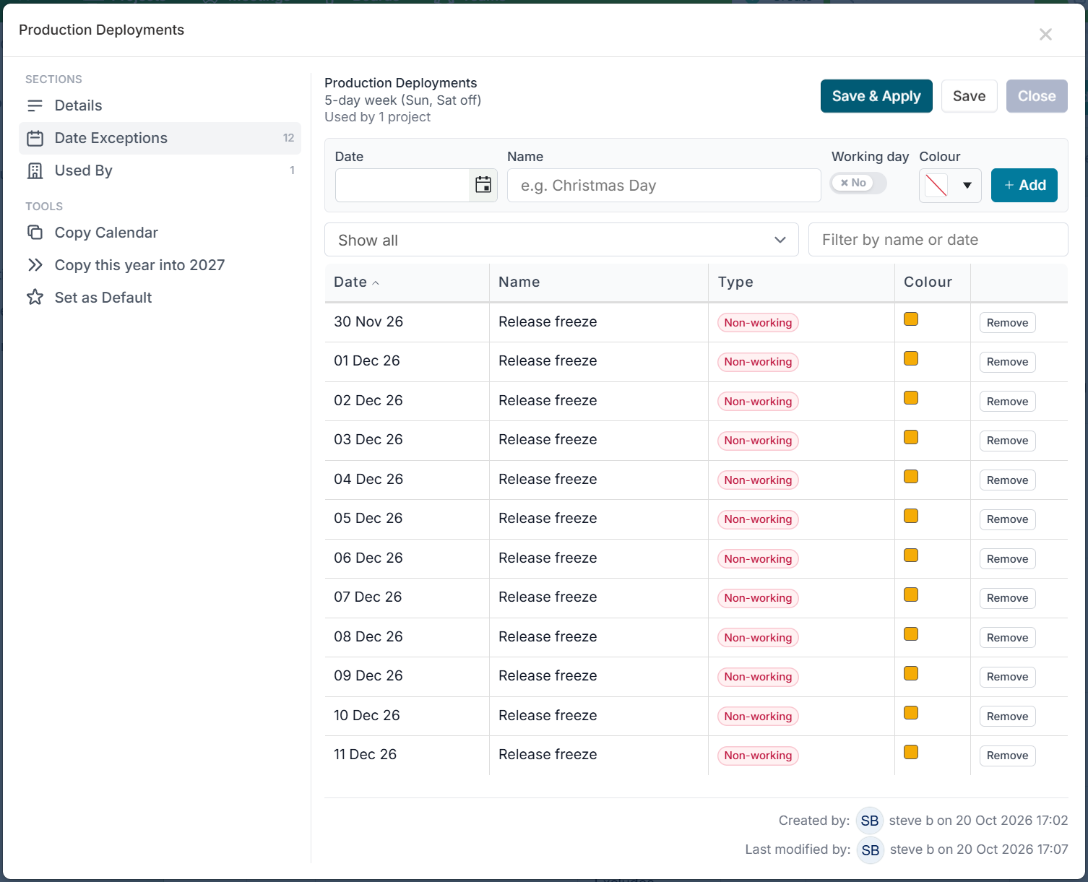
The Production Deployments calendar with its release freeze dates in amber.
Project manager - put deployment tasks on it
Leave the Project Calendar (Gantt Settings) on the normal working-week calendar so design, build and test tasks are unaffected.
Open each deployment task - Deploy to production, Enable feature flags, Cut over - and set its Calendar to Production Deployments, either on the date row of the Schedule Task Dialog or in the Task Scheduling popup (right-click the task's bar, or right-click its row in the grid and choose Task Scheduling...). For many tasks, use the Calendar column in Schedule Bulk Edit.
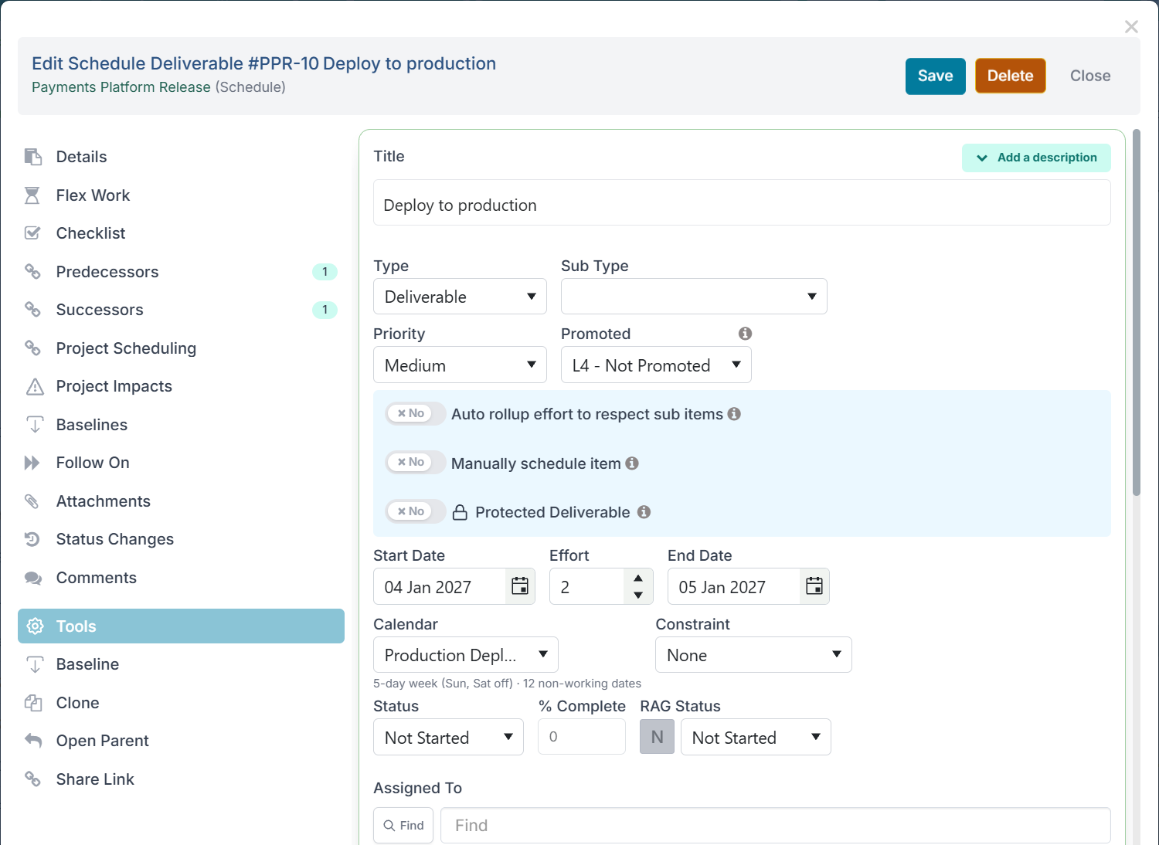
Deploy to production on the Production Deployments calendar. Replan. Deployment tasks now land only on open release days. Because the successor's own calendar decides where it lands, a deployment that would have fallen in a closed week moves to the first open day; build and test tasks in between keep their normal calendar.
Note: once a task is on the release calendar, the closed dates are greyed out in its date pickers, and dragging or replanning snaps it to the nearest open day - so a deployment cannot be placed inside a closed period by accident. Calendars govern which days are available; to hold a task to a particular date, add a scheduling constraint (see Anchoring the release date).
Pattern 3: mandatory release gates with protected items
Scenario. Every release must pass Change Advisory Board approval and a Go/No-Go decision, be deployed, and be followed by a post-implementation review. The PMO wants these to be visible in every project and impossible to delete or rename, while project managers still own their dates and progress.
An Application or Project Administrator switches on Enable protected schedule items in Feature Settings (Administration Console).
In the project schedule, a Project Administrator opens each governance row and turns on the protected toggle in the schedule flags area - the label reflects the type, for example Protected Milestone. Typical rows to protect:
CAB approval (milestone)
Go / No-Go decision (milestone)
Deploy to production (deliverable, on the Production Deployments calendar)
Post-implementation review (deliverable)
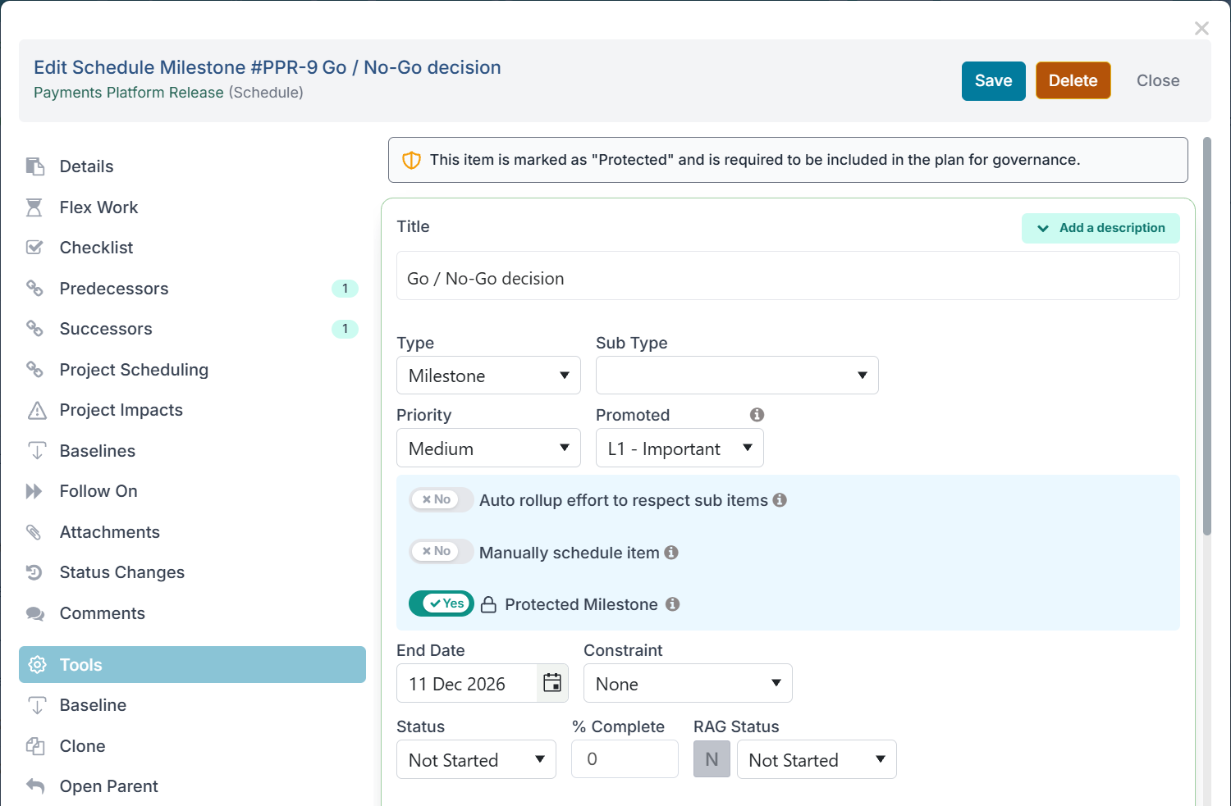
The Go / No-Go decision with Protected Milestone switched on, and the protected banner at the top.
Protected items show a badge in the Gantt grid and a banner in the task dialog. Project managers can still move their dates, assign owners and record progress, but cannot change the title or type, delete them, or delete a parent phase that contains them. Only Project Administrators can remove the protection.
Pattern 4: a release project template
Setting calendars and protection by hand in every project does not scale. Put both into a project template so every new release project starts with them.
Build one exemplar project schedule with the release phases, gates and deployment tasks, the gates protected and the deployment tasks on the Production Deployments calendar.
In the Gantt view, choose Tools > Bulk Edit and download the schedule. The file contains a Calendar column with each task's calendar name and - when protected items are enabled - a Protected column.
Prepare the file as a template: remove the ID, ShortID and GUID values, set the StartDate column to =TODAY() and the EndDate column to =[@StartDate]+days as described in How to Create a Project Template from a Project. Keep Protected set to TRUE on the gate rows and Calendar set to Production Deployments on the deployment rows.
In Administration Console > Project Settings > Project Templates, create the template (for example Standard Release) and upload the file as its Schedule.
Create a test project from the template and check the Gantt: the gates carry the protected badge and the deployment tasks show Production Deployments as their calendar.
The template sets task calendars, not the project calendar. A new project starts on the organisation default calendar. If release projects should use a different project calendar, the project manager chooses it in Gantt Settings after creating the project - the task-level calendars from the template are kept.
Anchoring the release date
Calendars decide which days a deployment can use; they do not hold it to a particular day. When a release date has been agreed with the business, anchor the milestone:
Open the Release milestone (or right-click it on the chart to open Task Scheduling).
Set Constraint to Must Finish On and the agreed date - the day the milestone falls on - and save. See Task Scheduling Constraints.
The Gantt marks the milestone with a solid barrier line at the constraint date. When upstream slippage means the constraint cannot be honoured, Replan uses the closest achievable date and shows a notification naming the task, so the conflict is visible instead of the release date quietly drifting. Use Finish No Later Than instead when the release may go early but not late.
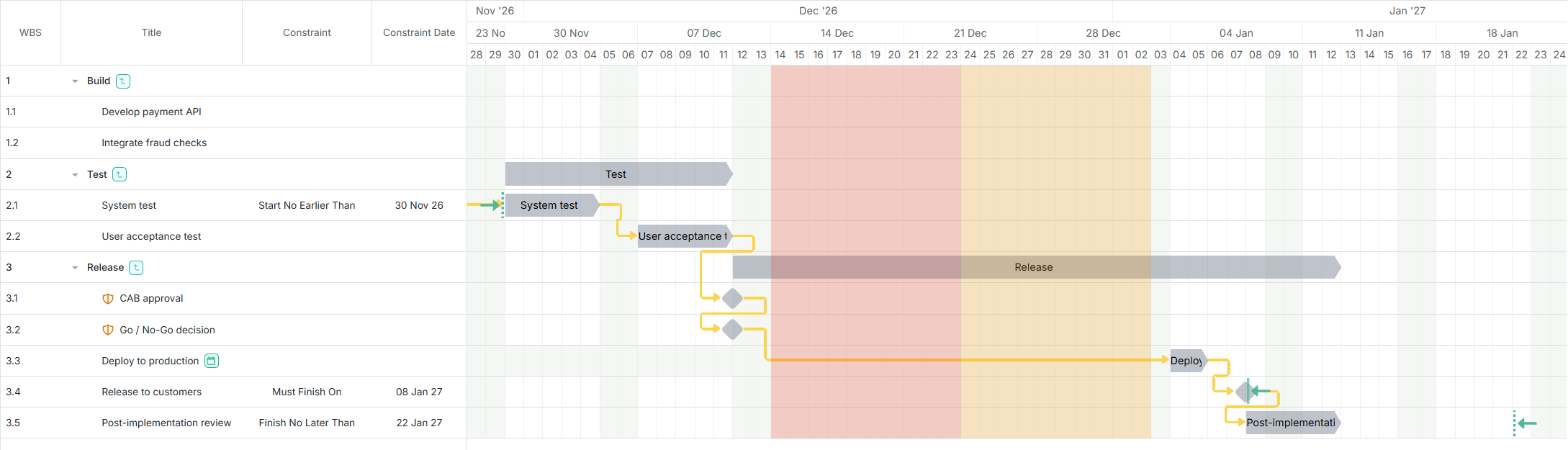
Handling an emergency change during a freeze
An approved emergency fix has to go live on Thursday 17 December, inside the freeze. Do not remove the freeze date from Global Exceptions - that would re-open it for everyone.
The administrator opens the Production Deployments calendar (or creates a small Emergency changes copy of it if the exception should be even narrower) and adds 17 December 2026 as an exception with Working day ticked - a working override named Emergency release window (or after the change request, for example Emergency change CR-1234).
Save & Apply, or Save and then Review & Apply to check the impact first. Because a calendar's working override wins over a Global Exception, tasks on that calendar can now land on 17 December while every other calendar stays frozen.
The project manager puts the emergency deployment task on that calendar and replans.
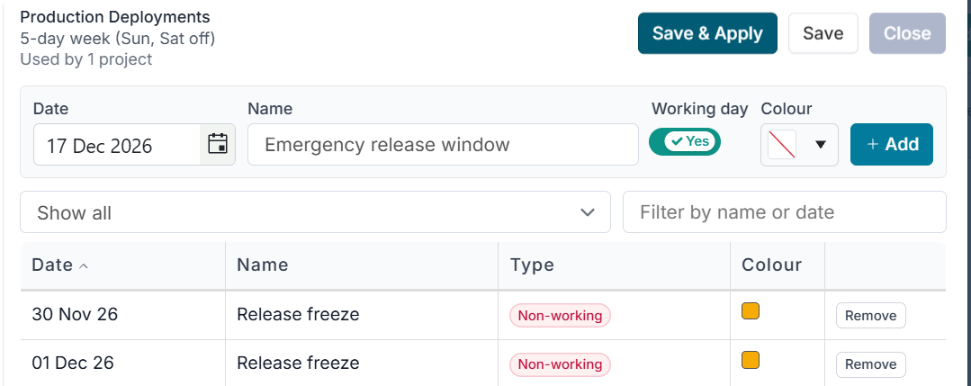
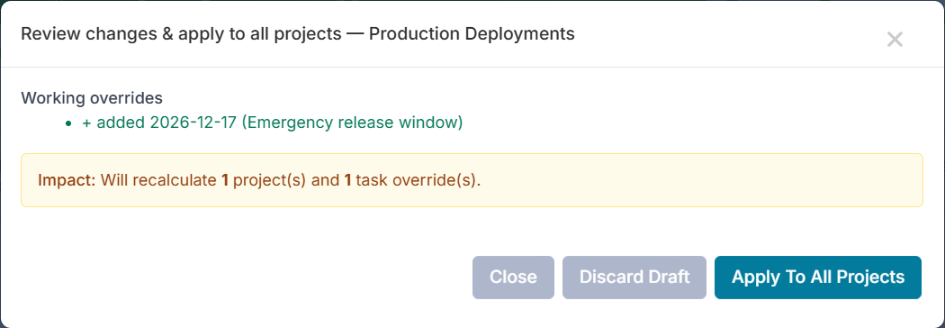
Keeping it running year to year
Fixed dates: open the calendar and use Copy this year into <next year> to roll forward freezes that fall on the same dates every year.
Announced dates: when next year's release calendar is agreed, enter the closed periods on the Production Deployments calendar in one batch and apply once. The Impact line tells you how many projects and task overrides will be recalculated.
Review with the teams: Export Calendars to Excel gives the release managers a list to check before it goes live.
Closed and archived projects keep a frozen copy of their calendar, so next year's freeze dates never alter historical schedules.
Keep the template current: when a gate is added to the release process, update the template's schedule file so new projects pick it up, and protect the new row in projects already under way.
Quick reference
You want to... | Use |
Stop all work in every project for a period | Global Exceptions, non-working, coloured |
Stop only deployments, in only some periods | A dedicated calendar assigned to deployment tasks |
Let one approved change through a freeze | A working override on one calendar |
Make sure the release gates are in every plan and cannot be removed | Protected schedule items, delivered through a project template |
Hold the release to an agreed date and be told when it is threatened | A Must Finish On constraint on the Release milestone |
See at a glance where the freezes are | Exception colours - one colour per category, used consistently |