Project calendars define which days are working days for project schedules. Administrators manage them centrally: the weekly working pattern, public holidays and shutdown periods, and the company-wide dates that apply to every schedule. Project managers then pick a calendar for each schedule, and can give individual tasks their own calendar where a team works a different pattern.
In this article, you will learn:
✔ Where calendars are managed and who can manage them
✔ How to manage company-wide non-working dates with Global Exceptions
✔ How to set up a calendar with its own weekends, holidays and shutdown periods
✔ How to set up a Saudi working week calendar (Sunday to Thursday) as a worked example
✔ How Review & Apply publishes your changes, and how to maintain calendars year to year
How calendars work
Every project schedule uses one calendar. Task effort is counted in that calendar's working days, tasks placed by Replan land on working days, and non-working days are shaded on the Gantt chart. A calendar combines three kinds of rule; when they overlap, the higher rule wins:
Rule | What it does | Priority |
Working overrides | Force a specific date to be worked - for example a Saturday catch-up day, or a Global Exception date that this region does work. | Highest |
Non-working exceptions | Specific dates that are not worked: public holidays, shutdowns, change freezes. They apply whether or not weekends are excluded. | Middle |
Weekend days | The days of the week that are never worked. | Lowest |
On top of every calendar sit the organisation's Global Exceptions, which are merged into every project and task calendar automatically. The How calendar rules combine panel on the Project Calendar Management page repeats these rules for reference.
How project managers choose and use calendars is covered in Choosing Calendars for a Project Schedule and Individual Tasks.
Where calendars are managed and who can manage them
Calendars are managed on the Project Calendar Management page. To open it:
Select Administration Console from the drop-down menu under your avatar.
In the Governance section, click Project Calendar Management.
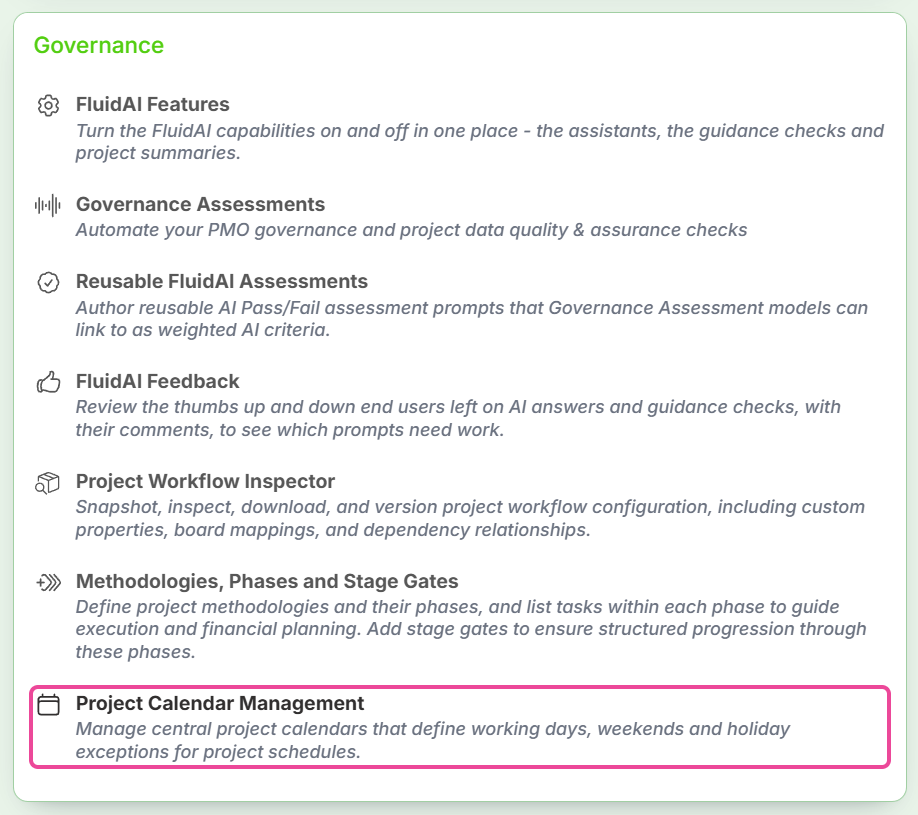
The page is available to Application Administrators and Project Administrators. It has three parts:
Calendars - the list of every calendar with its weekend days, number of non-working days and working overrides, the date range its exceptions cover, how many projects use it (Used By) and its status badges: Default, Draft, Inactive and System. Filter the list by name or description, or show Active only, Inactive only, Has unpublished draft, In use by projects, Shared calendars only, Imported from schedule files or Pinned to a project. Calendars that arrived with an MS Project or Primavera upload are hidden until you tick Show imported calendars - see Calendars imported from schedule files.
Global Exceptions - the company-wide dates (see below).
Tools - New Calendar, Manage Exceptions (opens Global Exceptions), Merge Duplicate Calendars and Export Calendars to Excel.
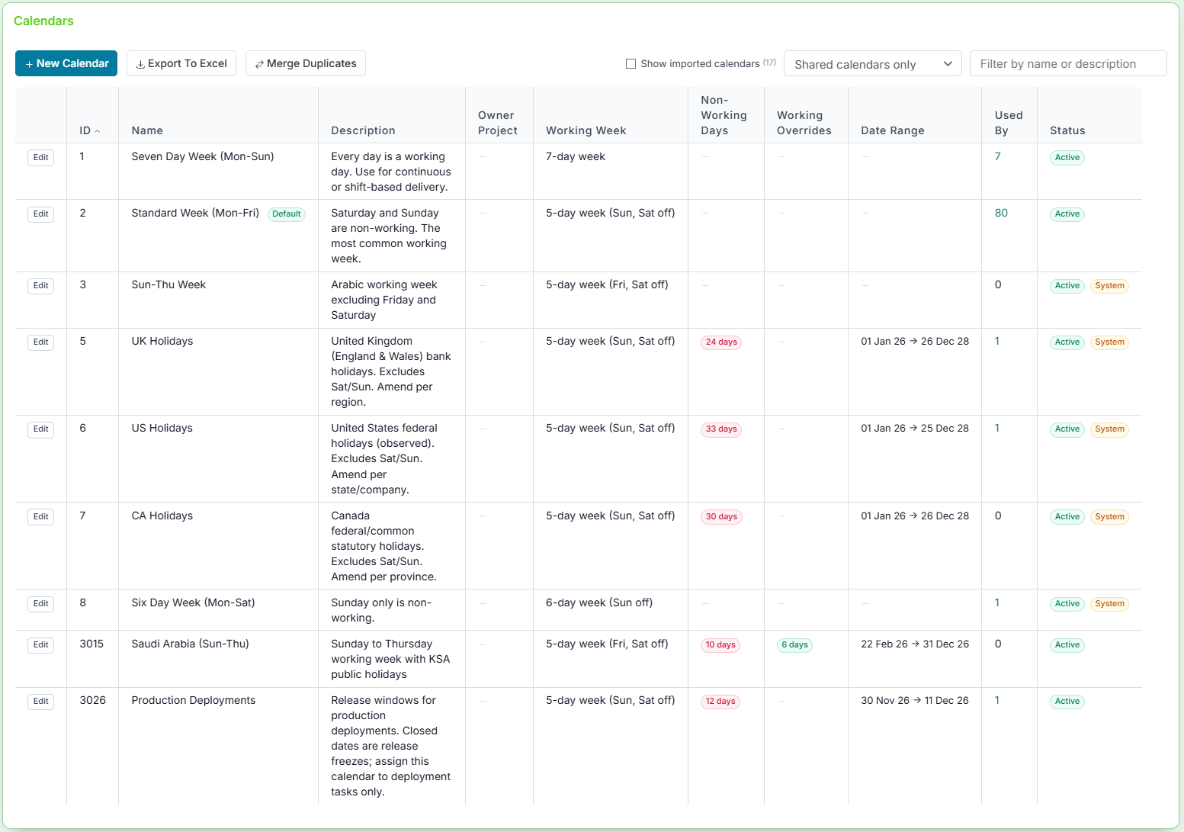
Calendars provided with Fluid
Fluid ships with system calendars you can assign straight away. Their working week is fixed - only the description can be changed - so to customise one, copy it (see Maintaining calendars).
Calendar | Working week |
Standard Week (Mon-Fri) | Monday to Friday. The organisation default unless you change it. |
Seven Day Week (Mon-Sun) | Every day is a working day (calendar-day planning). |
Six Day Week (Mon-Sat) | Monday to Saturday, Sunday off. |
Sun-Thu Week | Sunday to Thursday, Friday and Saturday off. |
UK Holidays, US Holidays, CA Holidays | Monday to Friday plus that country's public holidays. |
Global Exceptions | Not assignable. Holds the company-wide dates merged into every other calendar. |
Managing company-wide exceptions (Global Exceptions)
Use Global Exceptions for dates that apply to the whole organisation regardless of region or team: the days between Christmas and New Year, a company event day, a national day of mourning, or an organisation-wide change freeze. You never assign this calendar to a project - its dates are added on top of every project calendar and every task calendar automatically.
On the Project Calendar Management page, click Global Exceptions in the left-hand navigation (or Manage Exceptions under Tools).
In the Date Exceptions section, pick the Date and enter a Name, for example Christmas shutdown.
Leave Working day unticked so the date is non-working.
Optionally choose a Colour. Coloured dates are drawn as a coloured band on every Gantt chart, with the name shown on hover, so a change freeze looks different from an ordinary holiday.
Click Add. Repeat for each date - a shutdown that runs from 24 December to 2 January is entered as one exception per day.
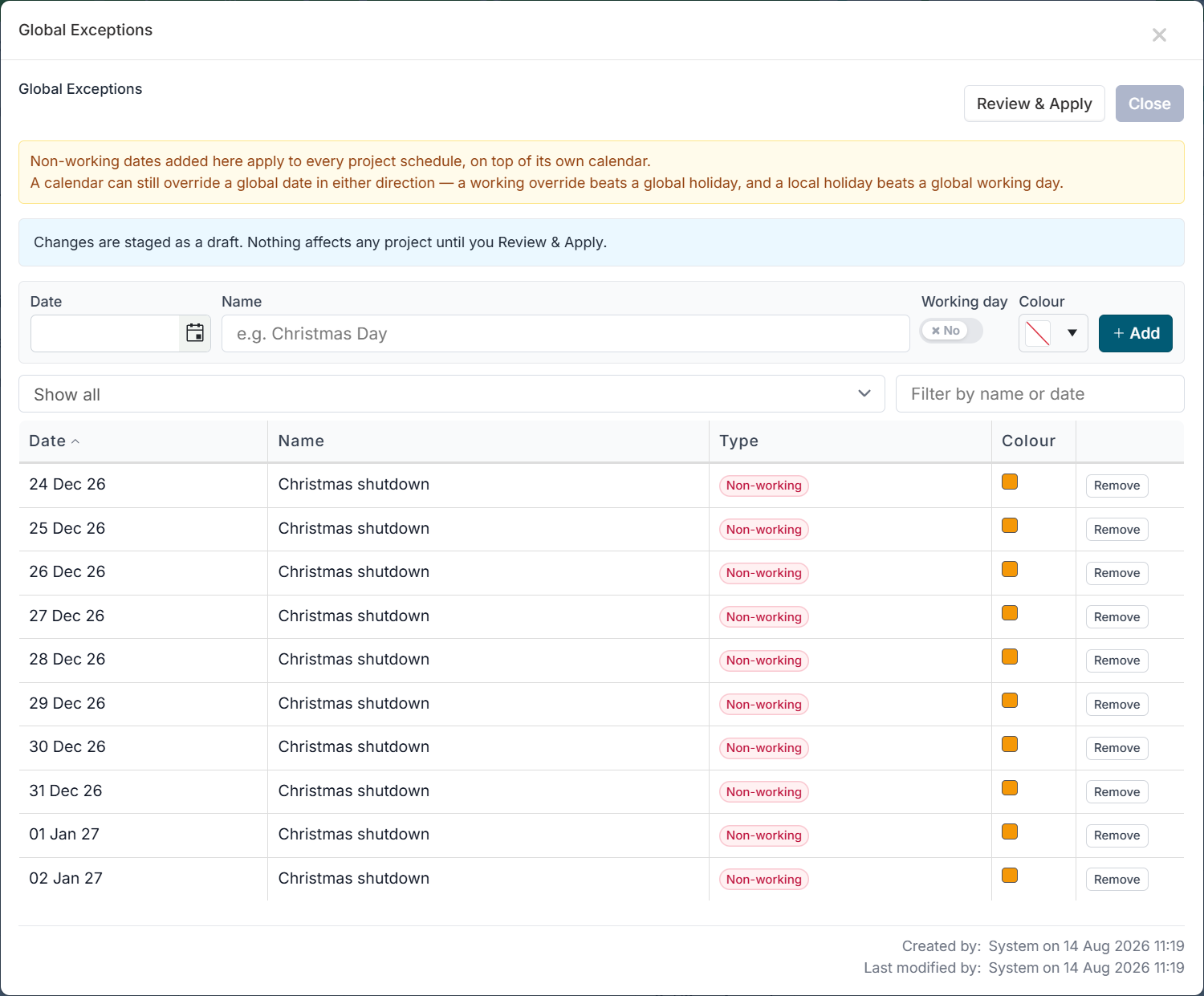
Global Exceptions with a Christmas shutdown entered one row per day. Click Save & Apply and confirm in the review dialog (see Publishing changes with Review & Apply).
How Global Exceptions combine with a calendar
When a Global Exception and a project's calendar disagree about a date, the calendar wins:
Global says 23 December is non-working, but a calendar lists it as a working override - projects on that calendar work that day.
Global says 3 January is a working day, but a calendar lists it as a holiday - projects on that calendar are off that day.
This is how a region opts out of a company-wide date: add a working override to that region's calendar rather than removing the date from Global Exceptions. The Global Exceptions calendar has no weekend rule of its own; weekends always come from the project's or task's calendar.
Setting up a non-working day calendar
Create a calendar whenever a group of projects or a team works to a pattern that the system calendars do not cover - a regional public-holiday set, a plant with its own shutdown weeks, a contractor working seven days, or a set of release-freeze dates that only deployment tasks must respect.
Step 1 - Create the calendar and its weekly pattern
Click New Calendar.
Enter a Name and an optional Description. Name calendars by who uses them (Germany - Bavaria, Site installation crew) rather than by what they contain.
Tick Exclude weekends if some days of the week are never worked, then tick those days under Weekend days. Leave Exclude weekends unticked for a calendar where every day is a working day.
Click Create.
Step 2 - Add the non-working dates
Click Edit on the new calendar and open the Date Exceptions section.
For each holiday or shutdown day, choose the Date, enter a Name (e.g. Christmas Day), leave Working day unticked, optionally pick a Colour, and click Add.
To force a date to be worked - a Saturday catch-up day, or a Global Exception this team does work - add it with Working day ticked. It is listed with the type Working override.
Use the filter box and Show all / Show future / Show past to check the list, and Remove to delete a date.
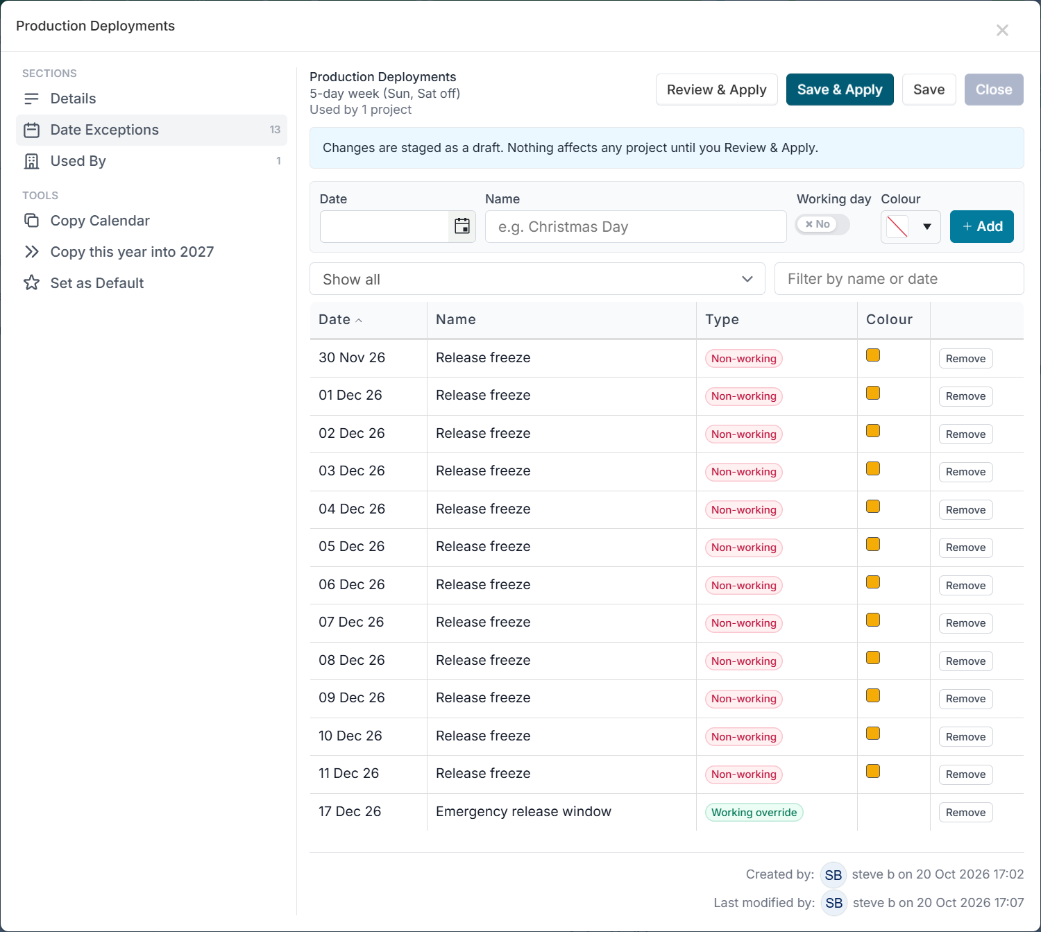
Date Exceptions with non-working dates and one working override. The blue message shows the changes are still a draft.
Step 3 - Publish it
Click Save & Apply and confirm in the review dialog. Until you apply, the calendar shows a Draft badge and its latest changes are not used by any project.
Tip: To start from an existing holiday set instead of a blank calendar, open the system calendar (for example UK Holidays), choose Copy Calendar under Tools, name the copy, and then add your own dates to it.
Worked example: a Saudi working week calendar
Teams in Saudi Arabia work Sunday to Thursday with Friday and Saturday off, and observe public holidays that are different from the rest of the organisation. Fluid's system Sun-Thu Week calendar gives you the working week but no holidays, so build your own.
Click New Calendar.
Enter the Name Saudi Arabia (Sun-Thu) and the Description Sunday to Thursday working week with KSA public holidays.
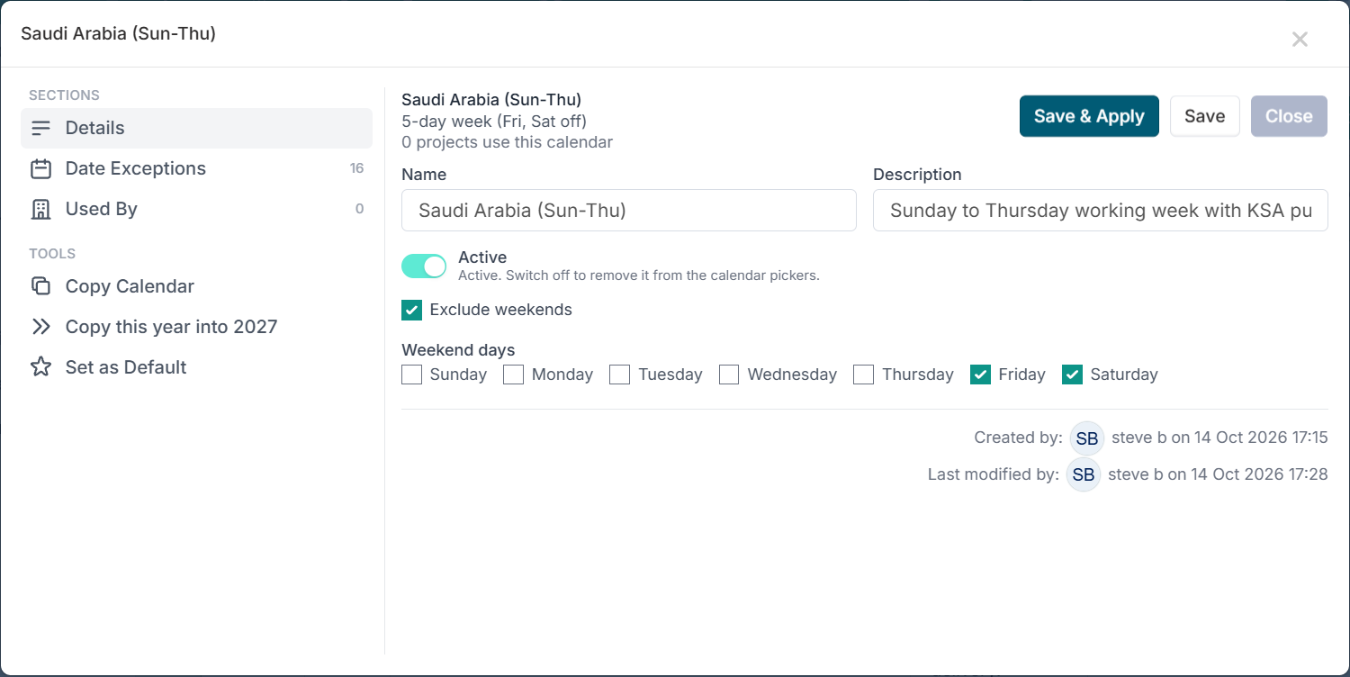
Tick Exclude weekends, then tick Friday and Saturday under Weekend days. Leave Sunday unticked - it is a working day.
Click Create.

The new calendar with Friday and Saturday ticked as weekend days. Click Edit on the new calendar and open Date Exceptions. Add the public holidays for the year, leaving Working day unticked for each:
Founding Day - 22 February
Saudi National Day - 23 September
Eid al-Fitr holidays and Eid al-Adha holidays - these follow the lunar calendar, so enter the dates announced for the year, one exception per day.
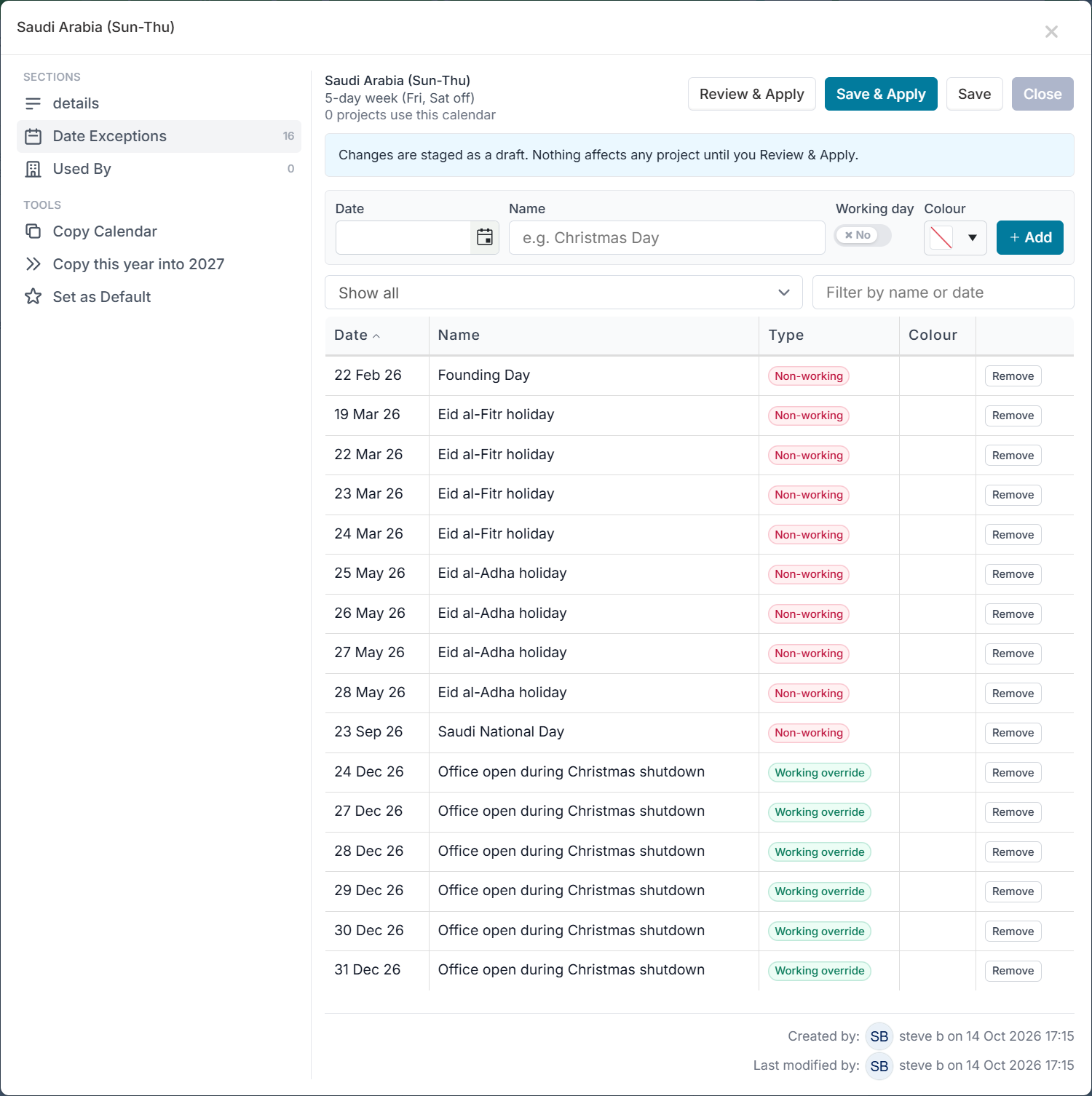
The Saudi calendar’s public holidays. If your Global Exceptions include dates the Saudi office does work - a Christmas shutdown, for example - add those dates to this calendar with Working day ticked. The calendar wins over the global date, so Saudi projects keep working while the rest of the organisation is closed.
Click Save & Apply and confirm in the review dialog.
Tell project managers in the region to select Saudi Arabia (Sun-Thu) as their project calendar. If the whole instance serves Saudi Arabia, open the calendar and choose Set as Default under Tools so every new project starts on it.
A 5-day task starting on Sunday 1 March 2026 on this calendar runs Sunday to Thursday and finishes on 5 March; the same task on the Standard Week calendar would start on Monday 2 March and finish on Friday 6 March.
Next year: Founding Day and National Day fall on the same date every year, so Copy this year into <next year> carries them forward. The Eid dates move each year - remove the copied ones and enter the newly announced dates.
Publishing changes with Review & Apply
Edits to a calendar's name, description, weekend rule and exceptions are staged as a draft. Projects keep using the previously published version until you apply the draft, so a half-entered holiday list never reaches a live schedule. A calendar with a draft shows the Draft badge in the list and the message "Changes are staged as a draft. Nothing affects any project until you Review & Apply." in the editor.
Click Save & Apply in the calendar editor (or Save now and Review & Apply later).
The Review changes & apply to all projects dialog lists what differs from the published calendar: Name, Description and Weekend rule changes, Non-working dates (holidays) added and removed, and Working overrides added and removed.
Check the Impact line - "Will recalculate N project(s) and M task override(s)".
Click Apply to all projects, or Discard draft to throw the edits away and keep the published calendar as it is.
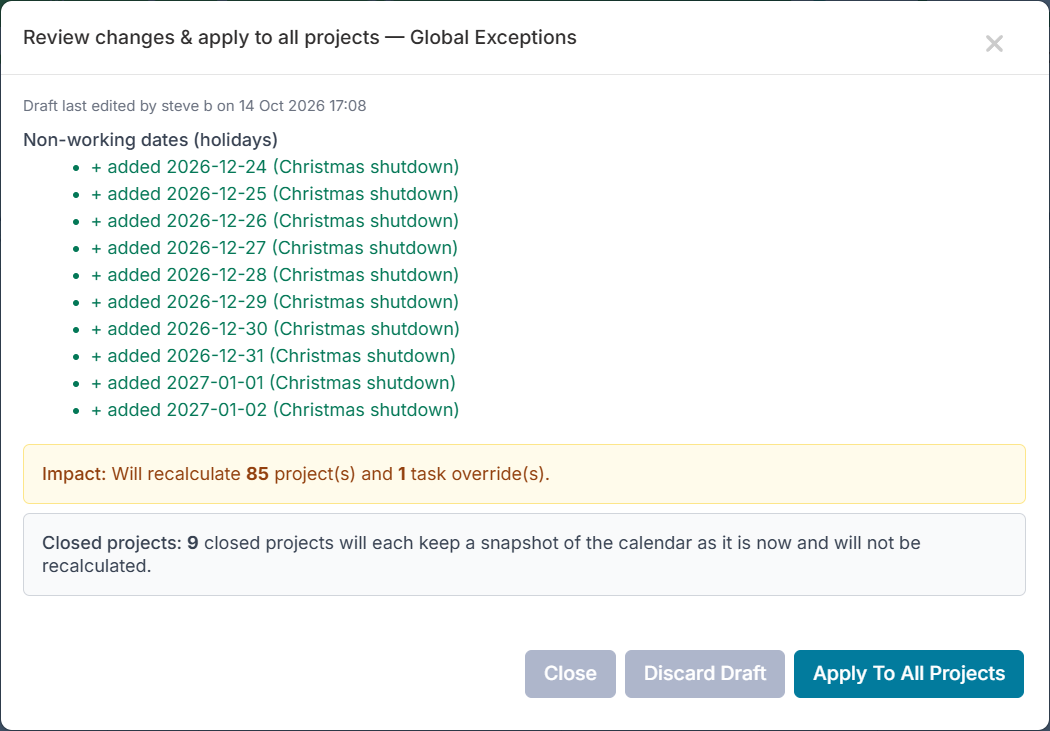
Review changes & apply to all projects, with the Impact line.
After you apply, every project on the calendar is recalculated in the background. Task start and end dates stay where they are; each task's effort is re-counted on the new working days. A large organisation may take a few minutes to work through every schedule. Projects on other calendars are not touched, and archived projects keep a frozen copy of their calendar so they never move.
Maintaining calendars
Open a calendar with Edit. The editor has three sections - Details, Date Exceptions and Used By - and the Tools below them.
Copy this year into <next year>
Recreates every exception from the current year on the same month and day next year, keeping its name and working/non-working type. Dates already present in the target year are skipped, so it is safe to run more than once; 29 February is skipped when next year is not a leap year. Floating holidays (Easter, Eid, "the last Monday in May") land on the wrong date and must be corrected by hand. The copied dates appear in the Date Exceptions list straight away - review them, then Review & Apply any other outstanding changes.
Copy Calendar
Creates a new, separate calendar with the same weekend rule and exceptions. You are asked for a name (the default is the original name followed by (copy)). Use it to derive a team or regional calendar from a base calendar without retyping the holiday list.
Set as Default
Makes the calendar the organisation default. Every new project, and any existing project that has never had a calendar chosen, uses the default. Projects that already have a calendar are not moved. Exactly one calendar is the default at a time.
Used By
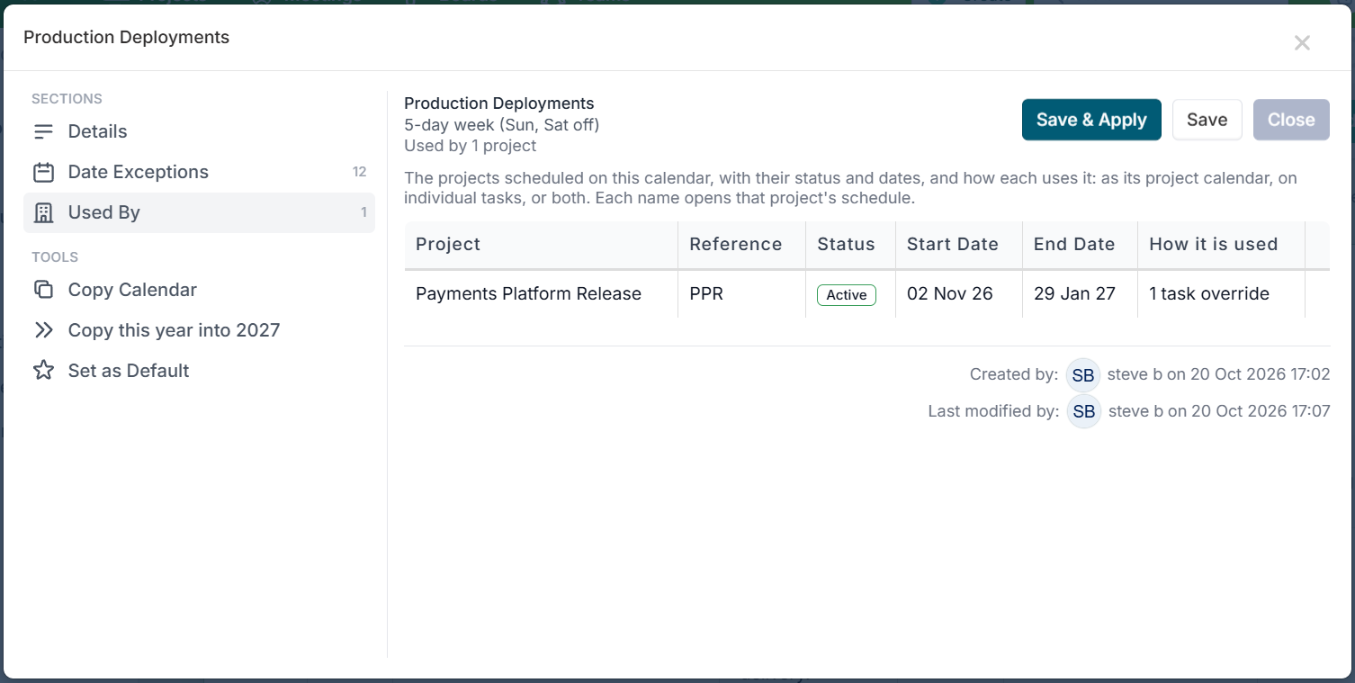
Lists the projects scheduled on the calendar, with their status and dates, and how each one uses it: as its project calendar, on individual tasks, or both. Each name opens that project's schedule. Check it before a change that will recalculate those projects.
Active
The Active switch in Details takes a calendar out of the pickers, so it cannot be chosen for a project or task any more; switch it back on to return it. A calendar that projects run on cannot be made inactive - move those projects to another calendar first - and neither can the default calendar or a system calendar.
Export Calendars to Excel
Downloads every calendar with its rules and exception dates - useful for reviewing holiday lists with regional teams before you enter next year's dates.
Calendars imported from schedule files
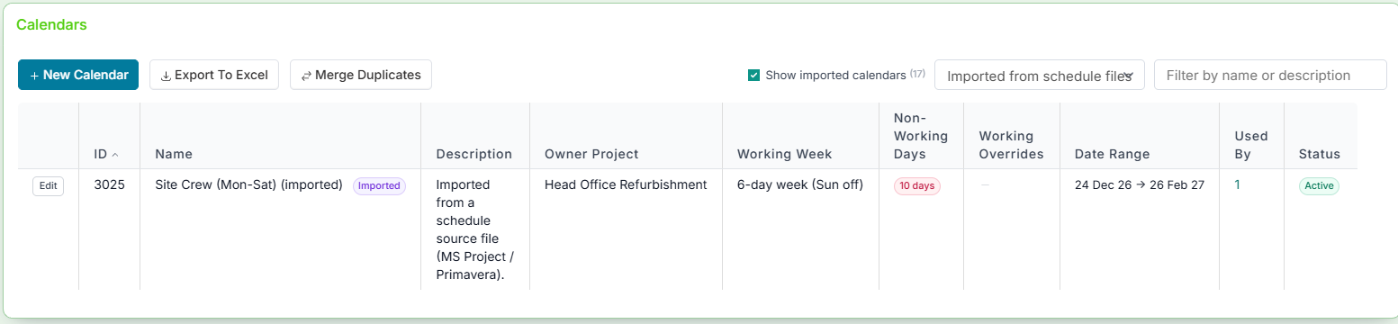
When a project manager uploads an MS Project or Primavera P6 file, Fluid reads the calendars in the file. A calendar whose working week and dates match a Fluid calendar exactly is mapped to that calendar. Any other calendar is created as an imported calendar - named after the file's calendar with (imported) after it, and owned by the project that uploaded it.
Imported calendars are hidden from the list by default so the shared calendars stay easy to find. Tick Show imported calendars, or choose Imported from schedule files in the filter, to see them. The Owner Project column shows which project brought each one in.
An imported calendar works like any other: you can edit its dates, review its Used By list, or copy it to make a shared calendar.
Uploading similar files to several projects can leave several imported calendars with identical definitions. Merge Duplicate Calendars (under Tools) finds imported calendars with the same working week and the same exception dates, keeps the oldest of each group, points every project and task at it, and removes the copies. No dates or durations change.
Tips and limitations
Batch your changes. Applying a calendar can recalculate many projects. Enter the whole year's dates, then apply once.
Recurring exceptions are not supported yet. Holidays are stored per date; use Copy this year into next year each year.
Use Global Exceptions only for truly company-wide dates. Anything regional belongs on that region's calendar, where a working override can also opt it out of a global date.
Colours are for meaning, not decoration. Reserve a colour for a category - red for change freezes, amber for shutdowns - and use it consistently across calendars.
System calendars cannot be changed beyond their description. Copy one to customise it.
A calendar in use cannot be made inactive. Move its projects to another calendar first; the Used By section lists them.
Troubleshooting
"I applied a change and a project has not moved."
Recalculation runs in the background; allow a few minutes. Then check the project is actually on the calendar you changed, and whether it is archived - archived projects keep a frozen copy of their calendar.
"A holiday I added is being ignored."
Check whether the same date is listed as a working override on that calendar, or on a task's own calendar. Working overrides beat holidays.
"A Global Exception is not applying to one project."
That project's calendar - or the task's own calendar - lists the date as a working override. The calendar wins by design.
"A project manager cannot see a calendar in the drop-down."
The calendar is inactive, or it is new and has not been applied yet - an unapplied draft.