This Train 19.1 release brings project calendars to Fluid schedules: real working weeks, public holidays and company-wide shutdowns, managed centrally and chosen per project or per task. Plans can now carry scheduling constraints such as Must Finish On and Finish No Later Than, so an agreed date holds and Fluid tells you when the plan threatens it.
Fluid and Microsoft Project now work in both directions. You can download any schedule as an MPP file, edit it in Microsoft Project and upload it again, and the same tasks are updated rather than duplicated. Uploads now bring in calendars, baselines, custom fields and project-level properties.
The release also includes a number of smaller enhancements and fixes.
Project calendars: working weeks, holidays and shutdowns
Until now a schedule only knew whether to count weekends. Every schedule now uses a calendar, which decides which days are working days: effort is counted in them, Replan places tasks on them, and the Gantt shades the rest.
Calendars provided with Fluid: Standard Week (Mon-Fri), Seven Day Week, Six Day Week, Sun-Thu Week, and UK, US and Canadian holiday calendars.
Your own calendars: administrators create calendars with their own weekends, holidays and shutdown periods - for a region, a site or a team - and copy a year's dates into the next in one step.
Global Exceptions: company-wide dates, such as a Christmas shutdown, added to every calendar automatically. A region that works those days opts out with a working override on its own calendar.
Review & Apply: calendar changes are drafted first and only reach projects when applied. The review shows what changed and how many projects will be recalculated.
Coloured exceptions: give a change freeze or a shutdown a colour, and it is drawn as a band on every Gantt chart, with its name on hover.
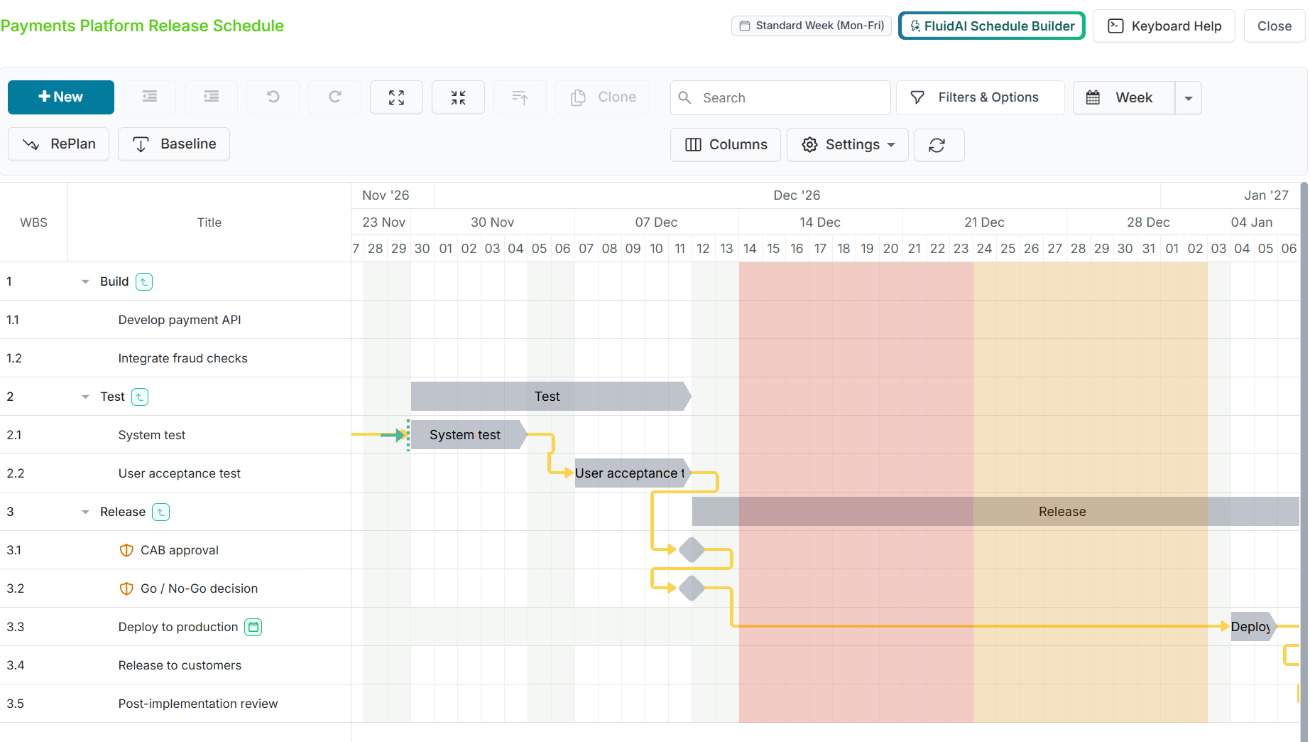
Choosing calendars
Project managers choose the Project Calendar in the Gantt Settings, and can give any task its own calendar - from the task dialog, the new Task Scheduling popup or Bulk Edit - when it follows a different working pattern, such as a contractor working Saturdays. Changing a calendar never moves a task's dates; effort is re-counted on the new working days.
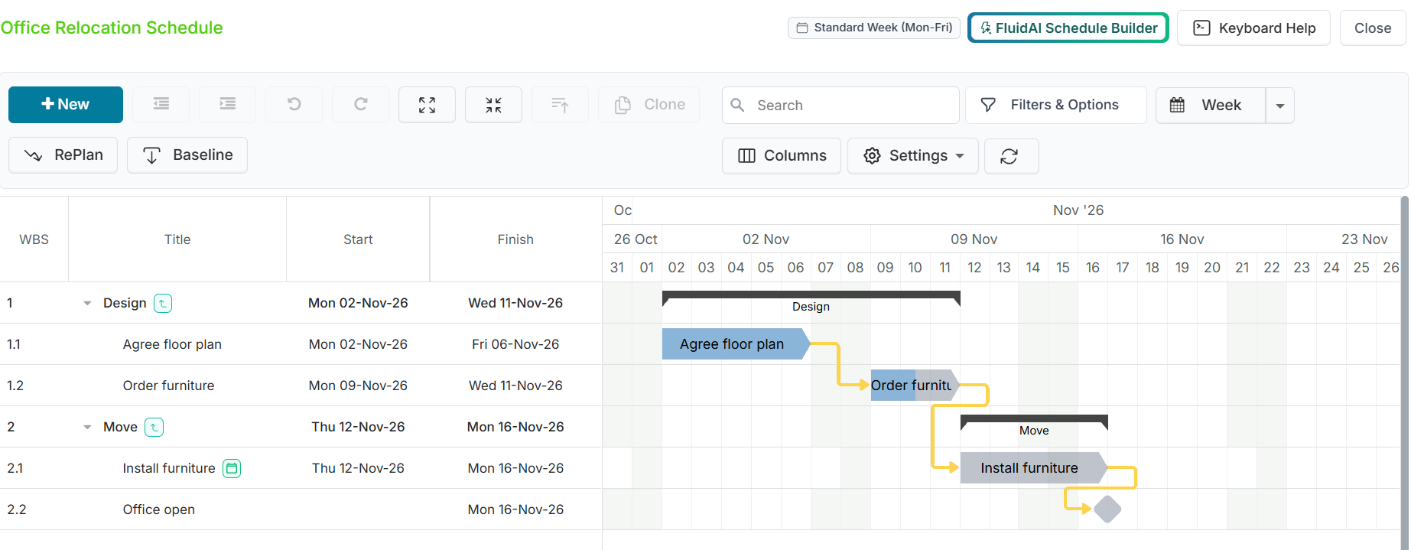
Getting started
Existing projects keep working as before: projects that counted weekends are on the Seven Day Week calendar and all others on Standard Week (Mon-Fri). Administrators manage calendars in Administration Console > Governance > Project Calendar Management. For details, see Managing Project Calendars and Global Exceptions, Choosing Calendars for a Project Schedule and Individual Tasks and, for change freezes and release windows, Managing Change Freezes and Release Windows.
Scheduling constraints
Some dates in a plan are not driven by dependencies: a delivery that cannot arrive sooner, a regulatory deadline, an agreed go-live. Tasks can now carry the same six constraints as Microsoft Project: Start No Earlier Than, Start No Later Than, Finish No Earlier Than, Finish No Later Than, Must Start On and Must Finish On.
Set them in the task dialog, the Task Scheduling popup (right-click a bar) or Bulk Edit, and show them with the new Constraint and Constraint Date columns.
A marker on the chart shows each constraint's date and direction.
Replan honours them. When the plan makes a constraint impossible, Fluid uses the closest possible date and warns you, instead of letting the date drift.
A constraint stays where you set it: only dragging the task moves it.
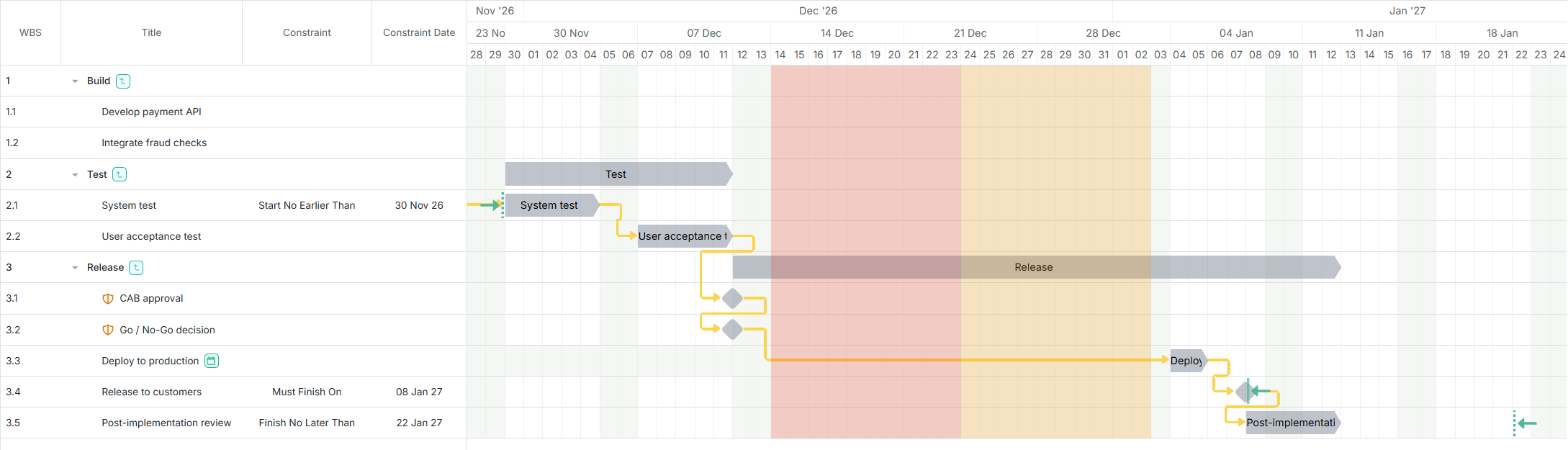
See Task Scheduling Constraints.
Microsoft Project: download, edit and upload again
Download any schedule as an MPP file
Choose Tools > MS Project Upload / Download in the Gantt view and click Download. The file carries the tasks and their hierarchy, dates, dependencies, progress, assignees and hours, the baseline, the project and task calendars and the custom properties, so it opens in Microsoft Project looking as it does in Fluid. Microsoft Project is not needed to create the file.
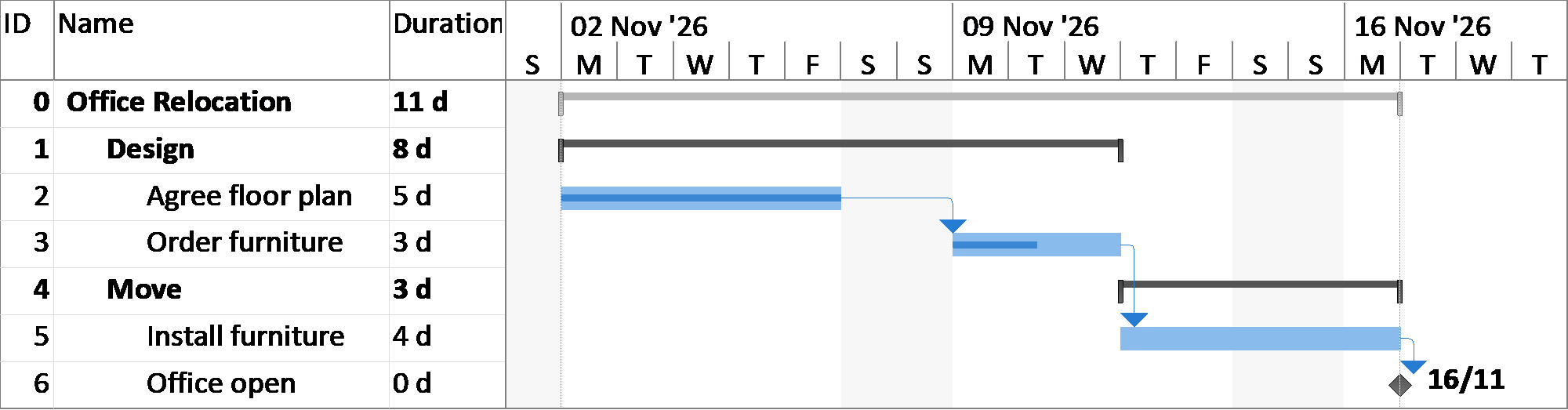
Round trips that update rather than duplicate
Every downloaded or imported task carries a hidden identifier, so uploading the edited file updates the same tasks. Tasks added in Fluid are left alone until they have been downloaded once, and the dialog offers a one-click Excel backup before any upload.
Richer uploads
Calendars: the plan's calendars are matched to Fluid calendars, or imported, and tasks keep their own calendars.
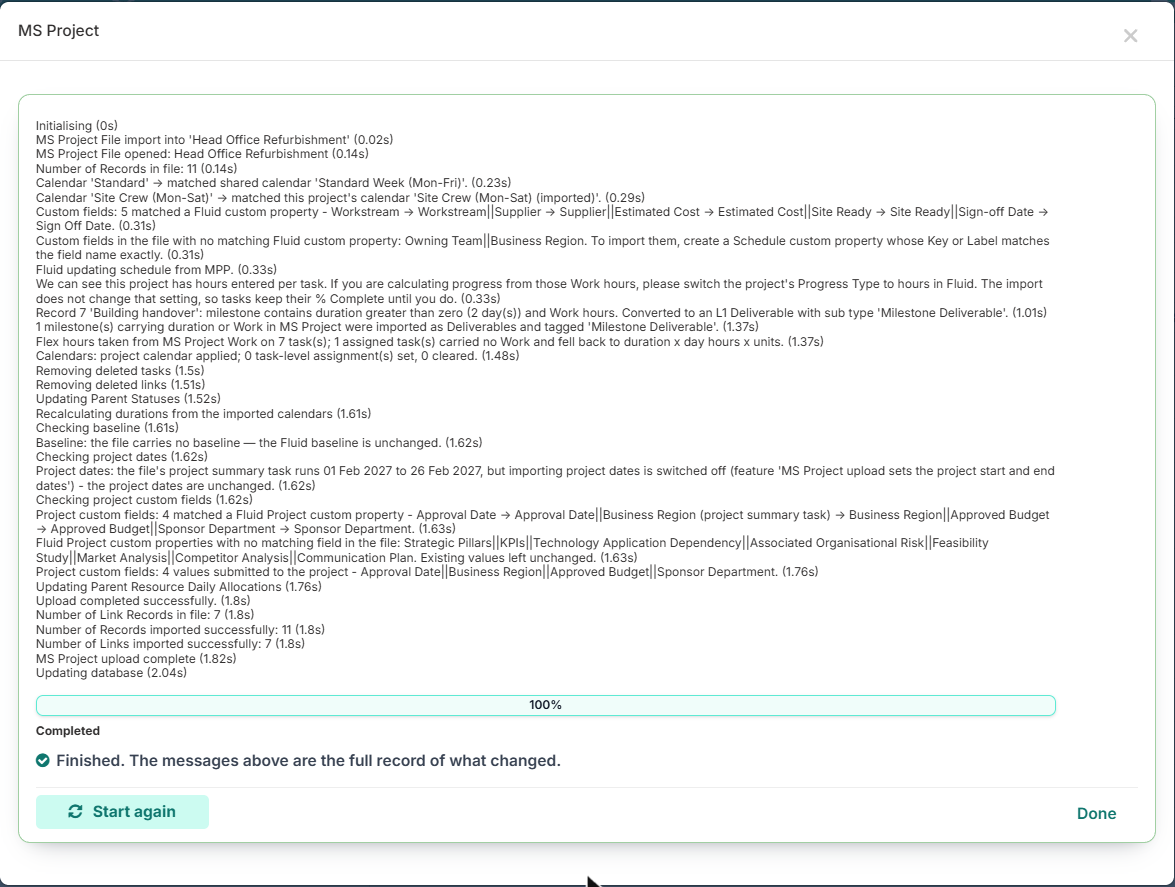
Custom fields: task and project custom fields fill Fluid custom properties with the same name. The messages list what matched and what did not.
Milestones with duration: a milestone that carries duration or work is imported as a Deliverable tagged Milestone Deliverable, so its calculations are kept.
Baselines and project dates: the plan's baseline and the project's own dates can be taken from the file, under feature settings.
Work as hours: assignment Work becomes flex hours, so progress by hours matches Microsoft Project.
A full record: the dialog lists everything the upload did, row by row.
Getting started
MS Project upload and download are switched on with the Allow MS Project Upload feature. See Exporting a Fluid Schedule to Microsoft Project, Importing MS Project plans and Mapping MS Project Custom Fields to Fluid Custom Properties.
Smaller enhancements and fixes
Calendars: Review & Apply no longer fails with an error on some calendars, and removing a date from a calendar nobody had edited yet now works.
Gantt: right-clicking opens one menu instead of two - the grid opens the task menu, which now includes Task Scheduling..., and the chart opens the Task Scheduling popup.
Gantt: calendar exception colours are drawn correctly on every chart, and the Task Scheduling popup no longer cuts off long calendar names.
Gantt: a finish constraint's date is the day the task finishes on, wherever it is set or shown.
MS Project: Microsoft Project's built-in document properties, such as % Complete and Work, are no longer offered as custom fields to create, and the upload no longer reports completion twice.
MS Project: formula custom fields import the result Microsoft Project saved, so they show the same value in Fluid as in Microsoft Project. The messages name the fields imported this way.
MS Project: a plan containing a task with an invalid date no longer loses its calendars on import.
Exports: the progress panel no longer marks a failed or still-running export as complete.
Custom properties: the property name message now says that spaces are allowed.